External Authentication
Fenergo supports both mTLS (Mutual Transport Layer Security) and OAuth 2.0 Client Credentials on outbound traffic originating from the following services:
- Webhooks
- External Data Adapters
- Screening Adapters
It is important to note that mTLS and OAuth 2.0 Client Credentials are not mutually exclusive. They can be utilized either in tandem or independently.
mTLS bolsters security through bilateral certificate verification. Unlike traditional TLS, where only the server provides a certificate for verification, mTLS mandates that both the client and server present and authenticate each other's certificates. This process intensifies the trust relationship.
On the other hand, OAuth 2.0 Client Credentials ensure that only authenticated outbound services (as listed above) have the capability to access your protected resource APIs. This mechanism offers a fortified layer of security for server-to-server interactions.
External Authentication as an add-on
Both mTLS and OAuth 2.0 Client Credentials are set up as add-on services to our outbound services (as mentioned above). Therefore, their settings or configurations are not directly accessible under these existing outbound services. Instead, they can be configured or enabled for these outbound services using the following endpoints:
The capability to incorporate mTLS or OAuth 2.0 Client Credentials as an 'add-on' ensures that there's no need to update existing outbound services to enable mTLS.
How It Works
You can configure the External Authentication service for your specific Client Hosted Endpoints that require either mTLS, OAuth authentication, or both. When a request originates from one of the outbound services (as previously mentioned), it's adjusted based on that particular configuration. In the case of mTLS, the pertinent certificate and validation checks are integrated into the request, and you can choose how your server's certificate is validated (see Server Certificate). For OAuth 2.0 Client Credentials, the designated Client Hosted Authorization Endpoint is called upon to retrieve the access token. This token is subsequently added to the request before it's sent to your Client Hosted Endpoint.
Within the framework of our outbound services (as outlined above), FenX operates as the 'client', while your Client Hosted Endpoint assumes the server role.
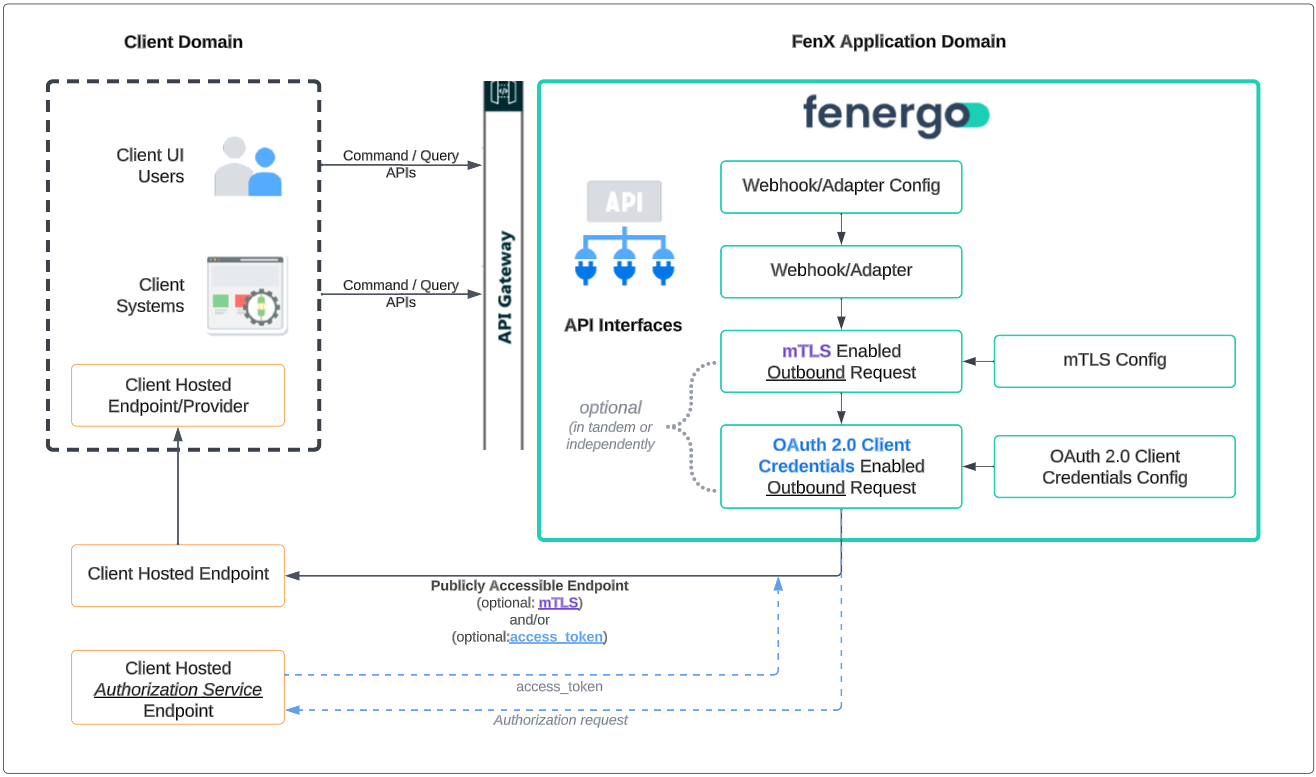
Configuration is done per Client Hosted Endpoint
External Authentication is provided on a 'per URL' basis. This means that each Client Hosted Endpoint that our outbound services access must be individually configured with the appropriate mTLS and/or OAuth 2.0 Client Credential settings using our ExternalAuthentication Command API.
For both our External Data and Screening Adapters, multiple configurations need to be set up. Specifically, one configuration for each Client Hosted Endpoint, which will be detailed later in this document.
How to Implement External Authentication
mTLS
To implement mTLS, ensure you have the following components in place:
Client Certificate
Fenergo will provide you with a 'client' certificate. Install this certificate in your server's trust store. By doing so, when our outbound adapters send a request to your Client Hosted Endpoint in real time, your server will be able to validate and authenticate our 'client' certificate, thus fulfilling its part in the mTLS handshake.
Server Certificate
We also need your server's certificate so that we can authenticate your server and complete the mTLS handshake. You supply it via the ExternalAuthentication Command API, in the endpointCertificate object of the configuration. You choose how your server is validated using the validationMode property:
PinLeafThumbprint (default) | SignerChainValidationOnly | |
|---|---|---|
| What you upload | Exactly one certificate: your server's leaf certificate (public part only), in PEM format. | A PEM bundle of up to 10 certificates that includes at least one self-signed root certificate (the trust anchor), optionally together with intermediate certificates. |
| What is checked | The certificate your server presents must pass standard TLS validation (issued by a CA in the platform's public trust store, matching the host name and within its validity period) and match the uploaded leaf certificate (issuer, subject and thumbprint). | The certificate chain your server presents must build to one of the root certificates you uploaded, the server certificate must match the host name in the configured URL, and the certificates in the path must be within their validity period. |
| Impact of certificate renewal | Every time your leaf certificate is renewed or rotated, you must upload the new leaf certificate. | Leaf certificates can be renewed or rotated without any change to the configuration, as long as they chain to the same uploaded root. |
| When to choose it | Your server certificate is issued by a public CA, and you want to trust that one specific certificate and are happy to update the configuration whenever it changes. | Your certificates are issued by a private CA, your leaf certificates rotate frequently or automatically, or your endpoint sits behind a load balancer that serves different leaf certificates. |
If you omit validationMode, PinLeafThumbprint is used. Existing configurations continue to work unchanged.
The isPublicCA property does not affect validation in either mode.
PinLeafThumbprint
Upload your server's leaf certificate (public part only) in PEM format. This is the final certificate in the chain and it cannot sign other certificates. The upload must contain a single -----BEGIN CERTIFICATE----- / -----END CERTIFICATE----- block and is rejected if the certificate:
- is self-signed,
- has no Basic Constraints extension, or
- is a certificate authority (CA) certificate.
At connection time, the certificate presented by your server must pass standard TLS validation (it must be trusted by the platform's public trust store, match the host name and be within its validity period) and must match the uploaded certificate's issuer, subject and thumbprint. A leaf issued by a private CA therefore fails in this mode; use SignerChainValidationOnly instead.
The PEM must end with a line break after the -----END CERTIFICATE----- line.
"endpointCertificate": {
  "isPublicCA": false,
  "validationMode": "PinLeafThumbprint",
  "certificate": "-----BEGIN CERTIFICATE-----\n...\n-----END CERTIFICATE-----\n"
}
SignerChainValidationOnly
Upload a PEM bundle containing the self-signed root certificate that ultimately issued your server certificate, plus any intermediate certificates you want to supply. The bundle:
- may contain up to 10 certificates,
- must contain at least one genuinely self-signed root certificate, which acts as the trust anchor,
- may only contain complete
-----BEGIN CERTIFICATE-----/-----END CERTIFICATE-----blocks. Private keys, OpenSSL "Bag Attributes" text and any other content outside the certificate blocks are rejected.
"endpointCertificate": {
  "isPublicCA": true,
  "validationMode": "SignerChainValidationOnly",
  "certificate": "-----BEGIN CERTIFICATE-----\n...(intermediate)...\n-----END CERTIFICATE-----\n-----BEGIN CERTIFICATE-----\n...(root)...\n-----END CERTIFICATE-----\n"
}
At connection time:
- The chain presented by your server must build to one of the self-signed roots you uploaded. Uploaded intermediates, and intermediates your server sends during the handshake, help build the path but are never trusted as anchors.
- The operating system or public trust store is not used. Even if your certificate was issued by a public CA, you must upload its root certificate.
- The server certificate's host name must match the host name of the configured URL.
- The request must be sent to the host of the configured URL. If the endpoint redirects to a different host name, the call fails.
- All certificates in the path must be within their validity period, and the server certificate must allow Server Authentication.
- Certificate revocation (CRL or OCSP) is not checked.
- Missing intermediate certificates are not downloaded automatically. If your server does not send its intermediates, include them in the uploaded bundle.
A cross-signed root certificate, such as the one you get when capturing the chain from the wire with openssl s_client -showcerts, is not self-signed and cannot act as the trust anchor. The upload is rejected if the bundle contains no genuinely self-signed certificate. Obtain the self-signed root certificate from your certificate authority.
Certificate expiry is not checked when you upload the bundle, but expired certificates in the path cause connections to fail. The configured URL must use a host name, not an IP address.
Pre-requisites
Before configuring the External Authentication service, ensure you've completed the following tasks:
- Install the Fenergo client certificate in client's external infrastructure.
- Decide which validation mode to use (see Server Certificate).
- For
PinLeafThumbprint: have your server's leaf certificate in PEM format ready. - For
SignerChainValidationOnly: have the PEM bundle ready, containing the self-signed root certificate and, where your server does not send them, the intermediate certificates. Make sure the endpoint URL uses a host name rather than an IP address.
Configuration
Once you've met the prerequisites, you can start configuring your first Client Hosted Endpoint. Navigate to the desired outbound service (mentioned above) and copy its URL (Client Hosted Endpoint). With this URL, you can set up a configuration that enables mTLS specifically for that URL (Client Hosted Endpoint). Configuration is done via the ExternalAuthentication Command API, by supplying the endpointCertificate object described above. A successful request returns 202 Accepted; an invalid certificate returns 400 with validation messages describing the problem.
mTLS Configuration is configured separately from your webhooks, external data and screening adapters. You simply add an 'External Authentication Configuration' using the existing webhook/external data/screening adapter' URLs.
You can read back a configuration, including its validationMode, with the ExternalAuthentication Query API. When you update an existing configuration, properties unrelated to the certificate or validation mode can be edited as before.
Troubleshooting mTLS
If the server certificate cannot be validated, the outbound call fails and the consuming service (for example a webhook, adapter or HTTP Invoker task) reports the call as failed.
| Symptom | Cause | Fix |
|---|---|---|
Upload rejected with "Invalid Certificate please use the leaf certificate" (PinLeafThumbprint) | The uploaded certificate is a CA certificate, is self-signed, or has no Basic Constraints extension. | Upload your server's leaf certificate, or switch to SignerChainValidationOnly if you want to trust a CA. |
Upload rejected with "Only the leaf certificate is allowed to be uploaded." (PinLeafThumbprint) | The PEM contains more than one certificate. | Upload a single leaf certificate block, or switch to SignerChainValidationOnly to upload a chain. |
Upload rejected because the bundle contains no self-signed certificate (SignerChainValidationOnly) | The root in the bundle is cross-signed, as is typical when the chain is captured with openssl s_client -showcerts. | Obtain the self-signed root certificate from your certificate authority and include it in the bundle. |
| Upload rejected because of unexpected content in the PEM | The file contains a private key, OpenSSL "Bag Attributes" text, or other text outside the certificate blocks. | Remove everything except complete -----BEGIN CERTIFICATE----- / -----END CERTIFICATE----- blocks. |
Configuration rejected because the URL is an IP address (SignerChainValidationOnly) | Host name validation requires a host name. This also applies to the OAuth token URL when it uses this mode. | Use a host name in the URL. |
Calls always fail even though the uploaded leaf matches (PinLeafThumbprint) | The server certificate is issued by a private CA, which is not in the platform's public trust store. | Switch to SignerChainValidationOnly and upload your private CA's self-signed root. |
Calls start failing after your server certificate was renewed (PinLeafThumbprint) | The presented leaf no longer matches the uploaded leaf. | Upload the new leaf certificate, or switch to SignerChainValidationOnly so future renewals need no change. |
Calls fail and the chain does not build (SignerChainValidationOnly) | The uploaded root is not the one that issued your server certificate, or an intermediate is neither sent by your server nor included in the bundle. | Upload the correct self-signed root, and add any missing intermediate certificates to the bundle. |
Calls fail with a host name mismatch (SignerChainValidationOnly) | The server certificate does not cover the host name in the configured URL, or the request is sent to a different host name. | Use a certificate whose subject alternative names include the configured host name, and make sure the configured URL host is the host that is called. |
Calls fail because a certificate has expired (SignerChainValidationOnly) | A certificate in the path, including an uploaded root or intermediate, is outside its validity period. | Renew the certificate, and update the uploaded bundle if the expired certificate is in it. |
OAuth 2.0 Client Credentials
To implement the OAuth 2.0 Client Credentials flow for any of your Client Hosted Endpoints, you must have a publicly accessible Client Hosted Authorization Endpoint available. This endpoint should adhere to the OAuth 2.0 Client Credentials flow specification, i.e.:
- It must accept the client_id and client_secret parameters:
- Either as part of the authorization header (if basic authentication is enabled)
Sent as part of the header as follows:
| Header | Value |
|---|---|
| Authorization | BASIC {Base64({client_id}:{client_secret})} |
As part of the request body with the parameters:
- client_id
- client_secret
Your publicly accessible Client Hosted Authorization Endpoint must accept a 'grant_type' parameter of 'client_credentials' in the request body, e.g.:
POST /token HTTP/1.1
Host: server.example.com
Authorization: Basic czZCaGRSa3F0MzpnWDFmQmF0M2JW
Content-Type: application/x-www-form-urlencoded

grant_type=client_credentials
- Parameters that are sent in the request body use the "application/x-www-form-urlencoded" format
- The response must include an access token and optionally an 'expires_in' parameter as follows:
HTTP/1.1 200 OK
Content-Type: application/json;charset=UTF-8
Cache-Control: no-store
Pragma: no-cache

{
  "access_token":"2YotnFZFEjr1zCsicMWpAA",
  "expires_in":3600,
}
Before configuring the External Authentication service, ensure the following components are in place:
- A publicly accessible OAuth 2.0 Client Hosted Authorization Endpoint.
- Client credentials with the necessary permissions for the Client Hosted Endpoint.
- Knowledge of whether Basic Authentication is enabled.
Configuration:
Once you've met the prerequisites, you can start configuring your Client Hosted Endpoint. Navigate to the desired outbound service (mentioned above) and copy its URL (Client Hosted Endpoint). With this URL, you can set up a configuration that enables the OAuth 2.0 Client Credentials flow, specifically for that URL (Client Hosted Endpoint). Configuration is done via the ExternalAuthentication Command API.
JWT Client Assertions
JWT client assertions is an authentication mechanism for OAuth 2.0. Official documentation can be found in JSON Web Token (JWT) Profile for OAuth 2.0 Client Authentication and Authorization Grants
Overview:
JWT client assertions can be used as an alternative to the traditional client_id and client_secret parameters. Instead of sending these parameters, the client generates a JWT assertion and includes it in the token request using the client_assertion and client_assertion_type fields. The JWT assertion is signed using the client's private key, and the authorization server verifies the signature using the client's public key.
Configuration:
To make clients use JWT client assertions for token requests, the parameter IsJwtClientAssertionEnabled in the oAuthConfiguration.clientCredentialsConfig object must be set to true. Once it is enabled, the public keys URL (jwks endpoint), can be obtained from endpoint /externalauthenticationquery/api/configuration/{configurationId}, property data.oAuthConfiguration.clientCredentialsConfig.tokenEndpoint.jwksUrl. The URL should be something like https://api.{FENX-DOMAIN}.com/externalauthentication/api/jwks?Url={encodedUrl}&Tenant={tenantId} and should return the public keys in JWKS format. This URL is publicly accessible and should be used by external parties to verify the JWT assertion signature.
Custom Headers and Form Values
You may specify additional custom header and form values that will be sent to your Client Hosted Authorization Endpoint as part of the authorization request.
Form values are sent to the Client Hosted Authorization Endpoint using the "application/x-www-form-urlencoded" format as per RFC 6749 specification.
OAuth 2.0 Client Credentials Configuration is configured separately from your webhooks, external data and screening adapters. You simply add an 'External Authentication Configuration' using the existing webhook/external data/screening adapter' URLs.
mTLS and OAuth 2.0 Client Credentials
You can configure a single Client Hosted Endpoint to support both mTLS and OAuth 2.0 Client Credentials. However, it's crucial to note that when enabling OAuth 2.0 Client Credentials, an additional Client Hosted Authorization Endpoint is introduced. You need to decide whether this Token Endpoint should also be mTLS-enabled and if its mTLS configuration matches that of the Client Hosted Endpoint.
The useEndpointMtlsConfiguration parameter, which is part of the oAuthConfiguration.clientCredentialsConfig object, determines whether the Client Hosted Authorization Endpoint should use the same mTLS settings as the Client Hosted Endpoint or have its own distinct mTLS configuration.
The same two server-certificate validation modes apply to the token endpoint, through oAuthConfiguration.clientCredentialsConfig.endpointCertificate. When useEndpointMtlsConfiguration is true, the token endpoint uses the mTLS settings of the Client Hosted Endpoint, including its validationMode. If SignerChainValidationOnly is used, the token URL must also use a host name rather than an IP address.
External Data and Screening Adapters
For external data and screening adapters, additional External Authentication endpoints need to be configured. This is because both the External Data and Screening adapters make calls to various endpoints. As such, each of these endpoints need to be configured with the relevant mTLS/OAuth 2.0 Client Credential settings via the External Authentication API's.
Below are the specific endpoints that need to be enabled via the External Authentication APIs:
External Data:
- authurl/adapter/test
- authurl/adapter/search
- authurl/adapter/get
- authurl/adapter/document
Screening:
- authurl/api/test
- authurl/api/screen
- authurl/api/resolvematches
- authurl/api/ongoingscreening
- authurl/api/ongoingscreeningupdate
Please be aware that the introduction of mTLS and/or OAuth 2.0 Client Credentials does not affect the existing HMAC mechanism on our various adapters, and as such it remains intact and operational as before.
Permissions
You require the following permissions in order to add an mTLS/OAuth 2.0 Client Credential enabled endpoint (configuration):
- External Authentication Configuration Access
- External Authentication Configuration Create
- External Authentication Configuration Edit
- External Authentication Configuration Delete