Advanced Reporting API Walkthrough
The Advanced Reporting Feature in the Fenergo SaaS Platform is implemented using the APIs below. There is a a lot that can be done via the Fenergo SaaS UI adn this document will examine how those same actions can be taken via API.
| APIs Referenced |
|---|
| Advanced Report Query API |
| Advanced Report Command API |
Sample Use Case for Advanced Reporting
Creating Standard Reports for Financial Institution clients is not difficult, but it can be a challenge to meet all requirements for all clients. Each client will have their own view of what data, presented in what way, is pertinent to their business. Advanced Reporting supports clients to create ANY view of their data they might wish to create. By providing both the Schema and a platform to execute SQL statements, clients can use this functionality to service reporting requirements in a way which meets their custom perspectives.
  AS: an FenX consumer:

      GIVEN: I have custom requirements for reporting on our data and operational processes

      AND: I want to extract data from the FenX platform using standard Structured Query Language

      AND: I understand the schema of the underlying data structures

     WHEN:  I have designed an appropriate SQL query

  THEN: I want FenX to provide a way for me to execute that SQL Query and Return the results as a CSV file.
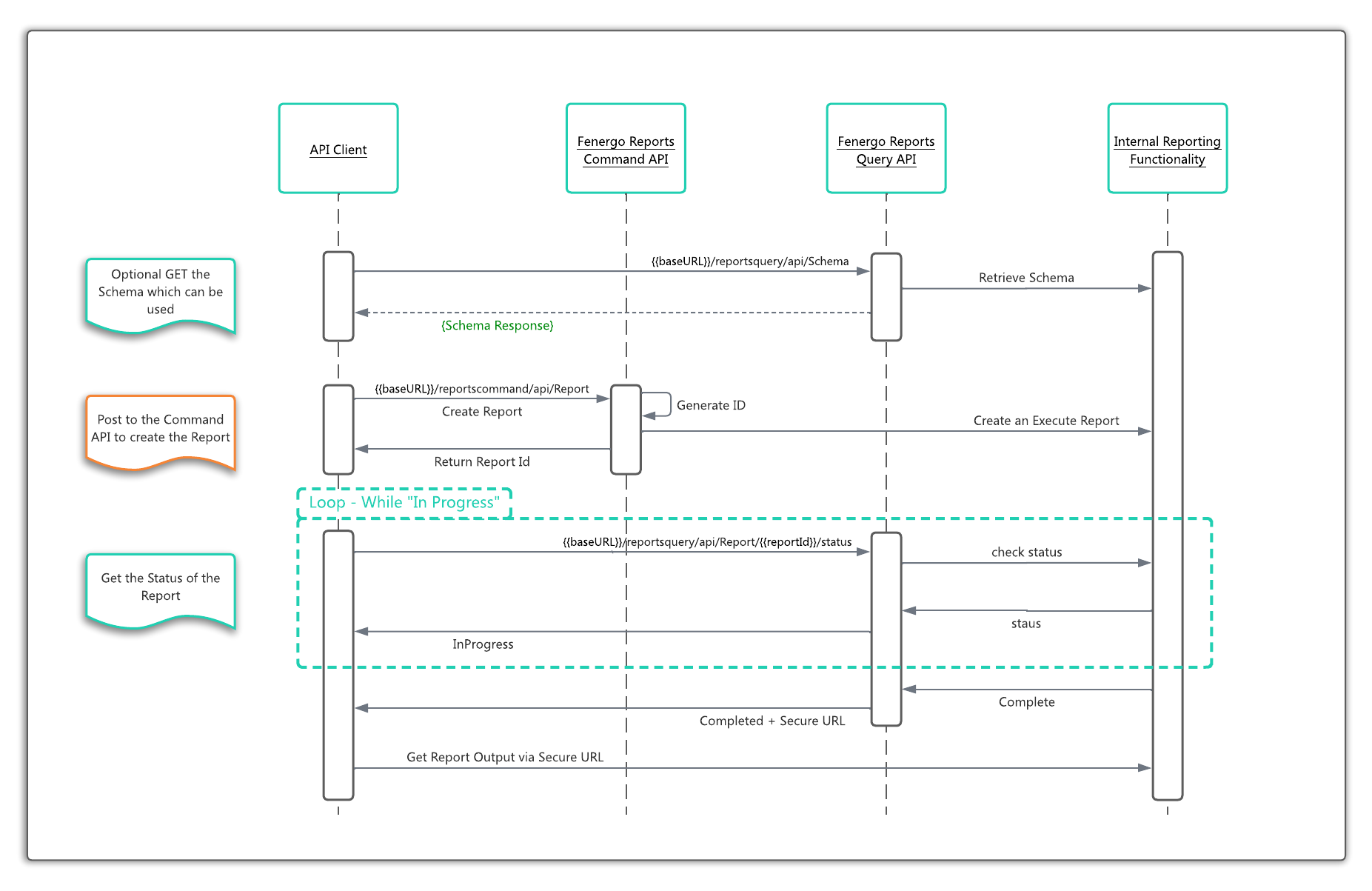
Get Reporting Schema
Clients configure their own data models via the Policy Configuration functionality of the Fenergo SaaS Platform. This means data points and sub-entity (Data Groups) structures of their Legal Entity will be custom to their own tenant configuration. You can send a request for the Full Schema or for a Specific Table by passing in its name.
    HTTP GET REQUEST - Full Schema
    ==============================
    {{baseURL}}/reportsquery/api/Schema

    HTTP GET REQUEST - Specific Table
    ==============================
    {{baseURL}}/reportsquery/api/Schema/{tableName}
Reporting Schema (Partial) Response
Understanding the Schema has a direct impact on the formation of the SQL queries you write. Internally the data within the Fenergo SaaS Platform is stored as JSON documents in a NoSQL database, so to offer a SQL style interface, the data is re-aggregated into a Relational-Style table structure. Understanding how those tables relate will ensure that the SQL queries execute successfully. The Schema API response below illustrates how the data is structured.
{
    "data": [
        {
            "name": "entitydata",
            "description": null,
            "created": "2022-08-25T15:28:11Z",
            "parameters": {
                "Jurisdictions": "[
                {\"Jurisdiction\":\"migration\",\"Version\":\"15\",\"SetId\":\"5861469b-8c14-4f44-8bab db7514f8507e\"},
                {\"Jurisdiction\":\"unitedkingdom\",\"Version\":\"6\",\"SetId\":\"68f0c602-18c0-4d2a-a2a2-5fb0a623638b\"},
                {\"Jurisdiction\":\"canada\",\"Version\":\"45\",\"SetId\":\"35d5e65b-9758-49a5-9397-42953e3fb95c\"},
                {\"Jurisdiction\":\"queens\",\"Version\":\"12\",\"SetId\":\"46670b87-f19c-4af4-8016-3bc633ddc72e\"},
                .
                .
                .
                . . . . . {Other Jurisdictions} . . .
                .
                .
                "LatestJurisdiction": "sweden",
                "LatestSetId": "2d191fab-8ec1-43f7-9f9d-8ff65317bf9b",
                "LatestVersionNumber": "1"
            },
            "columns": [
                "id",
                "accesslayers",
                "alternateid",
                "associatedjurisdictionsfromparents",
                "created",
                "evaluatedjurisdictions",
                "inscopejurisdictions",
                "lifecyclestatus",
                "offboardedjurisdictions",
                "riskcategory",
                "risklevel",
                .
                .
                .
                .
                .

            ]
        },
        {
          "name": "entitydata_addresses",
          "description": null,
          "created": "2022-08-25T15:28:12Z",
          "parameters": {
              "Jurisdictions": "[
                {\"Jurisdiction\":\"deleteme\",\"Version\":\"1\",\"SetId\":\"94e83bc4-1060-4b5b-a0b2-af068a86a7b9\"},
                {\"Jurisdiction\":\"global\",\"Version\":\"15\",\"SetId\":\"401ab4fa-b918-4604-8e59-31f48b3a2e99\"}]",
                "LatestJurisdiction": "deleteme",
                "LatestSetId": "94e83bc4-1060-4b5b-a0b2-af068a86a7b9",
                "LatestVersionNumber": "1"
          },
          <span class="yellowHL">"columns": [
              "entityid",  // The EntityId is how addresses are related to entitys.
              "addressline1",
              "addressline2",
              "addressline3",
              "addresstype",
              "country",
              "county"
          ]
      },
Understanding the Reporting Schema Response
- Within the
"data"element is the ROOT table name"name":"entitydata"The various Jurisdictions are also listed. A Full Data set contains not only the common global policy fields, but ALL of the fields across all configured Jurisdictions. The data records will contain only the fields related to that specific records Jurisdictions and the others (for jurisdictions that do not apply) will remain blank. This is the only way to offer a relational view of the data. Queries should be written with respect of the underlying applicable Jurisdictions. Queries should be written with respect of the underlying applicable Jurisdictions. - The
"columns"collection contains the properties which exist at the root of the record. - Where Data Groups have been created, they appear as a separate table. The Naming Convention to identify a sub entity (such as in the example of an Address within an Entity Record) is as follows: RootEntity_SubEntity. So this table is called
"entitydata_addresses". - Within the columns of the
"entitydata_addresses"table is the column"entityid". This is Foreign Key for this table is the Legal Entity Id from the"entitydatatable. There is no unique identifier on this table as a Legal Entity can have Multiple Addresses.
This above Root Entity and Sub Entity pattern is also in place for the other domains of Journey and Associations. An example of part of the schema response from Journey is illustrated below. Note the "journey_milestones" sub entity table.
{
    "name": "journey",
    "description": null,
    "created": "2022-09-16T16:25:47Z",
    "parameters": {},
    "columns": [
        "id",
        "accesslayers",
        "cancellationcomment",
        "cancelled",
        "cancelledby",
        "completed",
        "entitydraftid",
        "entityid",
        "identifier",
        "journeyschemaid",
        "journeyschemaversionnumber",
        "jurisdictions",
        "metadata",
        "name",
        "started",
        "status",
        "tenant",
        "type",
        "version"
    ]
},
{
    "name": "journey_milestones",
    "description": null,
    "created": "2022-09-16T16:25:48Z",
    "parameters": {},
    "columns": [
        "id",
        "journeyid",
        "description",
        "name",
        "order",
        "stages"
    ]
},
Create a new Report Request
Assuming you have a valid SQL Statement prepared, it is then possible to create a report against the Reporting API. A HTTP POST call should be sent to the below URL.
HTTP GET REQUEST
================
{{baseURL}}/reportscommand/api/Report
In the Body of the request you pass your SQL Query as a parameter inside the "data" node as below. The query has been spaced below to make it readable but the service will filter out any Escape Characters such as \r \n. You can see the Naming Convention in how the tables are referenced below with "entitydata_addresses".
{
    "data": {
        "sqlQuery": "select * from entitydata
                    left join entitydata_addresses on entitydata_addresses.entityid = entitydata.id
                    where
                    entitydata.role = 'Client'
                    limit 10",
        "description": "Test Report"
    }
}
Once the JSON structure is correct the API will return HTTP 202 Accepted and as can be seen below, an identifier in the data value of the response which can be used to check the status of the Query. Your Query will be running in the BG and checking status is how you retrieve the results.
{
    "data": "03c5b44a-9641-4e32-924c-ecd6f8c941f4",
    "messages": null
}
Check the Status of a Report Request
Once the new request has been submitted and an identifier retrieved, you can then check the status of the Report using the below API call:
HTTP GET REQUEST - Format
=========================
{{baseURL}}/reportsquery/api/Report/{{reportId}}/status

HTTP GET REQUEST - Example
=========================
{{baseURL}}/reportsquery/api/Report/03c5b44a-9641-4e32-924c-ecd6f8c941f4/status
In Progress Get Status Response
Whilst the Request is running, the response back from the status call will be as follows.
{
    "data": {
        "status": "InProgress",
        "presignedUrl": null,
        "queryErrorMessages": null
    },
    "messages": null
}
Completed Get Status Response
Once the request has completed, the response back from the status call will contain an update to the status of Completed along with a populated presignedUrl that can be used to retrieve the generated report. This URL has an short lived expiry of only 10 Minutes
{
    "data": {
        "status": "Completed",
        "presignedUrl": {
            "url": "https://docmanagement-production-.............{ REMAINING SECURE URL }",
            "expirationDate": "2022-10-23T11:49:34.1354775Z",
            "friendlyName": "test - 2022-10-23_11-39-34.csv",
            "duration": -599669.3204
        },
        "queryErrorMessages": null
    },
    "messages": null
}
Error Get Status Response
If there was an error with your submitted SQL, such as a reference to an unrecognized column Name, The Get Status call will return the details of what is unrecognized. This is still a VALID response, and a HTTP 200 OK is returned, along with the details of what is not correct in the Submitted SQL. The queryErrorMessages and messages are populated with the details of the SQL Error.
{
    "data": {
        "status": "Failed",
        "presignedUrl": null,
        "queryErrorMessages": [
            {
                "message": "Column 'entitydata.wrongcolumnameid' cannot be resolved",
                "type": "AthenaSyntaxError"
            }
        ]
    },
    "messages": [
        {
            "message": "Column 'entitydata.wrongcolumnameid' cannot be resolved",
            "type": "AthenaSyntaxError"
        }
    ]
}