Managing Library Modules
Transformer Libraries are created and managed in Integrations Studio. This guide covers the Library Modules screen, creating a new module, and the versioning and approval workflow.
Library Modules screen
The Library Modules screen lists every library in your tenant, together with its source and latest version. From here you can search, create a new module, and open a module to edit it.
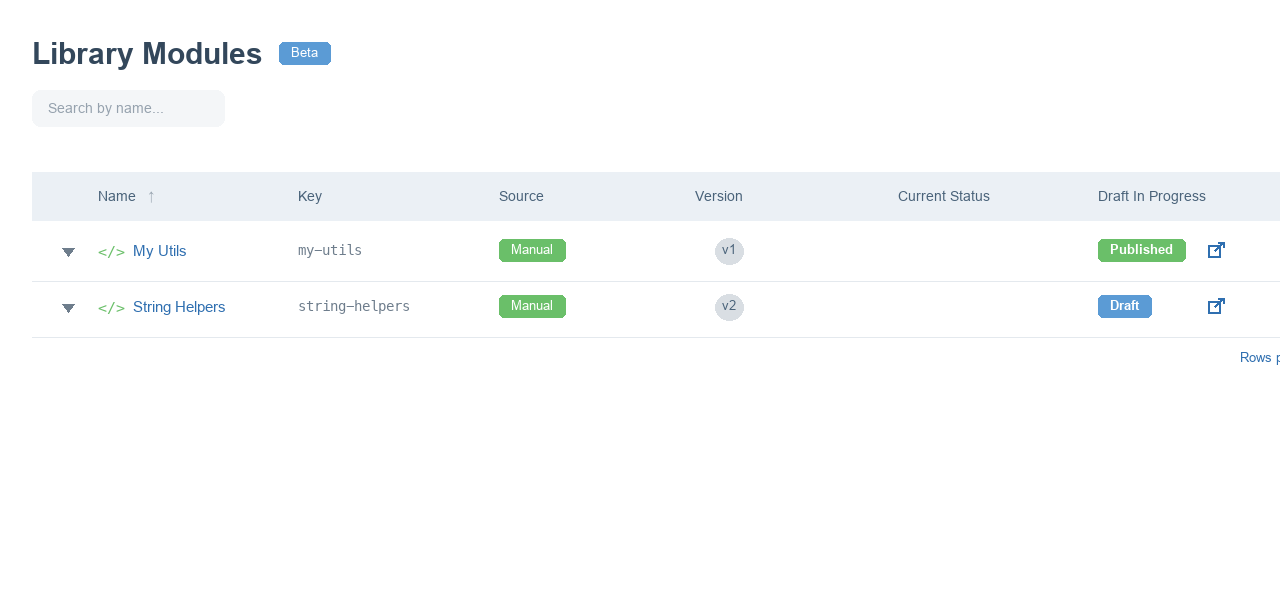
| Description | |
|---|---|
| Search | Filter the list by module name. |
| Add Module | Open the dialog to create a new library. |
| Name / Key | The friendly name and the unique key used to reference the library. |
| Source | Whether the code is authored manually or sourced from a connected repository. |
| Version | The latest version number. |
| Current Status | The status of the current version (e.g. Draft, Published). |
Transformer Libraries are a Beta feature, indicated by the "Beta" label in the header.
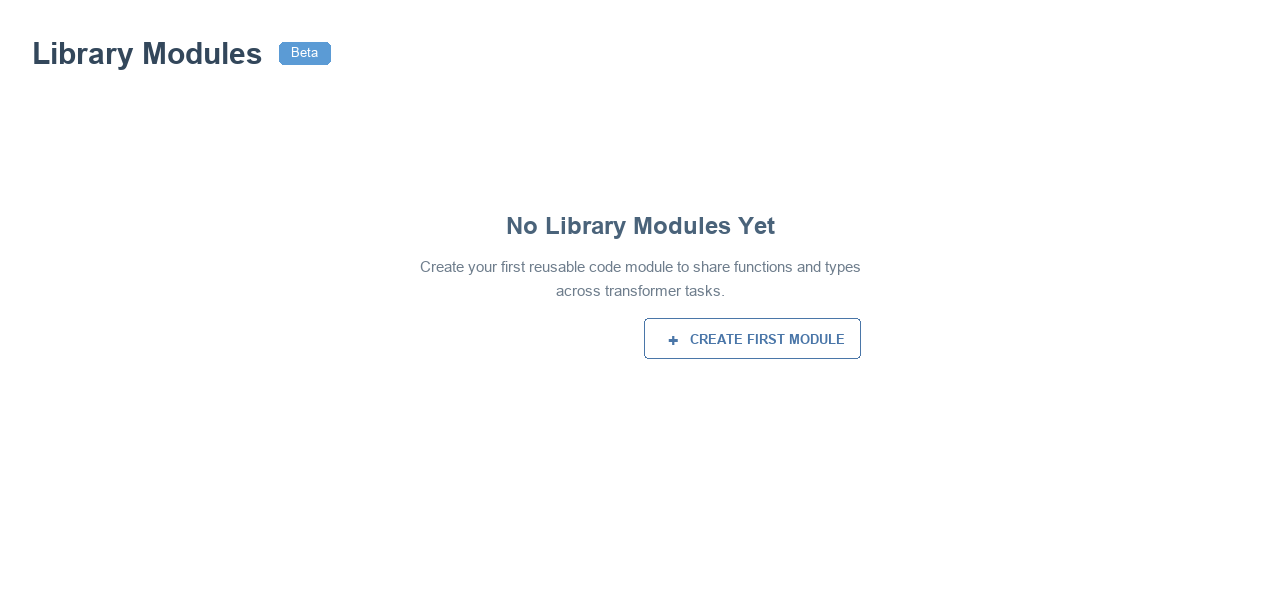
Before you create your first module, the screen shows an empty state prompting you to get started.
Creating a module
Select Add Module to open the Create Library Module dialog. You can create a library in two ways:
| Source | When to use it |
|---|---|
| Manual | Author the code yourself in the built-in editor. Enter a name and library key to get started; you add the code afterwards. |
| From Repository | Source the code from a file in a connected Git repository. Choose the repository and enter the file path. |
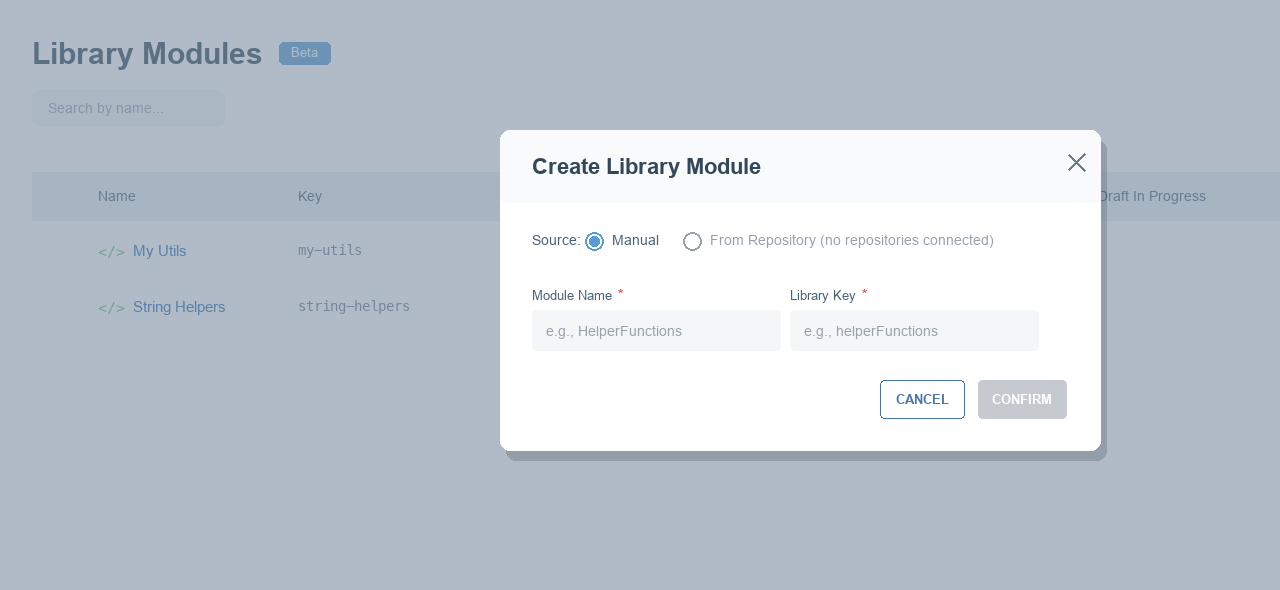
The From Repository option is only available once you have connected at least one repository. See Create a Transformer Library from a Repository for the full walkthrough.
Field rules
| Field | Rule |
|---|---|
| Module Name | Required. Must start with a letter and be unique. |
| Library Key | Required when creating. Generated from the name and must be unique. Once set, it cannot be changed. |
| Description | Optional summary of what the library does. |
| Code | The library code. There is a maximum size; an indicator turns amber as you approach it and red if you exceed it. |
Editing and versioning
Open a module to edit it in the versioned editor. Like other areas of Fenergo, libraries use a draft → approval → published workflow. The available actions depend on the version status:
| Version status | What you can do |
|---|---|
| Draft | Edit and save the code, submit it for approval, or delete the draft. |
| Pending approval | Approve or reject the submitted draft (requires approval permission). |
| Published | Open the in-progress draft if one exists, or create a new draft for the next version. |
When approving or rejecting, you can add a comment to capture your decision. Once a draft is approved it becomes the new published version, and your Flows automatically pick it up.
Repository-managed libraries
If a library is sourced from a repository, the editor shows actions tailored to that source:
- Synchronize – pull the latest version of the file from the repository. A new published version is created only when the file has actually changed.
- Save – update the library's name or description.
See Create a Transformer Library from a Repository and Repository Connections for more.
Permissions
The actions you can take depend on your Integration Flows permissions:
- Edit – create, save, submit, synchronize and delete drafts.
- Approve – approve or reject a submitted draft.
Buttons only appear when you have the matching permission.