Configuring the Legal Entity Profile Page
The Legal Entity Profile page is customisable, in that a Configurator can define the Policy Category that appears within the "Details" component of the Overview Tab, as well as dictating both the visibility and ordering of the Policy Categories displayed on the "Data" Tab. This configuration is done at the Legal Entity Type level, meaning the configuration of these two elements can be unique when comparing an "Individual" to a "Company, "Other" or "Legal Entity Group". Product Categories can also be configured distinctly under the "Product" entity type.
This configuration is opt-in on a tenant-by-tenant basis. As detailed above, if there is no configuration implemented for the Tenant for the given Legal Entity Type[s], Fenergo will return a default configuration. For entity 'Data' tabs, this will be "Basic Details" in the "Details" component, and the displaying of all Policy Categories in-scope in the "Data" Tab in an A-Z format.
For 'Product' data (in the Product Details modal accessed via the Product, Managed Products or Underlying Principals tab), the default is all Product Categories displayed in a fixed order with Data groups groupd separately at the bottom. Existing configuration can be removed by deleting all selected categories for the entity type and saving the configuration.
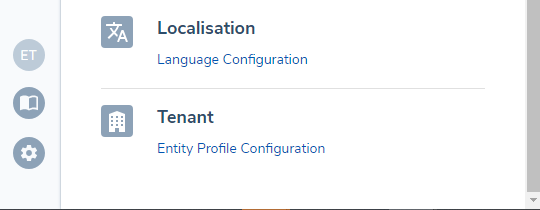
If a Tenant does wish to engage in this configuration for the Legal Entity Profile, two new permissions have been added. These are Legal Entity Profile Configuration Access and Legal Entity Profile Configuration Edit. Should a User have the former, they will be able to access a new screen of Legal Entity Profile Configuration in the newly added "Tenant" section of the Management Bar:
With the required permissions, a Configurator can then select their given Legal Entity Type that they wish to apply configuration against. The "LE Details Display" property will be used to dictate the Policy Category to be rendered on the "Overview" Tab's Details component. By default, this will be set to "Basic Details".
By default, the Policy Categories component will show all of those Policy Categories that exist within the active version of the "Requirement Category" lookup. This component will allow a User to optionally remove certain Policy Categories, meaning that the given Policy Category will never be displayed on the Legal Entity Profile. This functionality is invaluable for hiding those Policy Categories that are contextual to a Journey. By removing the Policy Category from the Legal Entity Profile, a Configurator can ensure that the Category is only ever seen within the rationale context of a Journey.
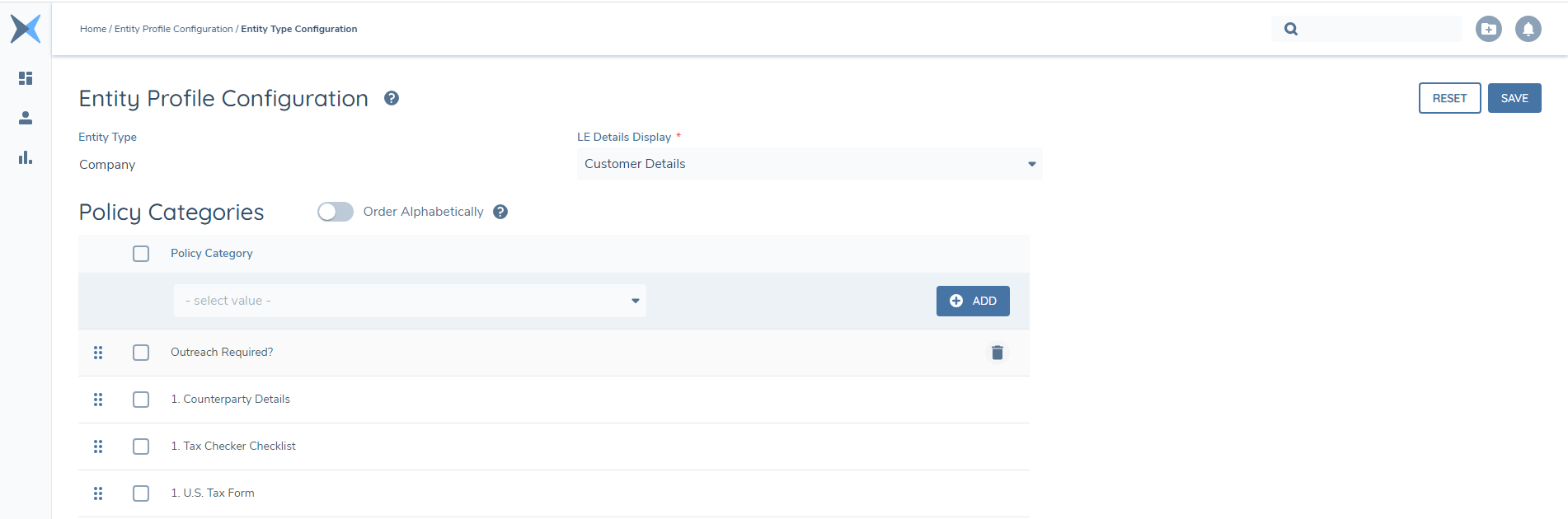
Once the decided upon Policy Categories have been selected or removed, a Configurator can then decide whether to continue to render all of the Policy Categories in A-Z descending (the default state), or they can deselect the "Order Alphabetically" toggle. When this is done, a new icon will appear beside each Policy Category. This icon can be clicked and dragged by a User to custom order the Policy Category as they desire.
If desired, a Configurator could decide to create a new "Requirement Category" lookup value, that is intended to be used specifically to be displayed on the "Overview" Tab's "Details" component. This allows for a bespoke category to be displayed, that is compromised of different datakeys across multiple Policy Categories. This can be done by matching up-to eight of the desired datakeys across different Policy Categories, and then publishing your Policy. A Configurator can then opt to use this Policy Category in their Legal Entity Profile configuration to be shown on the "Overview" Tab, and to be hidden from the "Data" Tab. A key call out here is that this Policy Category will only exist on those legal entities that were verified at the time when this new Policy Category was included in the relevant Policies. This means that a unique Policy Category like "Profile Information" will only exist on those legal entities that were verified from the date of that Policy being published.
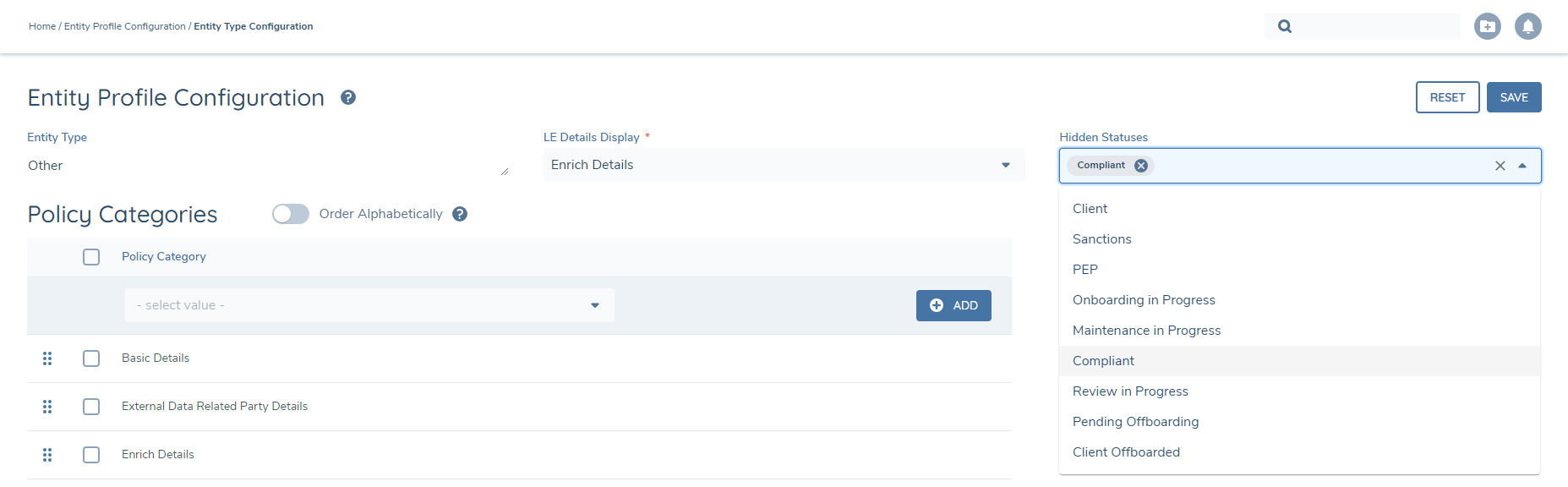
As mentioned above, a User can decide to hide the hard-coded Statuses that appear on the Legal Entity Profile through Legal Entity Profile Configuration. This allows a User to pick-and-choose which hard-coded Statuses should be displayed and which should be hidden. This is achievable through a field titled "Hidden Statuses". This is a non-mandatory, multi-select field which will display the hard-coded Statuses listed above. The values entered on this field will tell Fenergo to hide these Statuses, if they were in-scope to be shown. In the example below, a Legal Entity Profile for "Other" Legal Entity Types would have the "Compliant" Status hidden:
Once the User is happy with their configuration, they may hit save. The Legal Entity Profile configuration is not versioned, meaning that every Legal Entity Profile of that Legal Entity Type will have the same ordering view in its ordering of the Policy Categories & the Policy Category referenced on the "Overview" Tab.
Configuration Note: once a Legal Entity Profile configuration is stored in Fenergo, it will persist that recorded configuration indefinitely. This means that if a User decides to amend the "Requirement Category" or "Product Requirement Category" lookup by adding new values, they must then ensure that their Legal Entity Profile configuration is suitably adjusted as well. Failure to do so will likely lead to a Category not being displayed as expected due to ommission in Legal Entity Profile configuration.
Common Configuration
Additional configuration is also available in the Entity Profile Configuration that applies to all four entity types once enabled.
The 'Enable V2 Document Upload' toggle allow configurators to specify that the Documents V2 modal functionality is utilised when uploading documents via the Entity Profile. Users will be presented with the modal view as per the Documents V2 and Data & Documents tasks, without the 'Matching Requirements' panel. This allows the view to be consistent across the tasks and the entity profile.
The 'Additional Document Columns' drop-down allows configurators to specify up to a maximum of two additional Document Metadata fields that will display in the 'Documents' component in the 'Overview' tab on the Entity Profile and within the 'Documents' tab of the Entity Profile. This will provide additional detail to users for those documents uploaded, and is configurable per tenant, making the detail specific to the business needs.
Changes to this common configuration will apply to all four entity types once SAVE is selected.
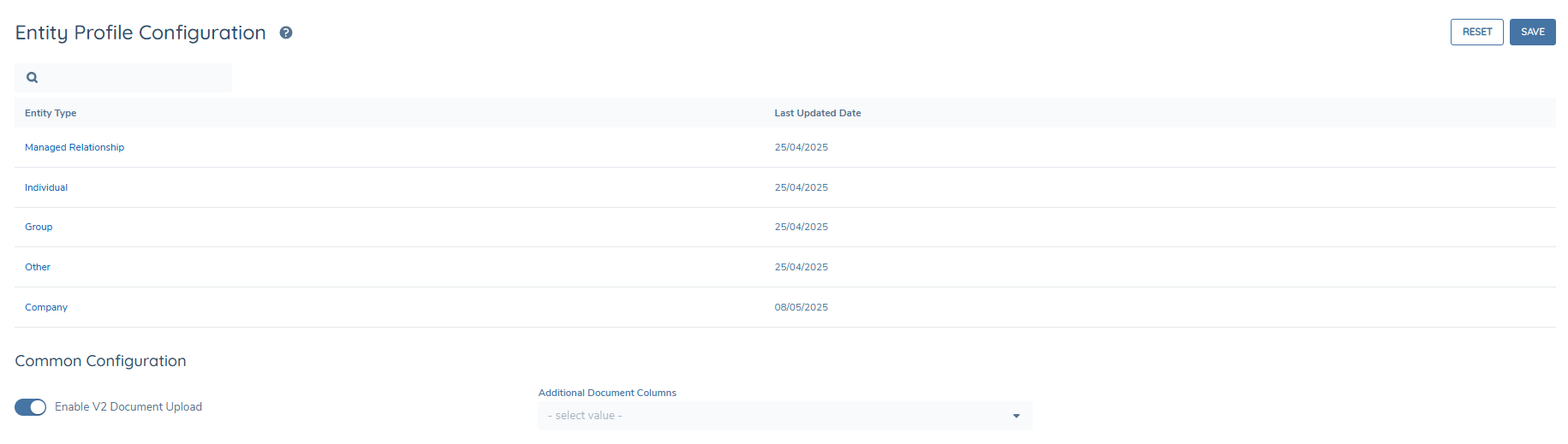
Managed Relationship Entity Type is only available in tenants with the Agency feature enabled.
Configuration Exchange Support
Legal Entity Profile Configuration is supported through Configuration Exchange. Users will be required to have the "Legal Entity Profile Configuration Access" permission in the Source Tenant, and the "Legal Entity Profile Configuration Edit" permission in the Target Tenant, as well as the standard Configuration Exchange permissions. Once a User has the requisite permission, they can import Legal Entity Profile Configuration by selecting the "Feature Settings" Domain Filter. Once this is selected, the Legal Entity Profile configuration for each Legal Entity Type, the Product Entity Type where the Product domain is enabled, and the Common Configuration will be imported.
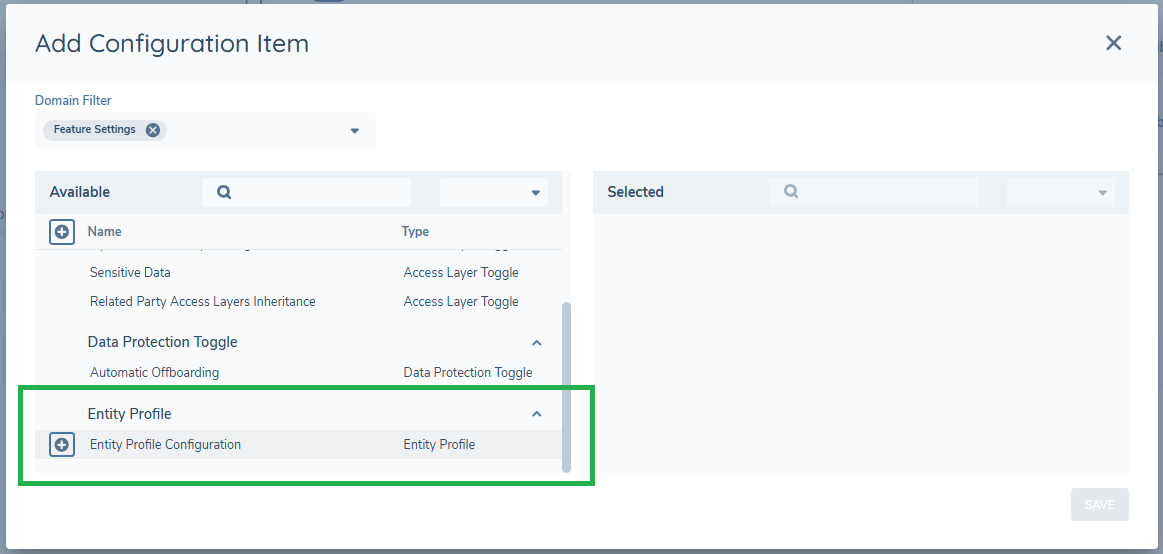
Importing Legal Entity Profile Configuration will bring across a Dependency - the "Requirement Category" lookup and the "Document Metadata" data group. The Lookup and Data Group will be brought into the Target Tenant alongside the Legal Entity Profile Configuration and the Common Configuration.
Finally, if there is existing configuration for a Legal Entity Type in a Target Tenant and configuration matching that Legal Entity Type is imported, it will overwrite the existing configuration for that Legal Entity Type.
Common Configuration Questions for Legal Entity Data
When a legal entity is verified (upon legal entity creation, or via a Verify Legal Entity Task within a Journey), we will stamp a legal entity with the specific version of each Policy that was in scope for the legal entity at the time of verification. This means that if a legal entity was verified with version 2 of the "Global" Policy, and version 5 of the "Ireland" Policy - the legal entity will continue to persist those two versions until another verification occurred. In this future verification, the latest versions of the respective Policies (as per the Journey they exist within) can be updated to the Legal Entity Record and therefore rendered on the Legal Entity Profile. This is an important distinction to understand why a particular set of fields may only be visible on certain legal entities. It is simply because those legal entities were verified at a time where their versions of the Policies they were in-scope for contained different data requirements.
In some scenarios, it is possible that a data requirement may not reside within the same Policy Category as it appeared within the Journey from which it was captured. This is due to datakey deduplication, and this behaviour is explained further in Datakeys in Policy.
It is important to note here that if a datakey is configured for both Target Legal Entity types in the Tenant's Policy, the value captured will be reflected twice in the UI. This is because the data requirement is pointing towards two different "Client" and "Related Party" contexts. The usage of the aforementioned "Target Legal Entity" filter will eliminate this confusion if this scenario arises.