Configuring WCO
WCO Fenergo SaaS Settings
The following settings can be configured for World-Check One:
- Group ID: The WCO Group ID that should be used for screening searches. This is used to call the appropriate configuration from WCO.
- Name Transposition: This allows individual names to be searched in all combinations of order.
- Client Watchlist: This enables WCO client watchlist functionality.
For further information on any of the specific settings mentioned above, please consult your WCO documentation or contact your WCO administrator. The WCO Client and Group Administrators Guide outlines the steps required to complete administrative tasks in WCO.
WCO Vessel Screening Configuration
Distinct Vessel Screening is available through the WCO portal along with specific filtering.
To allow Vessel Screening in Fenergo SaaS, two new fields have been introduced:
-
Subtype
- The "Subtype" field is specifically designed to identify Vessels as a distinct entity type.
- To use this field, ensure that the Datakey is an exact match with the word "subtype", and select the type as 'vessel'.
- Place the "Subtype" field in the Basic Details for Company and/or Other entity types.
-
UniqueId
- The "UniqueId" field is intended for capturing IMO Number filters for WCO Vessel Screening.
- For correct usage, ensure the Datakey is an exact match with the word "uniqueId." Please refer to the secondary identifiers section.
- Place the "UniqueId" field in the Basic Details for Company and/or Other entity types.
Hits from Vessel screening will be presented in the same manner as any other Company/Individual hits.
Mapping Fenergo SaaS Screening Resolution Reasons to Configurable WCO Resolution Reasons
This feature provides a mechanism to map custom screening resolution reasons between Fenergo SaaS and WCO.
- The same reasons must be configured in both the Fenergo lookup and the WCO Resolution Toolkit, using the exact same label.
- When the same reason is found in both systems, this reason will be used to resolve the case and will be sent to WCO.
- No match reasons that can't be mapped will default to 'No Match' reason from WCO.
- Match reasons that can't be mapped will default to 'Full Match' reason from WCO.
- In order to configure the World-Check and Watchlist Resolution Toolkits, navigate to the Product Settings section located in the Admin page of WCO and click "edit" on the Resolution Toolkit.
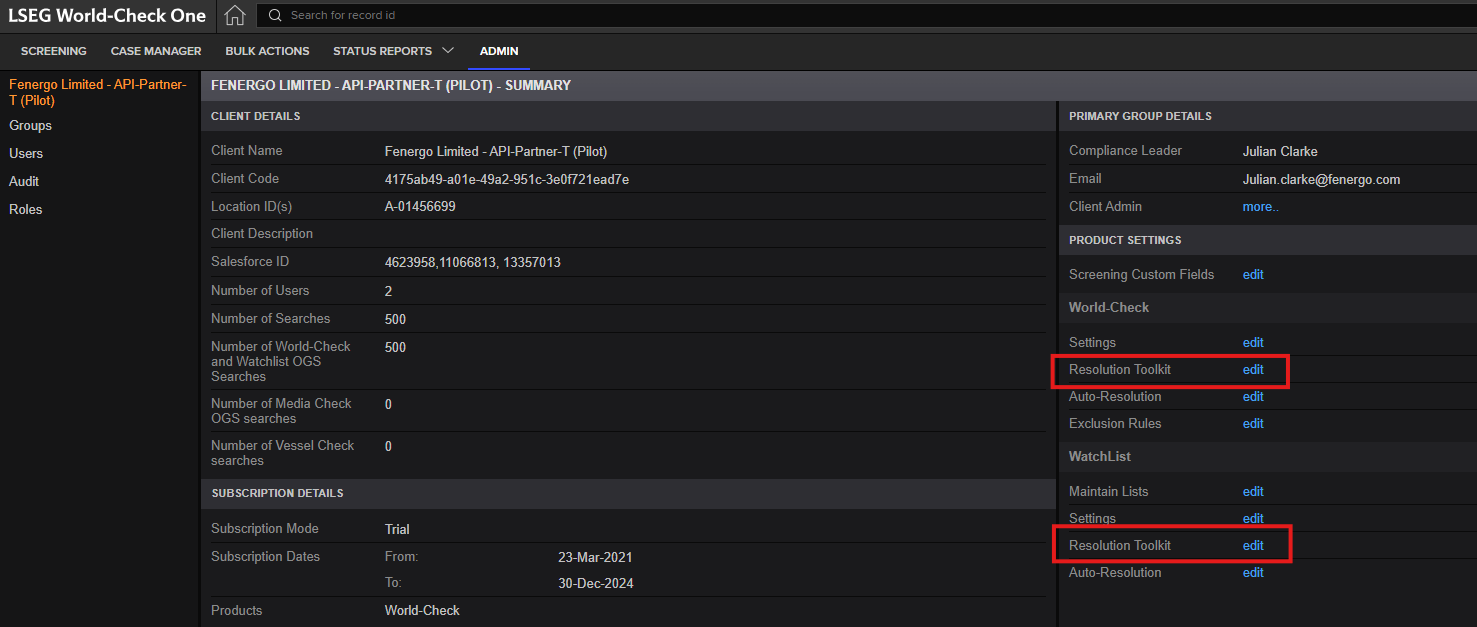
- Ensure that the necessary Resolution States, Risk Levels and Reason Types are configured for both the World-Check and Watchlist Resolution Toolkits.
- Note that when making changes to this configuration, the changes will take 24 hours to take effect.
WCO Country List for Secondary identifiers
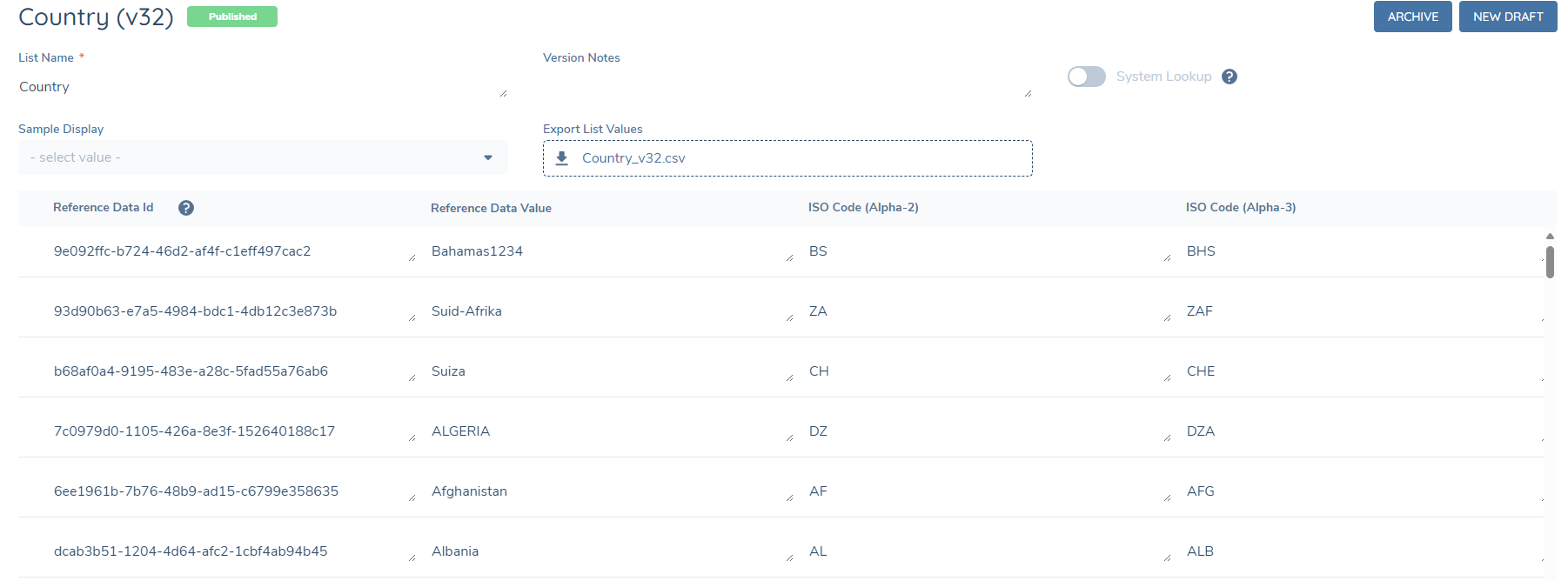
Fenergo SaaS uses the country name or, if configured, the ISO Alpha code to map with the country list from the screening provider. For WCO, if the ISO Code (Alpha-3) column exists and contains a value for a country, the system will send the ISO code on top of the country name to the adapter and the adapter will use this instead. This allows clients the flexibility to either standardise country mapping using ISO codes or continue using country names as needed.
To enable this functionality to use their own country names for screening, users must configure the 'ISO Code (Alpha-3)' column in their Country Reference Data List. The value in this column must be an exact match to the relevant ISO Code (Alpha-3) in this document to ensure correct processing: WCOCountryList. Users can input their own country names in the format they require in the "Reference Data Value" column. If the 'ISO Code (Alpha-3)' column does not exist or is empty, the country name will be sent instead, and WCO will perform the mapping accordingly.
WCO Screening Configuration for Auto Resolved Hits
Auto-resolution rules can be configured in WCO to automatically resolve false positives when a secondary identifier entered for screening does not match those on the WCO record.
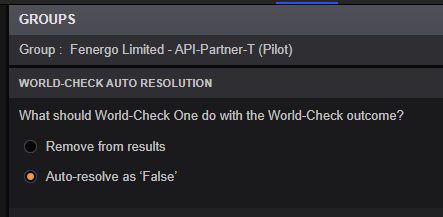
Auto-Resolution Options:
- Remove from results: Auto-resolved hits will not appear in Fenergo.
- Auto-resolve as False: Hits will be displayed in Fenergo with a Resolution of "No Match", Reason of "Auto-Resolved" and details of the rationale in the Comment field. This resolution can be updated if needed.
Auto-resolution rules can be configured in WCO for both WorldCheck and the Watchlist.
WCO Ongoing Screening Configuration
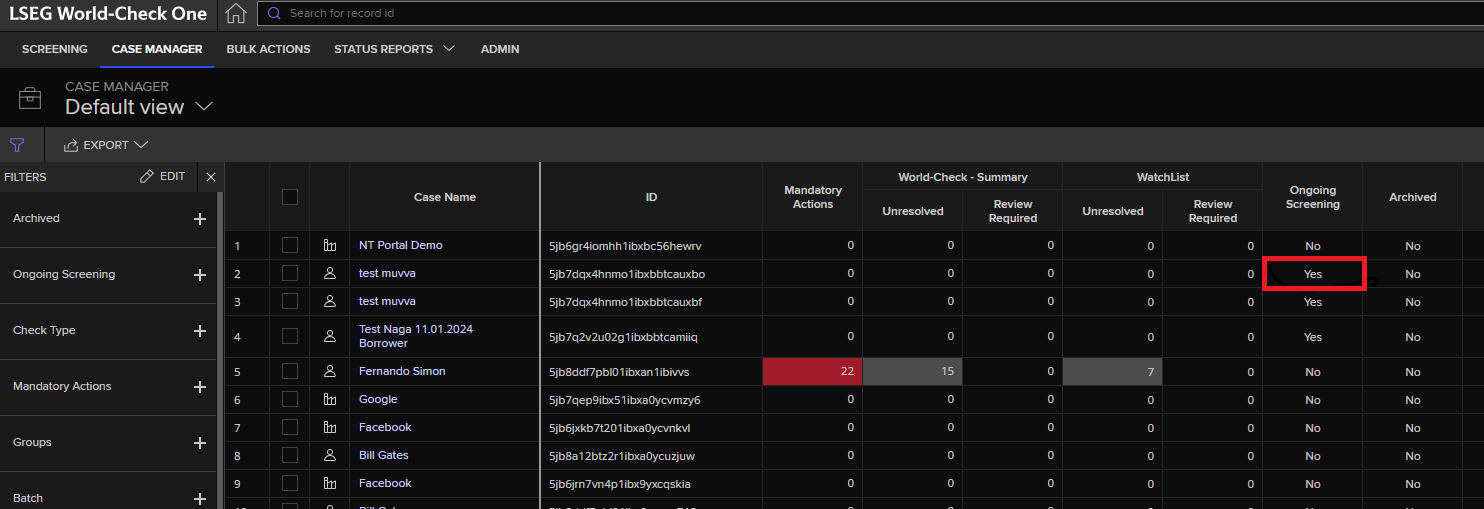
Ongoing Screening (OGS) is supported in WCO. When OGS is enabled in Fenergo, screened entities are enabled for OGS in WCO.
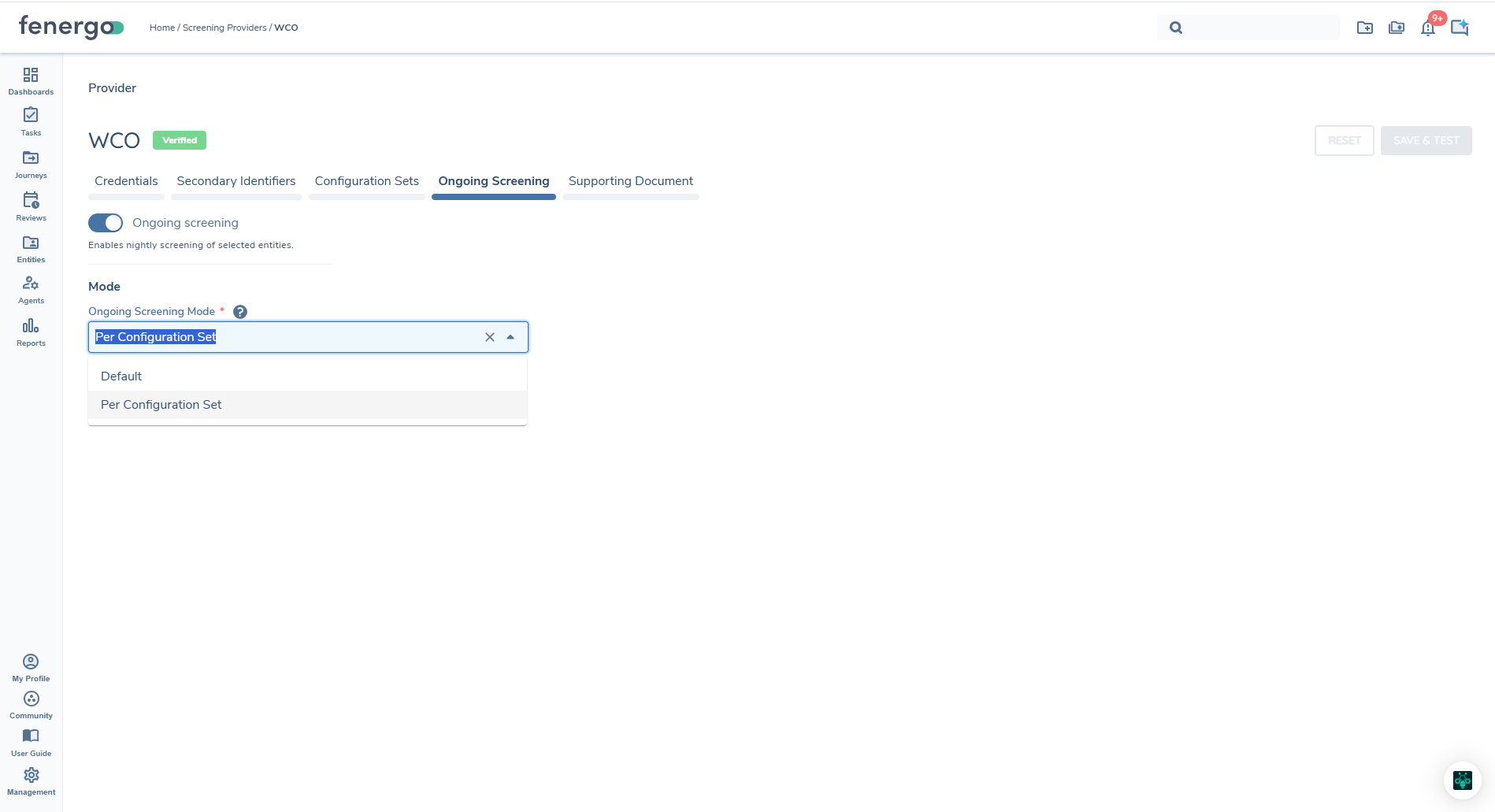
You can set up multiple Configuration Sets for OGS, each mapped to its own WCO Group. This is controlled by the Ongoing Screening Mode setting on the Screening Provider Configuration page, which provides two operational models:
- Default — WCO screens the entity in the same WCO Group that was used for its initial On Demand Screening (ODS); OGS is not scoped to a specific Configuration Set beyond that.
- Per Configuration Set — Each Configuration Set can be individually enabled for Ongoing Screening and mapped to its own Journey Schema, allowing different business units or screening groups to route their OGS alerts to different journeys.
Ongoing Screening Pre-Requisites
The following must be true to support Ongoing Screening across multiple Configuration Sets in WCO:
- Resolution Toolkit must be the same for all Groups.
- Client Watchlist must be set consistently (either enabled or disabled) across all Groups.
- If switching to Per Configuration Set mode, existing entities already enabled for OGS must first be migrated using the Screening Command API (self-serve, before the mode switch) — see "Mapping entities to Configuration Sets" below for full detail.
- Each Configuration Set you want included in Ongoing Screening needs its Ongoing Screening settings fully configured — see "Enabling a Configuration Set for Ongoing Screening" below.
Mapping entities to Configuration Sets
Entity subscription behaviour depends on the Ongoing Screening Mode selected:
In Default mode:
- No per-entity mapping is required. Entities continue to be screened for OGS in whichever WCO Group was used for their ODS, as described above.
In Per Configuration Set mode:
- Before switching to this mode, existing entities already enabled for OGS must be migrated using the Screening Command API. The client runs this migration themselves. Migration must complete before the mode is switched.
- Running the migration maps each existing entity to the Configuration Set matching the WCO Group already used for its ODS — no manual entity-by-entity mapping is required.
- For new entities going forward, when an On Demand Screening journey completes, the Configuration Set used in the screening determines the entity's OGS Configuration Set automatically.
If entities are not migrated before switching to Per Configuration Set mode, they will have no Configuration Set assigned and will not be screened during the nightly Ongoing Screening process. This is a silent gap — no error is raised — so migration must be confirmed complete before switching the mode.
Switching back to Default mode:
- If you switch from Per Configuration Set mode back to Default mode, entities' existing Configuration Set assignments are ignored and every OGS-enabled entity is treated as subscribed to all Configuration Sets.
Enabling a Configuration Set for Ongoing Screening (Per Configuration Set mode)
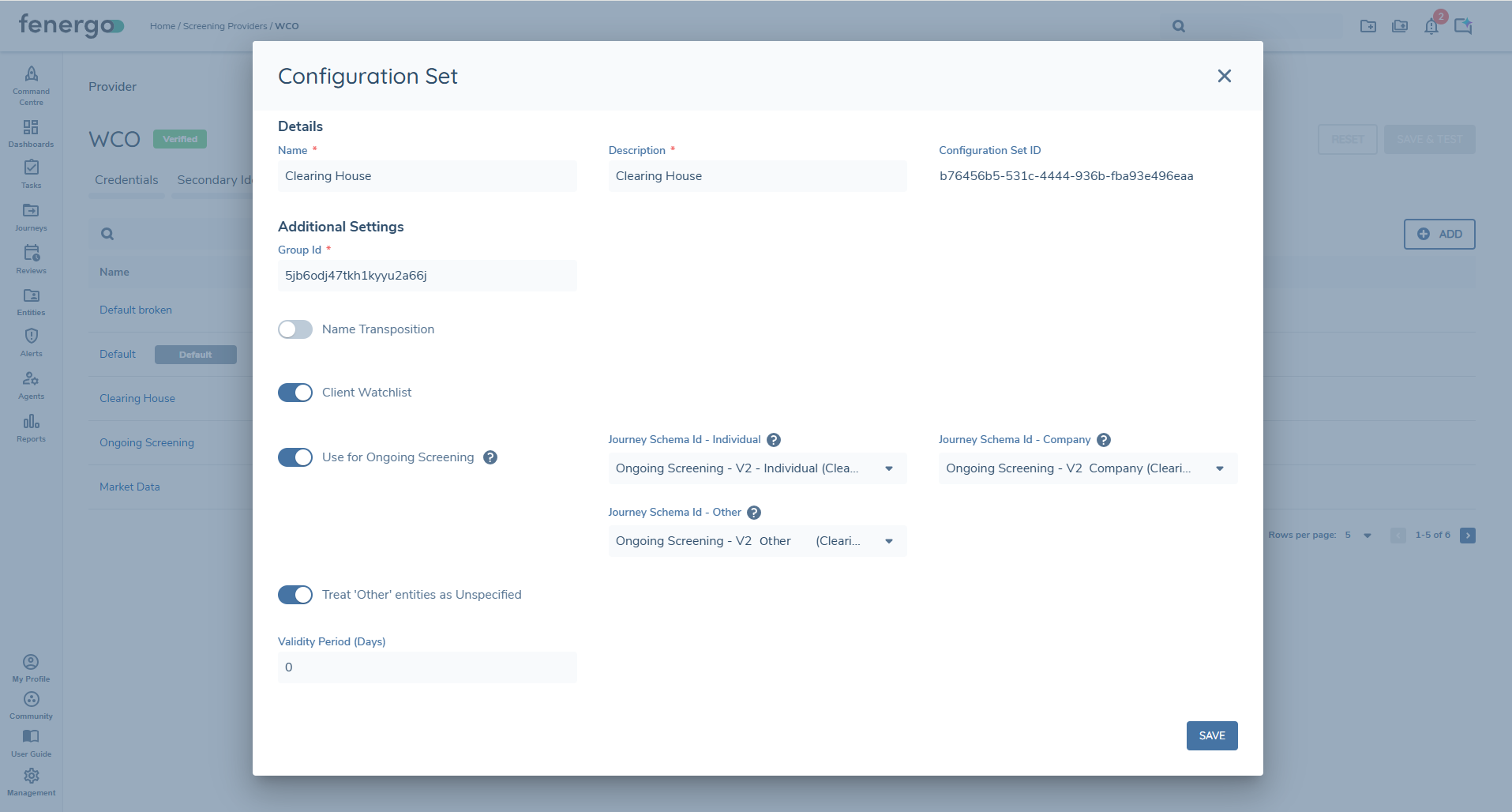
Each WCO Configuration Set includes a Use for Ongoing Screening toggle. A Configuration Set left disabled is simply excluded from Ongoing Screening — entities screened under its Group will not be included in the nightly OGS process. When the toggle is enabled, additional fields are displayed:
- Journey Schema Id - Individual — the Journey Schema that OGS alerts for Individual entities screened under this Configuration Set should be triggered in.
- Journey Schema Id - Company — the Journey Schema that OGS alerts for Company entities screened under this Configuration Set should be triggered in.
- Journey Schema Id - Other — the Journey Schema that OGS alerts for entities classified as "Other" should be triggered in. This field only becomes usable when the Treat 'Other' entities as Unspecified toggle is enabled (see below).
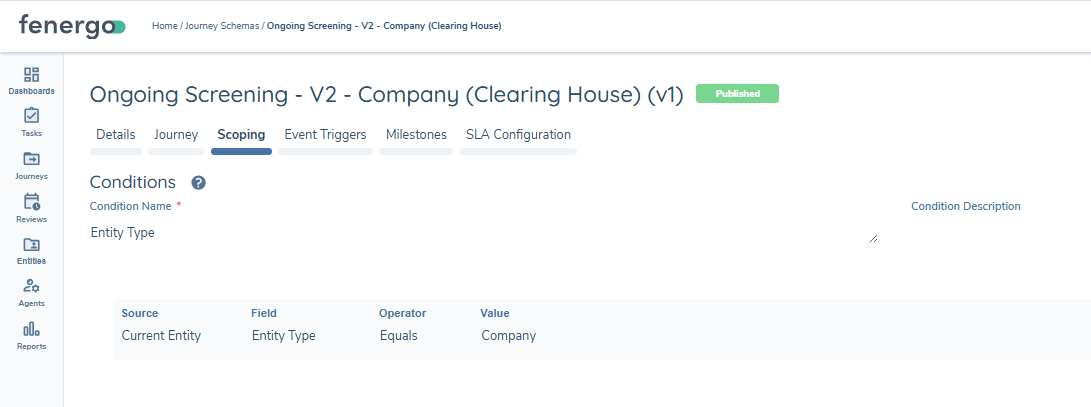
Each Journey Schema referenced by the Journey Schema Id fields above must be scoped to its matching entity type, on the journey's own Scoping tab: Source = Current Entity, Field = Entity Type, Operator = Equals, Value = Individual, Company, or Other (matching the journey). Without this, a journey built for one entity type can trigger for entities of a different type.
Entity type mapping — "Treat 'Other' entities as Unspecified":
Fenergo's FenX entity model has three types: Individual, Company, and Other. WCO's entity model has four: Individual, Organisation, Vessel, and Unspecified. The Treat 'Other' entities as Unspecified toggle on the Configuration Set controls how "Other" entities are mapped between the two:
| FenX entity type | Mapped WCO type (toggle off, default) | Mapped WCO type (toggle on) |
|---|---|---|
| Individual | Individual | Individual |
| Company | Organisation | Organisation |
| Other | Organisation | Unspecified |
This mapping only affects entity type classification and journey routing for OGS — it does not change which WCO Group an entity is screened against. (Vessels are supported as a separate, distinct case through different configuration, not covered by this toggle.)
How WCO chooses the configuration for OGS:
WCO screens the entity for OGS under the same WCO Group that was used for its initial ODS. Once a Configuration Set has Use for Ongoing Screening enabled, entities screened via that Configuration Set's Group are included in OGS under that set from the next nightly process onward, with alerts routed to that set's Journey Schema.
Implications:
- If an entity is screened on demand under more than one Configuration Set (each with its own Group) — for example, it is a customer of two business units — OGS results are processed separately for each Configuration Set, and each set's Journey Schema Id determines the journey the resulting alert is launched in.
- If you want entities to be monitored under different WCO groups (e.g., Sanctions vs PEPs), initiate ODS in those respective groups. OGS will then continue in those same groups, routed via each group's Configuration Set.
- In the WCO UI, OGS cases display the full group hierarchy (e.g., Fenergo Limited → PEP Only). This is expected UI behaviour; the entity is screened only in the specific group used for ODS.
Note: If using multiple Configuration Sets in one On Demand Screening journey to enable those entities for OGS in multiple groups, it is important to configure the Initiate Screening tasks in separate Stages of the journey. Configuration Sets are assigned on the Initiate Screening task's properties — see Configuring Screening Functionality.
Deletion Behaviour
- If a Configuration Set is deleted (even if recreated later with the same name), in Per Configuration Set mode, entities previously subscribed to that set will not be sent to OGS for that set.
- If those entities were enabled only for the deleted set, they will not be sent for OGS until resubscribed.
- In Default mode, if a Configuration Set is deleted, entities will remain enrolled in OGS and will continue to be screened under whichever WCO Group is used for their On Demand Screening.
Testing Ongoing Screening Configuration
To confirm Ongoing Screening has been configured correctly, a change to an existing record can be simulated using the WCO Client Watchlist. Uploading a Watchlist entity, screening it on demand, and then updating that entity's details triggers a detectable Ongoing Screening alert during the next overnight process.
In Fen-X:
- Navigate to the WCO Configuration screen.
- Ensure the following settings are enabled: Client Watchlist and Ongoing Screening Active.
- Save the configuration.
In WCO:
- In Admin Settings, confirm the Ongoing Screening settings are configured correctly.
- Upload a Watchlist file to WCO containing the entities you want to test (see the WCO Client Watchlist guide for upload instructions).
- In Fen-X, run an On Demand Screening for the entities included in the Watchlist, and confirm the Watchlist record is included in the results returned from WCO.
- Complete the On Demand Screening process.
- Using the same Watchlist template, update the test entity's data (for example, adding an AKA) and re-upload the Watchlist file. WCO identifies the change during its overnight process and sends an alert to Fen-X, which triggers the Ongoing Screening journey.
Important Notes
- Group and Watch List Settings are managed in WCO.
- On-Demand Screening (ODS) is not affected by the Ongoing Screening Mode toggle; clients continue to use whichever Configuration Set is appropriate for the screening at hand.
Ongoing Screening Journey Triggering Logic
Every morning at 2:00 AM UTC, Fenergo SaaS calls the WCO API to check for any new or updated hits from the previous day. It requests all cases that were created or modified since the previous day. For example, during the batch run on 2nd April 2025, the system retrieves all cases with updates from 1st April 2025, starting from 2:00 AM UTC. Each case that is returned includes a timestamp showing when that particular case was last updated. This timestamp is used later to determine which hits are processed.
Which Hits Are Processed:
Fenergo SaaS applies the following logic to decide whether to trigger an OGS journey:
New Hits:
- The hit was created during the previous days' time window, e.g., 1st April from 2:00 AM onwards.
- The creation timestamp (Entered Date) and the modification timestamp (Updated Date) must be identical (to the minute), indicating it's a brand new hit.
Updated Hits:
- The hit was modified during the previous days' time window.
- The update must have the ReviewRequired flag set to true.
Hits are only processed if they were created or modified at the exact same hour and minute as the case's update timestamp.
Seconds and milliseconds are not considered when comparing timestamps - only the hour and minute are used.
Hits with different timestamps - even if they belong to the case - will not trigger an OGS journey.
The ReviewRequired Flag:
This flag is set by WCO and signals that an update is significant enough to require review. Only updates marked with ReviewRequired = true will trigger a new OGS journey. Updates with ReviewRequired = false are considered low-impact and will not be processed further.
Why Some Hits Don't Trigger OGS Journeys
A hit retrieved from WCO will not trigger an OGS journey if any of the following conditions apply:
- The modification occurred outside the relevant time window (i.e., it wasn't created or updated between 2:00 AM on the previous day and 2:00 AM on the current day).
- For updated hits, the ReviewRequired flag is not set to true (i.e., the change is considered low-risk or informational by WCO).
- For new hits, the creation and modification timestamps are not identical to the minute (which suggests it's not a brand new hit - possibly a delayed update or edit).
- The hit was previously processed in an earlier screening run and has not changed meaningfully.
Alias Screening
The Alias Screening feature allows you to screen entities using multiple names, such as aliases (AKA) or former names (FKA), within a single inquiry. This enables a multi-name screening capability that streamlines compliance operations and improves traceability and transparency. The section below outlines WCO specific guidance for alias screening, with more detailed guidance on alias screening available in the Configuring Screening Functionality User Guide: Configuring Screening Functionality.
Secondary Identifiers - Name Type:
- We now support sending First Name, Last Name, and Full Name to WCO.
- It is not recommended to select both First/Last Name and Full Name for the same screening request, as WCO will prioritise Full Name only.
Alias Limits:
- Due to WCO's API rate limiting, submitting more than 500 entities (including aliases) in a single batch may cause delays or failures. Performance can also be affected by the number and size of matches returned and by how many batches are running in parallel. For best results, we recommend limiting screening to approximately 100 entities with up to 4 aliases each.
Screening Results Task: Profile Tab:
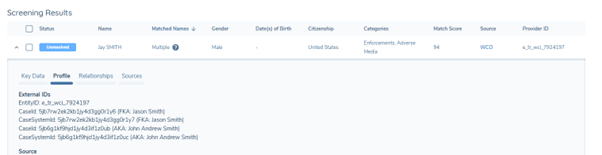
- If a hit came from multiple aliases, the Profile section will display all associated Case IDs returned from WCO.