Access Management Administration
User Administration
User Administration allows a User Administration user to manage the Teams and Access Layers assigned to the users within the tenant. User Profiles can be managed within a tenant through the Security Domain by clicking on “User Administration” which navigates the user to the User Management page.

From here, a User Administration user may:
- View users provisioned to the tenant
- Add Teams to a user’s profile
- Add Access Layers to a user’s profile
Note: A User Administration user requires the necessary Permissions be assigned to them for interacting with the various functional capabilities for the feature described in this section.
View Users Provisioned to the Tenant
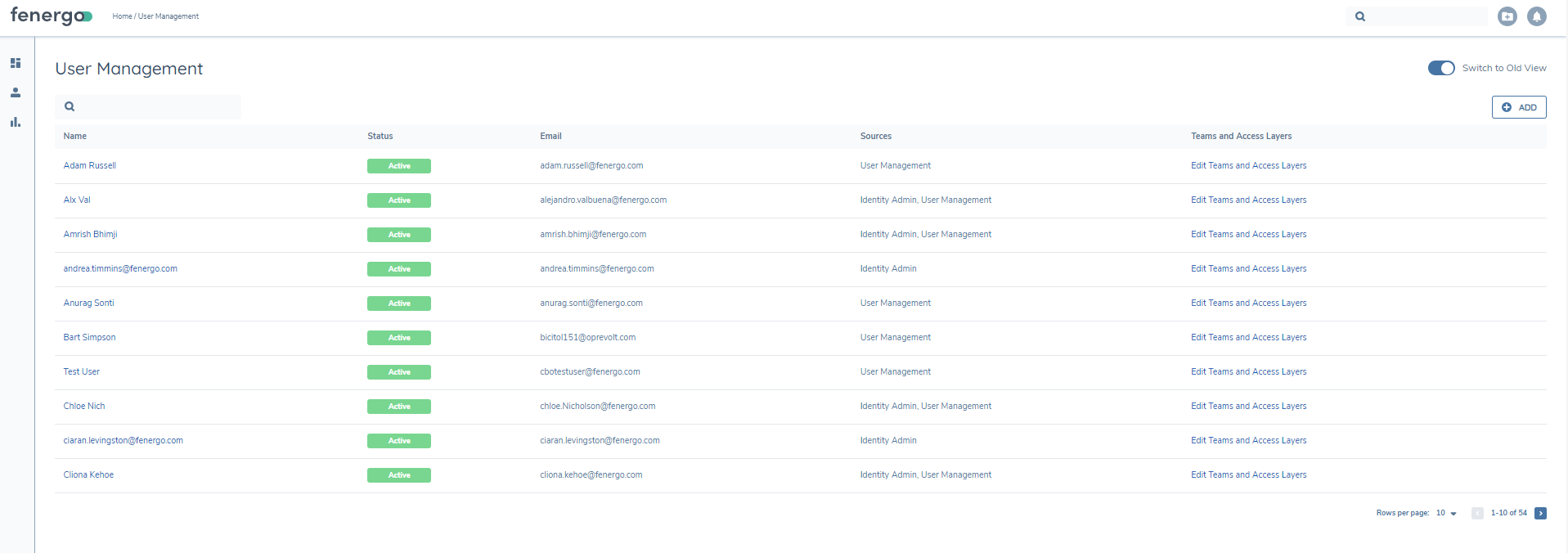
The User Management page displays to the user all of the users who have been provisioned to the tenant. The search field located in the top right of the page supports a user to search for a specific user.
Add Teams to a User’s Profile
To add Teams to a user’s profile, click into Teams and Access Layers from the grid.
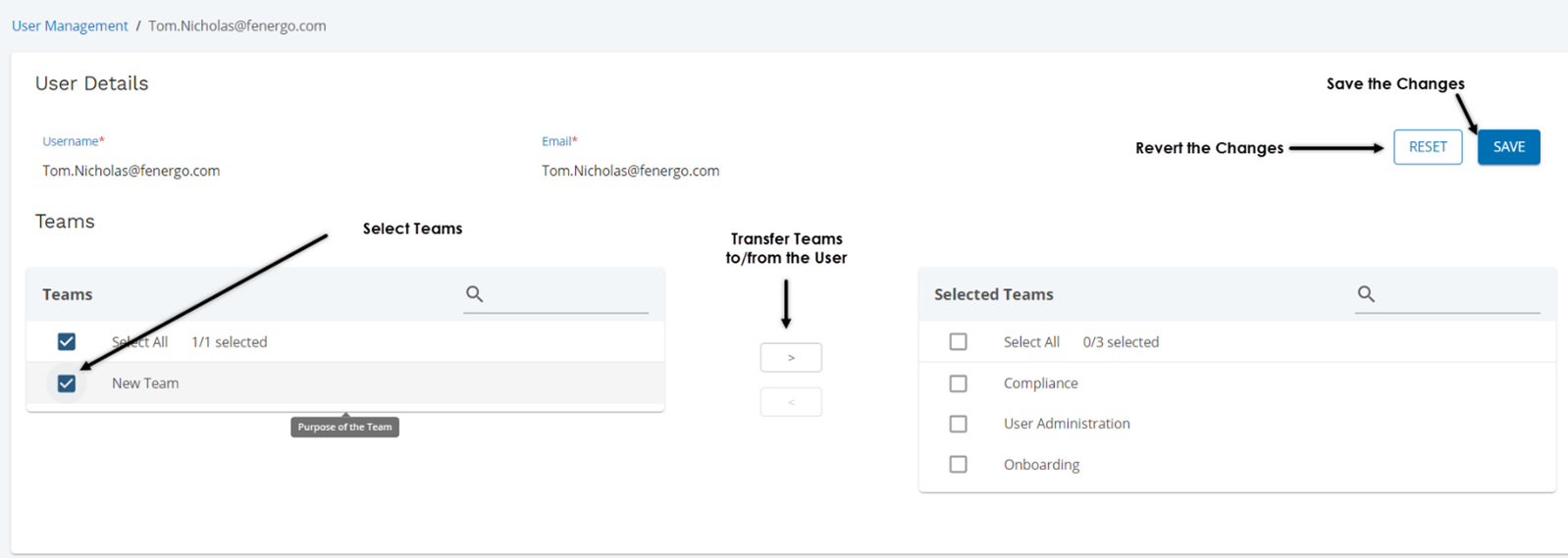
From the User Details page, the User Administration user may add or remove teams associated to the specific user:
Add Access Layers to a User’s Profile
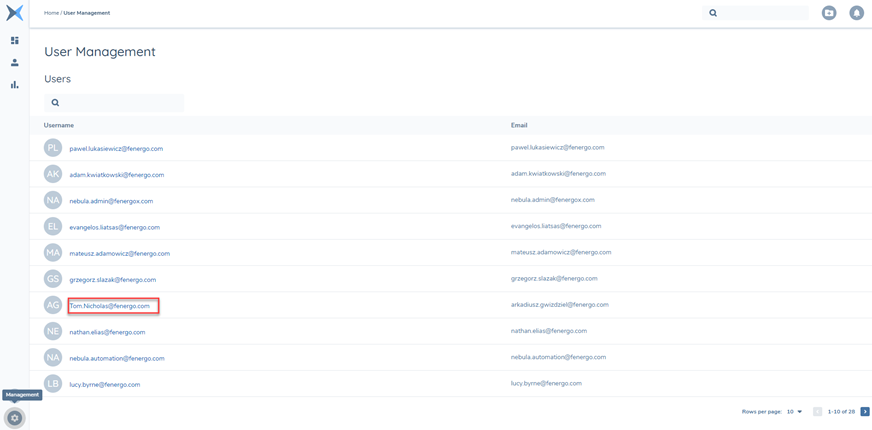
To add Access Layers to a user’s profile, Details, click into the specific user you’d like to modify by clicking the username reference:
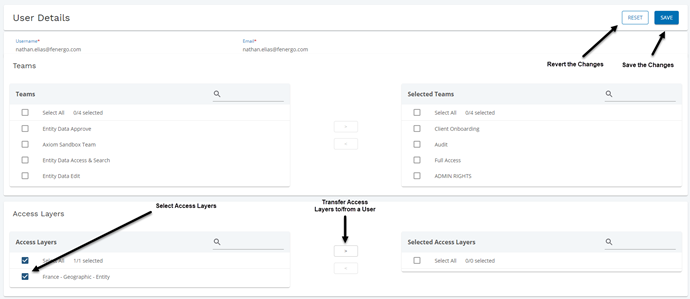
From the User Details page, the User Administration user may add or remove Access Layers associated to the specific user: