User Administration
User Creation
The creation of users in Fenergo SaaS can be facilitated in the following ways:
- through the Security, User Management area
- through SSO upon the first sign in by a user
- through SCIM (System for Cross-Domain Identity Management)
Note, "Authentication" (identity of a user) and "Authorization" (access rights of a user) remain two distinct concepts in Fenergo SaaS. Once a user is created in the system, their entitlements still need to be set up (this can also be managed via SCIM).
Self Service User Management
Clients can manage their own users in the User Managment area. Users with the correct permission set can create, edit and remove users from a tenant. The user administration page allows:
- User creation
- User deletion
- User details updates
- Resend user verification email
Permissions
The current Security User Administrator role will dictate if a user has permission to view the User Management page, there are further permissions required to access the actions available on that page.
- Security Create New User - users with this permission will see an "Add" user button on the User Management page which will allow them to create a new users and add additional information for that user
- Security Edit Users - this will permit editing the details of an existing user, adding additional information or resending verification email.
- Security Remove Users - this will enable a delete icon which will appear on hover on each user row in the user management area. Clicking on the icon will remove the user from this tenant only.
User Management
The User Management page will show more details for each user:
-
Username - which is a concatenation of firstname and lastname. Where these have not been added user email will be displayed.
- The user name is a hyperlink which will redirect to the user details page
-
Status of the user,
- Active - for users that have verified their email
- Inactive - for users that have not yet verified their email
- Suspended - for users that have been suspended
-
Email - this is the email address of the user
-
Sources - this will show where the user has been created from.
- User Management - indicates they have been created/updated in Fenergo User Management
- Identity Admin - indicates they have been created by Fenergo Administration
- SSO - indicates the user is created after logging in using Single Sign On
- External - indicates that the user has been created by an external system (e.g. SCIM)
-
Teams and Access layers - this is a hyperlink which will redirect to the users Team and Access layers
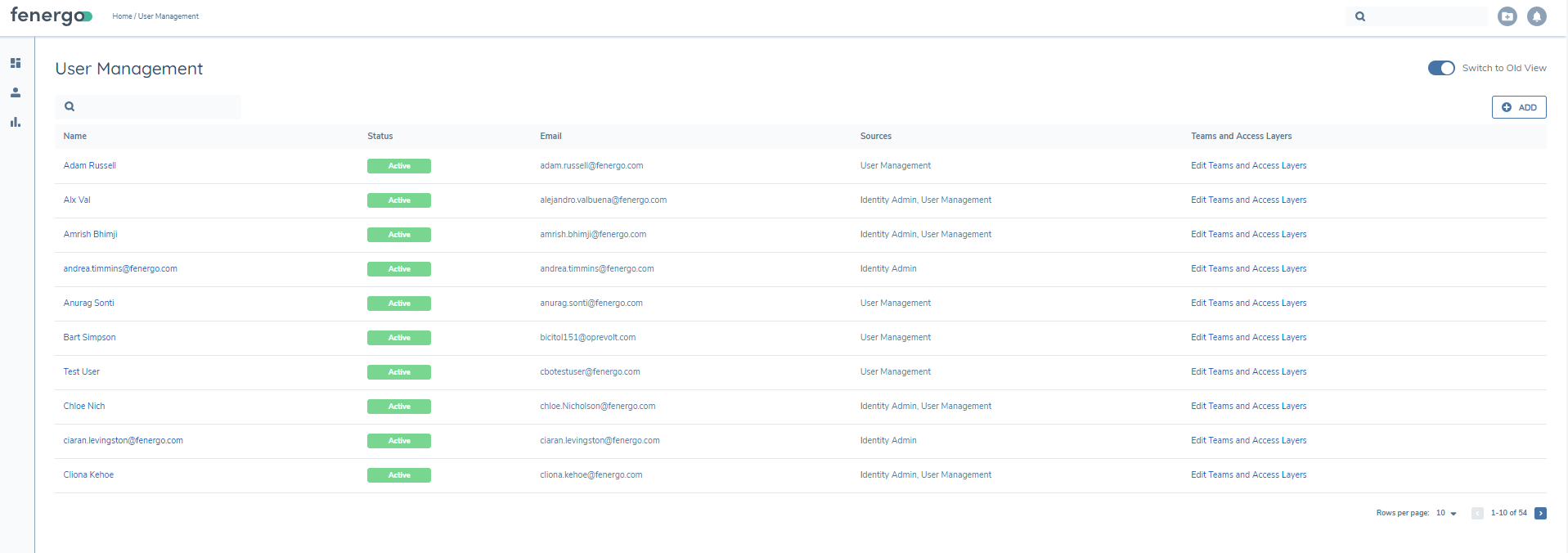
Actions on this page:
- The search field filters the user list by email address. Enter a partial email, and only users whose email begins with that text will be displayed
- The +Add button will allow the creation of a new user
- The trash icon will appear on row hover and can be clicked on to remove a user, they will be asked to confirm deletion
- Click on user name to access user details
- The user icon will appear on row hover and can be used to suspend or reactivate users
- Link to Teams and Access layers for this user
New User
New users can be added using the "Add" button on the User Management page, this will navigate to a New User page. A firstname, lastname and email address must be added to create a new user. Email address will not be editable once the user has been created. Additional information can also be added. The information will be saved for this user in this tenant only. If a user is added to more than one tenant their additional information will not be shown in the second tenant. Once a user is created, if they are new to Fenergo they will be asked to verify their email. If they have already verified their email they will receive a notification email informing them that they have been added to this tenant. A resend verification email option will be available for unverified users. The verification email is valid for 5 days.
NOTE: Email addresses are not case sensitive. The domain (after@) may be case sensitive depending on email server or the domain’s configuration. This means that Joe.Bloggs@email.com is the same user as joe.bloggs@email.com.
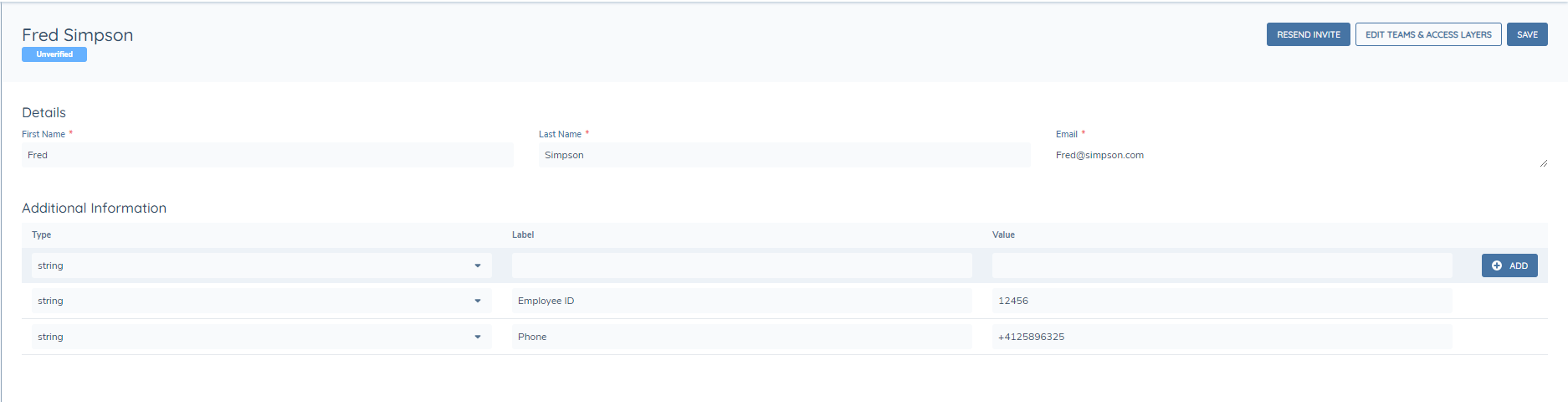
Clicking on a user name from the User Managmeent page will redirect to the User Details page. With the correct permissions (Security Edit Users) an administrator can edit the users details from here. All data points apart from email can be updated. Custom data can be added. The elipses button will show an action button which will allow deletion or cloning or a user from here.
Clone User
Users can be cloned from within a user profile, cloning a user will preserve the saved custom data points but not the values. Firstname, lastname and email address will not persist. This will simplify the process of creating multiple users with the same custom properties.
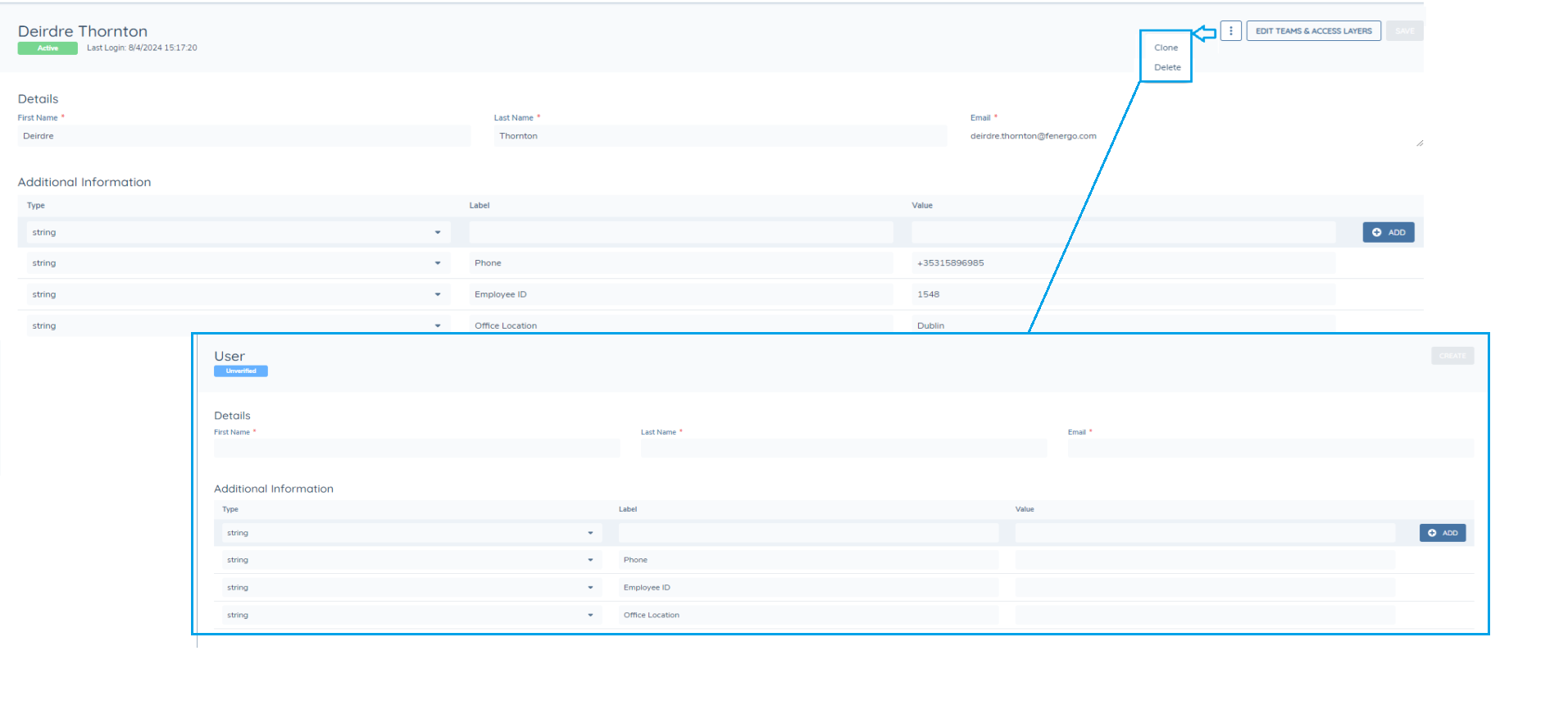
NOTE: Users created externally cannot be cloned.
Suspend User
Users can be suspended from the user management page, using the icon or from the action menu with the user profile. Suspending a user will prevent them from logging in, they will not be automatically logged out, but will not be able to login for their next session. Suspension is applied per tenant. Once users are reactivated they will once again be able to access the system.



Change SSO User Email
The Change SSO user email action allows an administrator to update the email address associated with a user who signs in via Single Sign-On (SSO), so that Fenergo stays in sync whenever a user's email changes on their organisation's side.
This feature is currently available as a Beta and can be enabled on request. Clients interested in this feature should contact their Fenergo representative.
An administrator cannot use this action to change their own email address - the Change SSO user email option is not available when viewing your own user details. To update your own email, ask another administrator in your organisation to perform the change on your account instead.
Users who sign in through SSO manage their own identity through their organisation's SSO provider, so they cannot update their email address directly in Fenergo. This action lets an administrator make that update on their behalf.
This option is not available for:
- Users provisioned via SCIM in any of their tenants - SCIM manages these users' data (including email) from an external system, so it cannot be changed here.
- Users who do not have an SSO login associated with their account - this feature only applies to users who sign in via SSO.
Availability
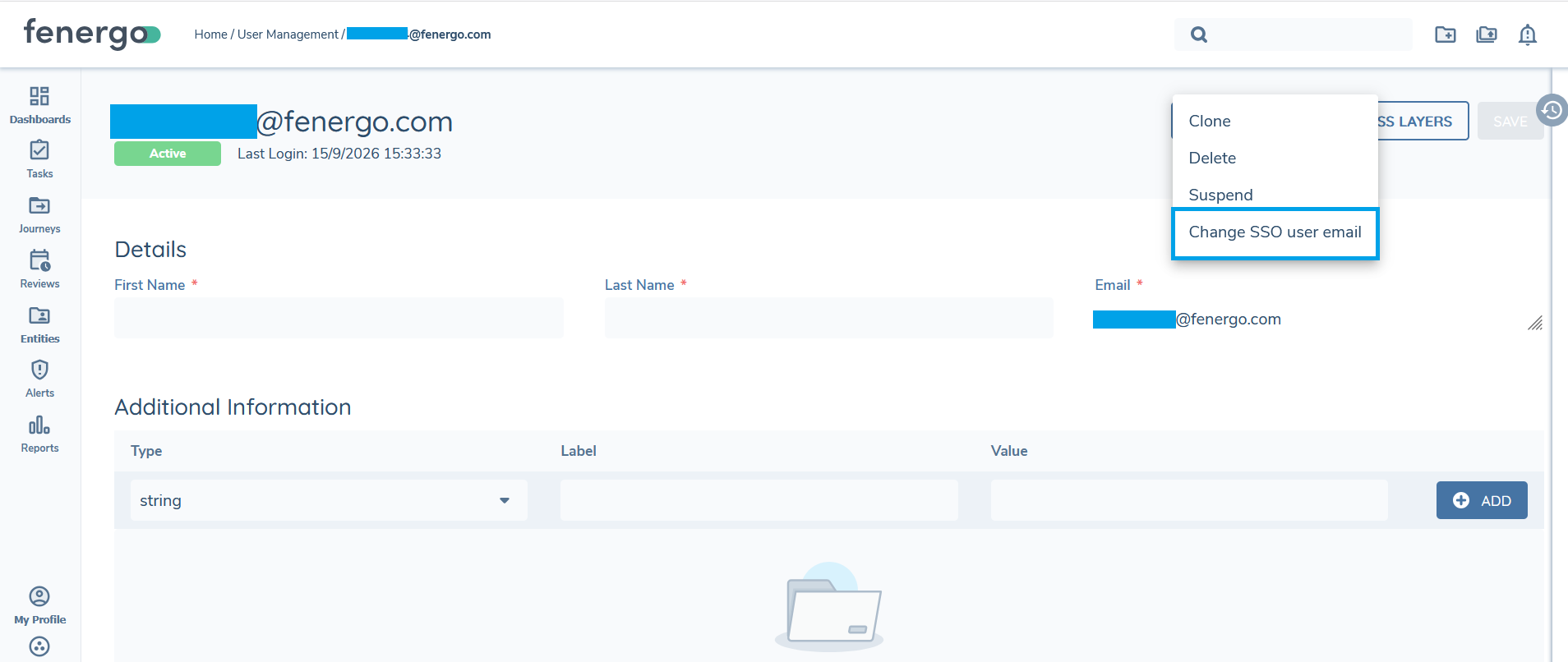
The Change SSO user email option will appear in the actions menu on the User Details page when:
- The user has an SSO login associated with their account
- The user is not provisioned via SCIM in any tenant
- There isn't already an email change pending confirmation for this user
- The user being viewed is not the administrator currently signed in
- The administrator has permission to edit users
Changing a User's Email
- From the User Details page, open the actions menu and select Change SSO user email.
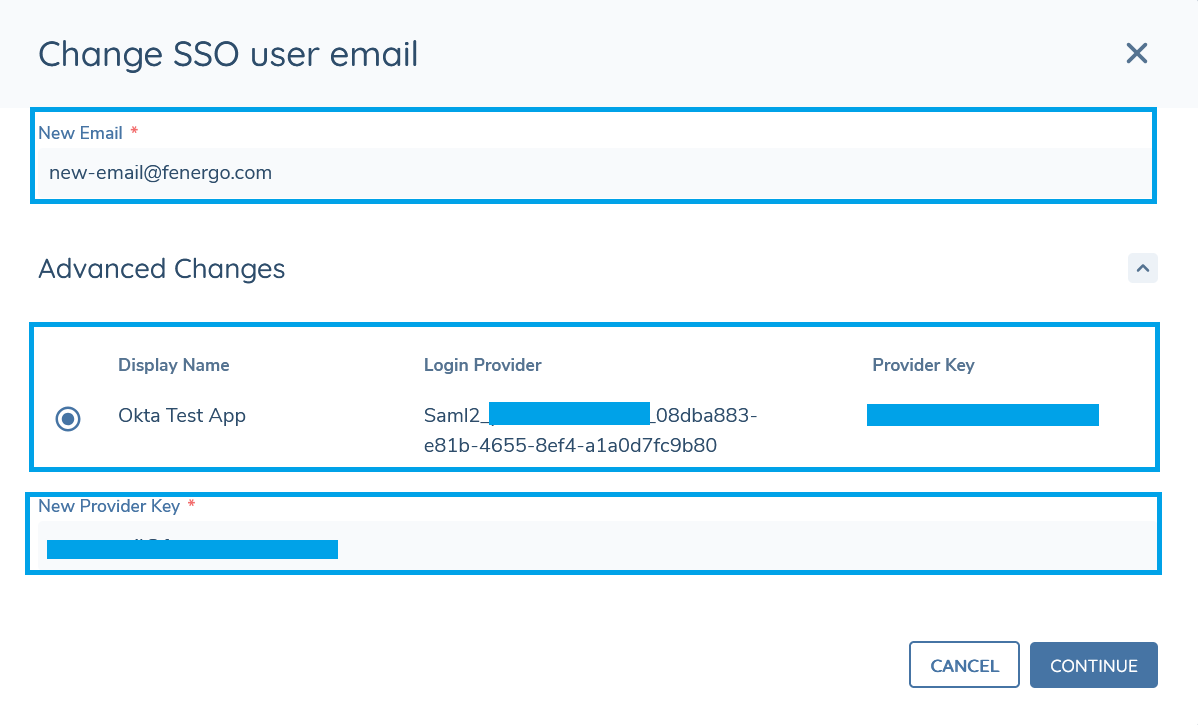
- Enter the new email address in the New Email field.
- In most cases, that's all that's needed - click Continue to confirm. The identifier the SSO provider uses for this user's login normally stays the same when their email changes, so the Advanced Changes section can be left untouched.
- Only if the SSO provider will also assign a new identifier for the user's login as part of this email change, expand Advanced Changes, select the login to update, and enter the new identifier in New Provider Key.
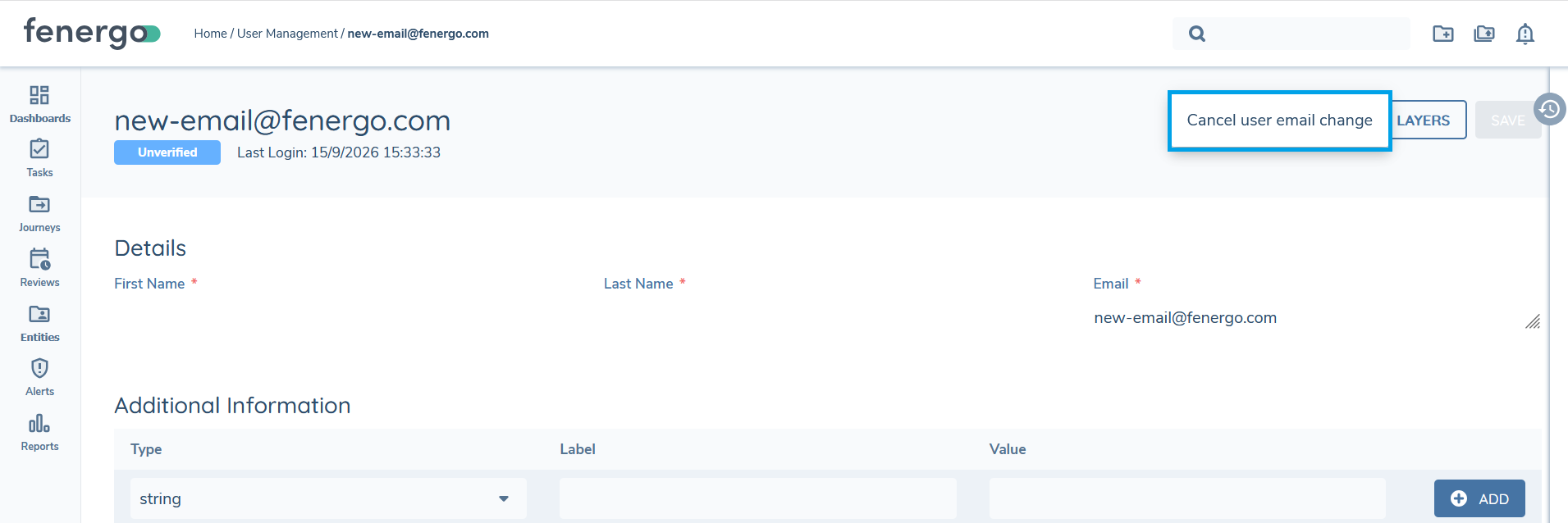
Once confirmed, the user's status changes to Unverified. In this state, the user cannot access the system with their current login until they successfully sign in through their SSO provider using the new email - this automatically confirms the change. While the change is pending, the user's First Name, Last Name and Email fields are locked, and other actions (Resend Invite, Clone, Delete, Suspend) are unavailable for this user until the change is confirmed or cancelled.
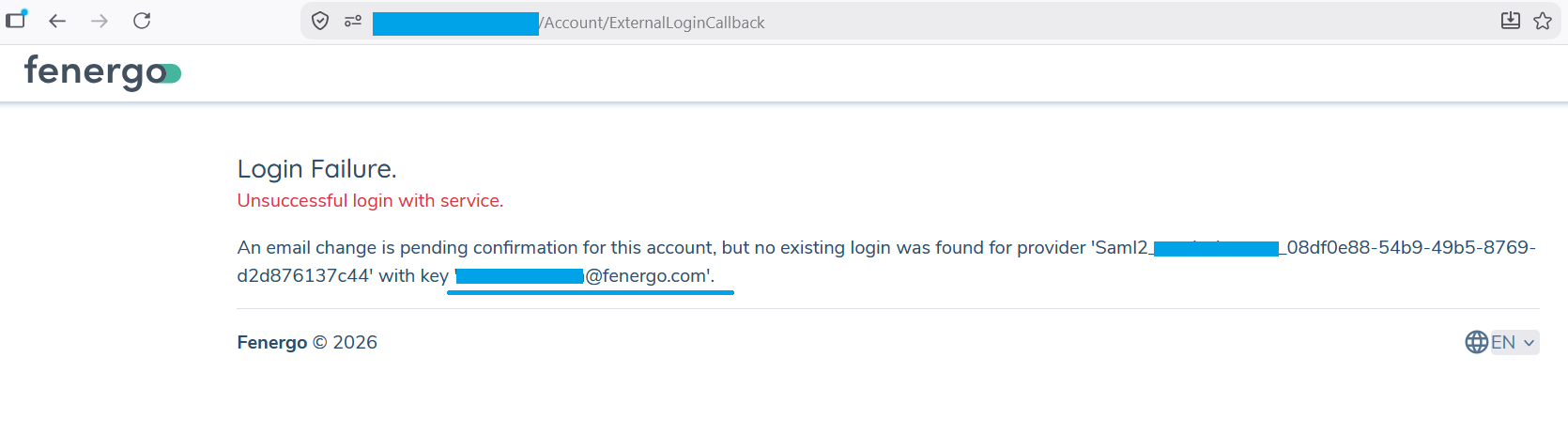
NOTE: If New Provider Key is left blank but the SSO provider does assign a new identifier, the user's next sign-in attempt will fail with an error page. That page will display the identifier actually received from the provider - this is the value to enter in New Provider Key. The pending change will need to be cancelled and started again with the correct value.
Cancel Email Change
If a pending email change needs to be reverted before the user confirms it - for example, if the wrong email was entered, or the user cannot complete sign-in with the new one - an administrator can cancel it.
This feature is currently available as a Beta and can be enabled on request. Clients interested in this feature should contact their Fenergo representative.
This option appears in the actions menu only while an email change is pending confirmation for the user.
-
From the User Details page, open the actions menu and select Cancel user email change.
-
Confirm the cancellation in the dialog that appears.
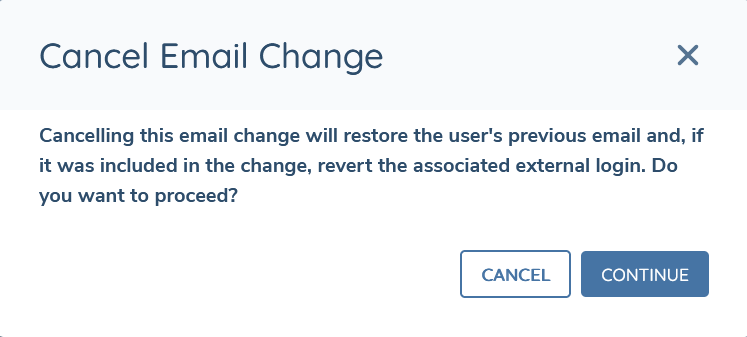
Cancelling restores the user's previous email address and, if a new login identifier had been set as part of the change, reverts the login back to its original identifier. The user's status returns to what it was before the change was started, and they can log in with their original email again immediately.
Registration
When a user is created they user will be sent an email inviting the user to register:
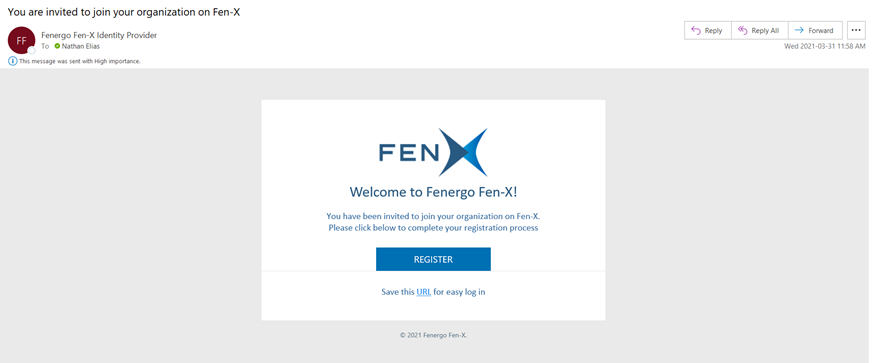
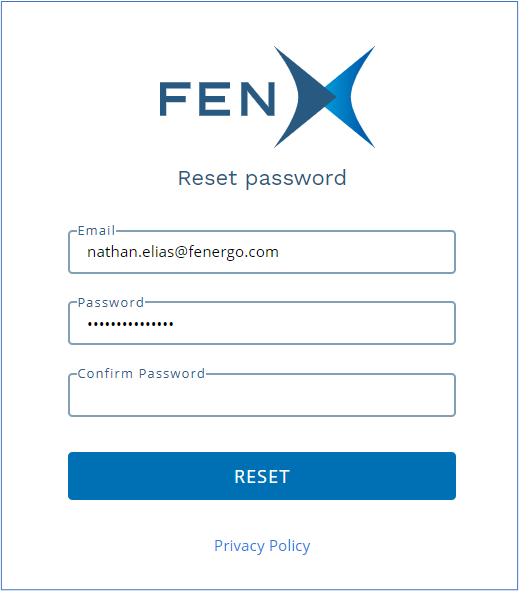
Upon clicking the Register button within the email, the user will be navigated to the Registration Portal pre-filled with their email and will ask the user to submit and confirm their desired password. The password must adhere to the following strong password standards:
- Must contain a minimum of 8 character
- Must contain at least 1 uppercase character
- Must contain at least 1 lowercase character
- Must contain at least 1 number
- Must contain at least 1 special character
Note that the link from the email to verify the user will expire after 5 days. If this happens, there is an option to resend the verification email in the actions of the user's page.
If a user is already registered they will be sent a notication email informing them that they have been added to a tenant.
Forgot your Password
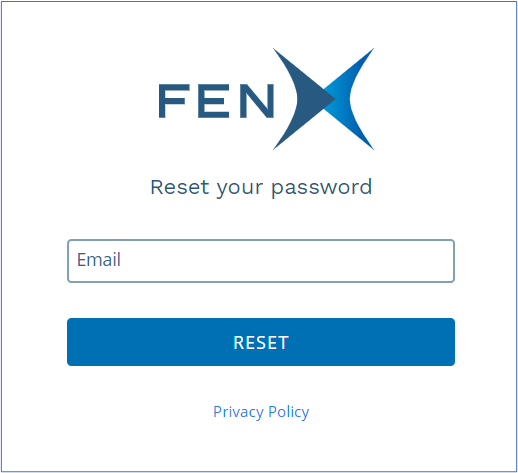
Should a user have issues remembering their password, the user may select “Forgot your password?” and they will be prompted to submit their email address associated with their Fenergo account to proceed with the password reset process:
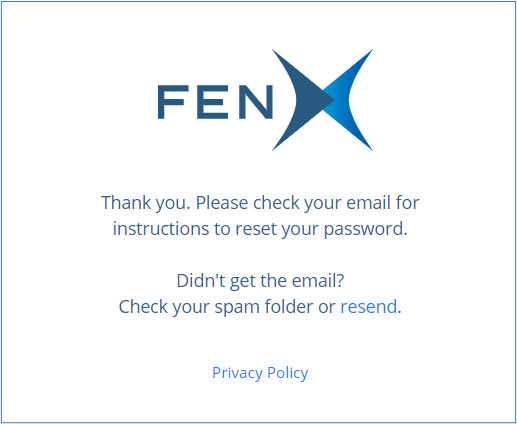
After submitting their email address, the user will be notified to check their email for instructions to reset their password:
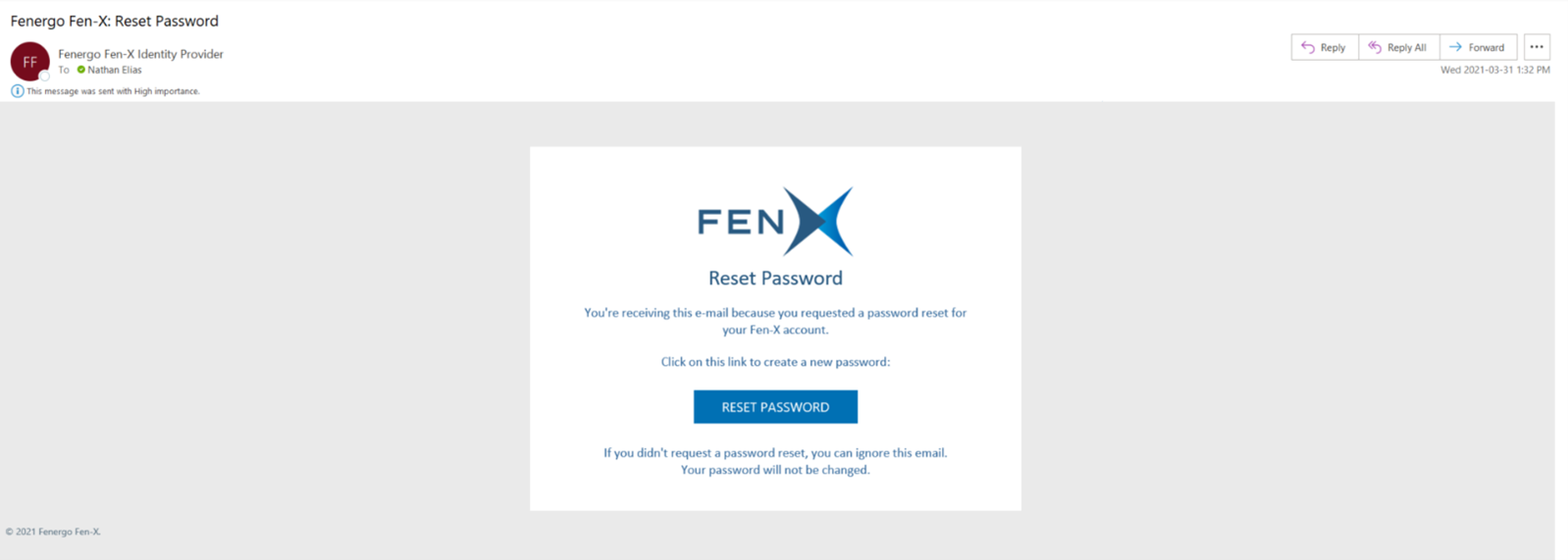
The user will be sent an email providing instructions to click on the provided link to reset their password:
Audit
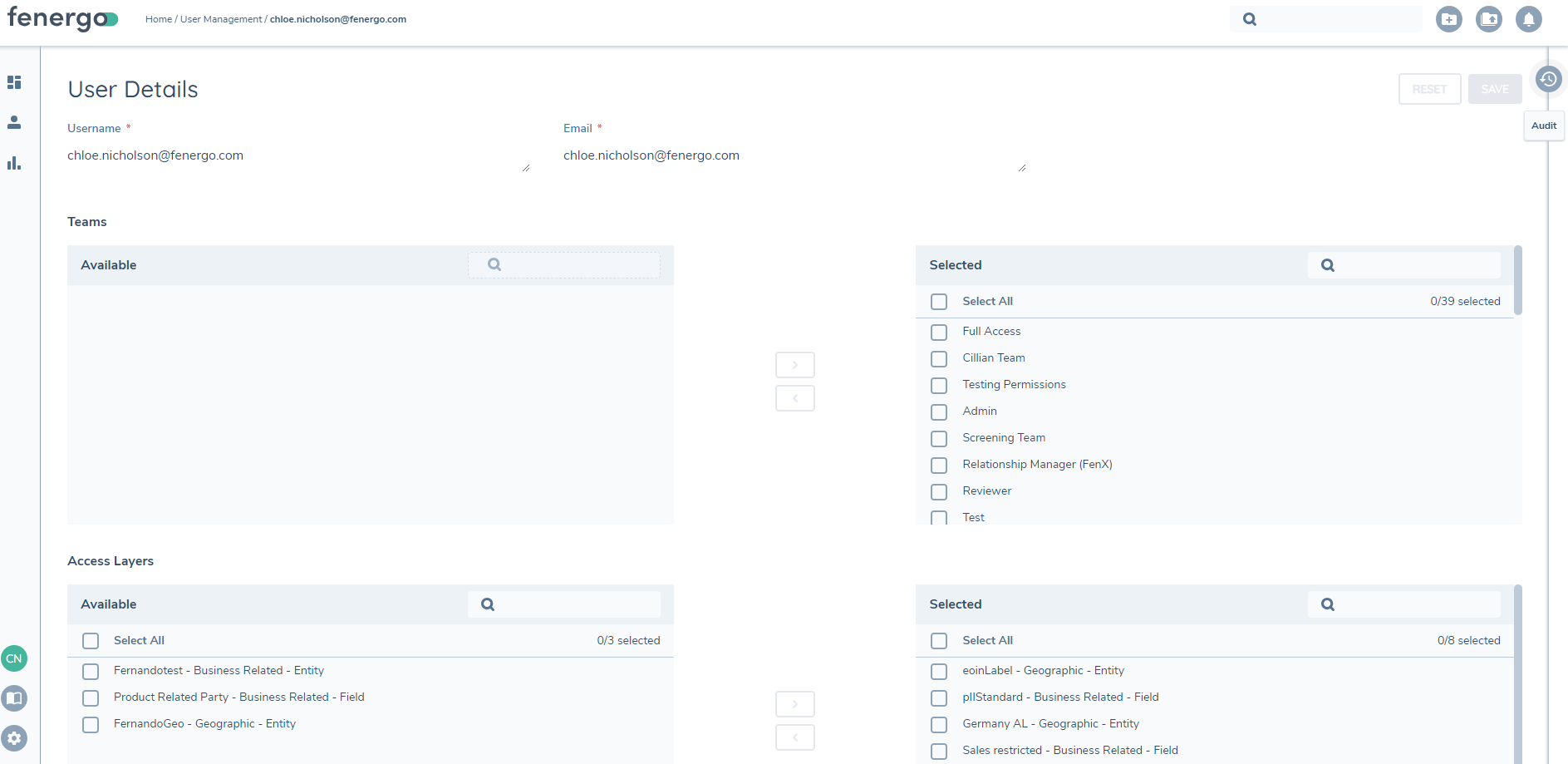
The Audit trail is now available to view from the 'User Management' and "User Details" screens. Audit on the User Maangement page will show all users added and removed. Audit in the user details will show details of user creation and all updates made to the user profile.
Given the user has the necessary Permissions and Access Layers, the Audit button will appear on the right-hand side of the User Management configuration screen once they click the 'Edit Teams & Access Layers' button.
* *Refer to the Audit User Guide for more details.* *