Using LexisNexis OOTB Integration
LexisNexis Version
Fenergo SaaS is integrated with Bridger Insight® XG.
Fenergo SaaS supports the WorldCompliance – Full (Legacy) and WorldCompliance Data Plus watchlists. The client's screening provider configuration determines which watchlist is used.
WorldCompliance Data Plus
WorldCompliance Data Plus is a LexisNexis watchlist that provides richer, structured screening data than the WorldCompliance – Full (Legacy) dataset, along with more frequent sanctions updates. The client's screening provider configuration determines whether an entity is screened against WorldCompliance Data Plus or WorldCompliance – Full.
When an entity is screened against WorldCompliance Data Plus, reviewers see the following in the screening profile tab:
- Structured data segments — Politically Exposed Person (PEP), Sanctions, Enforcements, Adverse Media, State-Owned Enterprise (SOE), Registration and other segments are each presented as a table, so reviewers can read the underlying detail without leaving Fenergo.
- Screening List panel — the screening list name, file build date, entity created date, entity last updated date, position and entity status are displayed for the match.
- Screening categories — each match is categorised automatically as PEP, Sanctions, Adverse Media, Enforcements, or Other, based on the data returned.
Where a client is configured to screen against both WorldCompliance Data Plus and WorldCompliance – Full and the same entity is returned by both watchlists, only the WorldCompliance Data Plus result is displayed. Resolving that result also resolves the matching WorldCompliance – Full result, so the same entity is not reviewed or actioned twice.
WorldCompliance – Full (Legacy) alerts continue to be presented exactly as before. Only entities screened against WorldCompliance Data Plus display the additional structured data described above.
LexisNexis Accept List
LexisNexis uses the Accept List to suppress screening results that have previously been actioned for an entity from being re-triggered in future searches. This serves the following purposes:
- Prevents the same alerts being triggered for future On Demand Screening searches
- Prevents the same alerts being triggered nightly during the batch file process for Ongoing Screening
If the Accept List is enabled in a Fenergo SaaS tenant, then any entities that are screened will be added to the Accept List at the point the Return Results to Provider task is run. The Fenergo SaaS Legal Entity ID is used as the unique identifier when adding records to the Accept List.
After you add an Alert to the Accept List, LexisNexis does not generate alerts for that entity. Matches are not suppressed by the Accept List if changes were made to the search criteria or the unique identifier. Matches are also not suppressed if there is a change in the screening results for that Alert.
Records can be added to the Accept List at the Alert level only. When an Alert is added to the Accept List, all results contained within that Alert will be suppressed for future searches for the same entity. LexisNexis does not currently support the ability to distinguish results within an Alert to add to the Accept List (e.g. False Positive only).
Accept List and Re-opened Tasks
When tasks are re-opened to a point in a journey prior to screening, then the screening process is re-run when the screening tasks are reached. This means the previous screening batch is overridden, and any entities that had hits (regardless of whether they were adjudicated as Match or No Match) will be removed from the Accept List. Removing entities with No Match hits from the Accept List is necessary to ensure that, in cases where a hit may have been incorrectly resolved, it will reappear for reassessment when the task is re-opened. If the entity had no hits, it will not be removed from the Accept List. There is additional logic in place to determine whether or not entities need to be removed from the Accept List where there are multiple screening processes in a journey.
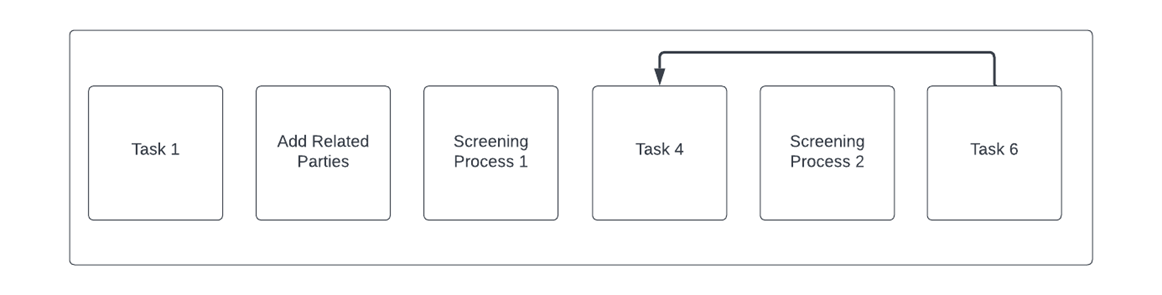
In the below example, where there are two screening processes but only the second is re-opened, only Screening Process 2 will be overridden and any entities added to the Accept List as part of Screening Process 2 will be removed. Screening Process 1 and any entities added to the Accept List as part of it will remain intact.
LexisNexis Ongoing Screening
Process Overview of LexisNexis Ongoing Screening Nightly Batch Files
The LexisNexis Ongoing Screening (OGS) process follows an automated nightly batch cycle to keep entity screening data current. Each night at 19:00 UTC, Fenergo uploads a file containing the entity IDs and search criteria of those entities enabled for OGS to a folder. LexisNexis retrieves the file from the folder, processes the entities, and generates results for any new hits or updates to existing hits. These results are placed into an output folder. Fenergo downloads the results from the output folder and removes the processed batch file from the LexisNexis SFTP folder at 23:00 UTC as part of the nightly download process. To manage the upload and download process securely, it is necessary to configure credentials for both the upload and output folders. This includes public keys, decryption keys, and passwords. For detailed instructions on configuring the LexisNexis Automatic Batch process, refer to the “Configuring LexisNexis” section in the Fenergo Document Portal.
Error Notifications in LexisNexis Ongoing Screening
If any errors occur during the processing of batch files, the Screening and Support teams are notified. At present, there is no direct notification system in place for clients to receive these error alerts. However, if a batch fails during processing, Fenergo will attempt to re-run the batch within 24 hours of the initial failure. Should the batch fail again, the Fenergo Support team will proactively contact the client to inform them of the issue and provide guidance on the necessary steps to ensure the batch is reprocessed in the next OGS cycle.
Client Action Required for Batch Reprocessing
If advised by Support to facilitate the reprocessing of failed batches, clients will need to manually delete the failed batch(es) in LexisNexis Bridger. This action ensures that the batches are included in the next OGS run and that any new hits will not be missed.
Follow the steps below:
- Log in to LexisNexis Bridger.
- Navigate to Batch > Batch Runs.
- Identify the failed batch(es) and click into each one.
- Click the Delete button to remove the failed batch. Note: If the Delete button is not visible, it may be due to insufficient role permissions.
Adjusting Role Permissions to Enable Batch Deletion If you cannot see the Delete option for batch runs, ensure that your user role has the appropriate permissions:
- Go to Administration > Roles.
- Select Administrator.
- Locate the Batch Runs under the Batch Menu.
- Ensure that the Delete permission is set appropriately.
LexisNexis and Data Migration
In order to migrate entities from LexisNexis to Fenergo without having to resolve the hits, follow these steps:
- Add all entities to the Accept List in Bridger using API endpoints provided by LexisNexis.
- Enable the Accept List in Fenergo.
- Subscribe entities to OGS using the Entity endpoints in the Screening Command API.
- It is important to add/subscribe to OGS at a rate of no higher than 3 entities per second, in order to avoid putting too much pressure onto the APIs.
- Alerts will not be generated due to the fact that the entities have been added to the Accept List.
- Going forward, only OGS journeys for new / updated hits will be generated.