Using Ongoing Screening
Ongoing Screening
Ongoing Screening involves the monitoring of an entity profile by a screening provider to capture any changes that may occur after the initial screening has been completed. Any new hits or changes to existing hits will result in a new Ongoing Screening journey being triggered in Fenergo SaaS for a user to action.
Subscribing Entities for Ongoing Screening
Entities can be subscribed for Ongoing Screening once they have completed an On Demand Screening process. This will typically occur during the initial Onboarding process or during any subsequent processes where new entities may be added.
A task can be inserted into your journey to subscribe entities for Ongoing Screening.
Once an entity is subscribed to Ongoing Screening, if any of its Search Criteria is updated down the line, the entity needs to go through a new On Demand Screening for the new/updated Search Criteria to be included in OGS. Alternatively, clients using LexisNexis can use the UpdateEntity endpoint in the Screening command API to update that criteria to be included for OGS (this will not work for WCO/Grid, as those will always require a new On Demand Screening).
Journey Task: Subscribe for Ongoing Screening
This is an automated task that makes the API calls to the Screening Provider to enable entities for Ongoing Screening. All entities that have been screened during the course of the journey will be automatically enabled for Ongoing Screening at this point.
If this task is not configured and OGS is enabled for the provider, the entities will be subscribed for OGS as part of the Return Results to Provider task. It is important to note that if entities are subscribed for OGS as part of the Return Results to Provider task and the screening task is subsequently re-opened after removing a related party, the related party that was removed will remain subscribed for OGS. Therefore best practice would be to configure the Subscribe for Ongoing Screening task towards the end of the journey, at the time related parties are verified.
Note: A screening process must be run and OGS must be enabled for the provider in order for this task to execute successfully.
Journey Task: Screening Match Resolution
This task presents the new results that have been triggered during the ongoing screening process and allows the user to determine whether the results are matches or false positives.
This follows the same patterns as match resolution for On Demand Screening. Please refer to Journey Task: Screening Match Resolution in the On Demand Screening section of this document.
Journey Task: Confirmed Match Verification
This task is a pre-defined decision gateway that houses conditional logic to determine whether any confirmed matches have been identified during the match resolution process. The primary purpose of this is to determine whether or not to trigger the Materiality Assessment task, however, it can be used to drive any conditional tasks that should be triggered where confirmed matches have been identified.
This follows the same patterns as On Demand Screening. Please refer to Journey Task: Confirmed Match Verification in On Demand Screening section of this document.
Journey Task: Materiality Assessment
The Materiality Assessment task is designed to capture the overall outcome of the ongoing screening process. It allows a user to view a summary of the confirmed matches, which client entities are impacted, and to make a determination as to whether the matches are material or not in the context of each client.
The Materiality Assessment task is composed of two panels: Screening Results and Client Materiality.
Screening Results
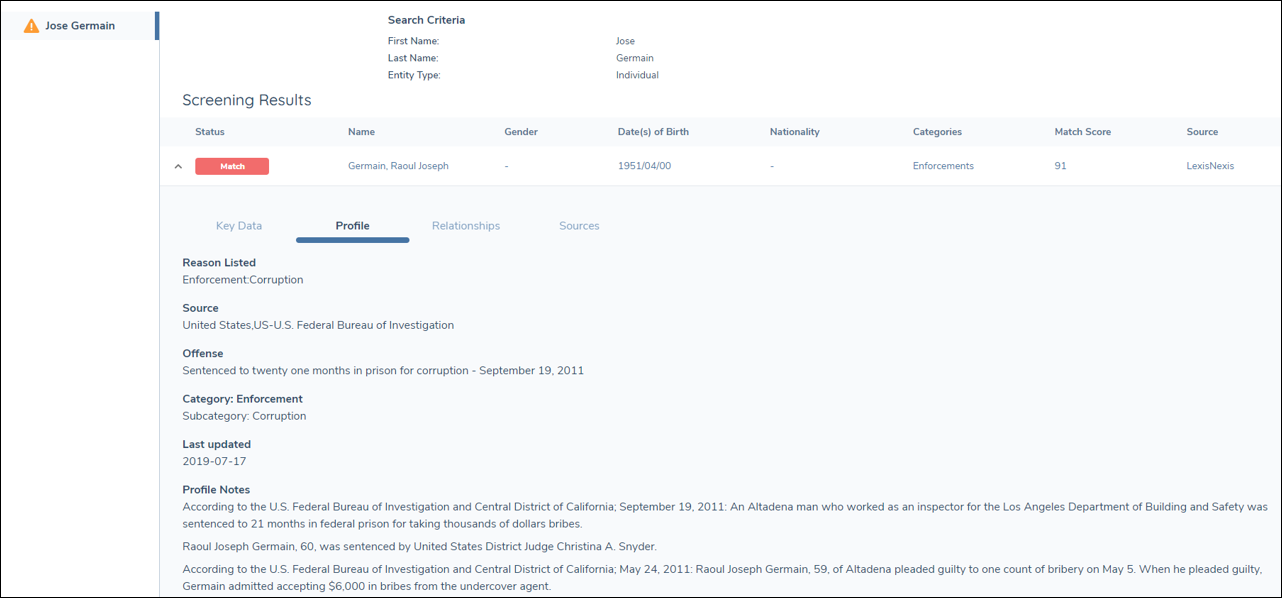
The Screening Results table displays a list of confirmed matches as determined during the match resolution process. The structure of the table is the same as it appears in the Screening Results task, however, the data is not editable and results that have been resolved as false positives are not displayed in this context.
Client Materiality
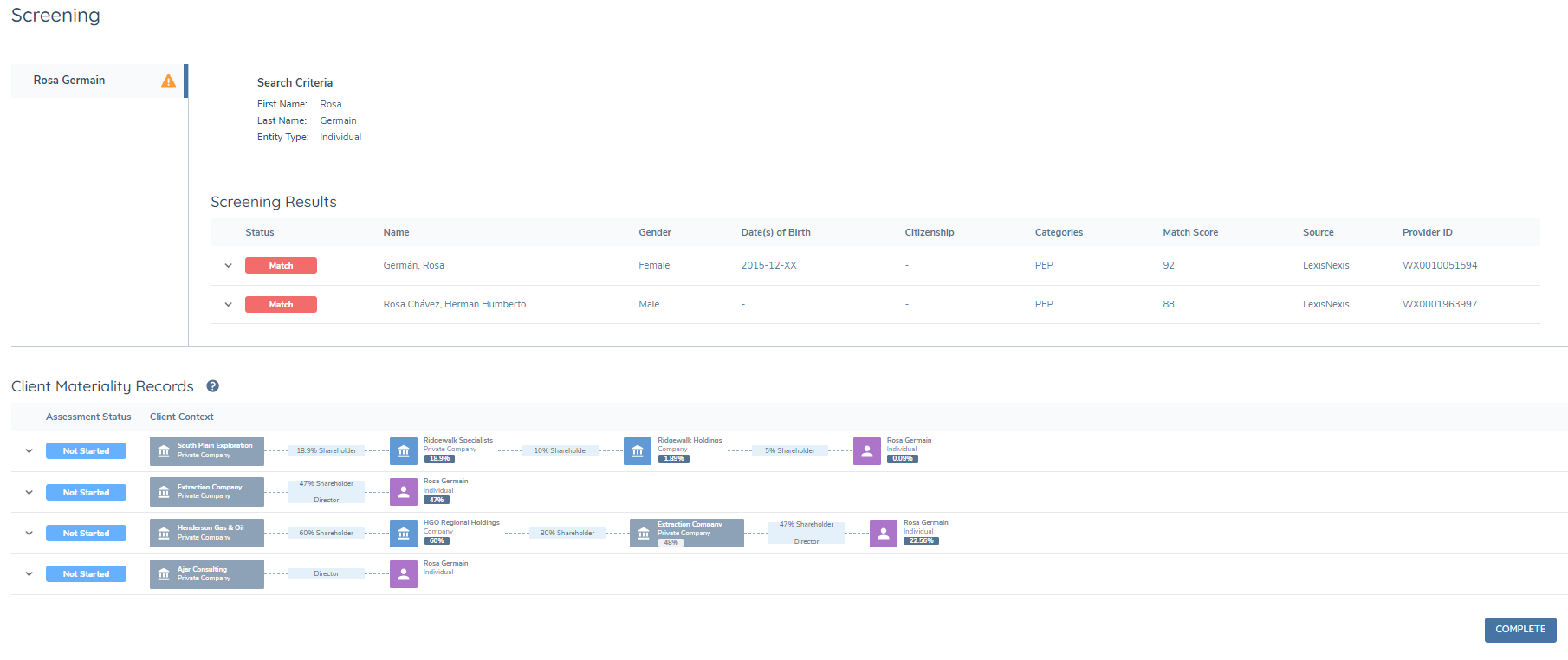
The Client Materiality Records panel displays a record for each client entity that has been impacted by the screening hit, allowing the user to set a materiality status in the context of each client relationship. An ongoing screening hit may be consumed for a single client entity, in which case you would simply see a single record here. However, an ongoing screening hit may also be consumed for an entity who is a related party of multiple clients. In this case, the Client Materiality panel allows the user to see all of the clients that are impacted by the ongoing screening hit, and the chain of ownership between those clients and the related party.
It is important to note that in the case of Ongoing Screening journeys, the Client Materiality panel displays records of clients who are outbound associations only. Further details on the ways in which entity relationships are displayed can be found under the Visualising Related Parties section of the Related Party Management User Guide.
Each row in the panel can be expanded to allow the user to set the Materiality Status for each record individually. If there is more than one page, the user must navigate through all pages in order to complete the task. The fields that appear here are driven by the Policy configuration for the tenant. It is important to note that the following Policy features are not supported:
- Custom properties
- Journey level data
- Data group validations other than mandatory, maximum count and minimum count
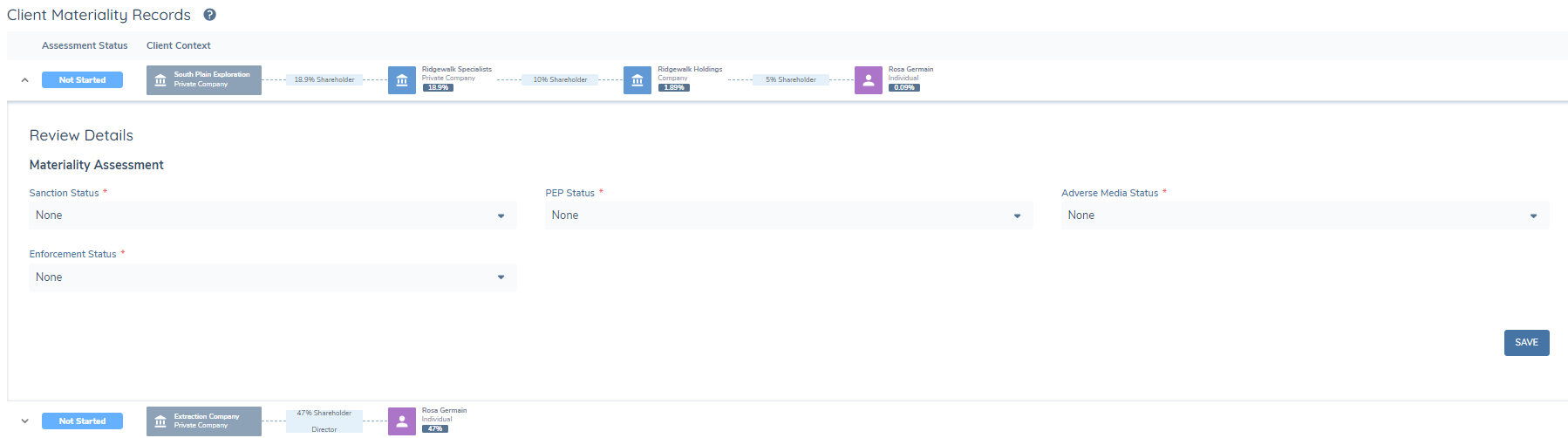
The default configuration consists of the following fields:
- PEP Status: The overall materiality of confirmed PEP hits in the context of the client entity.
- Sanctions Status: The overall materiality of confirmed Sanctions hits in the context of the client entity.
- Adverse Media Status: The overall materiality of confirmed Adverse Media hits in the context of the client entity.
- Enforcement Status: The overall materiality of confirmed Enforcement hits in the context of the client entity.
The user can select from the following options:
- Material: The confirmed screening hits in this category have a material impact on the client.
- Immaterial: The confirmed screening hits in this category do not have a material impact on the client.
- None: There are no confirmed screening hits in this category.
Materiality Aggregation Logic
When a user is making a determination of materiality in the Ongoing Screening task, they are making it only in the context of a particular relationship, but not taking into account previous screening results that may also impact the overall materiality status for the client. In the below example, the user may have determined that the Enforcements hit that has been triggered is Immaterial to the client being reviewed (Extraction Company), but the client may have previously confirmed Enforcements hits that should be considered in arriving at the overall status for Extraction Company. As a result, the system must perform an aggregation of the materiality statuses for the clients that are impacted by the Ongoing Screening hit. This ensures that a user does not have to manually review the entire history for the client before making a determination.
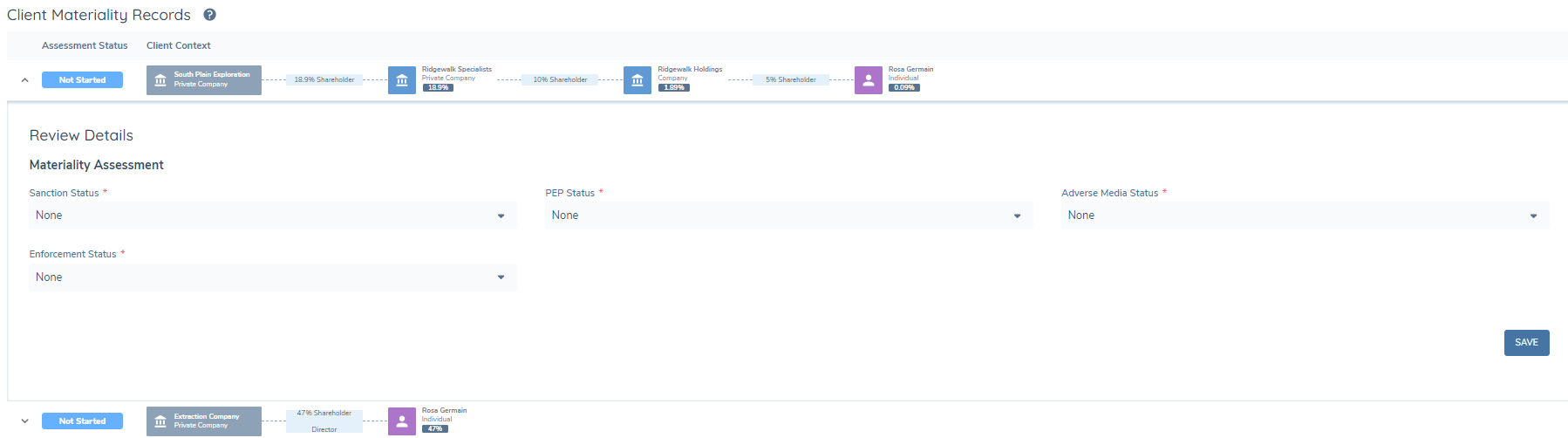
When the user saves the Materiality Assessment values, the system will check the previous values for the entity and take the maximum overall value which is saved to Entity Data. In the above example:
- If Extraction Company has a previous Enforcement Status of None, and the user selects Immaterial, the new Enforcement Status will be Immaterial.
- If Extraction Company has a previous Enforcement Status of Immaterial, and the user selects Material, the new Enforcement Status will be Material.
- If Extraction Company has a previous Enforcement Status of Material, and the user selects Immaterial, the new Enforcement Status will remain Material.
Sample Configuration
The aggregation logic uses Lookup Metadata to determine the order of values when performing the aggregation. An Order column must be saved against the values in the Materiality Status lookup in order to avail of this.
- In the Reference Data Editor create a lookup called ‘Materiality Status’.
- Create the values that you wish to capture in this lookup.
- Add an additional column of Type = Number and call it ‘Order’.
- Rank the lookup values in order from Highest to Lowest (where Highest = 1). Note that the Order values need to be integer (numbers without decimals).
- Link this lookup to the fields that are captured in the Materiality Assessment task.
Journey Task: Related Client Launchpad
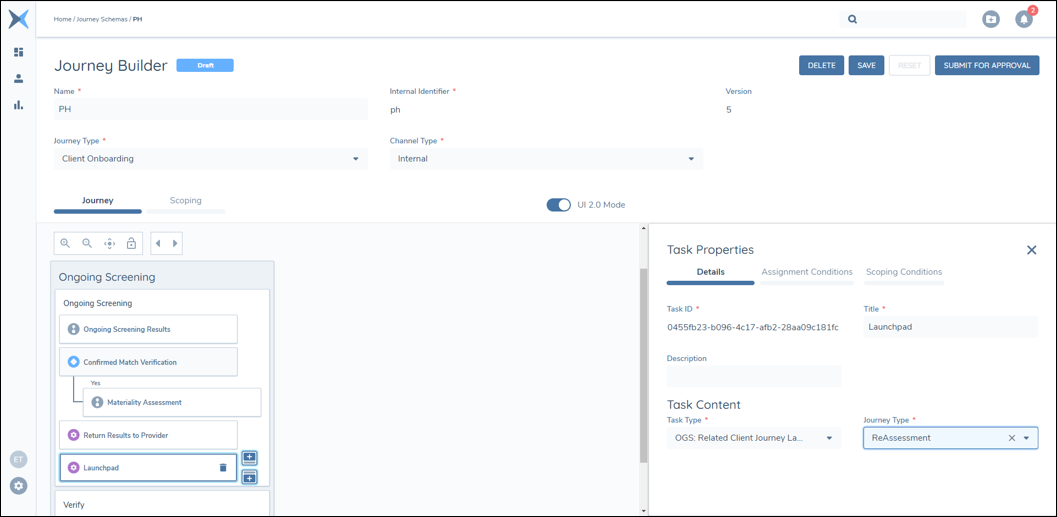
The Related Client Launchpad is similar to other Journey Launchpad tasks, and is used to automatically trigger associated journeys. The Related Client Launchpad task will trigger journeys for all impacted related clients that have been identified in the Client Materiality section described above. The associated journey that is launched will be based on the specific client configuration, but is generally used to capture the impact of the Ongoing Screening hit and re-calculate the Risk Rating for each of the related Clients.
Journey Task: Unsubscribe from Ongoing Screening
The Unsubscribe from Ongoing Screening task is designed to allow a user to unsubscribe entities from the ongoing screening they are enrolled in. Similar to the Client Materiality panel, the Unsubscribe from Ongoing Screening task allows the user to see all of the clients and non-client related parties that are enrolled in ongoing screening and allows the user to view the way in which the entities are connected.
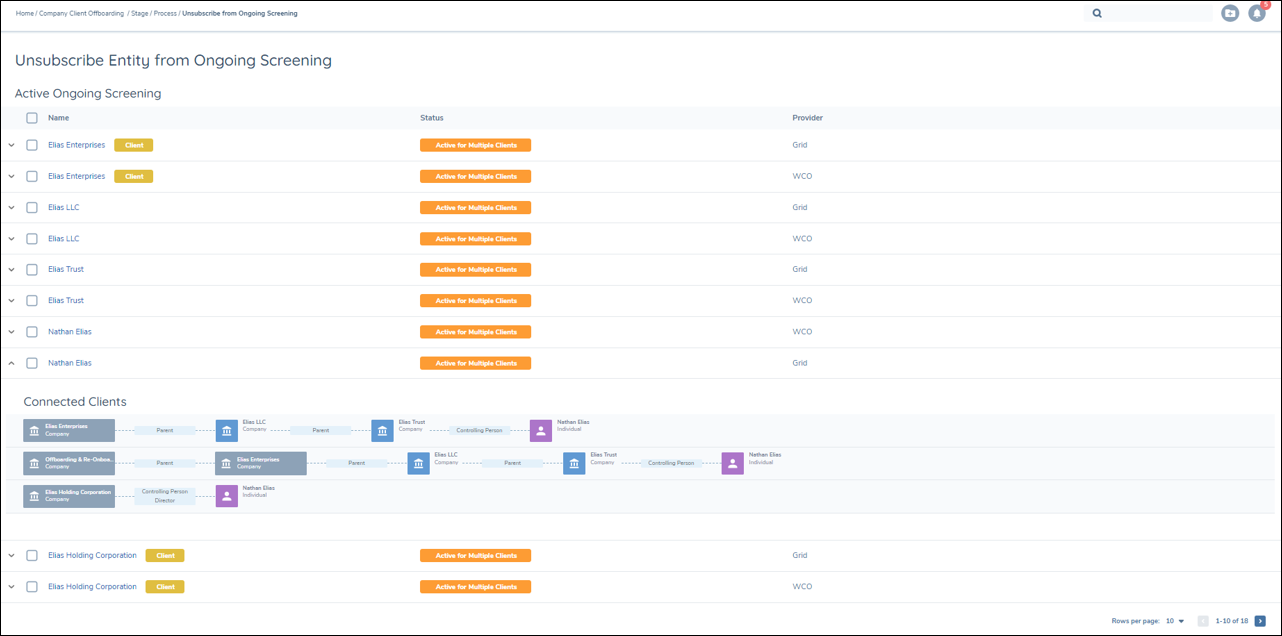
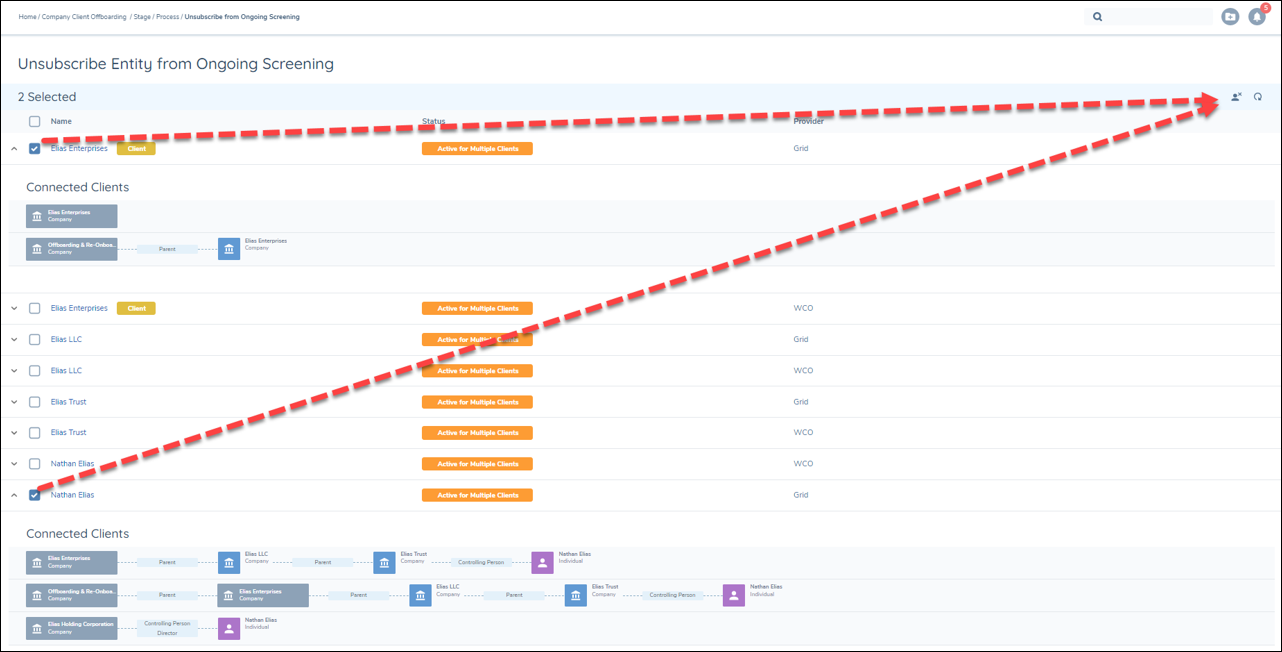
From the Unsubscribe from Ongoing Screening task, the user can unsubscribe the customer or the entities connected to it from ongoing screening by provider by selecting the entity and pressing the "Mark for unsubscribe" icon.
 When this action is taken, the entities will be updated in the UI with a status chip of "To be Unsubscribed".
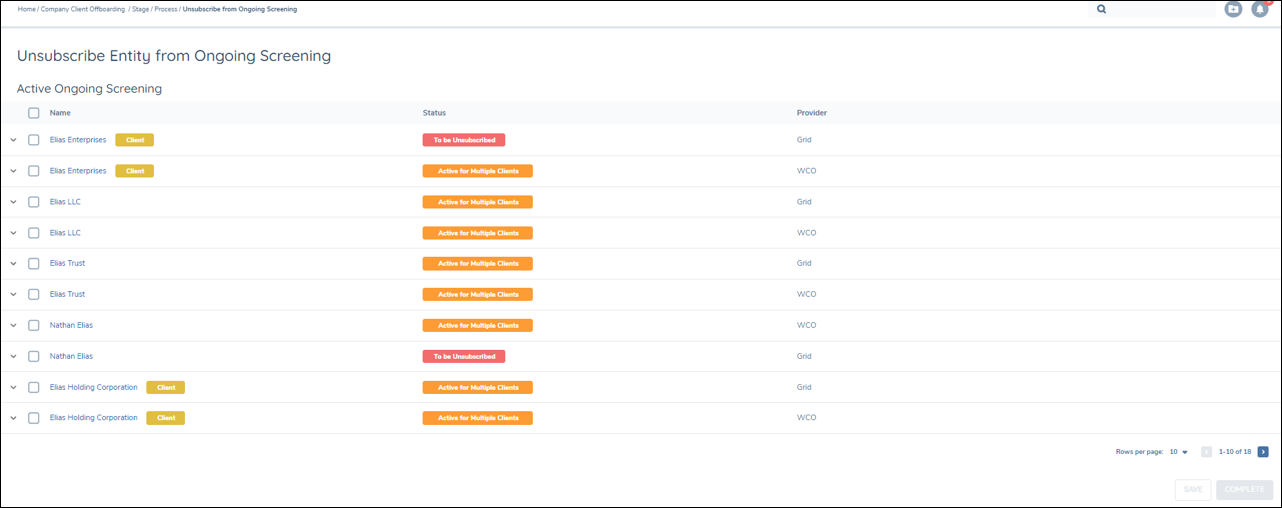
This can be reverted back by selecting the record and pressing the "Reset" button.

After the user is finished marking entities to be unsubscribed in the UI, the user can press either the "Save" button to commit their changes assuming they want to step away from the task and revisit it at a later date, or the user can press the "Complete" button to save their changes and complete the task.
When either of these buttons is selected and one or more of the entities selected to be unsubscribed is a customer or is associated to a customer that may not be part of the primary customer's hierarchy, then the user will be presented with a warning modal to confirm that entity should be unsubscribed.
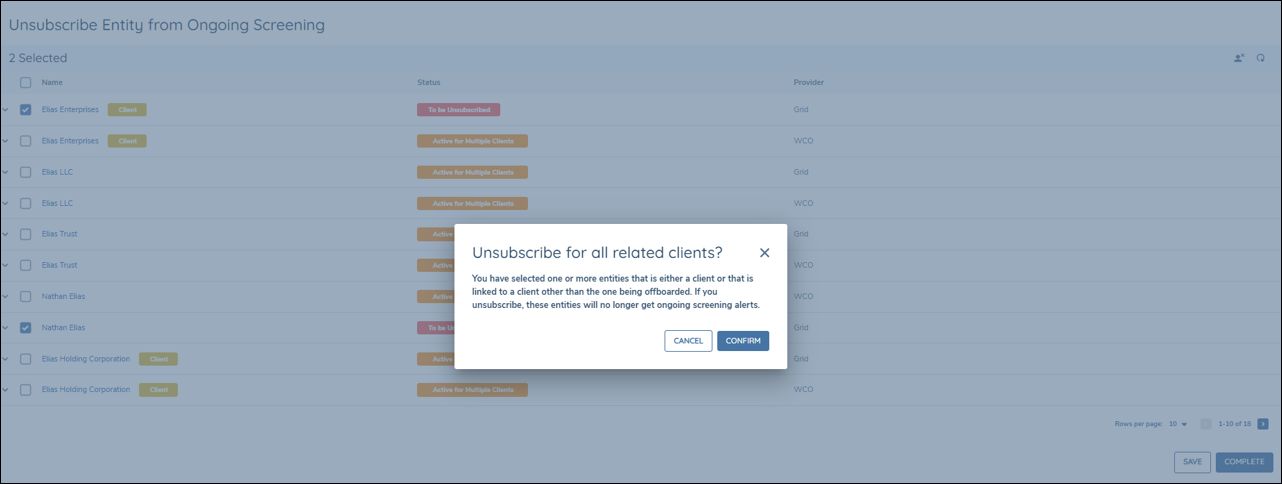
When the journey is completed, at the "Complete Client Offboarding" or "Verify Entity" task, the entity will become unsubscribed for the selected screening providers and the entity will show in the completed Unsubscribe from Ongoing Screening with a chip of "Unsubscribed".

Note: Whenever an entity that was unsubscribed for screening is subjected to future screening, it will be eligible to be re-enrolled into ongoing screening.