Using WCO OOTB Integration
WCO Version
Fen-X supports Refinitiv World Check One API v2.2.
Fen-X integration supports WCO Case Management and Audit.
Note: WCO MediaCheck and PassportCheck are not supported.
WCO Client Watchlist
The World-Check One Client WatchList feature allows you to screen entities against custom lists that can be screened alongside WCO lists. Multiple watchlists can be uploaded and integrated into the existing screening workflow.
In order to upload a custom watchlist for screening, follow these steps:
-
Navigate to the Admin page in WCO and select "edit" next to the Maintain Lists option under the WatchList section.
-
Select "New Watchlist" and upload the custom watchlist using the template provided on this page.
-
On the Admin page in WCO, select Settings under the WatchList section. Select "Edit" and ensure the that the newly created watchlist is selected for both Initial Screening and Ongoing Screening.
- Note: When you create a new watchlist, by default it will not automatically be selected as in scope for screening, so this step is essential to ensure that the watchlist is integrated to the screening workflow.
-
In the Screening Provider Configuration in Fenergo SaaS, navigate to Configuration Sets for WCO and ensure that the Client Watchlist is toggled on. This will ensure that screening is conducted against both custom watchlists as well as the standard WCO list.
- Note: When using multiple configuration sets and ongoing screening, the Client Watchlist must be enabled/disabled for all Groups.
- Note: If the toggle is enabled but no custom watchlist is uploaded in WCO, an error will occur. Ensure that the custom watchlist is uploaded in WCO before toggling this on.
-
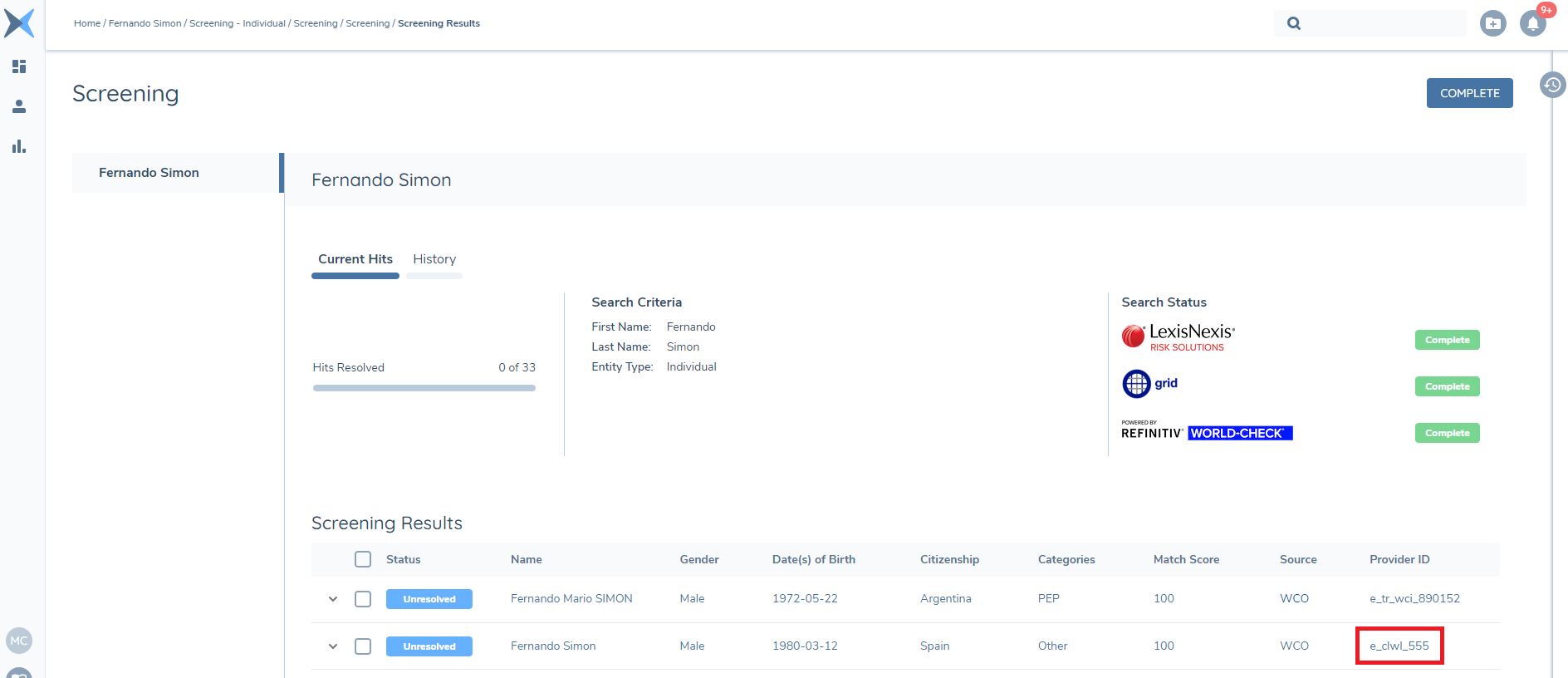
In order to test that the custom watchlist is working, create a new on demand screening in Fenergo SaaS for an entity that is in the custom watchlist. In the Screening Results, any hits for which the Provider ID contains "clwl" indicates a hit based on the custom watchlist. Additionally, you can check the "Profile" section of the hit in the Screening Results task for confirmation (under Source).
WCO Case Reuse
For a given combination of Fenergo SaaS Legal Entity Id and WCO Group Id, if there is an existing case in the WCO system, the existing case is reused. This functionality provides two key benefits:
- Hit Resolution is maintained across different screening processes within the same journey. This means that if a journey has two screening processes using the same configuration set, the resolution from the first process will appear in the second process for review and amendment.
- Hit Resolution is maintained across different journeys. If the entity in context is the same and both journeys are using the same configuration set, the resolution from the previous journey will appear in the second journey for review and amendment.
WCO Connections Data
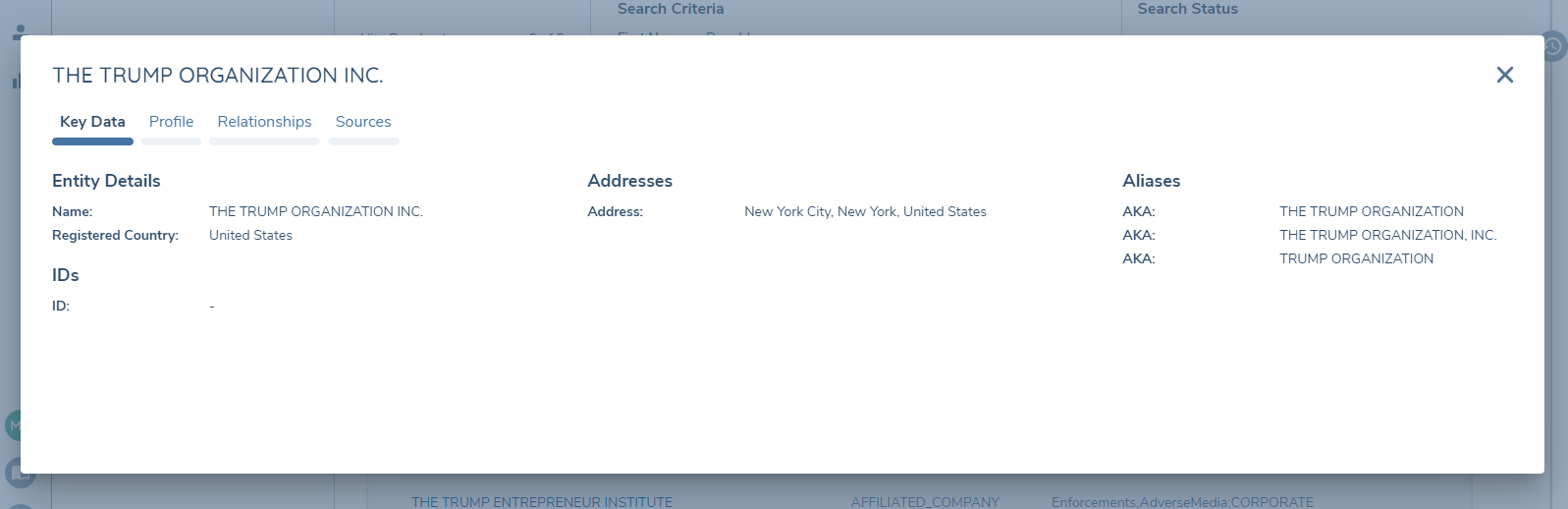
In the Fenergo SaaS screening results, details of companies and individuals linked to the match, along with their related categories, are displayed.
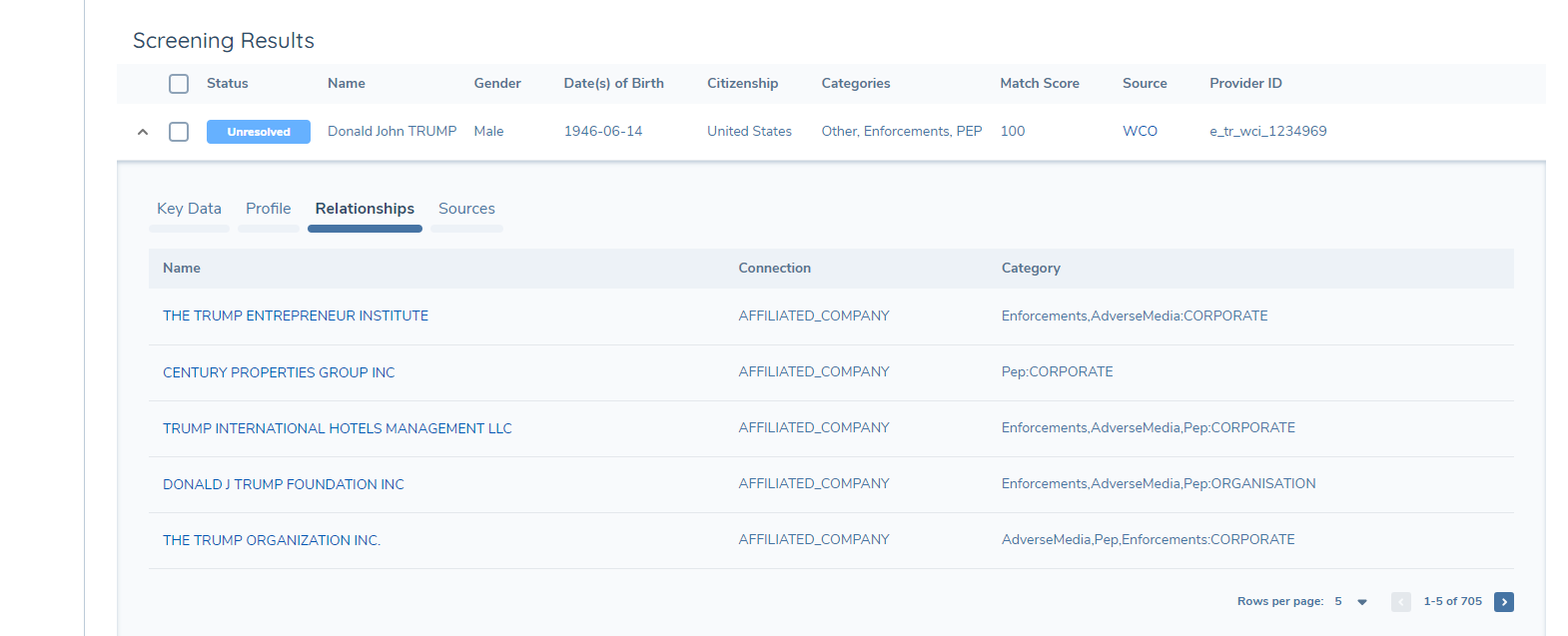
Users can simply click on the links provided to access the associated records.
WCO and Data Migration
In order to migrate entities from WCO to Fenergo, follow these steps:
-
Disable WCO Lists
- Disable all screening lists in WCO to ensure that no matches are returned during the migration. To do this, navigate to the Admin page in WCO and select "edit" next to the Settings option under the World-Check section. Unselect all Datasets. Ensure that this is also done for any watchlists in scope by navigating to the Admin page again and selecting "edit" next to the Settings option under the WatchList section, and unselecting Datasets here.
- Be sure to coordinate this with your business team or perform the change outside of business hours to avoid interrupting production screening.
-
Run the Event Ingress call
- Use the Event Ingress API to initiate screening journeys for the migrated entities. You will need the entityId and Legal Entity name for each entity to make this call.
-
Journeys will be initiated and completed automatically
- This API call triggers the Initiate Screening task, which starts the screening process.
- Important: The Initiate Screening task is asynchronous - it sends the request and completes almost immediately, while processing on the WCO side may still be ongoing. To ensure that all entities have been processed before reaching the Subscribe to OGS task is reached, it is important that the Subscribe to OGS task is placed after both the Initiate Screening and Screening Resolution tasks. Even though no hits will be returned (since lists are disabled), this step ensures the screening process has fully completed.
-
Subscribe to Ongoing Screening
- Once the Screening Resolution task completes, the entity will move to the Subscribe to Ongoing Screening task. This ensures that each entity is correctly subscribed to OGS going forward.
-
Re-enable WCO Lists
- After all entities have been screened and subscribed to OGS, re-enable the required screening lists in WCO. This restores normal screening operations.