Journeys Overview
What is a Journey
In the Fenergo SaaS platform, a Journey is how our clients model their business processes. Through the User Interface (And Via APIs), the components of a process can be arranged, grouped and structured to reflect the complex business steps required by clients in how they operate their CLM activities. In the same way as policies are fluid and configurable, Journeys can be versioned, changed and published. Any easier way to think about a journey in terms of traditional software systems is as a workflow. A Journey consists of:
- Top Level Journey Details
- Within a Journey there are Stages
- Within Stages are Processes
- Within Processes there are Tasks
- From within Tasks -> Areas of a Policy are Targeted (For presentation and Collection)
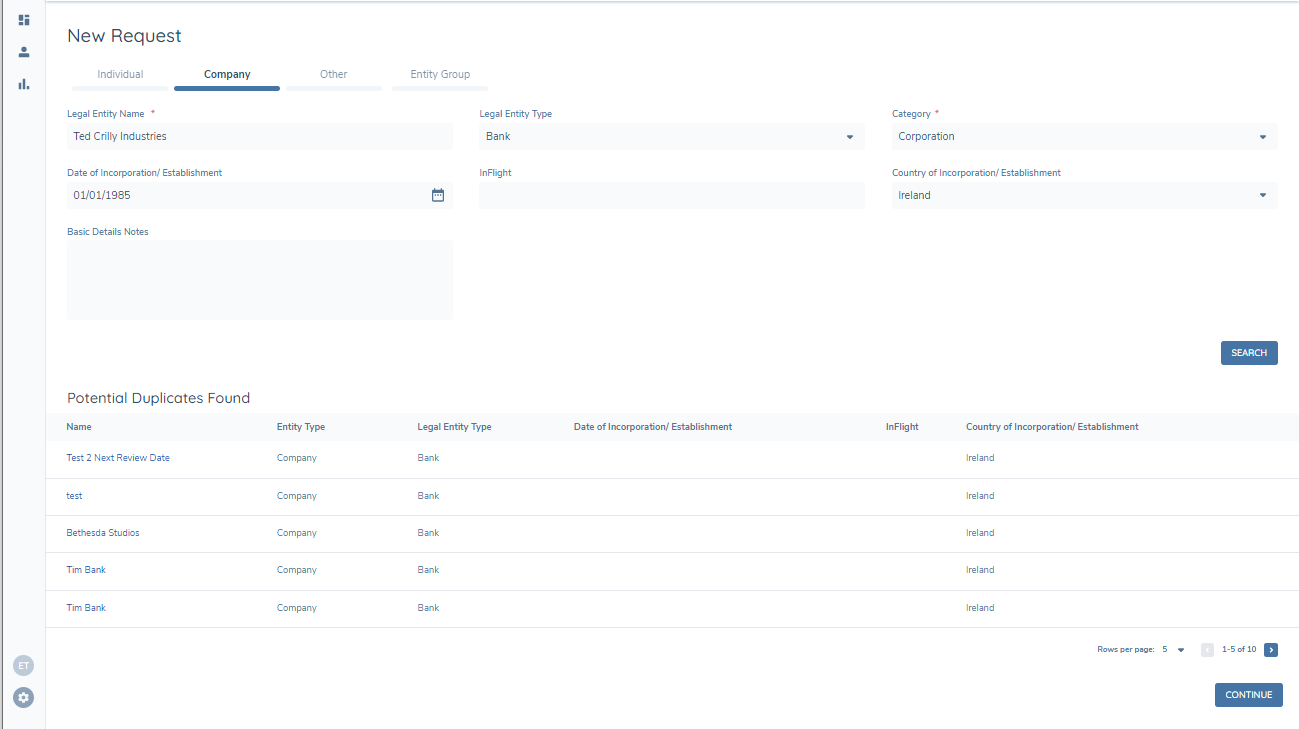
The Journey domain contains all the workflows in the system that accommodate Client Lifecycle Management activities, as well as the configuration tools that are used to create and maintain those Journeys. The Journey domain contains two main components:
- The Journey Hub , where instances of Journeys are presented for teams to process onboarding, maintenance, reviews, and other CLM activities. This is the operational view that is used by onboarding teams.
- The Journey Builder, where the stages and tasks that made up a Journey are created and maintained. This is the configuration view that is used by product consultants and implementation partners.
Navigation in Fenergo journeys
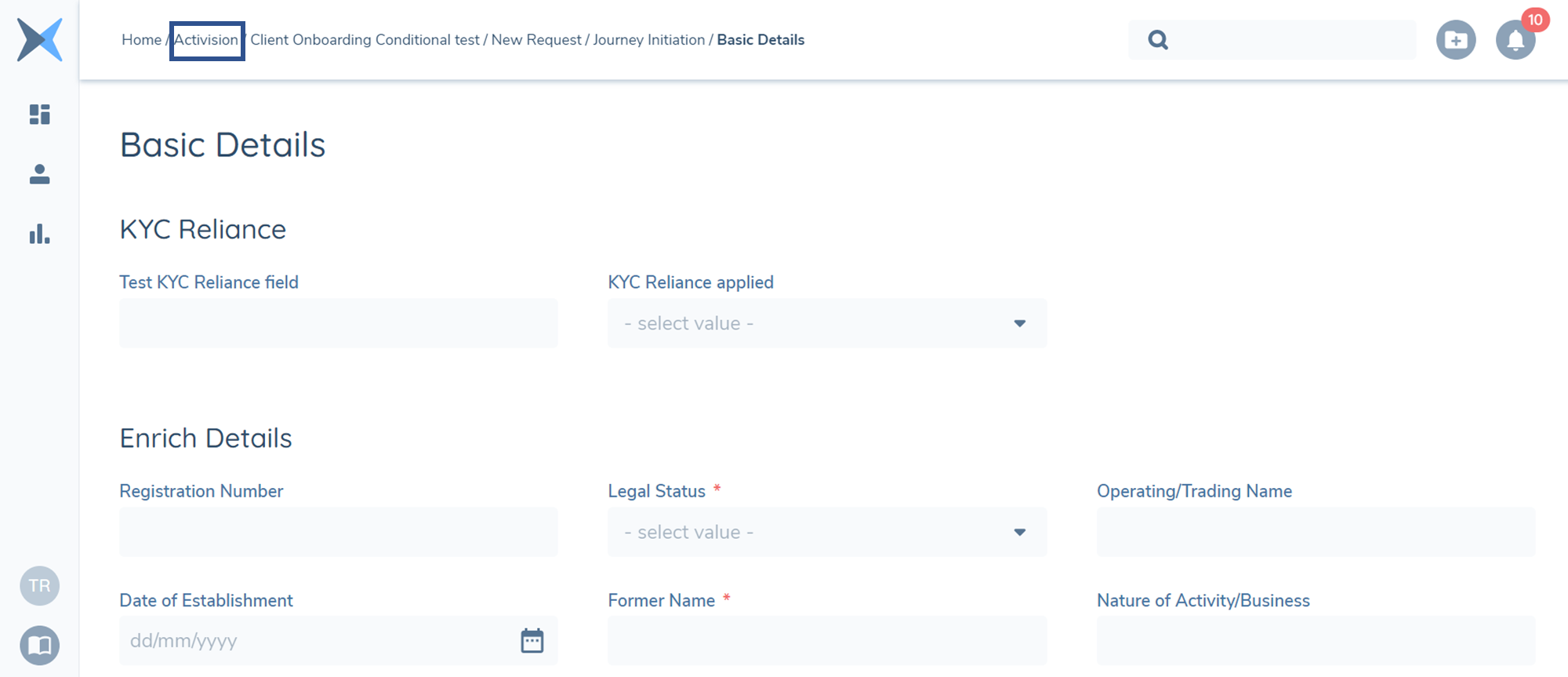
In the Journey Hub, there is a Navigation Breadcrumb available to help users get from Task screens back to the Journey Hub easily. Previously, users could only use this Breadcrumb to navigate from a Task to either the Journey Hub or Team Management Dashboard, but not the legal entity itself, which was a limiting experience. It meant an additional click for the user to go to the Journey Hub before clicking on the Legal Entity Name to take them to the Legal Entity Profile Page for that legal entity.
Also, with large Journeys and multiple users working on them at the same time, clients raised that it could sometimes become confusing in knowing who the legal entity is while in a task, meaning users would need to go to the Journey Hub to see. A minor inconvenience but an additional click nonetheless.
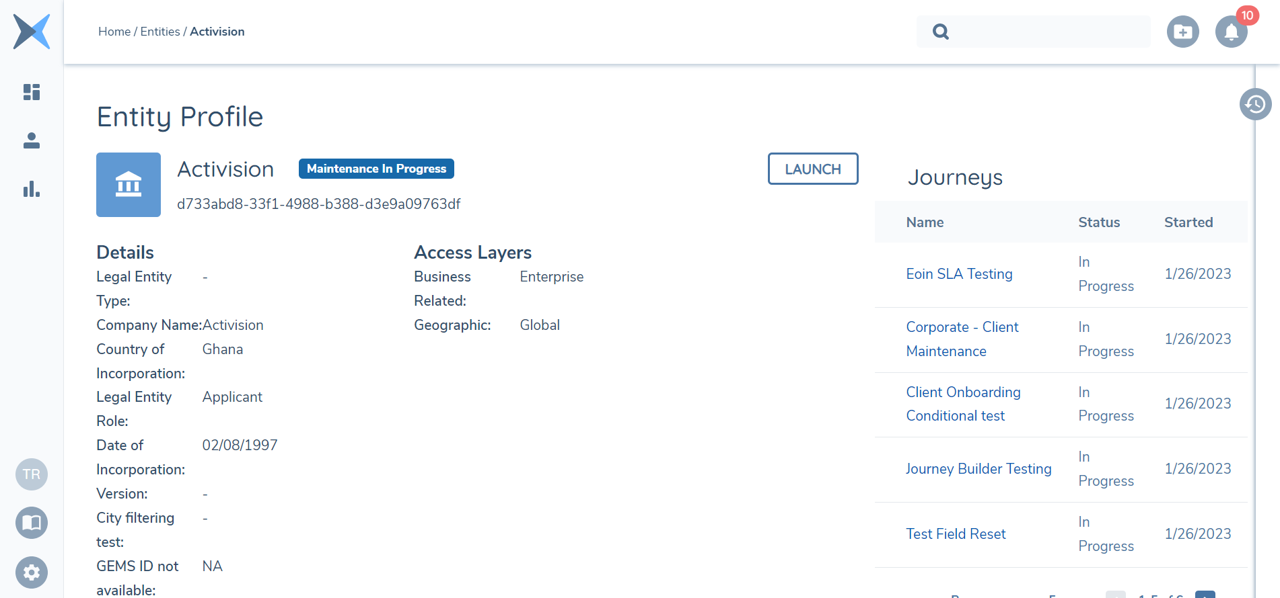
The Product team have now updated this Breadcrumb hyperlink to also include the Legal Entity Profile Page, meaning that users can now easily navigate to the Legal Entity Profile for the legal entity that they are working on with reduced clicks.
Journey Breadcrumb Navigation with link to the Legal Entity Profile Page
The Legal Entity Profile Page after clicking the Breadcrumb hyperlink
Service Level Agreements (SLAs)
The SLA functionality will support clients in managing their workload by allowing them to identify the most urgent items to work on.
These SLAs are configurable by nature and can be broken down into three areas:
- Journey SLA-the amount of time permitted to complete a Journey.
- Stage SLA-the amount of time permitted to complete a Stage within a Journey.
- Task SLA-the amount of time permitted to complete a Task within a Stage within a Journey.
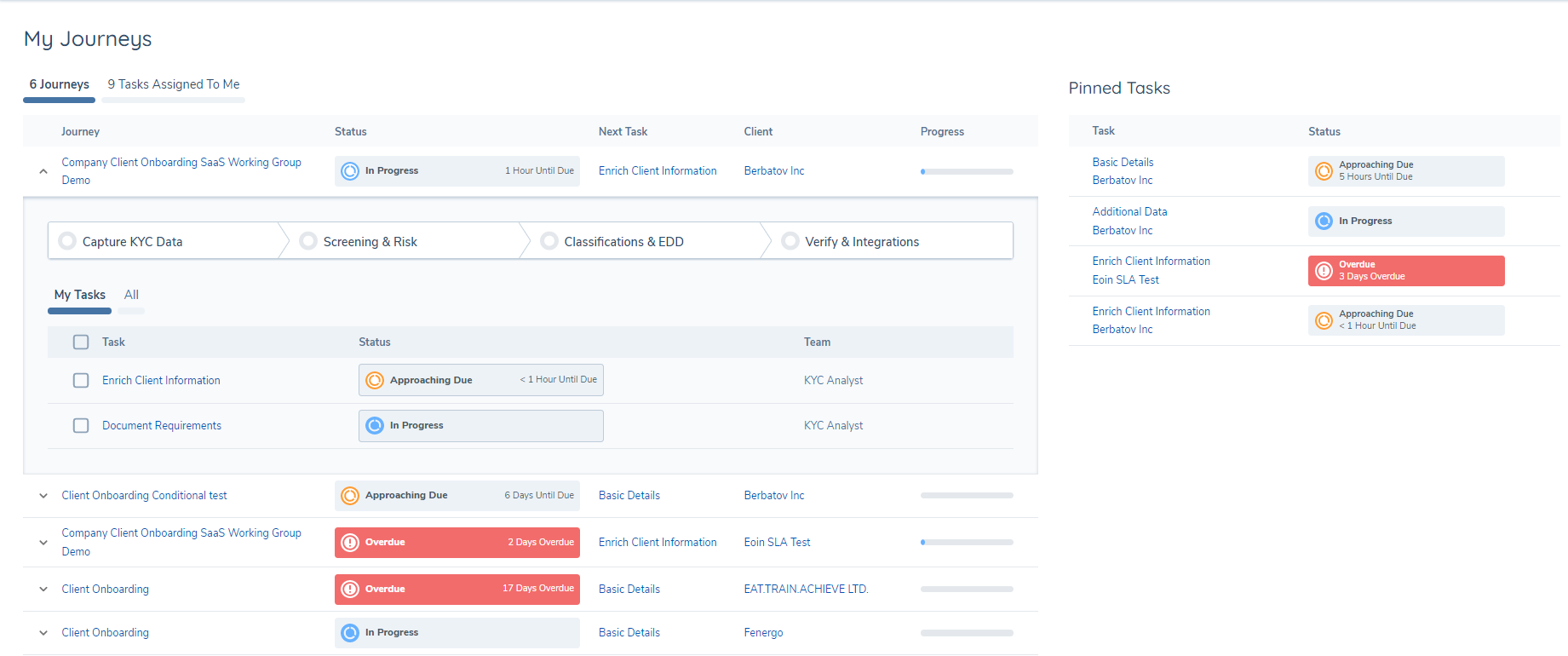
Once these SLAs have been set within a Journey Schema and this Journey has been launched for a legal entity, users will be able to see the reflected SLAs displayed in their Dashboards (Team Management and My Journeys). The SLA for a Task, Stage or Journey will be calculated when the item moves to a status of In Progress. This ensures we only begin the calculation of a SLA, relative to when the work item was available to be worked on by a User.
Note: The Committed Hours and Approaching Breach Hours configured at the journey, stage, and task level continue to function as before. When Working Days are configured (see Configuring Working Days for SLAs, these hour-based SLAs will respect the defined business calendar — time only accrues on designated working days.
SLAs on the dashboard
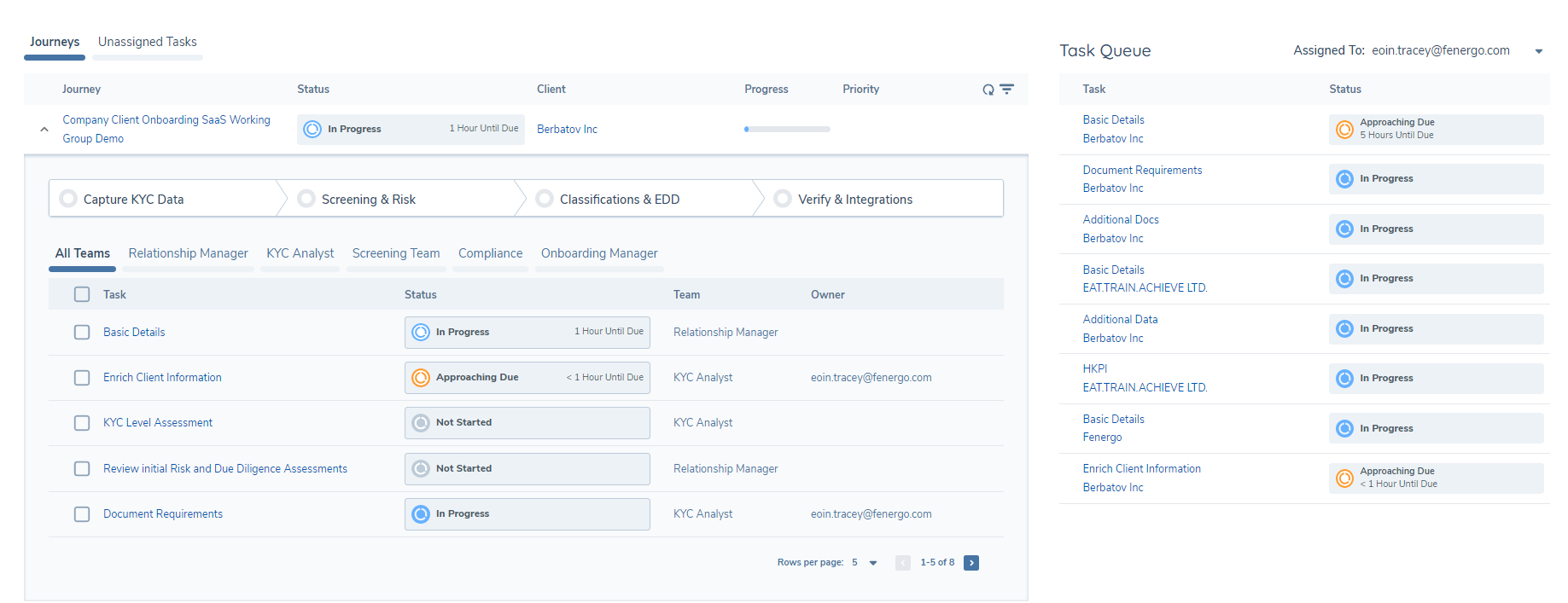
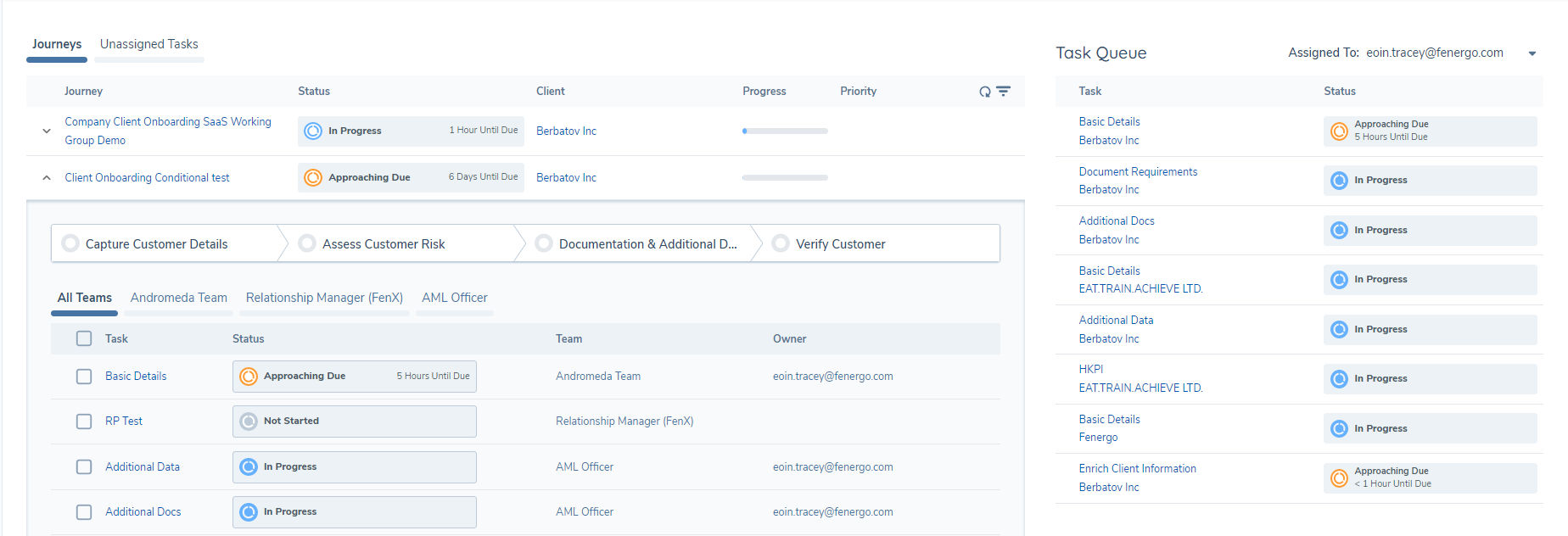
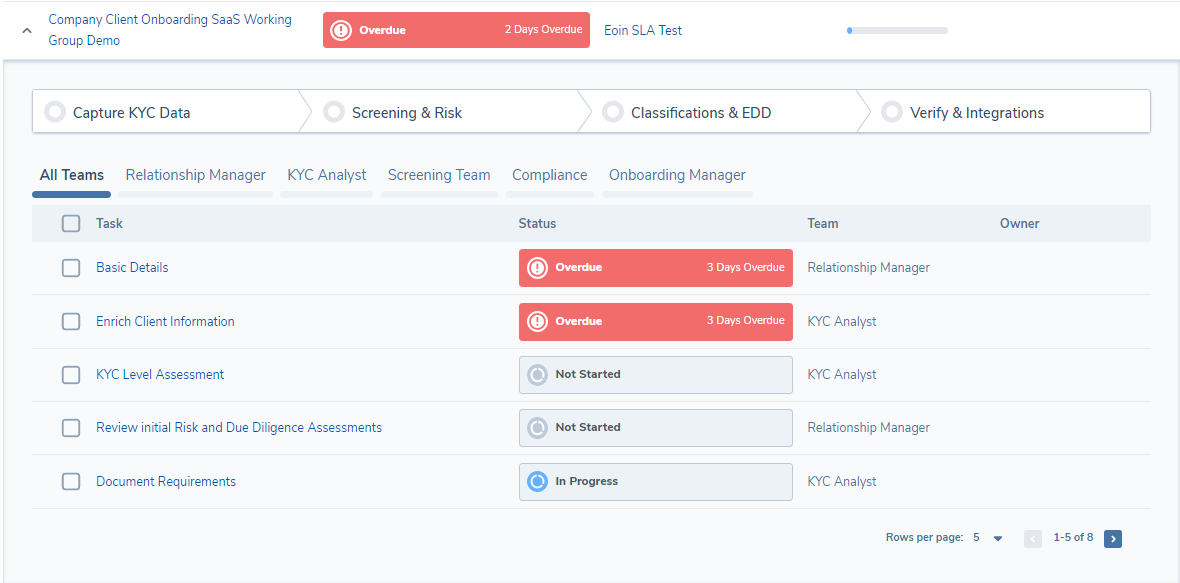
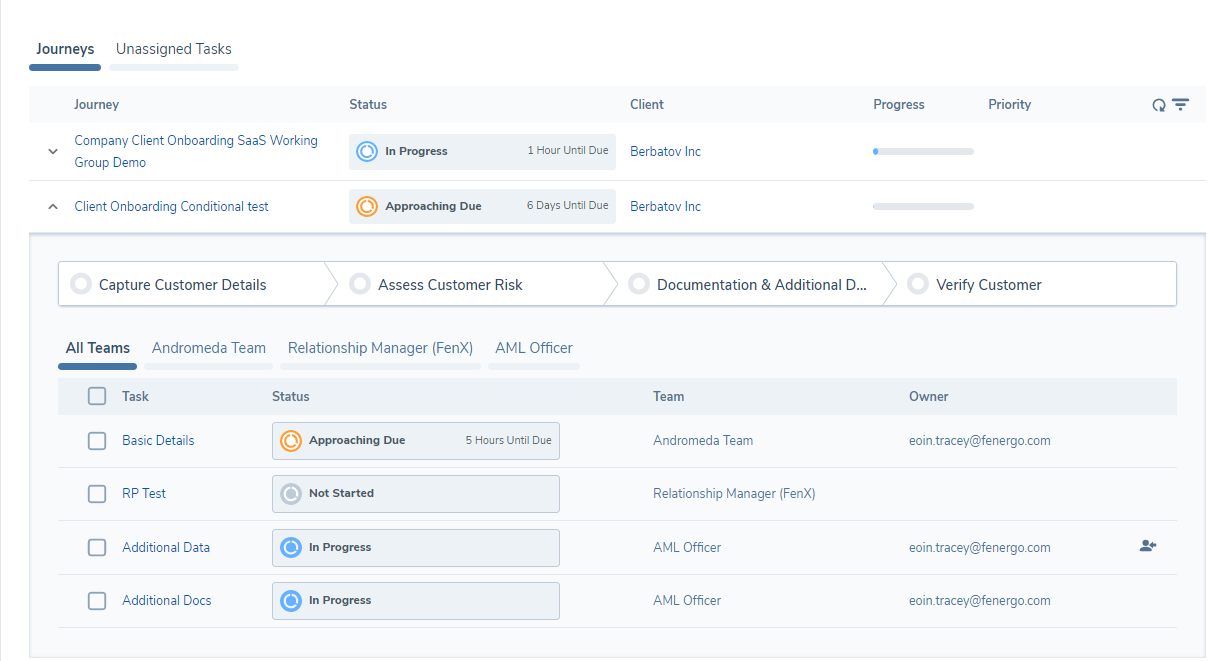
On the dashboards, users will see a breakdown of three SLA Statuses as well as the Hours remaining to complete each individual work item. These statuses are:
- In Progress
- Approaching Due
- Overdue
Team Management Dashboard with Approaching Due and In Progress SLA items
Also regarding SLAs in the dashboards, is a hover-over component for Journeys and Tasks which provides some additional information on the work item:
- Date Started
- Days Open
- SLA Period
- Commitment Date
For items that have SLAs defined, Users will see all 4 properties on the hover-over:
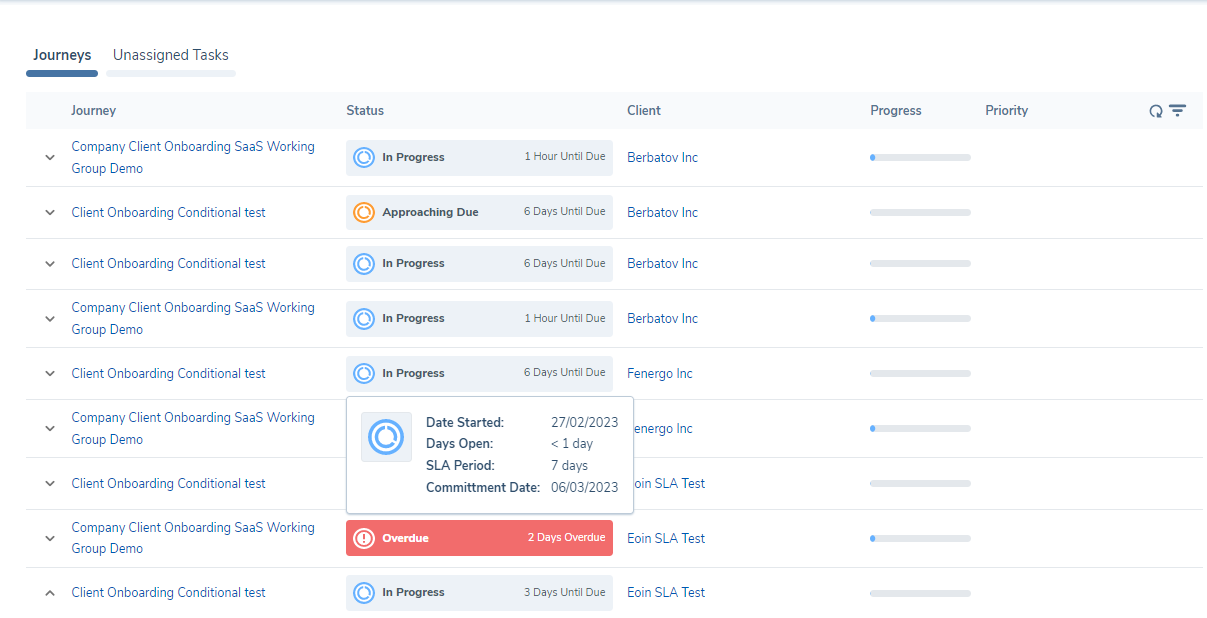
For items that do not have SLAs defined, they will see the Days Started and the Days Open properties only:
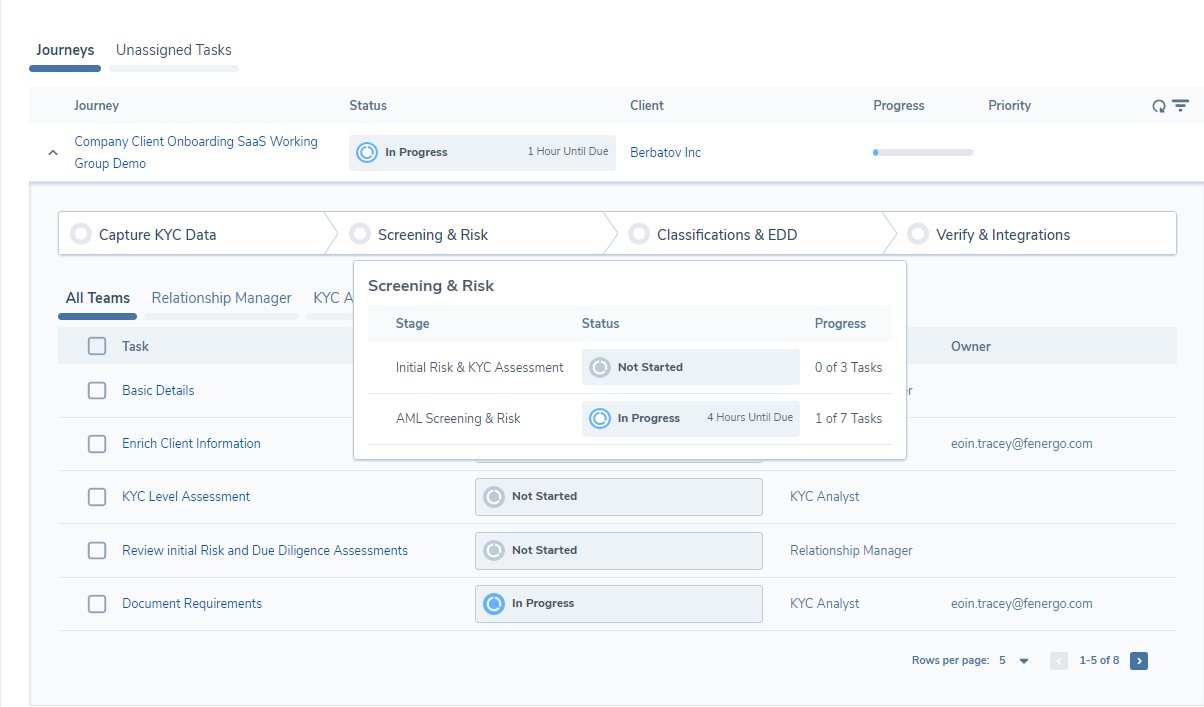
For Stage SLAs, these will be displayed within the configured Milestones of the Journey, visible when a User expands the Journey on the Dashboard. When a User hovers over the Milestone component, they will see the Stages within that Milestone and their SLA status, with the same properties as above. If SLAs are not configured, then the User will see only Date Started and Days Open:
SLA Event Notifications
In addition to the on-screen SLA indicators on Dashboards (covered above), Fenergo SaaS can publish SLA notifications to a tenant's downstream systems so that those systems can react in real time. There are two notifications:
- SLA Approaching Due — published when an item with a configured SLA is approaching its Committed Date.
- SLA Past Due — published when an item with a configured SLA has breached its Committed Date.
Both notifications fire for Journey, Stage, and Task SLAs and use the same Webhook / Polling delivery mechanics as all other Fenergo SaaS event notifications.
These notifications are opt-in per Journey Schema — they only fire for schemas where a configurator has enabled them via the Journey Configuration modal. See Configuring Journeys → Enabling SLA Event Notifications for setup, and the Event Registry for the full payload contract.
Enabling SLA Event Notifications does not change how SLAs are calculated, paused, or displayed on Dashboards. It only adds an outbound notification channel so external systems can be alerted when an item is approaching due or has breached.
Configuring Working Days for SLAs
Overview
By default, SLA calculations in Fenergo use all calendar days (Monday through Sunday). The Working Days configuration allows you to specify which days of the week are considered business days for your organisation. When configured, SLA timers will only count working days — pausing on non-working days and resuming on the next available working day.
Navigating to SLA Configuration
- From the left-hand navigation menu, expand the Management section.
- Under the Journey heading, select SLA Configuration.
- The SLA Configuration screen displays all seven days of the week with checkboxes.
Setting Your Working Days
- On the SLA Configuration screen, you will see checkboxes for each day of the week (Monday through Sunday). By default, all seven days are selected.
- Deselect any days that are not working days for your organisation. For example, to set a standard Monday-to-Friday work week, deselect Saturday and Sunday.
- Select a Reference Timezone from the dropdown. This determines the timezone used when evaluating whether a given day is a working day or non-working day for SLA calculations.
- Click Save to apply your configuration.
Note: At least one working day must be selected. If you attempt to deselect all days, a message will appear: "At least one working day must be selected" and the configuration will not be saved.
How Working Days Affect SLA Calculations
Once working days are configured, all SLA deadlines across journeys, stages, and tasks are adjusted:
- Deadlines skip non-working days. If a 2-day SLA is triggered on a Friday and your working days are Monday to Friday, the deadline will be set to the following Tuesday (Saturday and Sunday are not counted).
- In-progress SLA timers pause. If a task's SLA is counting down and a non-working day begins, the timer pauses. It resumes automatically at the start of the next working day.
Example
| Scenario | Working Days | SLA Triggered | SLA Duration | Due Date |
|---|---|---|---|---|
| Standard work week | Mon–Fri | Friday | 2 days | Tuesday |
| Middle-Eastern work week | Sun–Thu | Thursday | 1 day | Sunday |
| All days (default) | Mon–Sun | Friday | 2 days | Sunday |
Important notes for SLA functionality
- To enable SLAs in Production Environments: clients will need to make the necessary configuration changes within their respective Journey Schemas. When enabled, users will see slight differences in icons between items with SLAs defined and items without. We have updated the icons on Stages and Tasks in the Dashboards to provide a clear distinction between items with SLAs assigned, and items without.
- SLAs can be configured in two ways: static SLAs (where the defined SLA period does not change in a Journey) or Dynamic SLAs (where users can configure rules in which SLAs per work item can be evaluated and applied in a Journey).
- Within the Dashboards, the Committed Hours and Approaching Due properties are set as Hours within the Journey Schema: When these Journeys are displayed in the Dashboards, if the Hours period goes over 24 hours the UI will display "X Day(s)"" Until Due / Overdue.
- For re-opened Tasks or Stages, the SLA period will reset based off of the date of re-opening: The new SLA will be calculated based on the Committed Hours property within the Journey Schema, and the new "Started" value of the item.