Working with Advanced Journeys
How scheduled Journeys are identified and launched in Fenergo SaaS
Once scheduled, these Journeys will be picked up a batch Job Scheduler that runs every day between 07:00 - 07:15 UTC. The Job Scheduler will check the conditions set in each Journey Schedule and if they are met, will launch relevant Journeys.
Journey Launch Controls
Historically, the governance over when a Journey can and cannot be launched would be reliant on the Journey Scoping Conditions being satisfied. This would mean that a "Maintenance" Journey Type could be triggered whilst a "Client Onboarding" was still ongoing, or a "Periodic Review" could be triggered whilst a "Client Offboarding" was in-progress. The Journey Launch Controls functionality allows a user to define the precise scenarios under which a particular Journey Type can be initiated.
Assuming the user has the requisite "Journey Launch Control - Access" permission, an option within the Journey domain will now be visible in the Configuration Menu of "Journey Launch Controls". Accessing this hyperlink will bring the user to the Journey Launch Controls dashboard. Here, the tooltip will inform a user that "A Journey Launch Control states that a given Journey Type cannot be launched, when the associated condition is met."
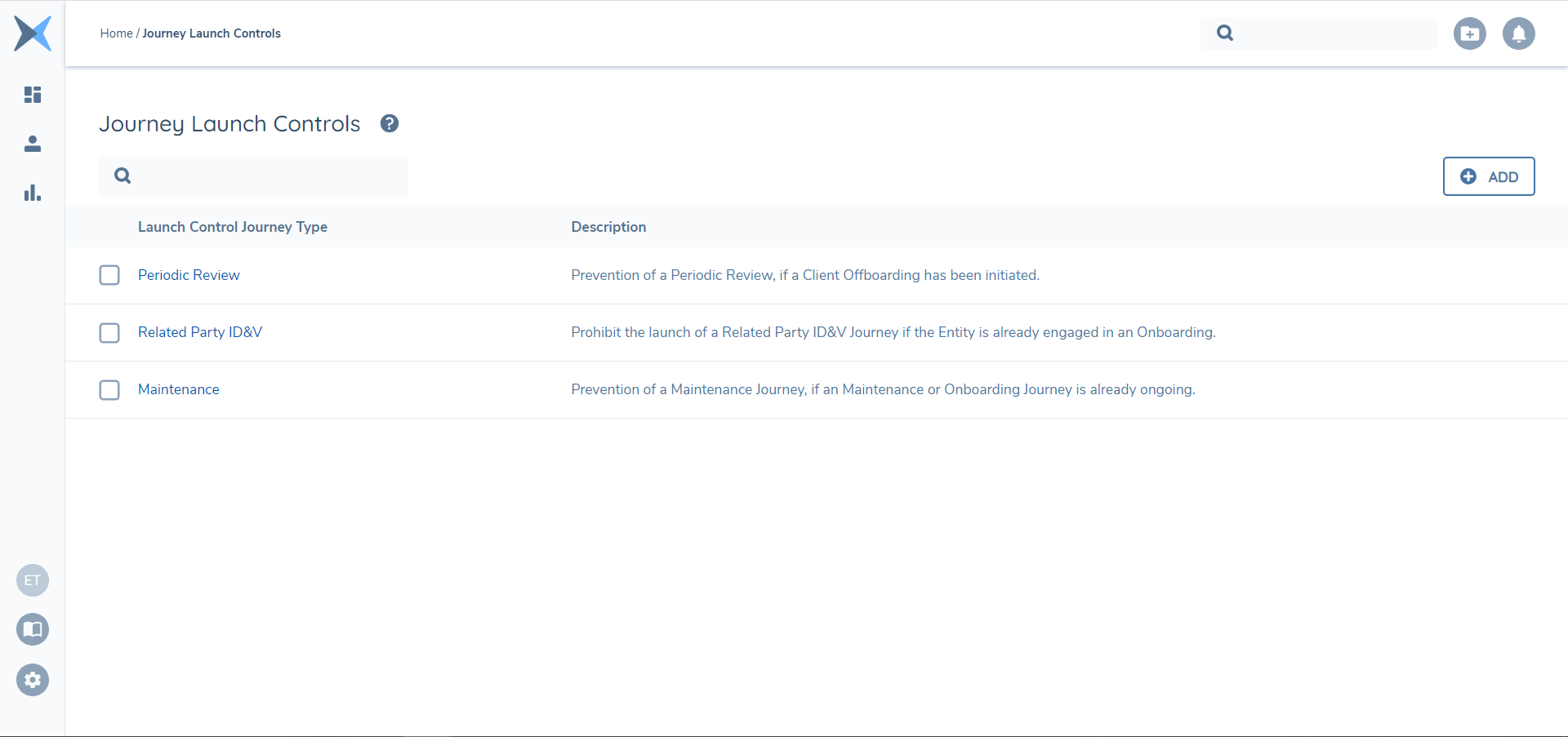
With the "Journey Launch Control - Edit" permission, a user will be able to amend existing Journey Launch Controls (with regards to the conditions driving their behavior), and with the "Journey Launch Control - Delete" permission, they will be able to delete existing configured Journey Launch Controls.
The implementation of a Journey Launch Control is an opt-in decision for a user. If a Journey Launch Control has not been defined for a Journey Type, then this process will simply be ignored and the given Journey Type's associated Journey Schemas will then be evaluated, as is today. In essence, a Journey Launch Control is only evaluated against a Journey Type, if configured.
Enforcement of Journey Launch Controls in Fenergo SaaS
Journey Scoping Conditions and Journey Launch Controls will work in tandem to define if a given Journey Type can be initiated. The Journey Launch Control will first be evaluated, and the validation check here is that the configured Journey Launch Control for the selected Journey Type has not been met. Assuming this first check is satisfied, we will then evaluate the Journey Schemas defined for the selected Journey Type, and launch X number of Journey Schemas that have had their Journey Scoping Conditions satisfied.
In simple terms, a Journey can be initiated via the following two step process:
- A "Journey Launch Control" (if defined) for the given Journey Type has not had its associated condition satisfied.
- A Journey Schema(s) for the given Journey Type has had its associated condition satisfied.
Finally, it is important to note that a Journey Launch Control, when configured against a specific Journey Type, is enforced under all scenarios in which a Journey could be launched. This includes Journey Scheduler, Journeys launched from the Entity Profile Page and any of the various "Launchpad" tasks that we have today in the application.
Journey Launch Controls per Team
Overview
The Journey Launch Controls per Team feature allows administrators to restrict which teams can initiate specific journey types. This provides stronger compliance and ensures only authorised teams can launch sensitive journeys.
Previously, Journey Launch Controls applied only at a global level (e.g. blocking Maintenance while Onboarding is active). With this enhancement, launch rights can now be managed at the team level, reducing errors and improving workflow efficiency.
How It Works
- A new field Teams that can launch this journey type is available in Journey Launch Controls.
- This is a multi-select dropdown showing all teams in the tenant.
- Launch permissions are enforced consistently across the UI and APIs.
Configuring Team Launch Controls
-
Open Journey Launch Controls
- Navigate to the Management Bar.
- Select Journey Launch Controls (permissions required: Journey Launch Control Access).
-
Add a New Rule
- On the Team Controls tab, select Add.
- In the Edit Journey Launch Control screen, select the Journey Type.
- In the new field Teams that can launch this journey type, choose one or more teams.
-
Save the Rule
- Add optional conditions if required using the standard logic engine.
- Click Save.
-
Effect in APIs
-
Attempts to launch a restricted journey will return:
HTTP 403 Forbiddenwith error: “Your team is not authorised to launch this journey”HTTP 400 Bad Requestif the team is invalid
-
Permissions
The following existing permissions apply:
- Journey Launch Control Access
- Journey Launch Control Edit
- Journey Launch Control Delete
Task Types
There are several different types of tasks. These are detailed below. Note that stages and processes are of one type only.
| Task Category | Task Type | Description |
|---|---|---|
| Policy Requirements Tasks | Data | Data capture task for policy requirements. |
| Policy Requirements Tasks | Documents | Document requirements upload tasks. |
| Policy Requirements Tasks | Data & Documents | Combines the two above Tasks into one screen. |
| Policy Requirements Tasks | Entity Data Condition Task [DEPRECATED] | Conditional task with option to define a custom condition that must be met. Note that this task has been superseded by Decision Gateways. |
| Policy Requirements Tasks | eSignature Documents | The eSignature Documents task is very similar to the standard Documents Task, but with the additional option to send any uploaded documents to existing or adhoc recipients for signing via a DocuSign envelope. |
| Policy Requirements Tasks | Review Signed Documents | The Review Signed Documents task will allow users to review all Documents provided by an Entity following completion of the eSignature Documents task. |
| Policy Requirements Tasks | Related Parties | Capture related parties such as UBOs and Directors. |
| Policy Requirements Tasks | Data Review Task | Review data of client and make Approve/Reject decision. |
| Policy Requirements Tasks | If/Then Condition Task | Not displayed in the Journey Hub, but allows for nested tasks to be conditionally triggered based on a defined value on a given Property. |
| Policy Requirements Tasks | Conflict Resolution | Resolve conflicts between draft entity data and verified entity data. |
| Policy Requirements Tasks | Proposed Changes | Allows user to compare the data at the beginning of the Journey versus what has been entered thus far. |
| Product | Manage Products | Data capture task for product requirements. |
| Product | Verify Products V2 | Automatically verify the product record and merge with the draft. |
| Product | Create Onboarded Product Drafts | Only draft products are available to assess in Product Risk Assessment tasks. This service task can force creation of Product Drafts for Onboarded products so that their risk will be recalculated with the latest risk configuration. |
| Product | Review Offboarded Products | A task to present offboarded products in a partial data deletion journey. Users can mark offboarded products for deletion by this journey. |
| Product | Product Journey Launchpad | Used to launch connected journeys for the current journeys Product Drafts that satisfy 'Connected Journey' Scoping Rules. The task will launch a journey of the configured 'Journey Type. |
| Product | Product Journey Checkpoint | Checkpoint task that pauses the parent journey until all connected product journeys launched via Product Journey Launchpad are Complete or Cancelled. |
| Outreach | Outreach Data Review | Data updates made during the outreach stage can be reviewed and compared to the entity draft. The reviewer can decide whether to accept these updates at field level; accepted data is written to the entity draft. |
| External Data | External Data Search | Search external systems for entity data. |
| External Data | External Data Results | Display the result of the entity data search. |
| External Data | Individual ID&V | Enables ID&V to be included in individual journeys. |
| External Data | External Data Refresh | Allows a refreshed dataset to be retrieved from the External Data Provider as part of Ongoing Monitoring. |
| On Demand Screening | Initiate Screening | Automatically initiate screening call to screening provider (e.g., LexisNexis). |
| On Demand Screening | ODS: Screening Match Resolution | Manual call to screening providers to displayscreening matches and resolve hits. |
| On Demand Screening | ODS: Confirmed Match Verification | Conditional task following manual call to screening providers with option to define a conditional outcome where confirmed matches have been identified. |
| On Demand Screening | ODS: Materiality Assessment | Summary view of confirmed matches with materiality assessment data requirements following manual call to screening providers. |
| Ongoing Screening | OGS: Screening Match Resolution | Automatic task that will run to display screening matches and resolve hits. |
| Ongoing Screening | OGS: Confirmed Match Verification | Conditional task with option to define a conditional outcome where confirmed matches have been identified. |
| Ongoing Screening | OGS: Materiality Assessment | Summary view of confirmed matches with materiality assessment data requirements. |
| Ongoing Screening | OGS: Related Client Launchpad | This task type allows clients to determine that if a material hit has been identified on a client, if that material hit also impacts any other clients in the hierarchy. |
| Ongoing Screening | OGS: Unsubscribe from Ongoing Screening | Allows user to select entities to unsubscribe from Ongoing Screening as part of Offboarding or related activities. |
| Close Screening | Close Screening Batch | Automatically return results to screening provider and close alerts. |
| Risk | Risk Assessment [DEPRECATED] | Automatically calculate the client risk level. Note that this task has been superseded by Risk Assessment Policy Output task. |
| Risk | Risk Assessment Policy Output | Automatically calculate the client risk level and allows the user to indicate the fields that risk outcomes will be stored in. |
| Risk | Risk Assessment Condition Task [DEPRECATED] | Conditional task that can create additional tasks based on risk level. Note that this task has been superseded by Decision Gateways. |
| Risk | Risk Assessment Conditional Policy Value Task [DEPRECATED] | Conditional task that can create additional tasks based on risk level, using the specified field that risk has been stored in. Note that this task has been superseded by Decision Gateways. |
| Risk | Calculate Next Review Date | Takes Risk Assessment Outcome in a Journey and maps it to Risk Threshold model configured in Risk Configuration Domain where each Risk Rating has an associated Review Period to determine when the Next Review Date for an Entity should be set. |
| Risk | Product Risk Assessment | Automatically calculate risk of each Product Draft with an option to aggregate risk across product drafts and verified products (using verified risk score) to store at the entity data level. |
| Service | Cancel Journey | Cancel the Journey for the client (usually triggered after data review task). |
| Service | Verify Entity | Automatically verify the entity record and merge with the draft. |
| Service | Create Outreach Snapshot | Creates a snapshot of the entity draft data that is written to the outreach data store, to be updated during the outreach stage. |
| Service | Verify Related Party Associations V2 | Automatically verify the draft relationships between the related parties and the client. |
| Service | Manual | A placeholder task that is used for orchestration activities. |
| Service | Journey Launchpad | A task that runs the Policy Scoping rules to check if any further Journeys are in scope. Must be placed after the Verify Entity task. |
| Service | Unblocking | Indicates that a gate/control point has been passed in a parent journey. This can trigger the completion of 'Blocking' tasks in a connected journey when they have the same 'Task Data Key' value. |
| Service | Blocking | Task is used to prevent a Connected Journey from advancing until either the paired 'Unblocking' task (with the same Task Data Key) has completed. If configured with 'Autocompletion' conditions, the task can also complete if they are satisfied when the task becomes 'In Progress'. Users can navigate into the task to see the purpose of the Blocking task. If no task 'Description' value is provided, this will be a default message, else we will use the configured 'Description'. |
| Launchpad | Related Party Checkpoint | A task that shows all Related Party Journeys that have launched as a result of the Related Party Launchpad task being triggered in a Journey. This task is mandatory if a Related Party Journey Launchpad task has been included in a Journey and must be after the Related Party Launchpad task (but not directly after). |
| Launchpad | Related Party Journey Launchpad | This task provides users with direct links to the Related Party Journeys that have launched as a result of the Related Party Launchpad task being triggered. It will track the progress of the Journeys and once all Journeys are cancelled / complete – then users will be able to complete the task. |
| Launchpad | Merge Related Party Drafts | Automatically verify the draft entity records of all related parties. |
| Entity Groups | Manage Group Information | A Task that allows for the addition of a Parent Entity and multiple Child Entities to an Entity Group, as well as the selection of the Shared Data Template to be used to propagate Shared Data in later tasks. |
| Entity Groups | Verify Group Entities | Automatically verify the Parent and Children Entities relationships within a Group context. |
| Data Protection | Complete Client Offboarding | A service task that is used to initiate the Data Deletion Process when offboarding a Policy. |
| Data Protection | Complete Client ReOnboarding | A service task that is used to bring offboarded Policies back into scope. |
| Agency | Add Parties to Request | A task that allows selection of new and existing entities for onboarding under an agency relationship. The task supports the selection of entity type = Company |
| Agency | Agency Request Details | A task that supports the data capture requirements for an Agent request to onboard one or more management relationships. Supports the enrichment of entity and managed relationship details, as well as initiation of product requests per entity in scope. |
| Agency | Agency ETL | A task used in Agency Request journeys to bulk upload UP, Product and MR data. The task uses the familiar ETL UX but generates drafts (same as Agency Request Details), so it is still used in combination with the Agency UP Journey Launchpad task to verify draft data in a separate journey for each UP. The task can support up to 1,000 UPs and up to 5,000 Products. |
| Agency | Agency UP Journey Launchpad | A task that will automatically initiate journeys for related parties with a underlying principal relationship to the main entity of the agent request journey, of they are in scope of the agent request. The task will allow users to configure a single journey type to be triggered for all related parties in scope. |
| Agency | Agency Agent Journey Launchpad | A task that will automatically initiate a journey specific journey type (configurable) for the principle/main entity of the agent request journey. The task will propagate relevant data to this journey, including entity data for the agent, managed products under request in the agent request. |
| Agency | Managed Relationship Details | A task used in Underlying Principal journeys where their Managed Relationship data may need to be viewed or maintained. Policy scoping is specific to each MR (i.e. with multiple MRs visible in the same task they can have different in-scope policies). This task can be especially useful to configured tasks for specific regulations at Agency level (i.e. data sourced from the agent covering their activities for the fund). |
Component Properties
The Properties panel is where we configure the behaviour of our tasks, processes, and stages. Every component must have a Title and Task Type, with an optional description.
Based on the task type, some tasks will have different metadata.
Details Tab
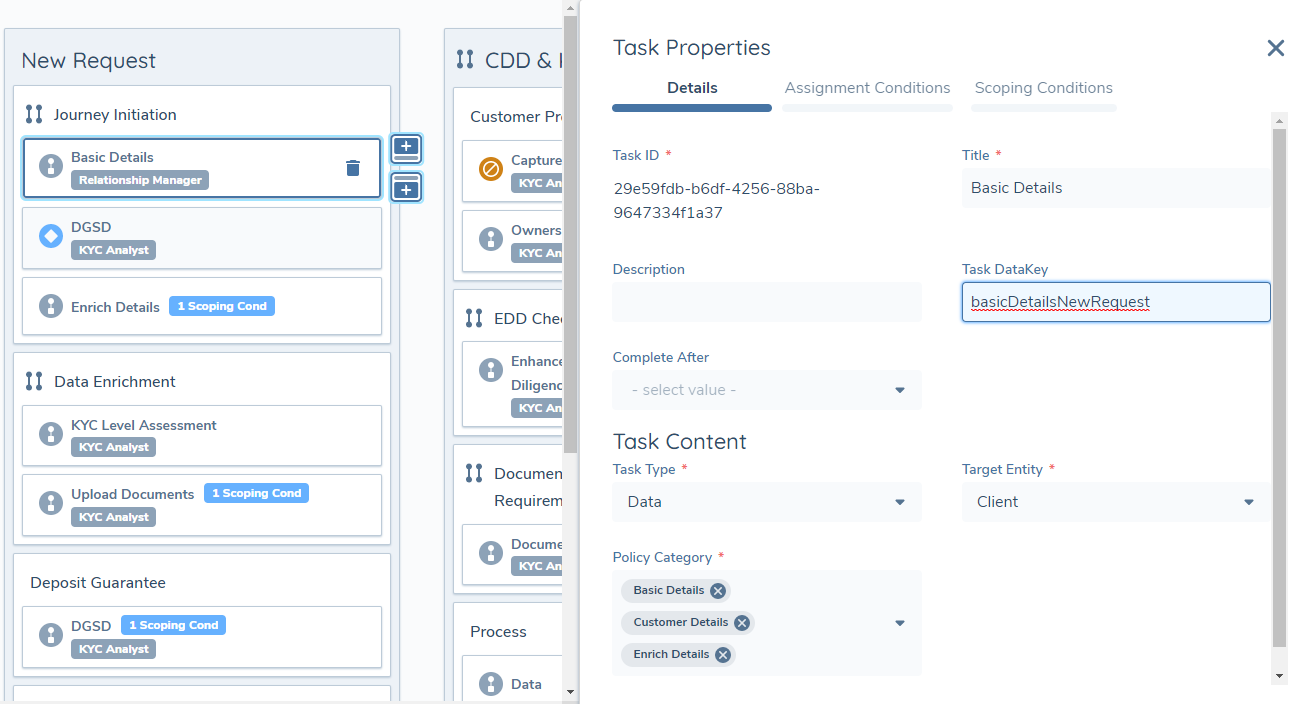
- Task DataKey: This field allows the user to manually input a datakey for the Task in this Journey Schema. This can be used for integrational purposes, or to provide a unique identifier for a Task across different tenants.
- Target Entity: The entity type that the task is relevant for. This should always be set to "client".
- Policy Category: The set of requirements from policy that should appear in the task. This value is picked up from the Policy configuration, based off of the Policy Category the requirements belong to. This is a key reference that links the tasks in Journey to the policy requirements. It is populated by the "Requirement Category" lookup.
Policy Category & Data Group Ordering
We have recently delivered a new capability that allows a user to define the order in which the Policy Categories being referenced in a Data Task appear. This will affect Data Requirements, as well as Data Requirements of field type "Data Group". Data Groups will still appear at the bottom of the screen in the UI but will be sorted based on the Category Order that has been defined.
The tasks in which the Policy Category Ordering feature is available are:
- Data
- Data and Documents-applicable only for the Data
- Data Review
- OGS: Materiality
- ODS: Materiality Assessment
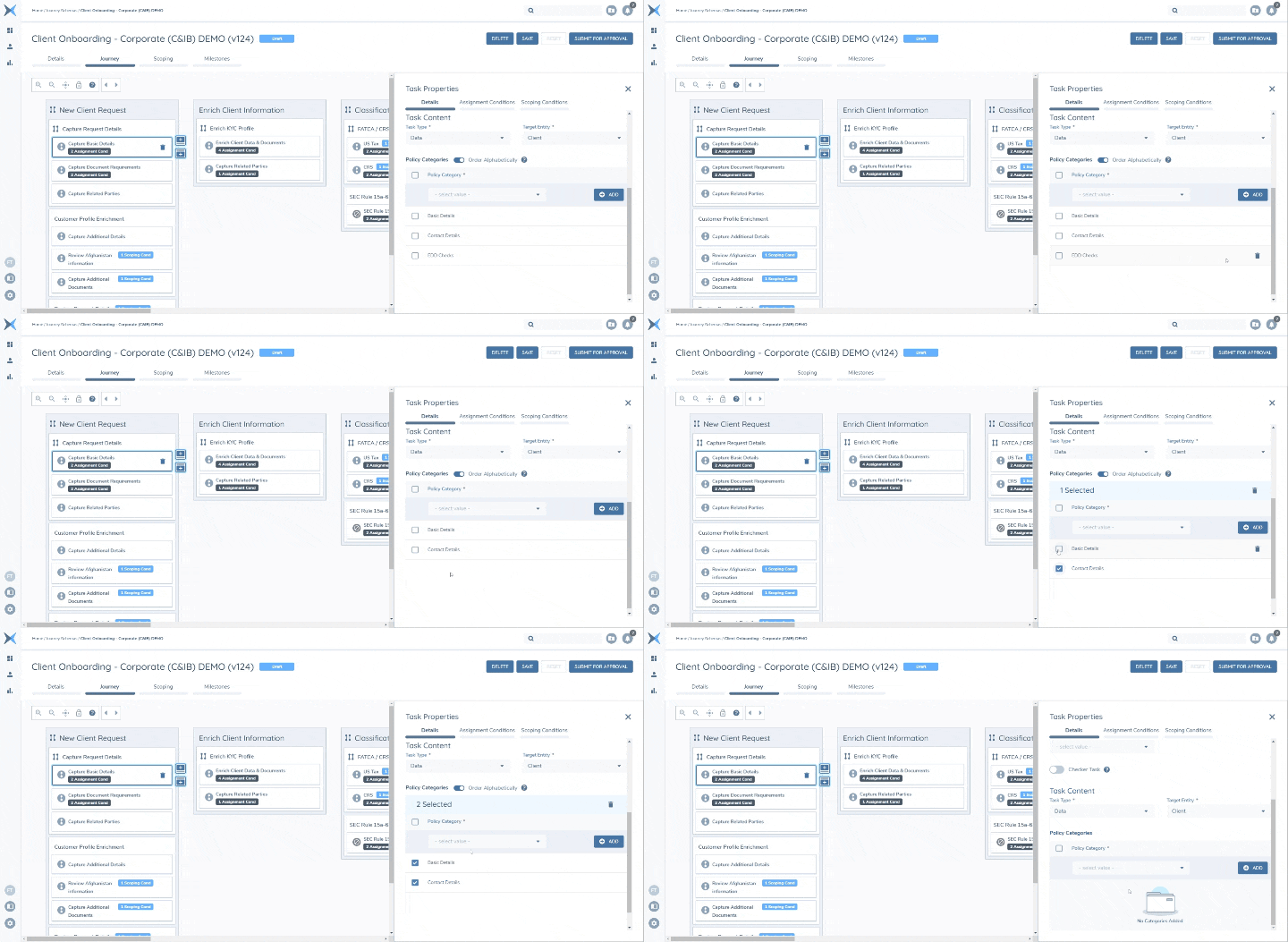
Within the "Policy Categories" field, the user will select the Categories via the single-select dropdown. When more than one Category has been selected, the "Order Alphabetically" toggle will present itself. This will default to selected, making this feature an opt-in piece of functionality for existing Configuration. When his toggle is deselected, a user will be able to sort the Policy Categories according to their own defined order. A user can edit their category ordering by hovering over the icon to the left of the checkbox and using the same drag-and-drop functionality as seen in the Reference Data editor and Configurable Milestones.
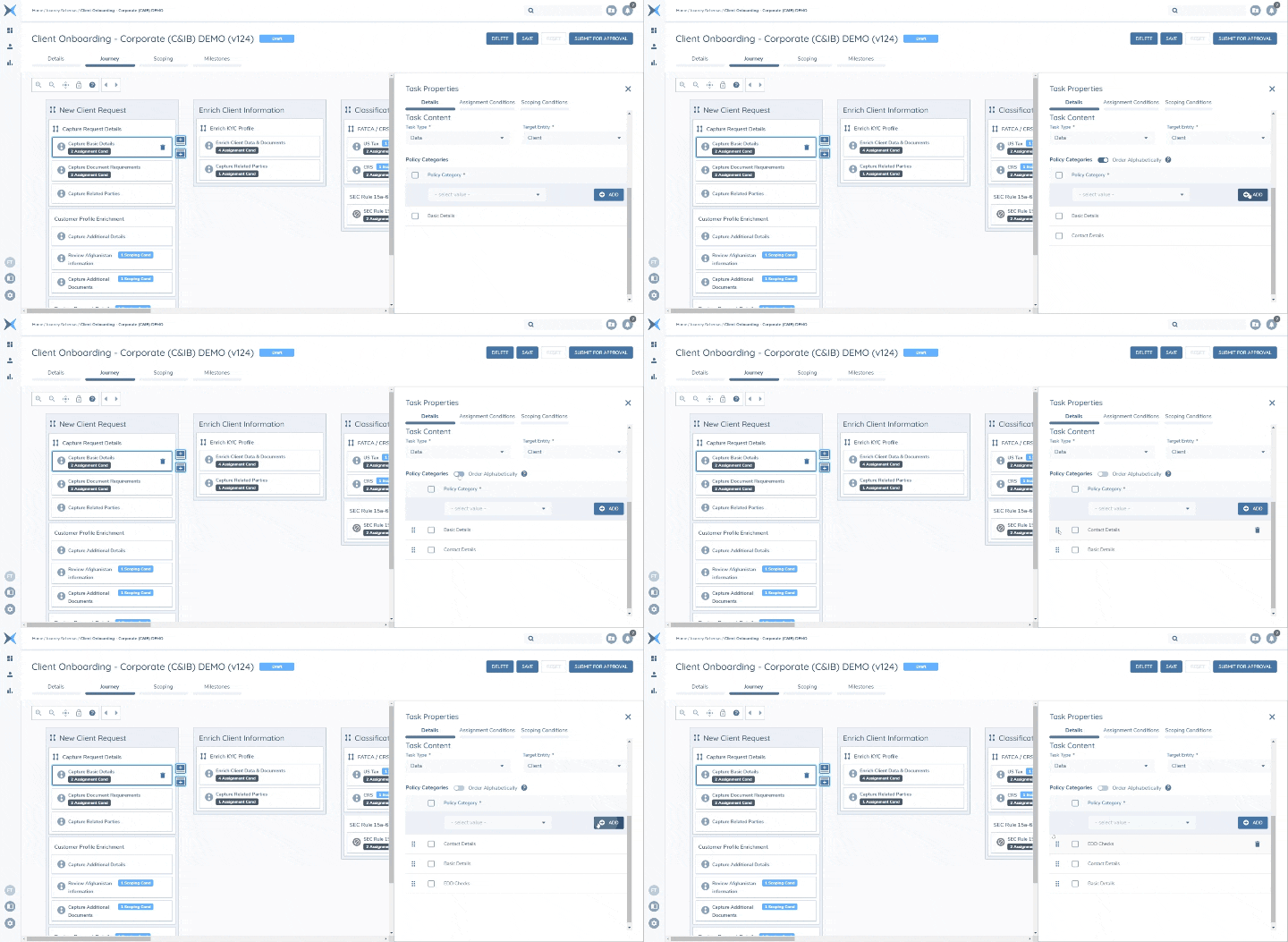
After a user has defined their Category Ordering, they can return the selected categories to the default alphabetical A-Z format by selecting the "Order Alphabetically" toggle again.
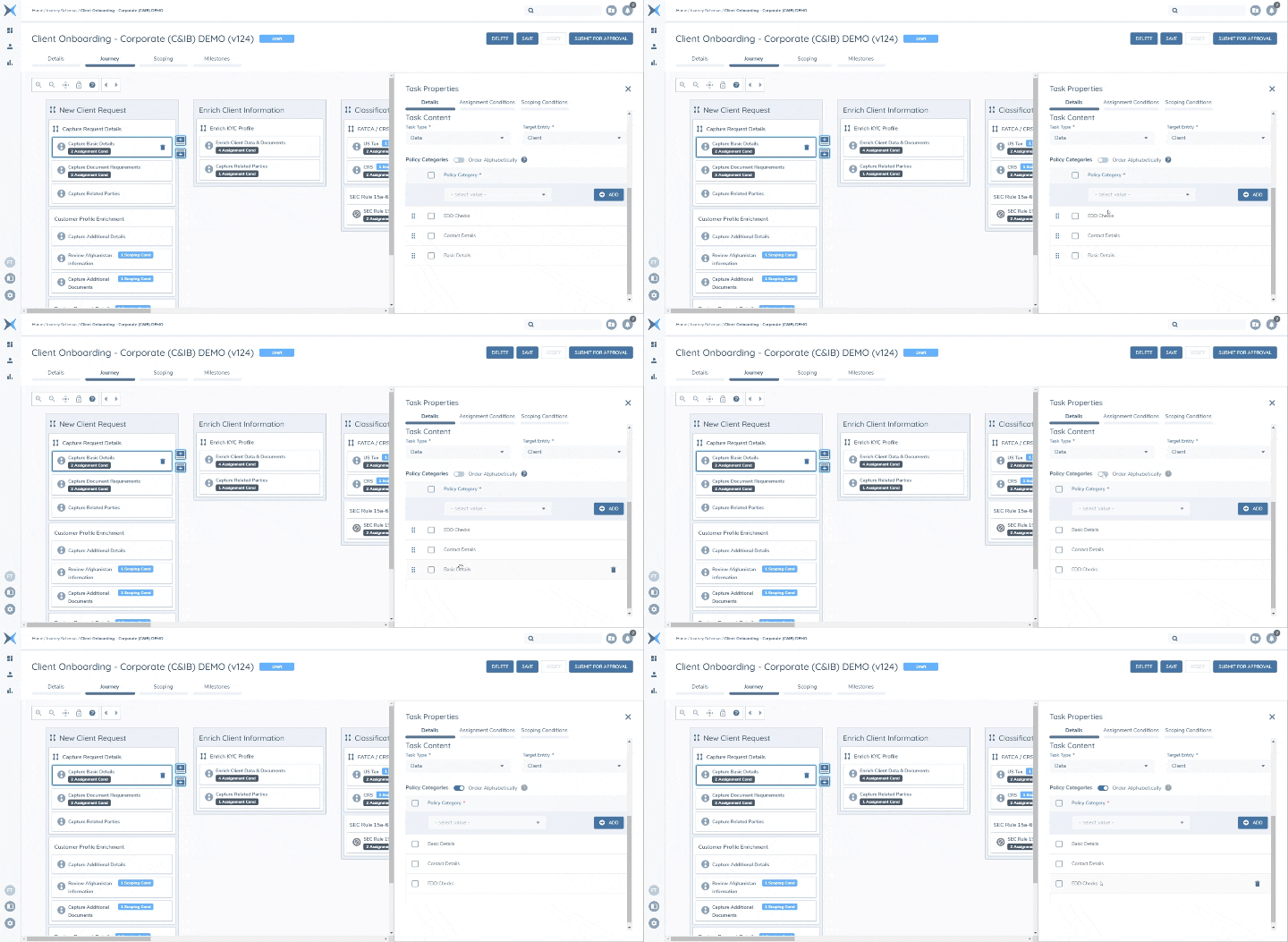
A user can manually delete an individually selected category by selecting the trashcan icon seen to the right of the Category name. They can also multi-select categories at once by selecting the individual checkboxes, or all categories via the select all checkbox, and then selecting the trashcan icon in the header seen above the "Policy Categories" field.
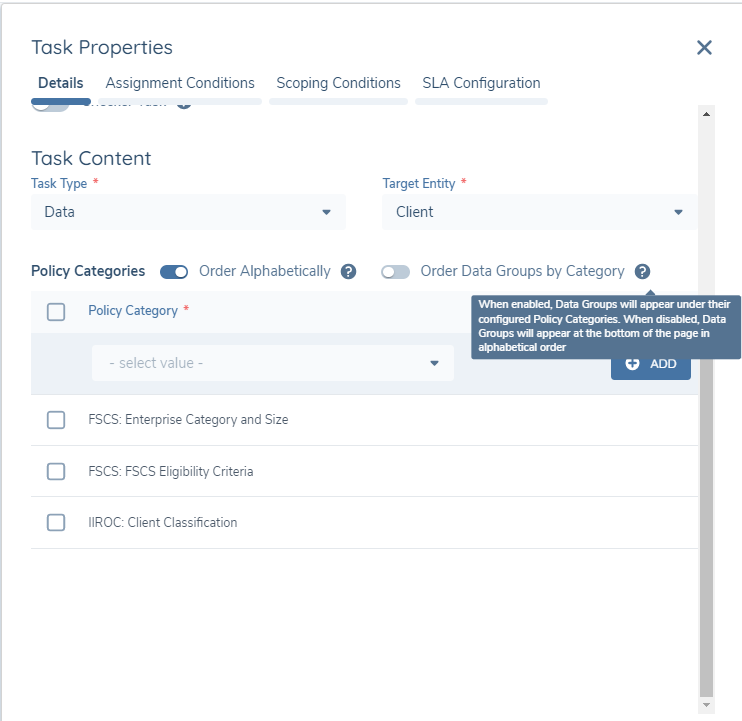
Users can also select if they wish to display Data Groups relative to their configured Policy Category (i.e., within the defined Category on-screen) or at the bottom of the page which has been the traditional layout of Data Groups. Data Groups will also appear based on the field ordering defined for the Data Groups within a given Policy Category. This is an opt-in feature so users will need to configure this behaviour in their relevant Journey Schemas.
Assignment Conditions Tab
The Team(s) that the Task is assigned to can be configured in the "Assignment Conditions" tab within the Task Properties. When a Task has been assigned as the Default Team, a Chip will be placed on the Task bearing the Team name responsible. If Conditional Task Assignment conditions are configured, an "Assignment Cond" Chip will appear on the Task, which will also denote the number of Conditional Task Assignment conditions configured for the Task. Note that only Tasks may be assigned to a Team; not Stages or Processes.
The reassigning of Tasks that have Conditional Task Assignment logic configured will be slightly different compared to Tasks that do not have Conditional Task Assignment logic. Please see the "Reassign Team" section above for more details on this.
Conditional Task Assignment conditions are evaluated at Journey creation. Once the Journey has started, the Conditional Task Assignment conditions are evaluated for all in-progress, descoped and not-started Tasks. Future evaluations then occur upon every Entity Draft update, which is every time a user selects Save or Complete on a task, and when Service tasks complete. Completed tasks will not have their Team assignment updated, as this ensures we have full audit of the Team that completed each Task. Finally, reopened tasks will not have their Conditional Task Assignment conditions evaluated until an Entity Draft update. This is because the evaluation requires an update to Entity draft to trigger it.
Maker/Checker
Maker/Checker refers to the principle whereby a user who completes the capture of information cannot review and approve the information that was captured. All user input Tasks (i.e. non-service Tasks) in a Journey are Maker tasks by default. However, Maker/Checker functionality will provide clients with the ability to define which of these Tasks are Checker Tasks.
The purpose behind this functionality is to ensure that Clients can control the approval process in Journeys; ensuring that users who complete data capture cannot also approve their own work. This will reduce the risk of compliance breaches and improve operational efficiency, as clients can enable scenarios where multiple reviewers are required when completing a Journey.
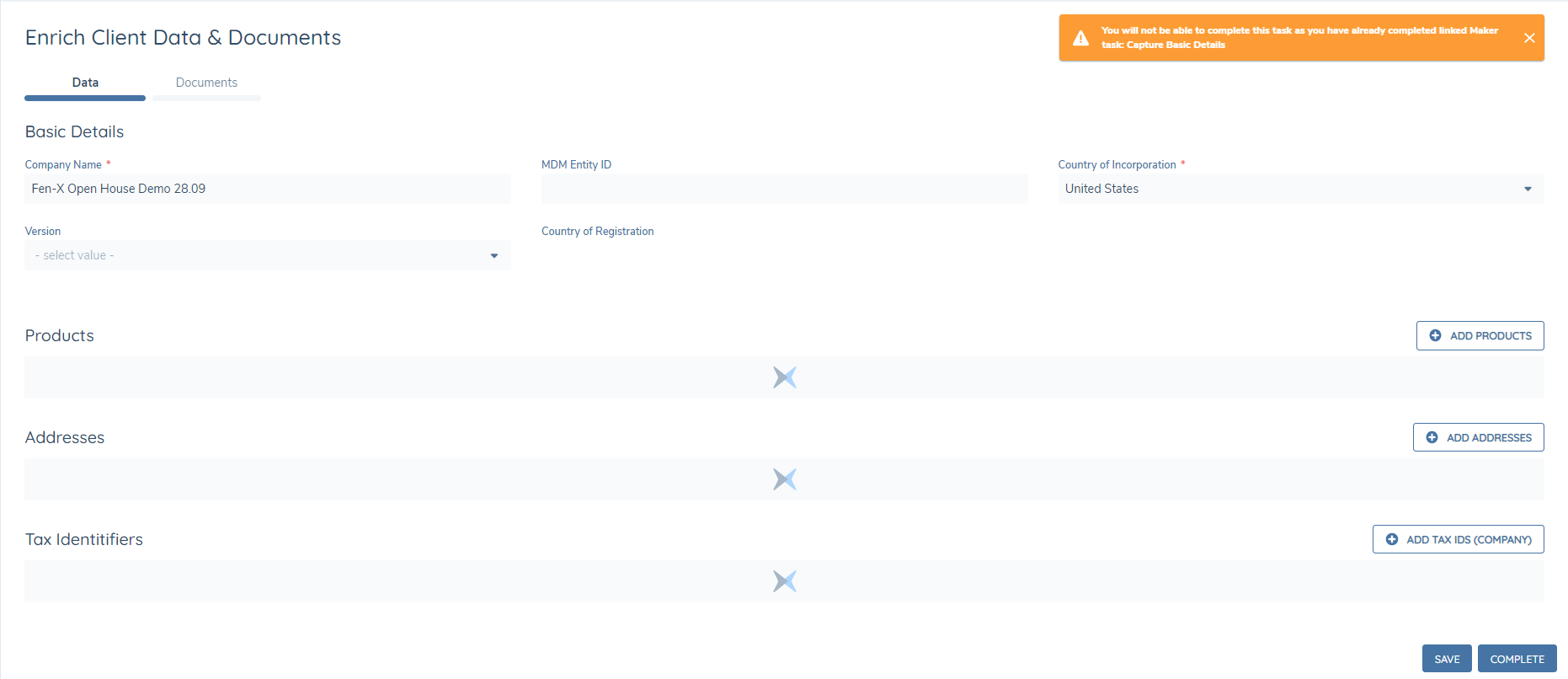
Users will be able to Save within the Checker Task if they have completed the Maker Task (assuming they have the requisite Team to do so), but they will not be able to Complete the Task. Users who have completed the Maker Task will see a warning notification when they navigate into the Maker Task, notifying them of the Maker/Checker restriction:
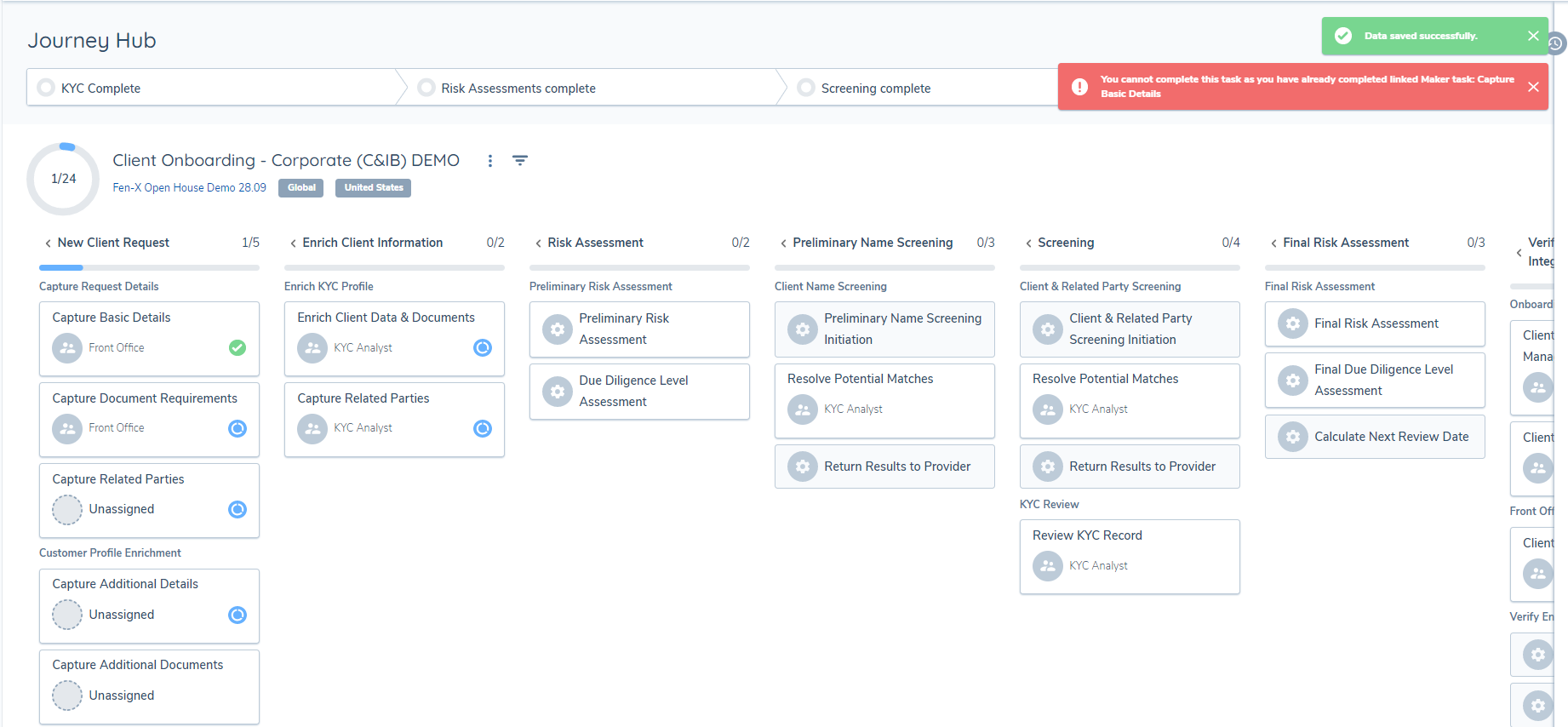
A similar error message will be shown on the Journey Hub if the user in the above scenario selects "Complete", notifying the user that their changes were saved but they cannot complete this task as they have already completed the linked Maker Task(s).
If a configurator has enabled Parallelism and they have configured a scenario where both the Checker and the Maker task(s) are in progress at the same time, when they complete the Checker task first, they will also be able to complete the Maker task.
If clients wish to set up a scenario where users cannot complete Maker Tasks if they have completed Checker Tasks then they will need to toggle both tasks as Checker Tasks and create the link through the "Linked Maker Task(s)" multi-select.
The Product team will look to facilitate this scenario in the future by introducing dual linking capability whereby if a user completes the Checker task while the Maker Task is still in-progress – they will not be able to complete the Maker Task.
Parallelism
Parallelism is a mechanism for allowing multiple Tasks, Processes or Stages to be worked on concurrently. Under the default sequential ordering of Tasks, Processes and Stages, potential bottlenecks can arise when multiple users are working on a single Journey, as there may be a dependency on previous tasks being completed before a user can complete their work. Parallelism solves for this use case as it will provide users the ability to work on multiple Tasks, Processes and Stages at once.
Where Parallelism is Not Permitted
There are some tasks in Journeys where it does not make sense to have them in a non-sequential format - i.e. where "In Any Order" Parallelism cannot be supported. These are Automated/Service tasks, including:
- Verify Entity (when we Verify an Entity, we no longer have an Entity Draft to write changes to).
- Cancel Journey (when we Cancel a Journey, we no longer have an Entity Draft / cannot make any more changes in a Journey).
- Verify Related Party Associations V2 (Similar to Verify Entity, once we verify Related Party Associations, any Related Party information should be closed for additional editing).
- All Screening tasks (Screening tasks must be completed in a sequential format in the same process so enabling them for Parallelism does not make sense).
- All External Data tasks (External Data tasks must be completed in a sequential format in the same process so enabling them for Parallelism does not make sense).
- Risk Assessment Policy Output (Risk Assessment calculations require data input from a user to provide the most accurate outcome so again, enabling this task for Parallelism does not make sense).
- Calculate Next Review Date (this task requires a Risk Rating to be provided so that it can determine when the next review for an Entity should be so this task should be completed in a sequential format, after a Risk Assessment Policy Output task).
- Related Party Journey Launchpad (this task requires a Related Parties task to be included in a Journey Schema before and a Related Party Checkpoint task to be included after it so it makes more sense to have this task type disabled for Parallelism).
- Related Party Journey Checkpoint (The checkpoint task needs to have a Related Party Launchpad included in the Journey Schema before it so Parallelism is disabled).
- Journey Launchpad (This task requires a Verify Entity step in a Journey schema before it so it can publish all changes made in the Journey draft before creating a new Entity draft and Journey).
When Configurators include these Tasks in a Process and try to enable the Task Completion Order to "In Any Order" in that Process, or Process Completion Order in that Stage, they will be presented with the below "Journey Schema Save Error".
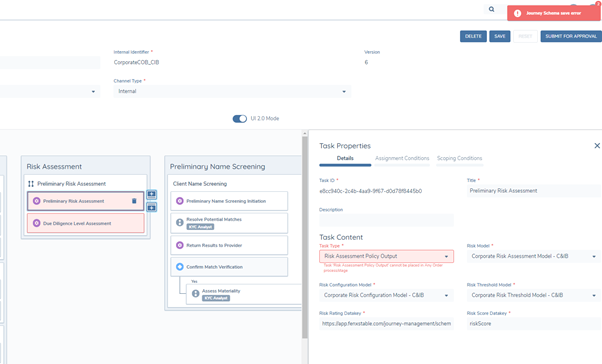
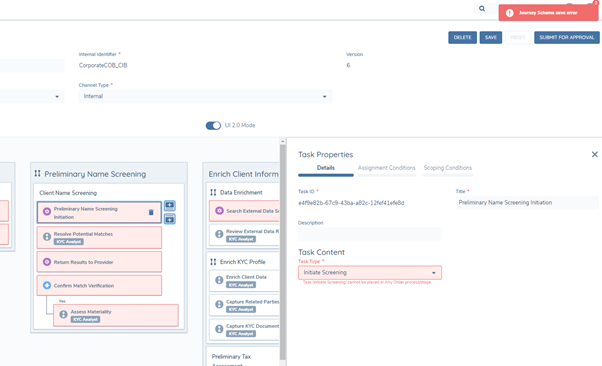
Each of the Tasks where the validation has failed will be highlighted in red and within the Task Properties for each Task, the user will see the message below the Task Type Property explaining that this Task cannot be included in a Process or Stage that has enabled Parallel Tasks or Processes.

Completion Gates
In some scenarios, a user will want to prevent a Task from being completed until a previous Task has been completed. With Parallel Stages, Processes and Tasks this is particularly important in order to establish a controlled order of Task completion.
To solve for this, a user can select any Task and within the Task Properties there will be a property field called "Complete After". This is a multi-select lookup that will define when a Task can be completed, based on the completion of a separate task(s). The lookup will reference all configured Tasks preceding the selected task in the Journey Schema. "Complete After" defines the point before which we cannot complete the task. The user may not complete the task in question, until the linked Tasks have been completed. A user may multi-select up to five linked tasks that must be completed in order to complete a given Task.
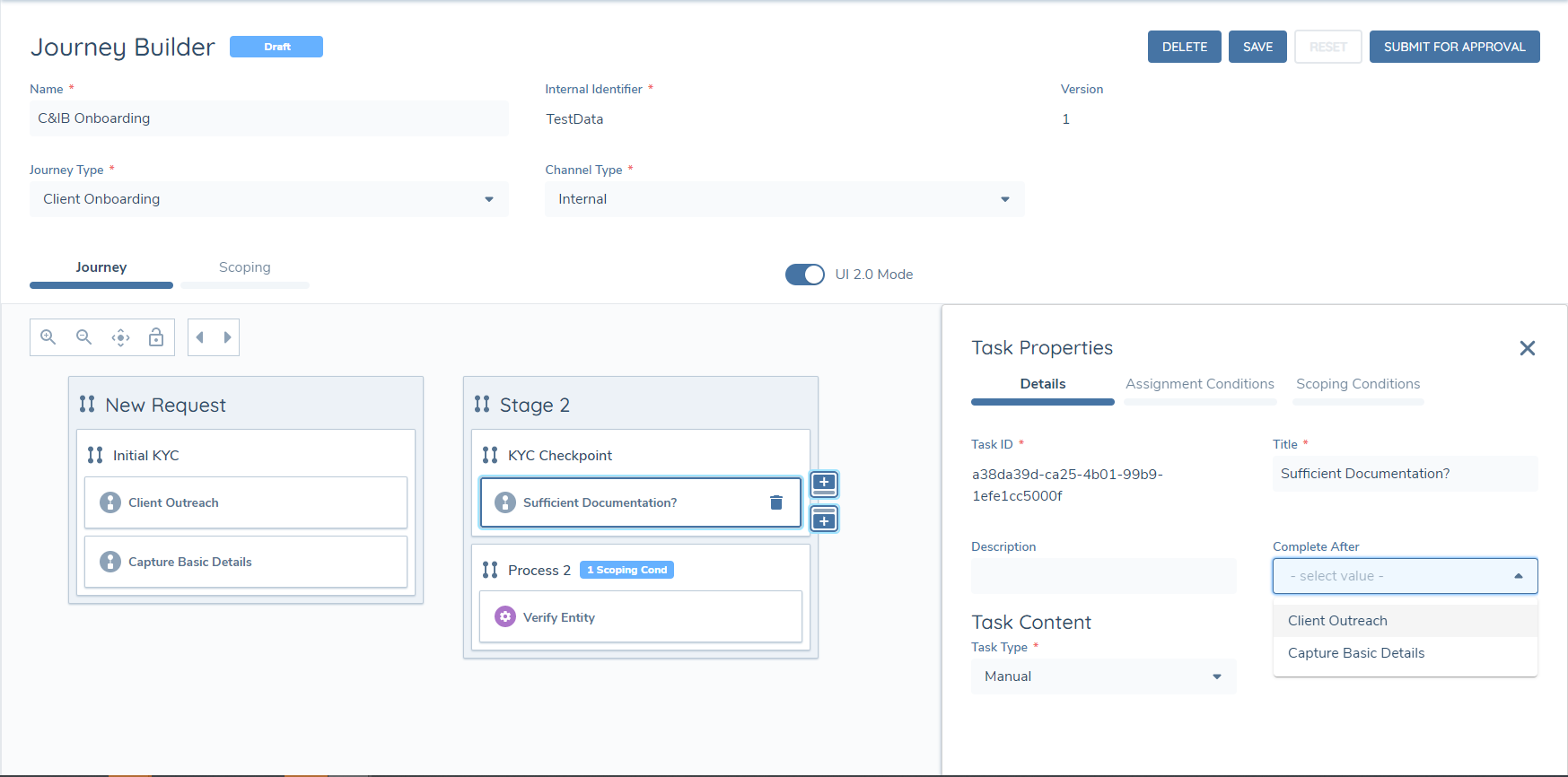
Within the Journey Builder, the user can select the Task Property to set the "Complete After" requirements. Once a Task has been linked for "Complete After", the initial task will have the "Completion Gate" icon set against it.
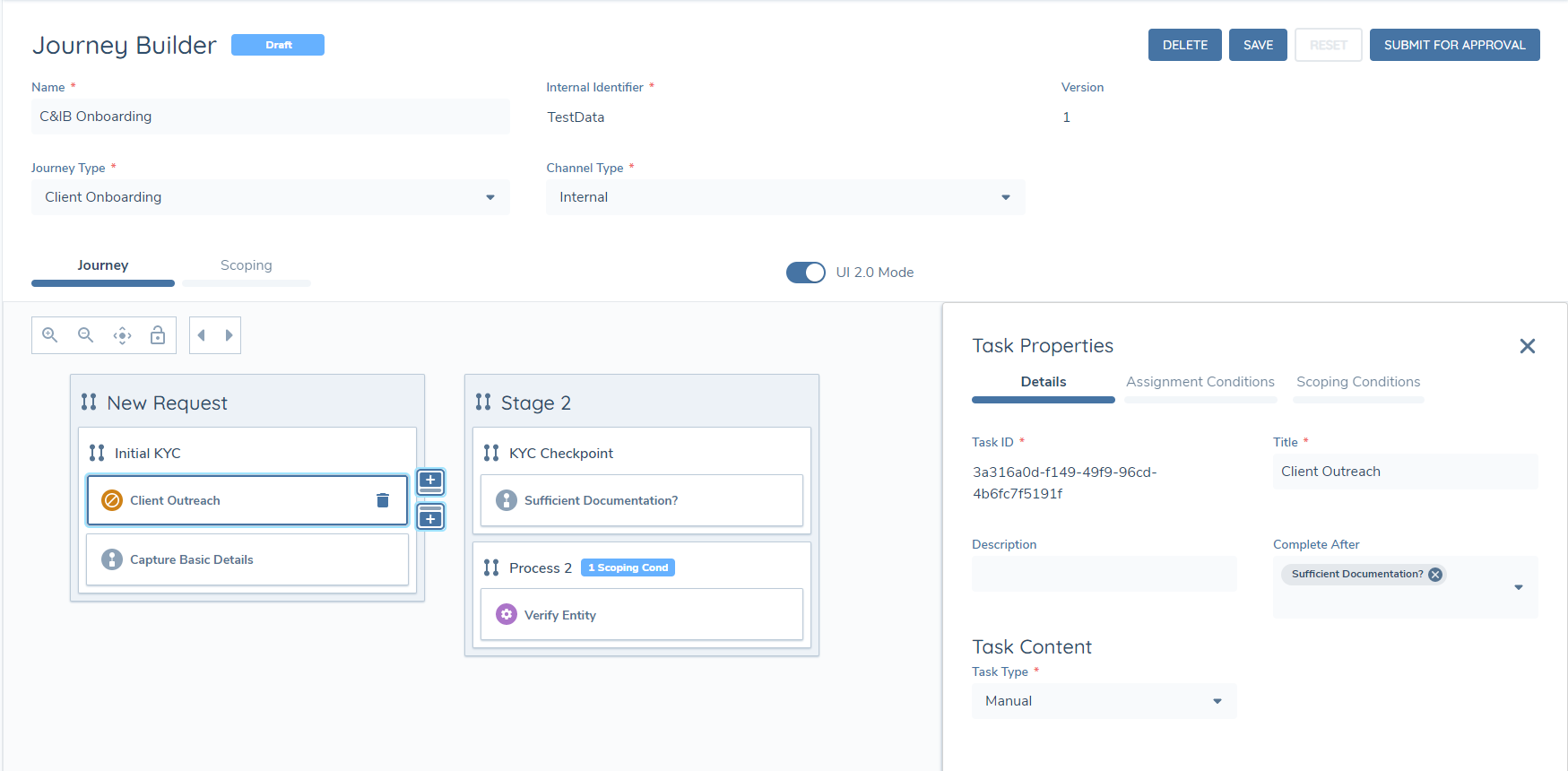
Within the Journey View, if a user tries to complete a Task with a configured "Complete After" completion gate before they have completed the linked Tasks, the user will receive an error message stating "The user may not complete the Task until the linked Tasks have been completed".
Managing Parallel Tasks or Processes in a Journey
Once you have assigned Scoping Conditions to your Journey Schema and Published it, you will see your reflected changes in any new Journeys.
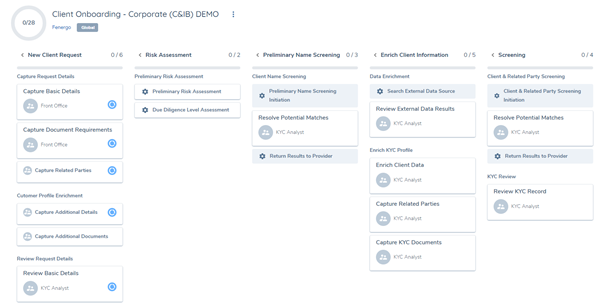
Users will now be able to work on any Tasks that are in a Process that has a defined Task Completion Order of "In Any Order", and likewise, be able to work on any Processes in a Stage that has a defined Process Completion Order of "In Any Order".
Re-Opening Closed Tasks in a Process Enabled for Parallelism
If a user re-opens a completed Task within a Process that is set to "In Any Order", it will only re-open the specific Task and none of the other completed Tasks within that Process. Due to the nature of Parallelism, users will be able to work on multiple Tasks at the same time, which can often be dependent on one another. This is particular of note regarding Conditional Fields that are based on data input from another Task. This is something to note when re-opening a Task that is in a Parallel Process / Stage, as changes you make may impact other areas of the Journey.
When a user re-opens a Task in a Process enabled for Parallelism, there will be a warning message presented in the Re-Open Task modal that informs the user: ""You are opening a task that belongs in a parallel process, any changes you make, may impact already closed tasks in that process""".
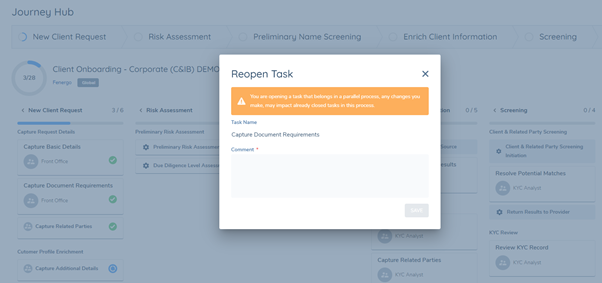
A similar message is bound to the Journey APIs, so that Clients who do not use our UI will see this warning when they try to open a completed Task that is in a Parallel Process.
Task De-Scoping for Parallel items
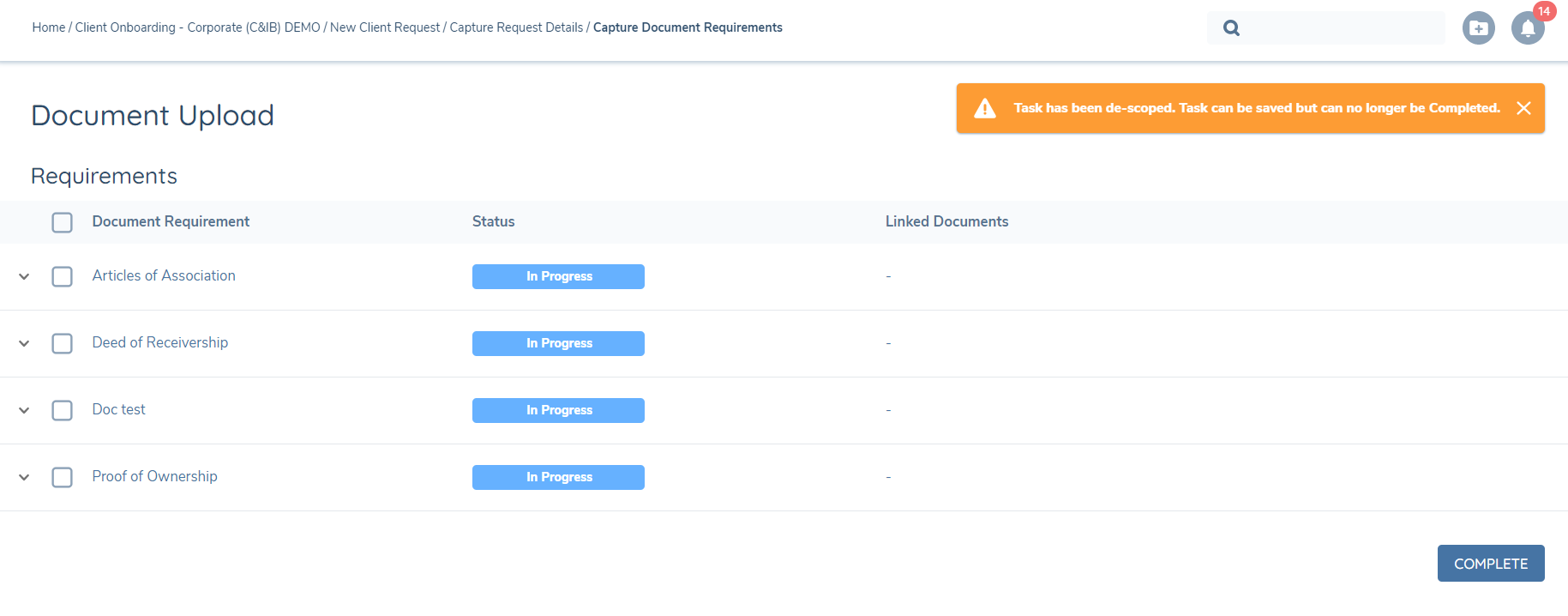
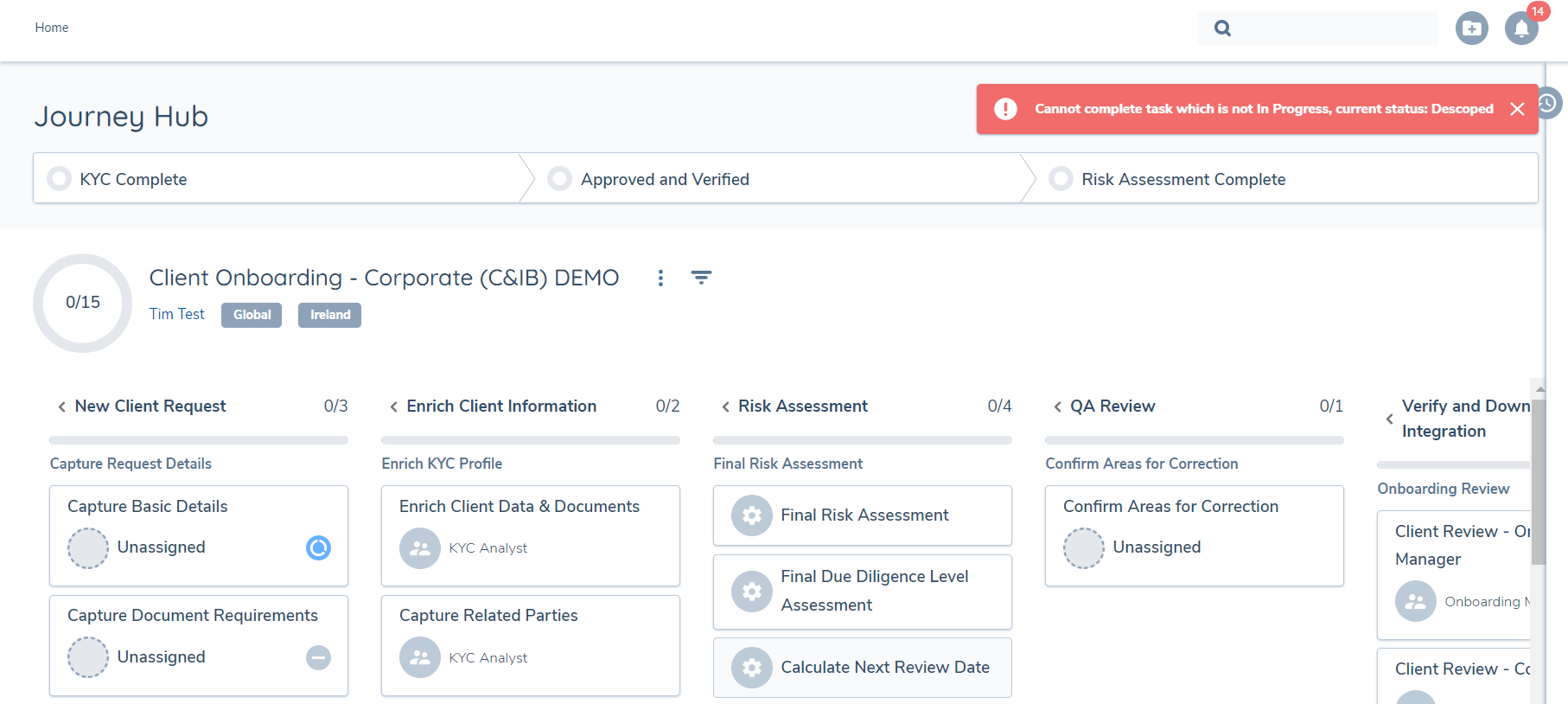
As we now have Parallelism in Journeys in Fenergo SaaS, users may encounter scenarios where conditional Tasks, Processes and/or Stages have been configured to run in Parallel may come into scope in a Journey, users will be able to work on them as soon as they are presented as in-progress in the Journey Hub, regardless of where they sit in the Journey flow. However, as we can now have multiple items in progress at once, including conditional items, there is now an increased chance of items moving in and out of scope depending on data captured elsewhere in the Journey in other in progress tasks. A particular relevant scenario would be the conditional triggering of Classifications in a Journey. In order to cater for these type of scenarios, the de-scoping functionality will ensure that In Progress items that are no longer in scope, cannot be completed. users will still be able to save on these tasks as it will be important to remove any no longer required data that has already been captured, but if the user attempts to complete the task, they will be presented with the below error message.
Read Only Task Access
Read Only Task Access provides clients with the ability to define a set of users in a Fenergo SaaS tenant that may be able to review information, but not change that information. This functionality will look to satisfy scenarios such as Audit teams requiring access to files and Management requiring needs for spot checks etc.
When users have Read Only access, they will be able to view the task information but not edit that task. If users have the Team Assignment for editing a task as well as the Read Only access, the editable assignment will take priority over the read only assignment .
Manually assigning Read Only Task Access in Journey Hub
- Once a Journey has been launched, users will be able to Reassign Read Only Access if necessary.
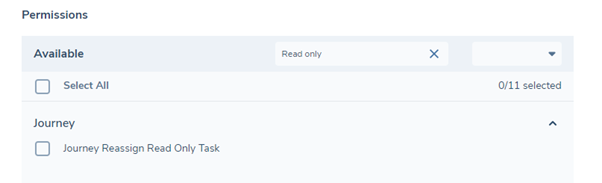
- By clicking the actions button at task level, users will see "Reassign Read Only Access". This will be permission based and driven from the "Journey Reassign Read Only Task" permission now available in our Permissions set.
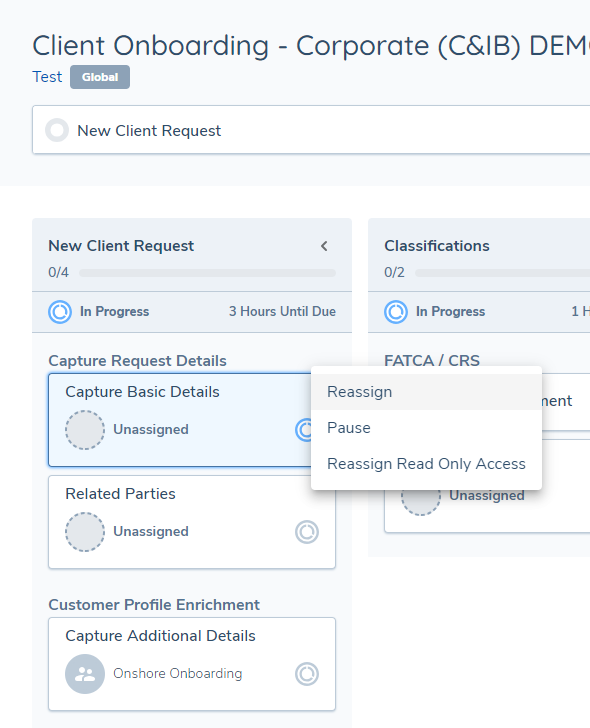
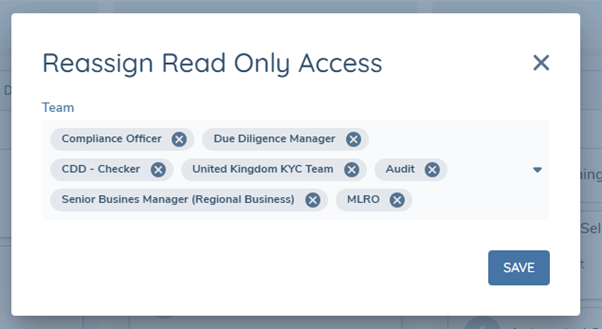
Associated Permissions:
Sealed Tasks
A Sealed Task is a task that appears in the task list but cannot be opened or interacted with. This occurs when the task is assigned to a team that the logged-in user does not have access to in their user profile. In the user interface, sealed tasks are visible but disabled, meaning the user can see them but cannot click into or view their details.
The system identifies these tasks internally with the discriminator "SealedTask", indicating that the task is assigned to a team outside the user's access scope. As a result, the task remains visible in the journey but is effectively locked until it is reassigned.
In some cases, sealed tasks appear because the team originally assigned to the task no longer exists in the tenant. This can occur when a tenant deletes a team that was previously assigned to active tasks. Even though the team has been deleted, those tasks still reference the now-nonexistent team, resulting in a sealed state for all users.
To verify whether the assigned team still exists, you can query the /api/team/{id} endpoint using the teamId from the task. Replace {id} with the teamId value in the request. If no team is returned, the team has likely been deleted. If a valid response is returned, the team still exists, but the user's profile does not include it, which prevents access.
To resolve this, a user with the "Journey Reassign Task Owner, No Task Access" permission can reassign the task to a valid and active team. Once reassigned, the task becomes unsealed and accessible to users who have access to the new assigned team.
Journey Owner
The introduction of the "Journey Owner" role to Fenergo SaaS provides clients with the ability to assign a dedicated user who will act as the primary point of contact for those that are working on a Journey, to discuss that Journey's progress with. For example, in cases where a Journey encounters a block or non-completion within the predefined Service Level Agreement due to a user's absence or leave, the Journey Owner will serve as that main point of contact and the user responsible for seeing the Journey through to completion.
Journey Owner in the Journey Hub
When a user, with the new "Journey Owner Edit" permission, navigates to the Journey's Context Menu, they will now find an additional option: "Change Journey Owner". Upon selecting this option, a modal window will appear. Within this modal, users can assign the "Owner's Team" by choosing from a dropdown list containing all the Teams in their tenant. The options available in the "Journey Owner" dropdown will be dynamically filtered based on the selection of the "Owner's Team". This dropdown will display all users within the selected Team.
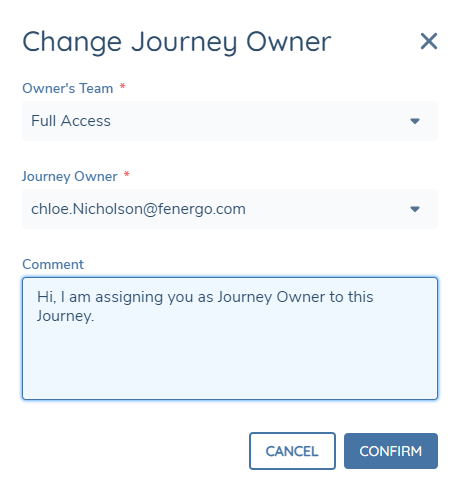
Once the user defines both the Owner's Team and the specific Journey Owner user, any tasks previously assigned to Journey Owner in the Journey Builder will be automatically assigned to the designated Journey Owner in the Journey Hub.
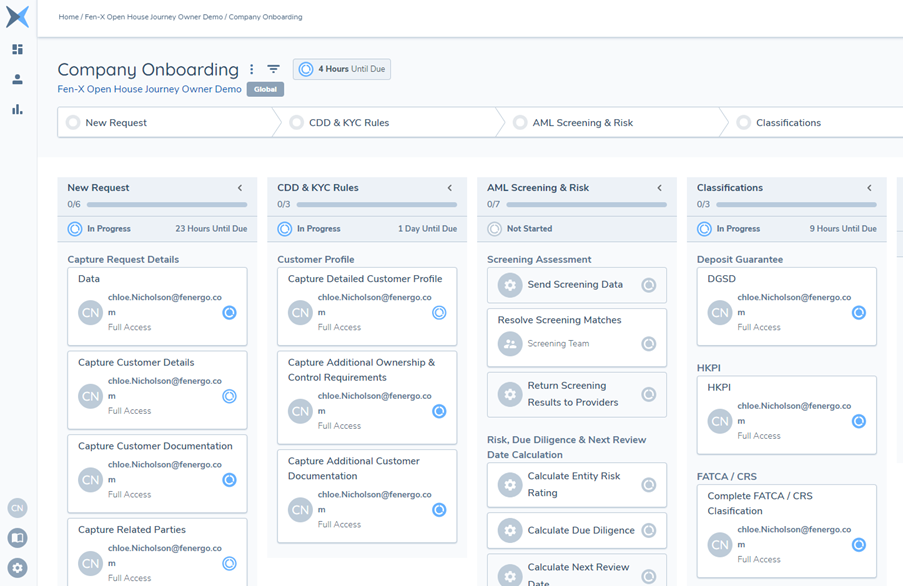
Within this modal, users also have the option to modify the team or the Journey Owner user. Once the Owner's Team and Journey Owner are set, any tasks previously assigned with the Journey Owner automatically update in real-time to reflect the chosen Journey Owner user.
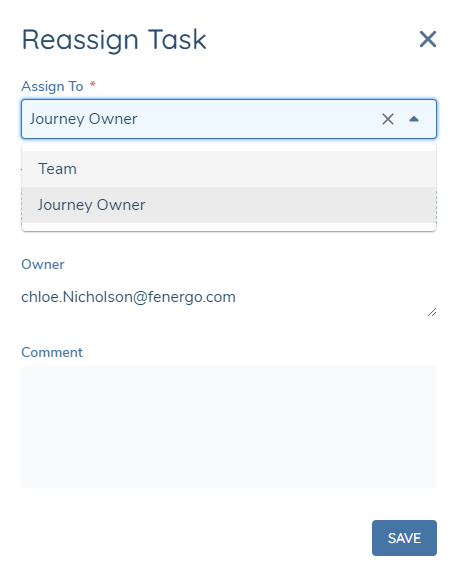
Users can also reassign a task with a designated Journey Owner back to a team and vice versa from the Reassign modal of a task if they wish. They can also set an unassigned task to the Journey Owner from the Reassign modal of that task.
Journey Owner Notifications
We have introduced two new notifications regarding the Journey Owner that users can enable. The first one notifies the user when they have been assigned as Journey Owner to a Journey. The second one alerts the user when the Journey that they are assigned as Journey Owner has been completed. To enable these notifications, users can navigate to the 'Journey' system notifications within the My Profile section.

Once a user receives these notifications, they can click on them and be directed to the respective Journey.


Journey Owner on Dashboards
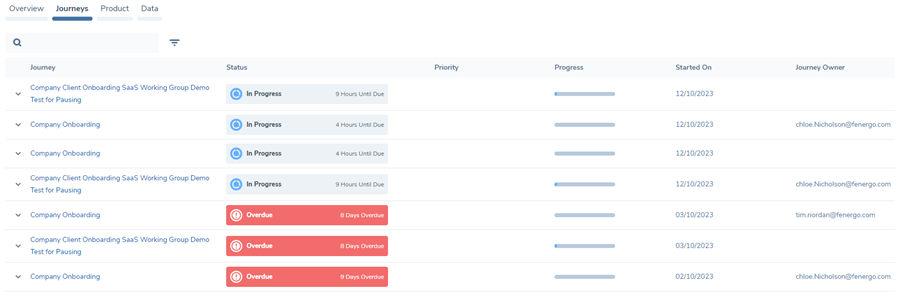
We have introduced a new Journey Owner column within the Journeys tab of Dashboards. With this column, users will be able to easily identify the assigned Journey Owners for specific Journeys. Having this Journey Owner column on Dashboards eliminates the need to navigate to the Journey Hub of all individual Journeys to see who the Journey Owner for each Journey is.

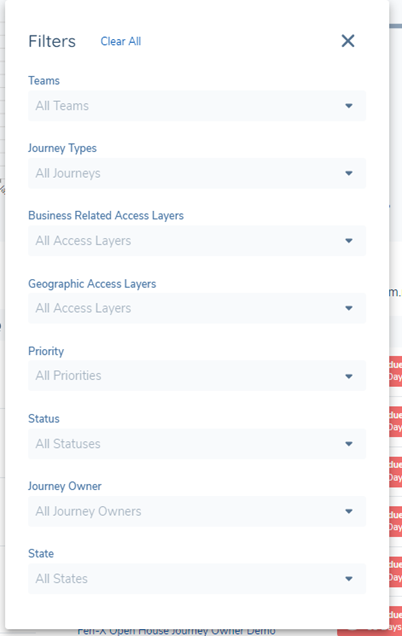
We have also provided users with the ability to filter the Journeys that appear on screen by the Journey Owner. This field will be comprised of all Journey Owners within the user's tenant.
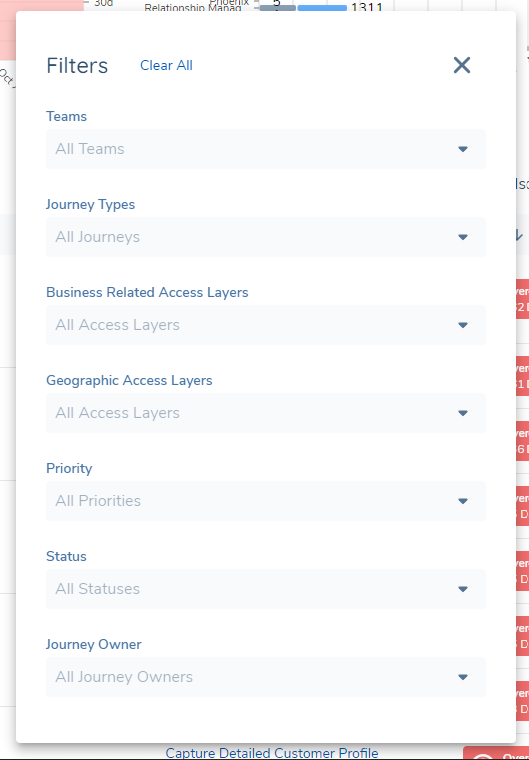
Users will in the future be able to reassign a Journey, or bulk assign multiple Journeys, to a Journey Owner from the Dashboards, further eliminating that need to navigate to the Journey Hub of each Journey. However, this will be a future enhancement will not be available during the initial feature roll out.
Journey Owner on the Entity Profile Page
In parallel to the Dashboards update, we have also added the Journey Owner column to the Journeys tab on the new Entity Profile Page. This value will persist after the completion of a Journey, providing historic context on who was the Journey Owner at the time of each Journey completing.
Configurable Journey States
The Configurable Journey States feature allows clients to prioritise their workload more effectively. The purpose of this feature is to provide users with the ability to set a specific Status or "State". This can be done by setting the State in a Journey Instance (either manually or via API) and see these Journeys with relevant States displayed on Team Management and My Journeys Dashboards.
By having these States on Dashboards, users can filter or sort their Journeys to identify which items should be worked on next. This "State" Property will also be available in our Advanced Reporting solution.
The values displayed in the Journey State dropdown are maintained via a reference lookup list.
To add, remove, or update the available Journey State options, update the reference list named “Journey States”. Any changes made to this reference list will be reflected in the Journey Instance State field, dashboards, and reporting.
Working with Journey States in Journeys
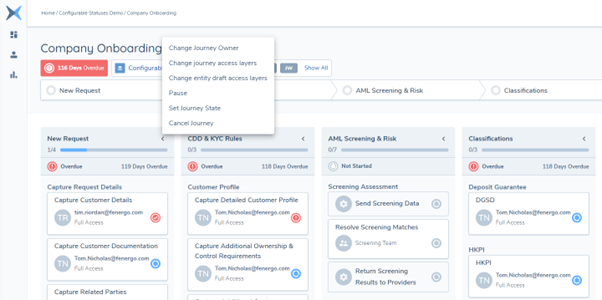
When a user navigates to a Journey, if no State has been previously set, the user will be required to navigate to the "Set Journey State" option in the Journey Hub context menu to set their Journey State. This will be available to the user if they have the "Set Journey State" permission:
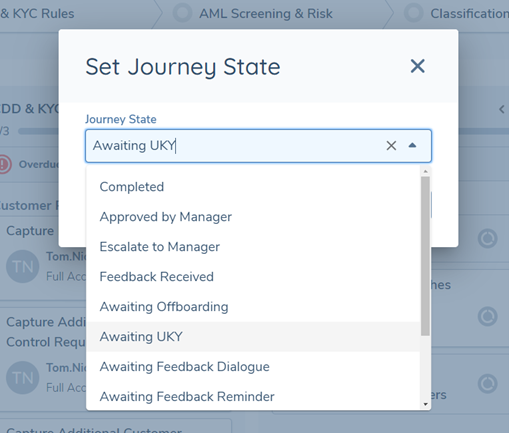
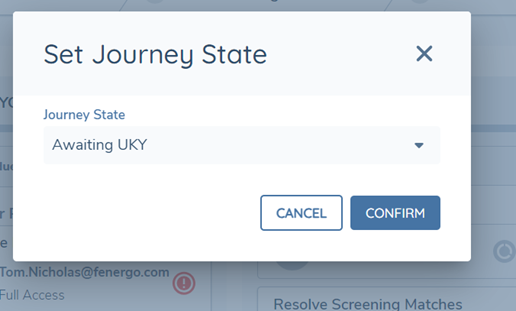
Once the State has been confirmed, it will appear as a "chip" in the Journey Hub:
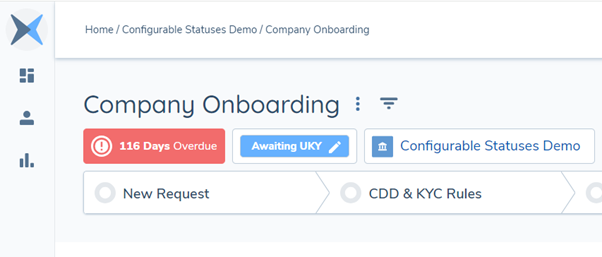
If the user has "Set Journey State" permission, this component will be interactable, meaning that the user can change the State by clicking the chip. In doing so, the Set Journey State modal will be presented and the user can update the Journey to its relevant State.
Using APIs to update / query Journey States
Clients can also update a Journey State via our Journey Command endpoint:
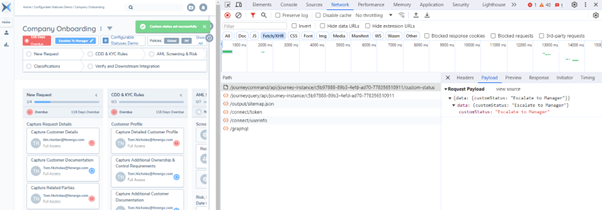
To do this, users will require the tenant ID, the Journey ID as well as the State that they wish to update the Journey to.
When querying a Journey State, please note that the property which supports Journey State in the Journey Query endpoint is "customStatus".
Impact on Audit
All Journey State changes are recorded in the Journey's Audit Log:
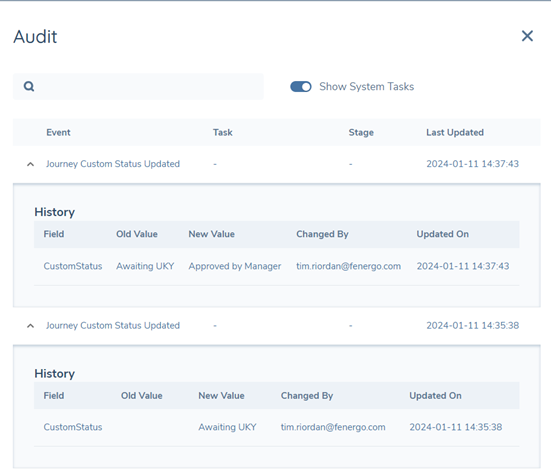
Viewing Journey States on Dashboards and Entity Profile Page
When a State is set in a Journey, as well as being displayed in the Journey Hub for that Journey, it will also be displayed on the Team Management and My Journeys Dashboards:
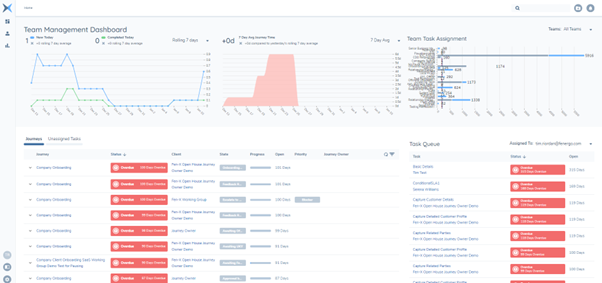
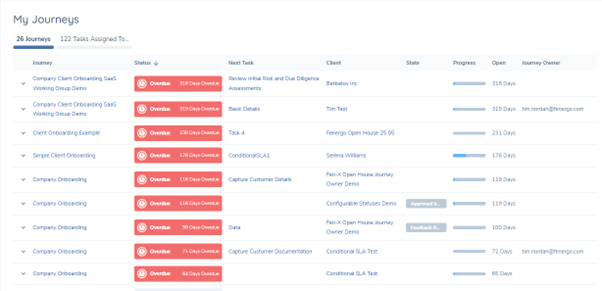
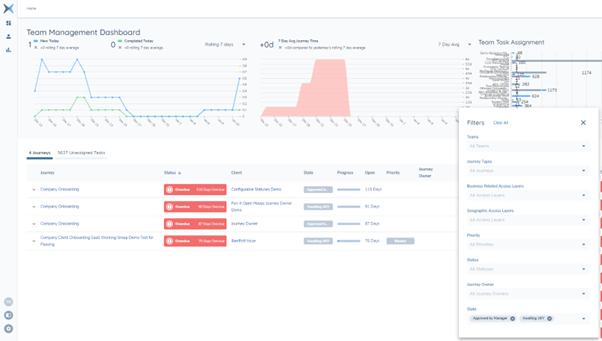
The purpose this, as has been previously called out, is to provide users with the ability to prioritise and manage their workload appropriately. To do so, users can sort and filter by particular States:
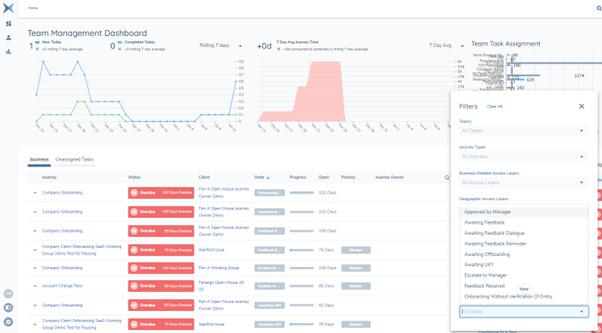
Finally, users can also check the Journeys tab on the Entity Profile Page for Journey States on any respective Journeys:
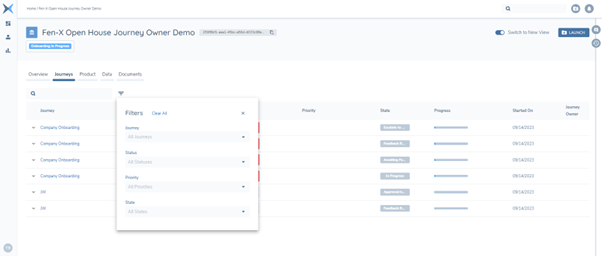
Similarly to Dashboards, users will be able to sort and filter Journeys based on chosen States.
Journey Level Data
The Journey Level Data feature will provide users with the ability to define which specific Data Requirements should remain within the context of the Journey only and not be pushed to the verified Entity record. Previously, users were seeing that requirements configured in their Policies that act as conditionality drivers in Journeys, were being written to the Verified Entity, even though those fields are not directly related to the Entity. A good example of this would be "Areas for Change", which users typically would include in a "Maintenance" or "Refresh" Journey. The areas for change selected would most likely change Journey to Journey, so it does not make sense to write these types of values to the Entity. Another example would be "Journey Priority". Again, this would be classed as Journey metadata rather than Entity Data so the Journey Level Data feature will allow users to set up these scenarios to drive out behaviours in their Journeys, without those values persisting on the verified Entity record one the Journey completes.
Configuration
To create a Journey Level Data requirement, users will need to navigate to a Policy of their choosing and either create a new or update an existing Data Requirement (including Requirements using field type of Data Groups). Within the Requirements configuration screen, users will be presented with a toggle called "Journey Level Data". This field will come with a tooltip informing the user of the impact of this field when enabled: "Journey Level Data represents Data Requirements that are omitted from the verified process. The datakey and its value will remain on the Journey only".
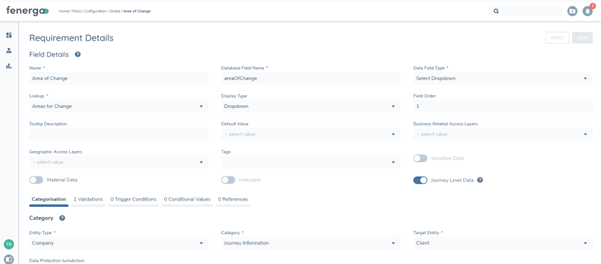
Please ensure that any datakey that you wish to use as Journey Level Data are marked as such across your policies. If a datakey is marked as a standard entity-data requirement in one policy and Journey Level Data in another, we will always treat it as an entity-data requirement.
Additionally, as Journey Level Data requirements are never verified, they are not eligible to be marked as Indexable or as Sensitive Data. The toggles for these options will be greyed out to a Configurator to notify them of this.
Using Journey Level Data in Journeys
When these requirements are called in Journeys, they will look like standard Data Requirements. A good idea might be to categorise these Journeys Level Data Requirements under a specific heading, or including a tooltip in each field if required to inform the end user that this information is related to the Journey only and not the Entity:
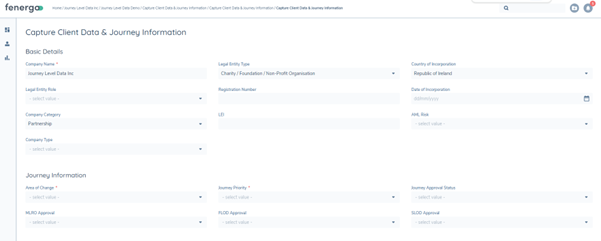
Journey Level Data requirements can be utilised within your Journey Builder to trigger scoping logic, SLA logic, team assignment logic or autocompletion logic. This means that the aforementioned "Areas of Change" Journey Level Data requirement could be used to trigger a Stage within a Journey.
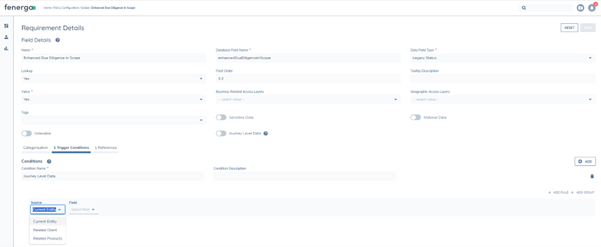
In Policy, Journey Level Data requirements can only trigger other Journey Level Data requirements. They cannot be used to trigger Entity Data requirements. The reason for this is that when the requirements are verified, the Journey Level Data is kept in the draft so the condition on the verified record would not be satisfied. To help users with this, the Source of "Current Journey Level Data" is only available in Conditions when the Journey Level Data toggle is enabled:
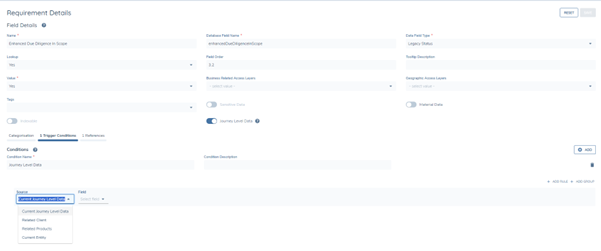
However, users can trigger Journey Level Data Requirements using Current Journey Level Data, Current Entity, Related Client or Related Products:
Finally, requirements marked as "Journey Level Data" will not appear in the Proposed Changes or Conflict Resolution Tasks. This is because the value captured on a Journey will always be compared to "null", as this requirement would not ever be verified.
Seeing Journey Level Data in Entity API responses
To check which properties are Journey Level Data requirements and will not be published to the Entity, users can check the Entity Data query endpoint and within it, and check for the "draftProperties":
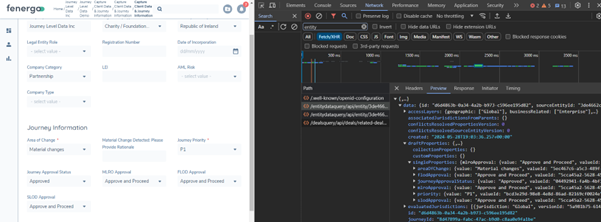
- As the data is kept in the Journey only, users cannot see this information on the verified Entity record or Entity Profile.
- Users cannot search using Journey Level Data as the information is not written to the verified Entity record but kept in the Journey on the Entity draft.