Insights
The Insights function is designed to facilitate the evaluation of existing AML/CFT risks and controls and team performance from an operational perspective in order to optimize and update existing processes, systems and procedures to be as efficient and effective as possible.
There are 4 different perspectives or views that are available in the insights page.
- Insights for today - A set of data points that provide quantitative information about alerts and alert assessments for the current running day. The data points refresh on a real time basis.
- Business rule comparison - A set of visualizations that informs about alerts, assessments, and true positive rates. The data can be filtered by pre-set time ranges or using a custom time range (up to 1 year)
- Business rule breakdown - This is a view in which the user can have a closer look at the events related to a specific business rule. This helps to understand the performance of the rule as well as its assessment in a specified time range.
- Team comparison – It presents the complete assessments and average assessment time per analyst.
Insights also offers the possibility to extract alerts, via the Download Insights functionality.
Insights breakdown
Below you can find a description of the data available for each view.
Insights for today
-
New alerts, Total alerts that were generated in the application today. RT figure that is incrementing throughout the day.
-
Closed alerts, Total number of alerts that were closed in a given period
-
Backlog, Total number of Open alerts (assigned or unassigned) and paused alerts.
-
Average assessment time, the time it takes on an average to fully assess alerts. The assessment time is the time from which it was assigned to an analyst until it is marked as closed by the final review stage.
-
True Positive rate, the percentage figure of alerts raised by the application that had the final assessment outcome of ML or TF.

Business rule comparison
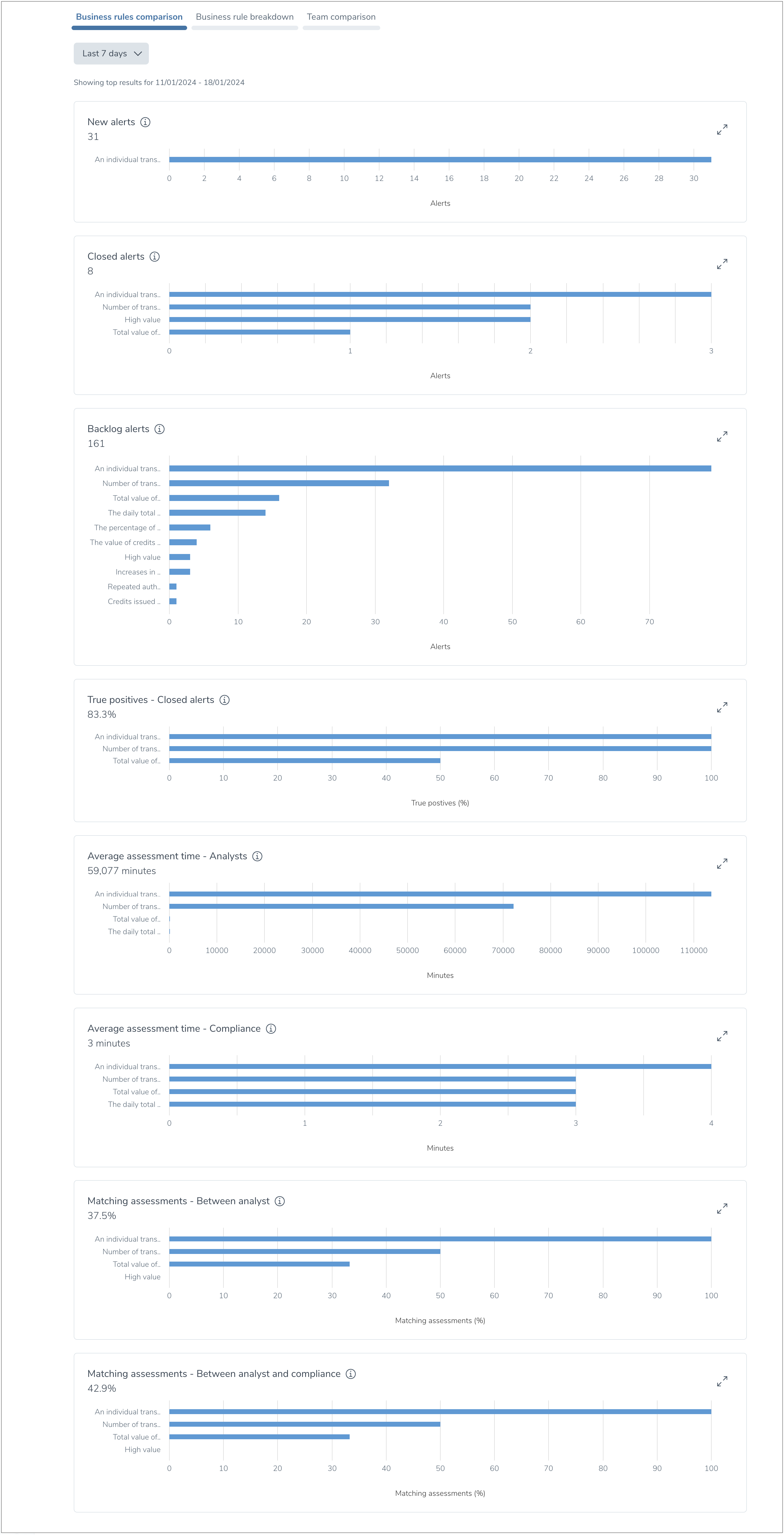
It allows to see different statistics within a selected time frame that can be set by selecting the pre-defined values or a custom date chosen by the customer.
- New alerts broken down by business rules.
- Closed alerts broken down by business rules.
- % of true positives for closed alerts broken down by business rules.
- Average assessment time in Review stage 1 and 2 (analyst stage) broken down by business rules
- Average assessment time in the final review stage (compliance review stage) broken down by business rules
- % of matching assessments between various functions broken down by business rules.
Business rule breakdown
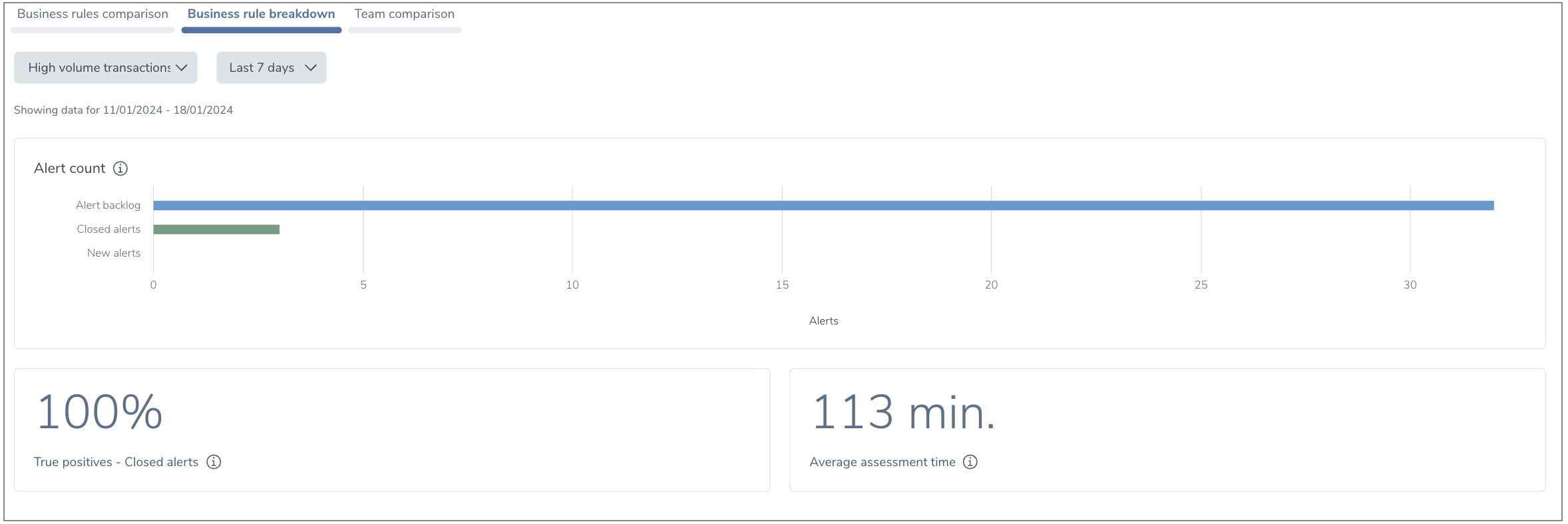
It allows to see different statistics per selected Business Rule in a selected time frame that can be set by selecting the pre-defined values or a custom date chosen by the customer.
- Alert count – count of alerts within a specific period of time. Includes:
- Alert backlog.
- Closed alerts.
- New alerts.
- True positive closed alerts – percentage of true positive alerts out of all closed alerts on a given period of time.
- Average assessment time – average time between having an alert assigned to a team member and submitting an assessment (at any stage 1st, 2nd, and Compliance).
Team comparison
It allows to see statistics for all or one selected Business Rule in a selected time frame that can be set by selecting the pre-defined values or a custom date chosen by the customer.
- Completed assessments – breakdown of all alerts that have been assessed by analysts or compliance officers over a given period. By assessment we refer to the evaluation of an alert in a given stage (1st , 2nd, and Compliance review). All open and closed alerts are taken into consideration.
- Average assessment time – average time taken per user between the assignment of an alert and the submission of the alert assessment. Pause time is included.

Alert data extract
Alert insights consist of a report of alerts and their relevant metadata in a specified date range. This data is compiled in a .csv file and it can be requested via UI or API.
A report can be requested via the action named "Download Insights"

Process to request and download the report
As a user that has access to Insights:
- Go to Insights page, you will see a “Download insights” button.
- Select the desired date range for the data extract and submit the request.
- When submitting the request, the user will receive an email confirmation.
- Upon completion of the data extract, an email will be sent to the user with a link to download the file.
- As soon as the link is opened (provided that the user is authorized), the download of the file will start.
- The link is valid for 72 hours, after its expiration that file cannot be downloaded again.
- If the system fails to generate the file, an email will be sent to the user with the respective information.
Content of the report
- Alert Id
- Transaction IDs linked to the alert
- Sender and receiver
- Current status of the alert (Open - 1st,2nd or Compliance or Closed)
- Business rule that triggered the alert
- Alert assessment information (if available) for each review step (1st,2nd, and Compliance), including the comment linked to it, when it was created and by which user the assessment was done.
Considerations
- The email will be sent from
noreply@platform-prod.sentinels.cloud - Generating the file is an asynchronous process because we know it can take time. The processing time can vary significantly, as it depends of certain conditions such as the date range selected and the amount of data present in the system. Be aware, that we can not expect immediate file generation.
- Potential roadblocks for the user
- User is not receiving emails.
- Can be possible that mails are in Spam folder.
- Download is not starting
- It could be that the browser is blocking the download. We recommend checking the browser notification and permissions. Depending on the browser used, this can be seen in different forms.
- Received an email that the file could not be generated.
- When the system cannot generate the file successfully, we send a notification informing the situation. In this case, the user should request the report again.
- If the error persists after several tries, we suggest contacting support with the File IDs that the user can find at the footer of the email.
- User reports that only received a confirmation email and has not received email with link to download.
- Requesting alert insights is an asynchronous process that can take some time. If a significant amount of time has passed, we suggest contacting support with the File IDs (can be found in the footer of the email) for investigation.
- Link has expired.
- In this case, we expect the user to request a new file.