API Client Management
This feature allows you to manage your own client ID’s, secrets and certificates for API access in the Fenergo application via configuration tooling. This allows for granular control over API access and integration points. It can be used to solve for a wide variety of use cases across multiple integrations. This self-service feature means you no longer need to raise service requests for the creation of API clients.
Configuration Tooling Navigation
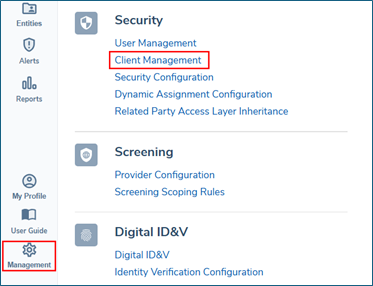
- To configure an API client navigate to the ‘API Client Management’ section under ‘Security’ in ‘Management’ on the left-hand sidebar.
Creating an API Client
- An API client is used to provide access to the Fenergo APIs, allowing external systems to interact with the APIs. You can have up to 20 API clients, all with different scopes (permissions), and up to 5 secrets each. A secret is what is used to authenticate when requesting access to the Fenergo APIs.
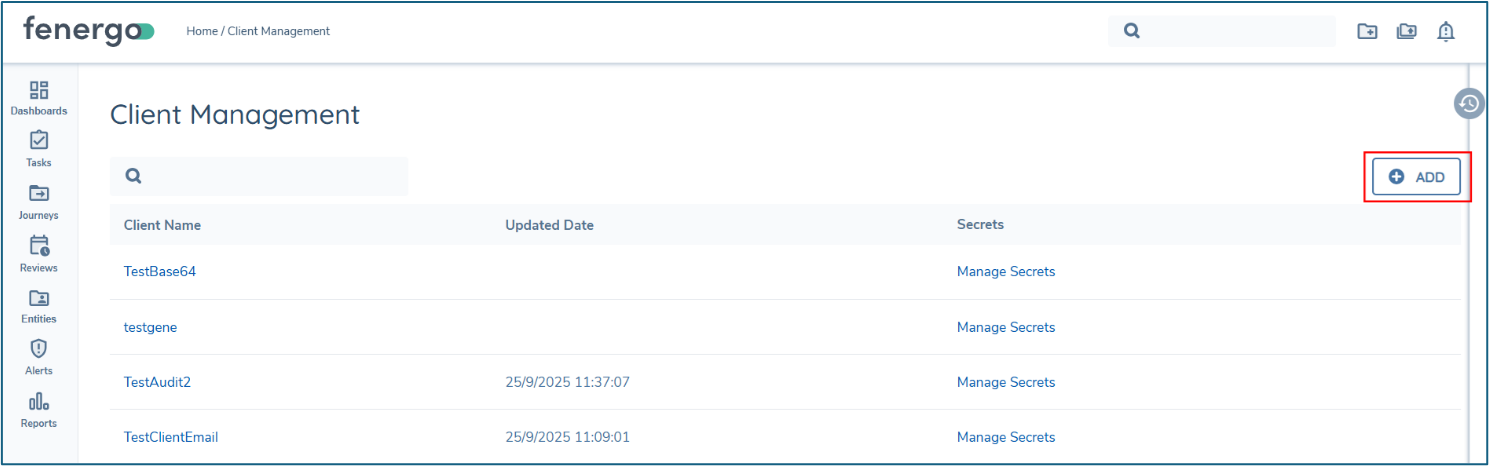
- On the API Client Management page you will see your API clients that already exist, and from here you can manage them going forward. You can also create new API clients by clicking the ‘Add’ button.
- NOTE: When this feature is enabled you will automatically see all of your existing API clients, if you have requested the creation of API clients via Fenergo’s service request process.
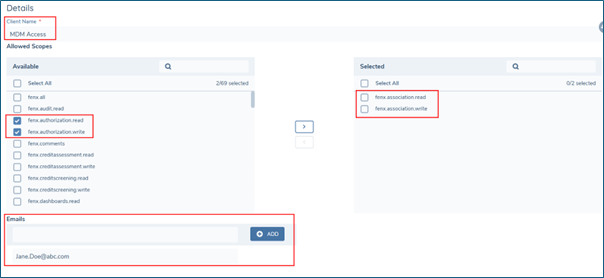
- Give your API client a name, and assign scopes (permissions) you want it to have (for a list of API scopes & their access controls see this user guide: API scopes & access control).
- You must provide at least one email address in order to receive communications regarding expiring secrets and instructions for creating new client secrets.
- Click ‘Manage Secrets’ to add a client secret to the API client.
- Click the ‘Add’ button and select the ‘Type’ from either a ‘ClientSecret’ or a ‘Certificate’.
Client Secrets
- For a client secret you must capture an expiration date. You can also capture a description for additional context.

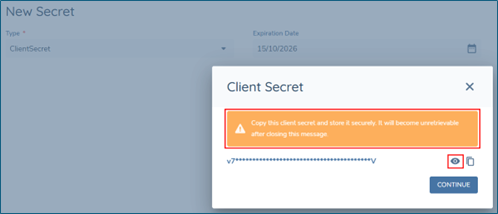
- When you click ‘create’ the client secret will be generated, as default it will be masked. To unmask it click the eye icon, take note of the secret and store it securely as it will be become unretrievable once you click ‘continue’. If you fail to record the secret you will need to delete the secret and create a new one.
Certificate
-
Certificate Generation and Download: Clients can generate certificates for MTLS authentication. The system creates a signed certificate and provides it as a downloadable zip file containing various formats (PFX, JKS, CRT) to accommodate different client needs. The certificate file is not stored on the server after download, ensuring security. PFX files are password protected.
- To do this simply select ‘certificate’ from the type dropdown, provide a description (optional) and leave the ‘Custom CSR’ field blank.

- Click ‘Create’.
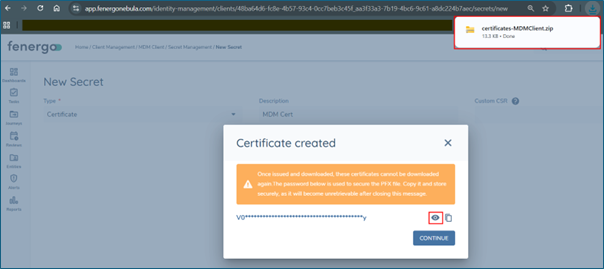
- The certificates are downloaded in your browser in a zip file. The password for the PFX file is also generated, take note of the password and store it securely as it will be become unretrievable once you click ‘continue’. If you fail to record the password, you will need to delete the certificate and create a new one.
- NOTE: you may need to enable downloads in your browser in order for the certificates zip folder to be generated and downloaded.
- The following list of files are generated and downloaded.
Certificate files
- Personal Information Exchange (PFX)
- Security Certificate (CRT)
- JKS File (JKS)
- Certificate Chain Public Keys
- ca.cert.pem
- ca-chain.cert.pem
- intermediate.cert.pem
In addition you have the option to provide a custom CSR (certificate signing request)
- Custom CSR Support: Clients can generate their own private keys and submit a custom certificate signing request (CSR) for signing. The system returns only the signed public certificate (CRT), allowing clients to manage their private keys independently and assemble the final PFX file as needed.
- Paste the certificate signing request into the ‘Custom CSR’ field.
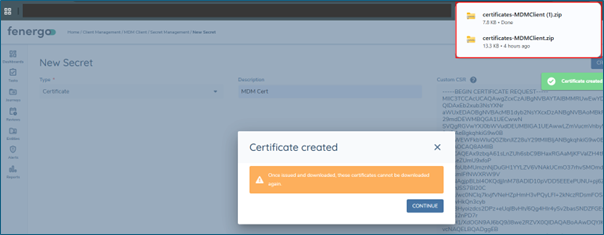
- Click create and the signed public certificate is generated and downloaded via your browser.
- NOTE: you may need to enable downloads in your browser in order for the certificates zip folder to be generated and downloaded.
- The following list of files are generated and downloaded.
Certificate files1
-
Security Certificate (CRT)
-
Certificate Chain Public Keys
- ca.cert.pem
- ca-chain.cert.pem
- intermediate.cert.pem
Expiry of Client Secrets
- A user must, when creating a new client secret, define the expiry date for that secret, expiry date cannot be more than 1 year in the future. An email will be sent to the designated email address(es) to reminder users that a client secret is about to expire. The email will be sent with the following cadence: 30 days prior to expiry, 15 days prior, and every day from 7 days prior to 1 day prior.
- The process of renewing a client secret involves first deleting the expiring secret and creating a new client secret.
Expiry of certificates
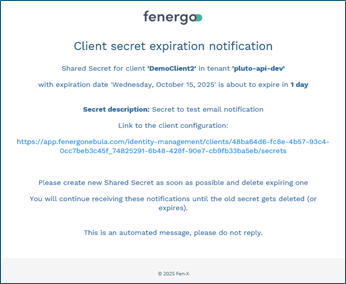
- A user must, when creating a new certificate, define the expiry date for that certificate, expiry date cannot be more than 1 year in the future. An email will be sent to the designated email address(es) to reminder users that a client secret is about to expire. The email will be sent with the following cadence: 30 days prior to expiry, 15 days prior, and every day from 7 days prior to 1 day prior.
- The process of renewing a certificate involves creating a new certificate that can work in parallel for a short period with expiring cert.
- This is what an expiry email notification looks like:
Audit Trail
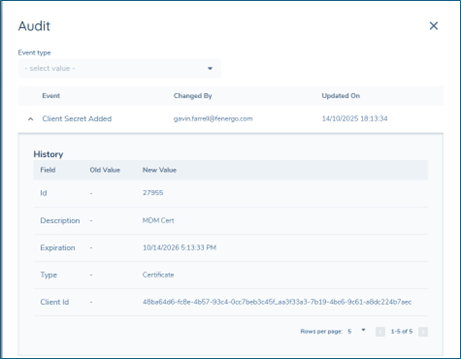
- The system provides a full audit trail for creation and management of API clients.
Limitations & Error Handling
- The system limits each client entity to five secrets/certificates and each tenant to twenty API clients by default. If a client attempts to exceed these limits, an error message is displayed, instructing them to remove existing secrets/certificates or API clients before adding new ones.
Security Configuration & Permissions
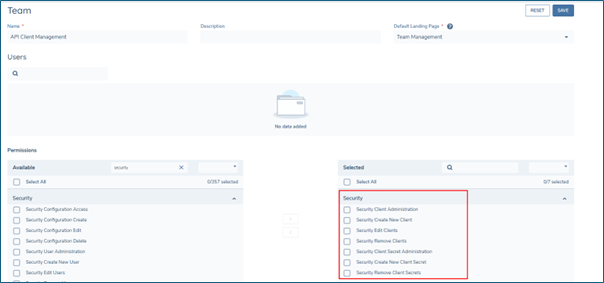
- To control which users have the ability to create and manage API clients there is a set of permissions in the security configuration that you can assign to a team, or you can create a new team with specialised permissions for API client management. Here is a list of the permission sets:
- Security Client Administration – user can access the API client configuration tooling
- Security Create New Client – user can create a new API client
- Security Edit Clients – user can edit existing API clients
- Security Remove Clients – user can delete API clients
- Security Client Secret Administration - user can access the client secret/certificate configuration tooling
- Security Create New Client Secret – user can create client secrets/certificates
- Security Remove Client Secrets – user can delete client secrets/certificates
IMPORTANT: Feature Adoption
This feature is enabled in all tenants and will require adoption from all clients. From the end of May 2026 our SaaS request process for creating API Client IDs on your behalf will cease and you will be responsible for creation and maintenance going forward.