Agency Bulk Upload
Overview
Agency Bulk Upload supports customers who need to onboard large volumes of Underlying Principals and Products for an Investment Manager under an agency relationship.
Agency Bulk Upload is delivered through the Agency ETL task, which embeds Fenergo's Extract Transform Load (ETL) capabilities directly into the Agency Request journey.
Agency Bulk Upload allows you to:
- Upload CSV files for:
- Underlying Principals (for example, funds),
- Managed Relationships between the Investment Manager and each Underlying Principal (optional), and
- Products to be onboarded for those Underlying Principals.
- Map file columns to system fields and Policy / Product Policy requirements.
- Validate data before load, including date handling.
- Identify and resolve potential duplicates for Underlying Principals.
- Create the Agency data model (Underlying Principals, Managed Relationships and Products) as draft data that will be completed in connected journeys. Where no Managed Relationship file is supplied, the system finds or creates the Managed Relationships for you.
All other aspects of Agency Requests, including verification and approval, follow the behaviour described in the main Agency Request user guides.
Using Agency Bulk Upload in a Journey
This section describes the steps followed by users working in an Agency Request journey where the Agency ETL task has been configured.
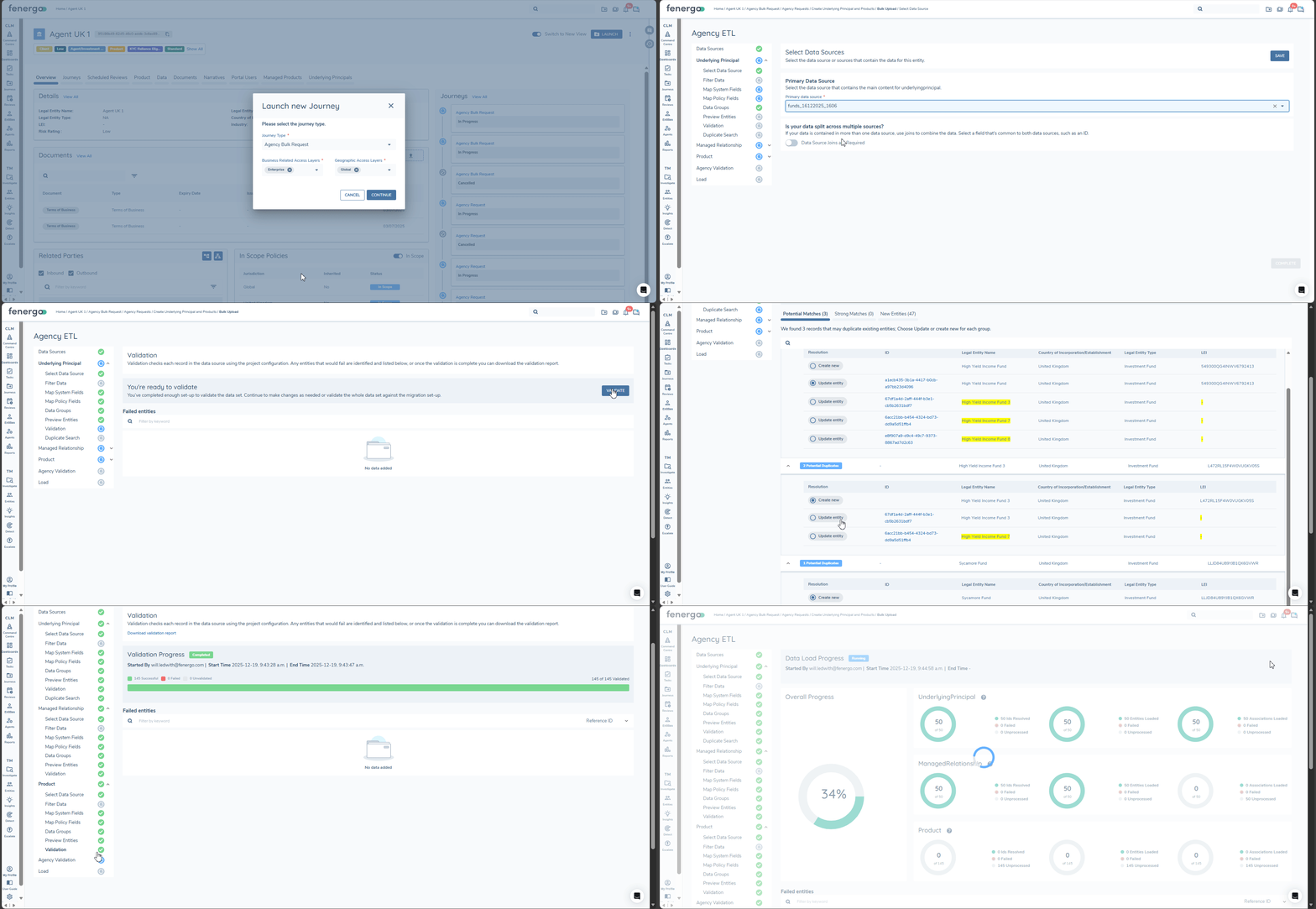
Upload and Process Files
Within the Agency ETL task, the first step is to upload a CSV file for each data type configured on the task in the Data Sources step — Underlying Principals, Products and, where the Managed Relationship data type is configured, Managed Relationships.
Then for each Data Type:
-
Select Data Source
- Select the uploaded source file that corresponds to the current data type.
- While unlikely, you can use standard ETL capabilities to join data across multiple files.
- Select the uploaded source file that corresponds to the current data type.
-
Filter Data (optional)
- If the file covers a wider set of Underlying Principals or Products than needed for this request, you can apply filters to limit the rows used in the journey. See ETL User Guide for more information.
-
Map System Fields
- Map required system fields, such as
referenceIdand any platform identifiers, to the corresponding columns in your file. - Mappings between file columns and system fields are stored so they can be reused next time.
- Map required system fields, such as
-
Map Policy Fields
- Map your file columns to the requirements included in the Policy (for Underlying Principals and, where configured, Managed Relationships) and Product Policy (for Products) that have been configured on the Agency ETL task.
- You can use Automap to pre-populate mappings where column names closely match requirement names.
- Mappings between columns and requirements are also remembered, which reduces effort for repeat uploads.
- All date fields require the file date format to be provided so that the system can correctly parse date values.
See ETL User Guide for more information.
-
Data Groups (if configured)
If your Policy or Product Policy includes Data Groups (for example, Addresses or Contacts):
- Prepare a separate CSV file for each combination of Data Group and Data Type (for example, Underlying Principal Address).
- Include a
parentReferenceIdcolumn in each Data Group file to link each row back to the relevant Underlying Principal or Product. See ETL User Guide for more information. - Upload and map each file using the same steps:
- Select Data Source,
- (Optional) Filter Data,
- Map System Fields,
- Map Policy Fields.
-
Map Lookups
If your source file does not have identical values to lookups referenced in your Policy or Product Policy requirements, you can map your file values to Fenergo lookup values. Automap can make this fast and easy.
-
Preview
After mapping is complete, use Preview to confirm that:
- Values appear in the expected fields.
- Reference IDs resolve correctly across files (for example,
ownerRefId, andfundRefIdwhere a Managed Relationship file is used). - Data looks consistent and complete.
Preview uses sample data, so it is a useful place to identify issues before running full validation.
-
Validation
Validation ensures the uploaded data meets the standards required by the Policy and Product Policy that are assigned to the configured Agency ETL task:
- Checks that required system fields and mandatory requirements are mapped and populated.
- Verifies lookup values and formats (for example, country codes, numbers and dates).
- Verifies values are accepted by linked lookup fields and other constraints.
Duplicate Search for Underlying Principals
Agency Bulk Upload includes a dedicated Duplicate Search step for Underlying Principals. This step is specific to Agency Bulk Upload and does not apply to standard ETL projects.
The aim is to avoid requiring FenX IDs or Alternate IDs in the input files, while still preventing unnecessary duplication of Underlying Principals.
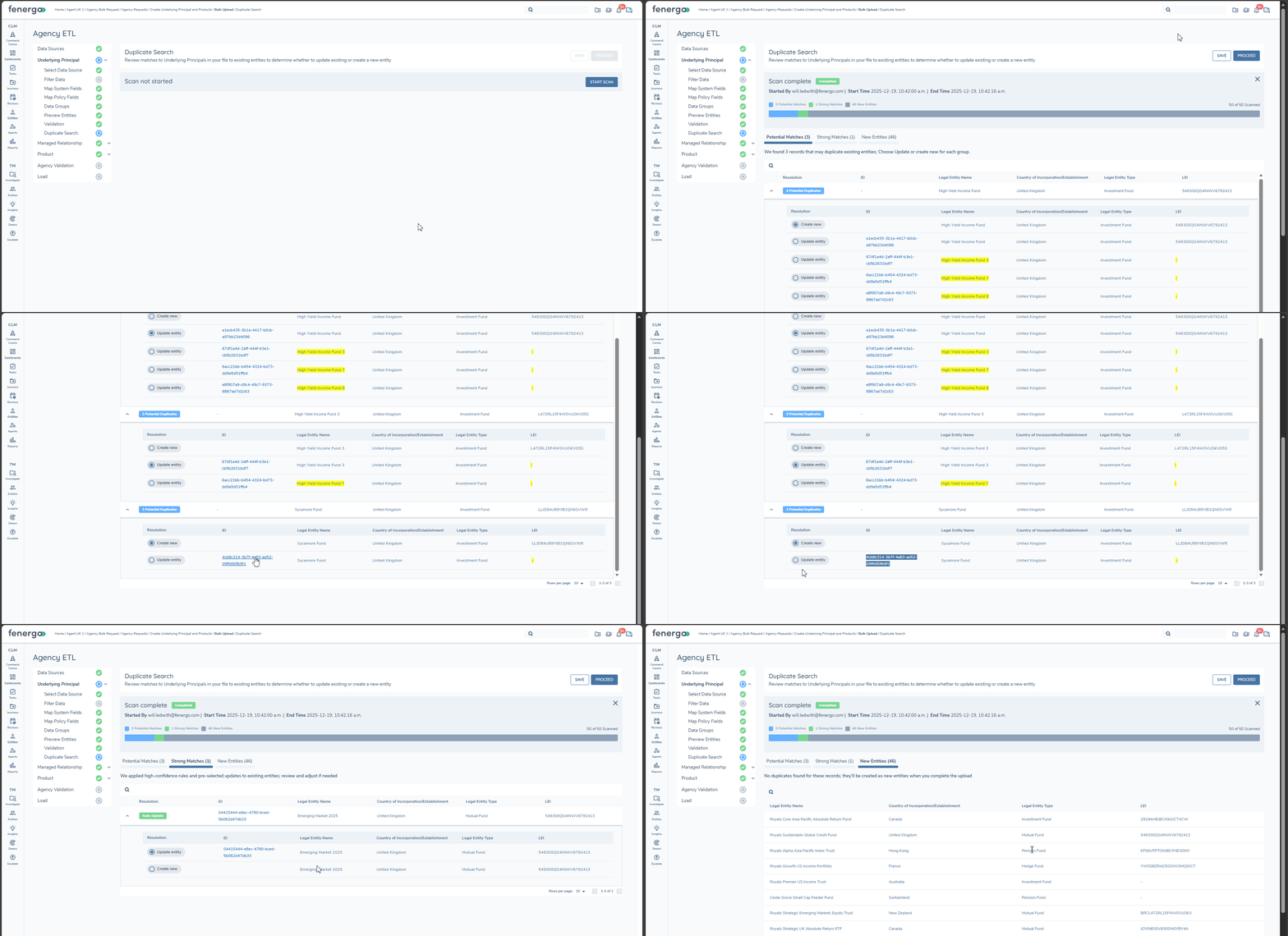
When Duplicate Search is executed for Underlying Principals, results are grouped into three tabs:
-
Potential Matches
- Underlying Principals where at least one existing entity exceeds the configured Match Score Threshold.
- By default, each row is set to create a new entity. You can click on the link for each match to view the entity profile of the potential match.
- You can review the suggested matches:
- Change the action to update the existing entity where the match is correct.
- Column differences are highlighted so you can see which values would change if you update.
- When you choose to update an existing entity, you will be asked to confirm before proceeding to the next step.
-
Strong Matches
- Underlying Principals from your upload that have a single 100% match to an existing entity.
- The system can confidently propose updating the existing entity.
- You can override to create a new entity if you do not wish to update the existing record.
-
New Entities
- Underlying Principals with no matches above the threshold.
- These will result in new entities being created.
All Duplicate Search decisions must be completed before you can move to the next step.
Agency Bulk Upload is intended to onboard new business. It is not recommended to simultaneously update existing Underlying Principals as this may interfere with results available in Duplicate Search and may result in creating duplicates instead.
Agency Validation
Agency Validation ensures that:
- Underlying Principals, Managed Relationships and Products are correctly cross-referenced to facilitate generating the agency data model.
- With the Agent and any existing Underlying Principals identified, the system can:
- Identify an existing Managed Relationship to use or update, or
- Identify where a new Managed Relationship needs to be created.
Load
Now that all validations are passed, data can be loaded:
- Underlying Principals are created or updated as draft entities based on the Duplicate Search decisions.
- Managed Relationships between the Agent and each Underlying Principal are created or updated as draft records:
- Where the Managed Relationship data type is configured, they are created or updated from the Managed Relationship file.
- Where it is not configured, the system checks whether a Managed Relationship already exists between the Agent and each Underlying Principal, reuses it where one exists, and creates a new draft Managed Relationship where none exists.
- Where Autoname MRs is enabled, any new Managed Relationship without a
legalEntityNameis given a name automatically.
- Products are created as draft records and associated to their owner Underlying Principal, Investment Manager and the relevant Managed Relationship.
- Data Group data is created and linked via
parentReferenceId.
No records are verified at this stage. All outputs from Agency Bulk Upload are drafts and the journey can proceed to the Agency UP Journey Launchpad.
Configuration
Agency Bulk Upload is delivered via an Agency ETL task in an Agency Request Journey Schema.
- The Agent / Investment Manager is the root entity of the journey.
- The Agency ETL task replaces these tasks for high-volume applications:
- Add Parties to Request*
- Agency Request Details*.
- When the Agency ETL task is completed (data has been loaded successfully):
- Draft Underlying Principals, Managed Relationships and Products are created or updated.
- These drafts need to be transferred to connected journeys for each Underlying Principal (via the Agency UP Journey Launchpad), where users complete data, collect documentation and verify.
*A blocking validation prevents saving a Journey Schema that combines Agency ETL with either of the above tasks.
Customers can continue to use the UI tasks (Add Parties to Request and Agency Request Details) for lower-volume journeys, and use the Agency ETL task for higher volumes. We recommend assigning different Journey Types for each purpose so that users can intuitively launch the agency request journey that suits their needs.
Agency ETL Task Settings
The Agency ETL task wraps the ETL project configuration so that end users are not exposed to ETL project management.
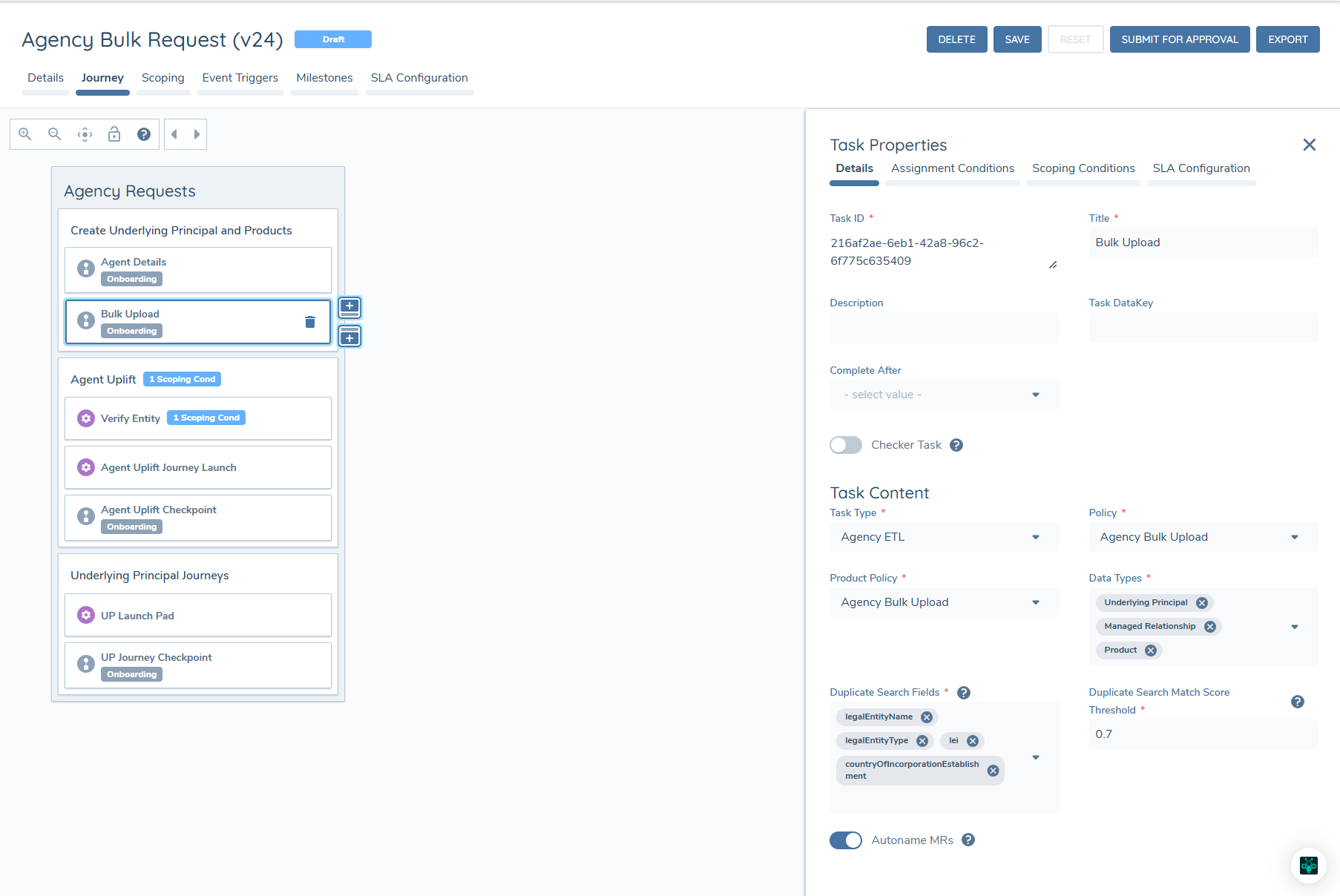
At a minimum, configurators must provide the following.
Policy
-
A Policy that defines data for:
- Underlying Principals (Entity Type: Company, Target Entity: Client).
- Managed Relationships (Entity Type: Managed Relationship, Target Entity: Related Party) — required only where the Managed Relationship data type is configured.
-
The Policy should:
- Include all requirements that you intend to capture via Agency Bulk Upload.
- Use the supported data fields described in the Supported Policy Data Fields section of the ETL User Guide.
- Include appropriate mandatory and conditional validations to ensure data quality.
Product Policy
-
A Product Policy that defines Product data for Agency Bulk Upload.
-
The Product Policy should:
- Contain all Product requirements suitable for capture via bulk upload.
- Use supported data fields.
- Include validations for mandatory fields, conditional logic and formats.
Data Types
| Data Type | Required |
|---|---|
| Underlying Principal | Yes |
| Product | Yes |
| Managed Relationship | No — selected by default |
Where data does not need to be stored at the Managed Relationship level, the data type can be De-selected (meaning it's optional to provide). It's still a required part of the Agency Data Model so the will create/update the Managed Relationships during Load.
Autoname MRs
The Autoname MRs toggle is found in the Agency ETL task's Task Content settings and is enabled by default. It applies whether or not the Managed Relationship data type is configured.
When enabled, any new Managed Relationship created during Load without a legalEntityName is given a name in the format:
MR - [Investment Manager Legal Entity Name] - [Underlying Principal Legal Entity Name]
- The generated name is stored in the Managed Relationship's
legalEntityNamefield and can be edited later in the usual places, such as the Managed Relationship Details task. - A
legalEntityNamesupplied in the Managed Relationship file is always retained and never overwritten. - The full name is limited to 200 characters. Where it is longer, the Underlying Principal Legal Entity Name is cropped.
When disabled, new Managed Relationships without a legalEntityName are left unnamed and display as "Managed Relationship".
Duplicate Search Settings
- Configure Duplicate Search Fields for Underlying Principals:
- At least one field is required.
- To be available to select, fields must:
- Be present in the selected Policy and in Global.
- Be configured identically.
- Be indexed.
- Configure a Match Score Threshold to define which matches are surfaced to users in Duplicate Search.
- This is configured as a decimal (representing a percentage). We recommend starting at 0.7 (70%) or higher.
- Users can fine-tune the threshold according to the quality of results achieved with your configured Duplicate Search fields. In the UI, mousing over the ID of a Potential Match result will display the Match Score.
String fields (text, IDs, numbers etc.) used in matching are collectively assigned a Match Score. Potential Matches will only display results at or above the configured Match Threshold.
However, lookup fields require an exact match to be valid. If a record has a 100% match to an existing Underlying Principal on Legal Entity Name but has a different Legal Entity Type or Country of Incorporation value, it will not be considered a match. You can exclude lookup fields from your configured Duplicate Search fields if you want to allow more fuzzy results.
Permissions
Users must have the Agency ETL Administrator permission to:
- See the Agency ETL task within Agency Request journeys.
- Upload and map files.
- Run validation and Duplicate Search.
- Load draft data.
CSV Files
Agency Bulk Upload requires one CSV file per configured data type (Underlying Principal, Product and, where configured, Managed Relationship). Additional files can be provided for each applicable Data Group (if required). While Agency Bulk Upload leverages ETL, the IDs used in system fields are different because this is not a migration context. Agency ETL uses reference IDs to identify and cross-reference rows across multiple files during processing.
These reference IDs only need to be unique within the source files used in the Agency Request. They are used during processing and are not stored as identifiers on the created entities and products.
Reference ID Fields
-
referenceId
A unique identifier for each row within a given file. Required for all files used in Agency Bulk Upload. -
fundRefId
Used in the Managed Relationships file, where one is supplied. This must match thereferenceIdof the relevant Underlying Principal in the Underlying Principals (Funds) file. -
ownerRefId
Used in the Products file. This must match thereferenceIdof the Underlying Principal that owns the product. -
parentReferenceId
Used in Data Group files (for example, Addresses or Contacts). This must match thereferenceIdof the entity or product that each Data Group row belongs to.
Example: Underlying Principal, Products and Managed Relationships
The diagram below shows an example of how reference IDs are used to link data in an Agency Request journey.
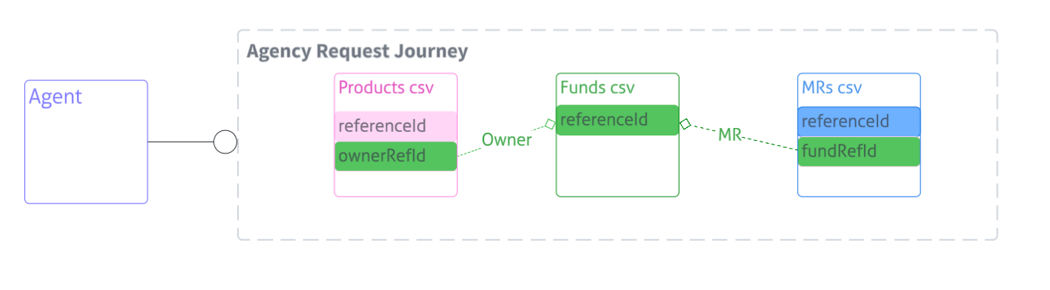
In this example:
- The Funds CSV represents Underlying Principals, each with its own
referenceId. - The MRs CSV (optional) represents Managed Relationships:
- Each row has its own
referenceId. fundRefIdpoints to thereferenceIdof the related Underlying Principal in the Funds CSV.
- Each row has its own
- The Products CSV represents products:
- Each row has its own
referenceId. ownerRefIdpoints to thereferenceIdof the owning Underlying Principal in the Funds CSV.
- Each row has its own
During processing, Agency Bulk Upload uses these values to:
- Link products to their owner Underlying Principal.
- Create or update Managed Relationships between the Agent and each Underlying Principal — from the MRs CSV where supplied, otherwise by reusing or creating them automatically.
Limits
The Agency Bulk Upload feature has been tested with up to 1,000 funds and 5,000 products. While ETL is capable of processing higher volumes, we need to support these within a journey context, with connected journeys. We recommend splitting across separate journeys if higher volumes are required.