Jumio Integration (Digital ID&V)
Fenergo SaaS offers an integration to Jumio to collect documents from a customer and verify their identity.
Fenergo clients are responsible for purchasing and configuring their own Jumio account. Each account has a unique set of API tokens which can be used to link their Jumio portal to a Fenergo SaaS tenant.
Steps to ID&V an individual in Fenergo SaaS
- Generate a unique Jumio link for the entity
- The Fenergo SaaS user sends this link to the individual via their own internal communication system
- The individual completes the Jumio verification process by uploading an ID and a photo of their face
- Jumio analyses the documents to verify the validity of the document and ensure it matches the uploaded face
- The documents and outcome of the verification are returned to Fenergo SaaS
- The Fenergo SaaS user can view these documents to confirm ID&V has been completed to an acceptable standard in line with their KYC policy
Jumio will not automatically determine the final ID&V status of an entity; it is ultimately up to the Fenergo SaaS user to accept or reject the information Jumio has provided.
The Fenergo SaaS Digital ID&V Process
When you create/link a related party that has an entity type of ‘Individual’, Jumio will be available in the ID&V section of the modal.
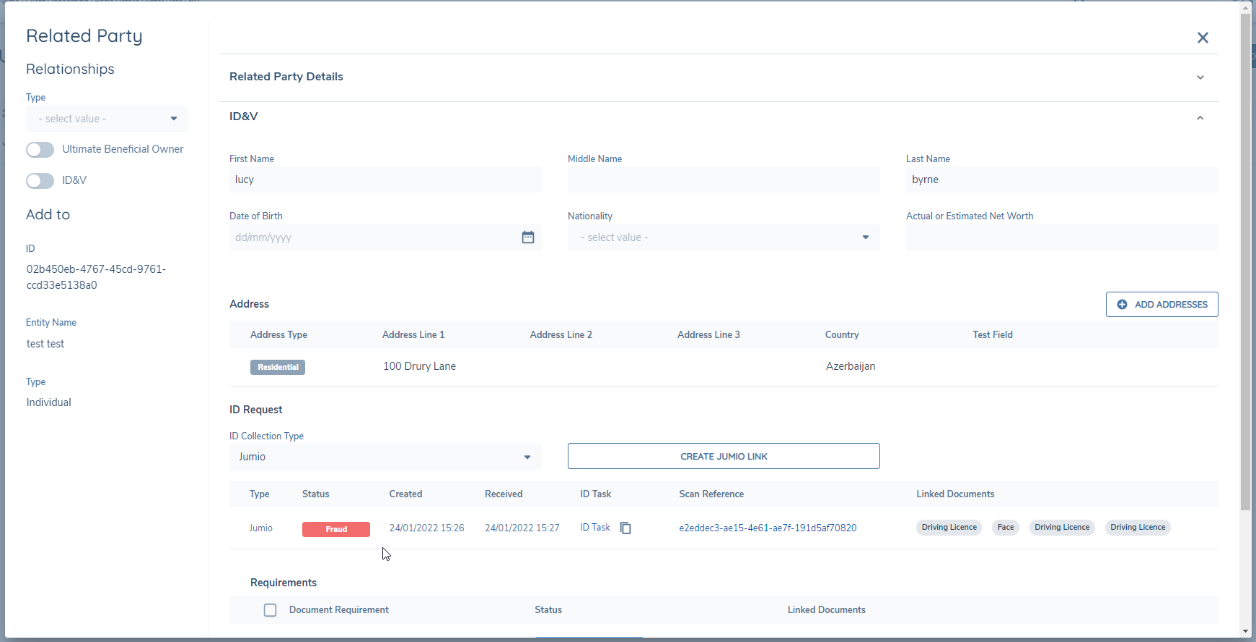
To create a Jumio link for an entity, click the “Create Jumio Link” button. This will create a row on the Digital ID&V grid you can use to track the status of the verification.
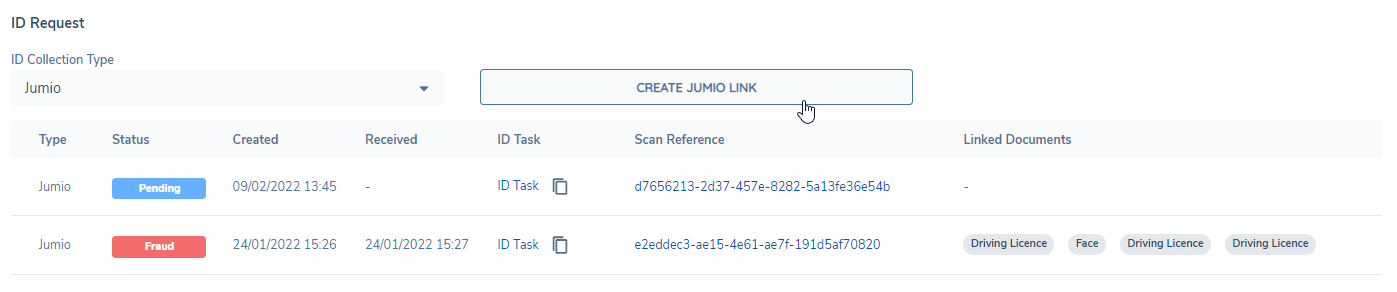
Click the “copy to clipboard” icon under “ID Task” to copy the task URL to your clipboard.

This URL can be sent directly to the individual who you want to complete the ID&V task. When they click the link, they will be brought through a process where they will upload an ID and their own photo, which Jumio will use to verify their identity.
When a request is complete, the result will be sent back to Fenergo SaaS.

In this row, you can see the following information:
Status:
There are 6 possible statuses
- Pending: Awaiting completion
- Failed: Request expired
- Denied: The face didn’t match the document, or the liveness test failed
- Fraud: The ID uploaded was fraudulent (fake, altered, etc)
- Incomplete: ID type not supported - Jumio was unable to verify validity of document
- Passed: Passed ID check, similarity check, and liveness test
Created:
This is the date the link was generated. In the Jumio portal, the client can decide how long they want the link to be active. The maximum time is 3 months. If the user does not complete the task in this time, the link will expire.
Received:
What date the user completed the request. At present, Fenergo SaaS does not impose any logic on how long a Jumio verification is ‘valid’. It is up to the analyst to decide if any existing Jumio verification can be used to complete ID&V.
ID Task:
This is the link to the task itself. When complete, it will lead to whatever redirect page was configured in the Jumio Portal.
Scan Reference:
Click this link to go straight to the verification in the Jumio Portal, where you can view more information and data about the verification.
Linked Documents:
Any documents collected during the process will appear here. They can be viewed and downloaded like other documents in Fenergo SaaS, but not deleted. To upload them to the entity, scroll down to the document requirements and expand the requirement row. If you see a “?” icon here, it means the document retrieval has failed. The user will have to navigate to the Jumio portal to see and download the documents.
Completing ID&V
Once a Jumio verification is complete, it is up to the analysts to decide if the information is satisfactory enough to complete ID&V.
The documents can be viewed to confirm that the person who completed the verification and passed the test is the person who requested to onboard. For example, a user may send a link to John Smith, but John gets Jane Smith to do the verification with her face and ID. Fenergo SaaS will still receive a “passed” verification, but it will not be the correct information needed to ID&V John Smith.
For correct verifications, these documents (driving license, passport, face) can then be used to satisfy custom document requirements like “Proof of Identity” or “Proof of Jumio Verification”
The analyst can choose to use the data provided in the document (Full name, date of birth, nationality, etc) to populate any data requirement fields.
Permissions
There are three permissions associated to Digital ID&V.
Digital ID&V Configuration Users with this permission will be able to connect a Fenergo SaaS tenant to their Digital ID&V Provider (eg. Jumio Portal), and switch providers on/off in the tenant.
Digital ID&V Access Users with this permission will be able to view the Digital ID&V panel within the UI when interacting with Associations.
Digital ID&V Create Users with this permission will be initiate a Digital ID&V request to the provider enabled on the tenant and will be able to complete the Digital ID&V steps on Fenergo SaaS.
Jumio Portal Settings
Inside the Jumio Portal, a client can configure the following settings
- Capture method (Camera, Upload)
- Introduction screen text: they can configure their own welcome messaging.
- Cross-device journey settings (allow both phone and desktop to be used simultaneously)
- Redirect URLs when user finishes task: for example redirecting the user to their own website.
- Maximum lifespan of task: the link can stay valid up to 60 days, but the client can decide to make this shorter.
- Branding of task: colours, logos, custom images
- API token activation/deactivation
- Mandatory fields (ie. User must upload a document with a date of birth)
- Optional fields
- Data retention settings
- Accepted IDs per region: they can configure rules like ("We'll accept National ID's from USA, but not Driving Licences")
- Accepted IDs per Country
- User management and permissions: they can assign their own users access to the portal and various permission levels that dictate what each user is allowed to see.
For the comprehensive overview of these settings, refer to the documentation included inside the Jumio portal.
Configuring ID&V
The “Digital ID&V” section houses the configuration settings for a tenant. If you cannot see this section, raise a SaaS Request.

In this area you will see your ID&V providers, the status of each, and if it is activated in this tenant.

Click on the name of the provider to access the configuration settings. If your tenant is new, the following fields will be blank and unverified.

To get this information, you need to visit the client’s Jumio portal.
The Jumio Portal
Fenergo clients are responsible for purchasing and configuring their own Jumio account. They will have set up their own users, passwords, and permissions within the portal. Users with access can log in and retrieve the following details:
API Credentials (Token & Secret) can be found via settings > API Credentials

Region is whatever region the portal has been established in. For example, “customer- portal.lon.netverify.com” is London, so “EU”. The client’s portal may be USA or Singapore based.
The Workflow can be configured inside the Jumio portal. It represents what an end-user is and isn’t allowed to do.

- "Webcam only" means users are not allowed to upload preexisting files.
- "Image upload only" means they can only upload preexisting files.
- "All" means they can choose to upload the ID either way.
Connecting a Jumio Portal to a tenant
Back in the Fenergo SaaS Digital ID&V configuration area, we can use the information from the portal to set up the connection inside the tenant.

Inside of Fenergo SaaS, we allow you to further configure the workflow a user completes:
- ID Only workflows will verify the authenticity of a document, but not a person
- ID + Identity workflows will also verify that it is a real, live person completing the verification
- Camera Only workflows will only allow a user to use a camera to take a photo
- Upload Only workflows will only allow a user to upload files, instead of their webcam.
The selection here must be compatible with the settings in the Jumio Portal. For example if the portal has configured “Camera Only” then choosing “Upload only” here in Fenergo SaaS will cause an error.
Save & Test the configuration to connect the tenant to the portal.

Once successful, a green “Verified” chip will appear.

If the verification fails, you will see a red chip.

If this happens, double check the validity of the credentials to ensure the settings are correct.
Once verified, you can enable Jumio in the tenant so that it appears in the related party task.
