Digital Subscriptions User Guide
Fenergo’s Digital Subscriptions Offering enables onboarding teams to invite potential investors to a secure portal where subscription data is captured, subscription documentation is digitally generated, and subscription documentation is sent for electronic signature to the investor and/or related parties. Once logged into the Investor Portal, investors are guided through a structured data capture experience to provide the information required for subscription processing.
This feature reduces manual document handling and enables faster turnaround during investor onboarding. This user guide will focus on features built specifically for Digital Subscriptions.
eSignature task in the Portal
The eSignature Documents task is supported in the portal to facilitate Digital Subscriptions. When the portal user opens the eSignature task, the digitally generated subscription document will be automatically linked to the document requirement. To see how this is configured please see the configuration guide.
The portal user does not have the ability to manually upload documents against eSignature document requirements or to remove the generated document that has been automatically linked to the requirement.
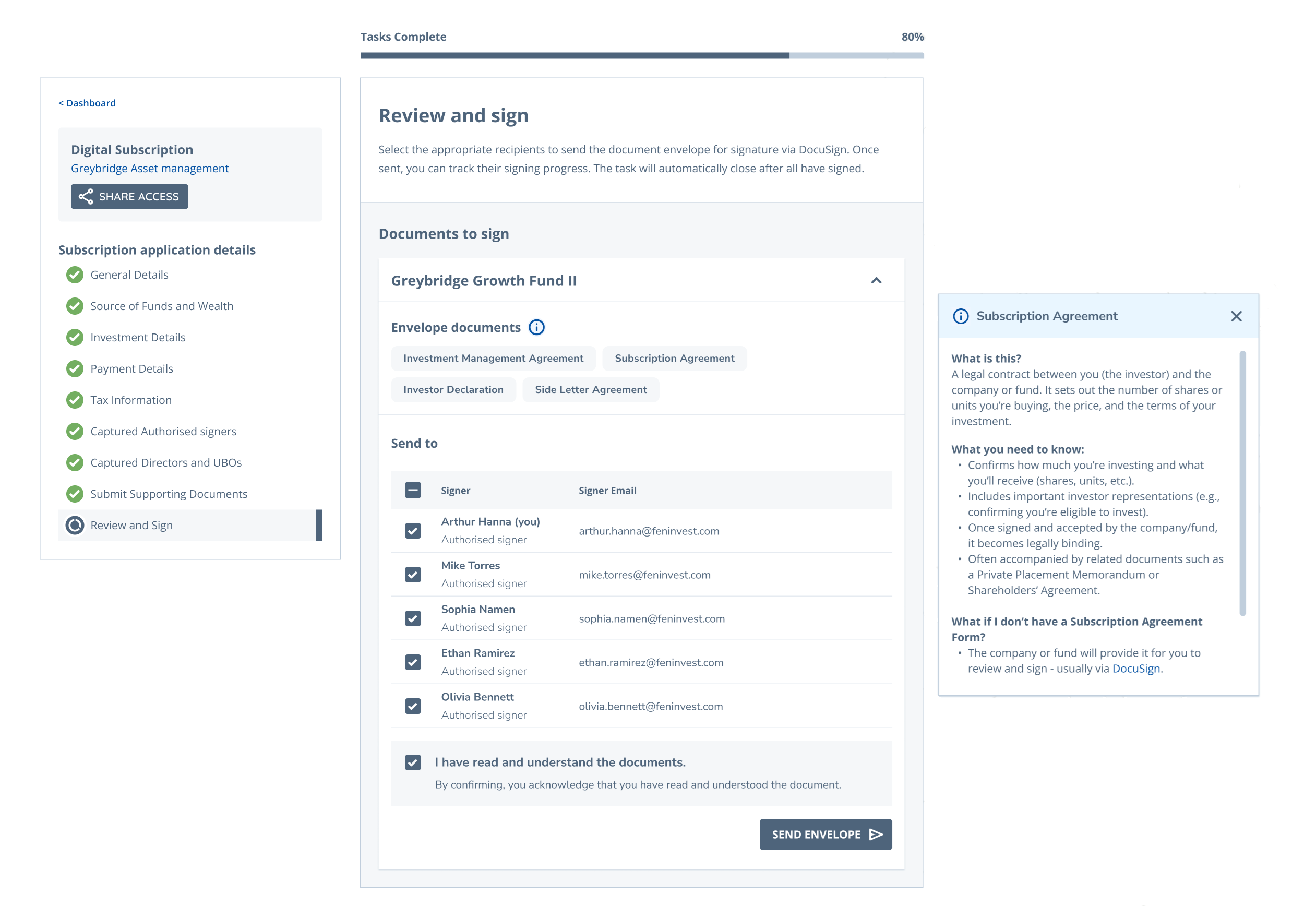
Within the eSignature task, the portal user can:
- View the generated subscription document by selecting the document chip displayed in the document requirement card.
- Select recipients to send the document to for signature.
- Choose an authentication method for each recipient (only required for the DS EU Advanced signature type)
Signature Types
The following signature types are supported in the portal:
- DS Electronic
- DS Email
- DS EU Advanced
- IDnow - EU Qualified (RESELL)
The portal user does not have visibility of the selected signature type. In most cases, the signature type does not affect the portal user experience. The only exception is DS EU Advanced, which requires additional authentication for recipients during the signing process.
DS EU Advanced
When DS EU Advanced is the signature type in use, recipient authentication is required. In this scenario, an additional column, 'Authentication', is displayed in the recipient list. The portal user must specify the authentication method for each recipient by clicking the + Add button in the Authentication column.
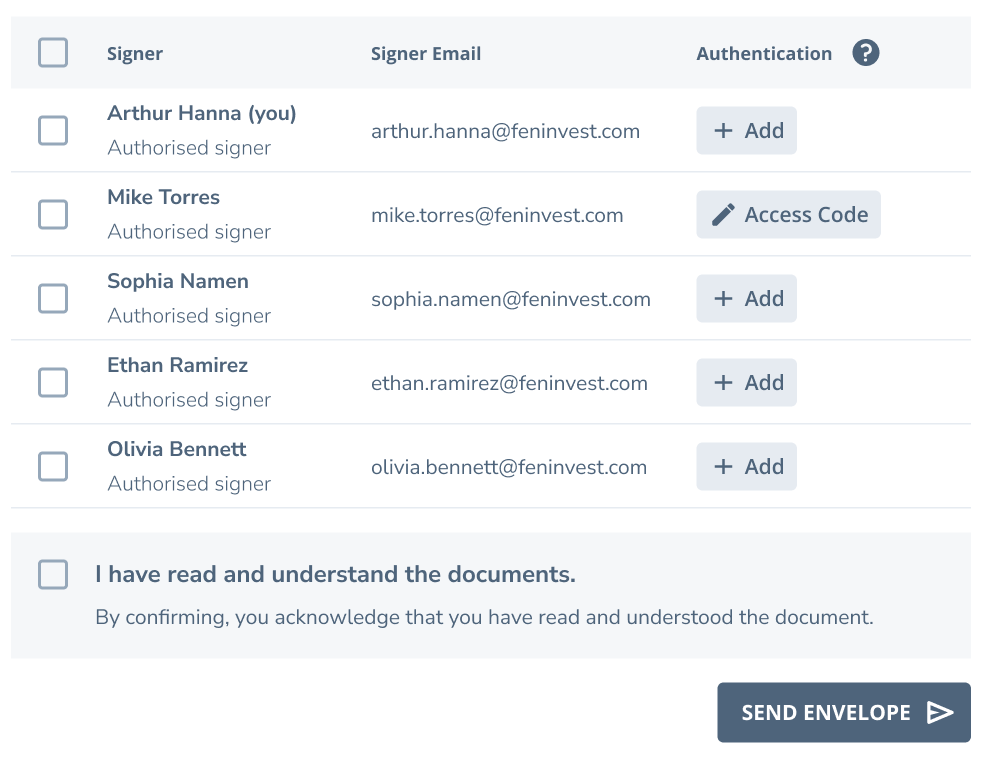
The following authentication methods are supported:
- Access code
When Access code is selected, the system will generate a 4 digit access code. The portal user must share the access code with the recipient outside of the system. The recipient is required to enter this access code when signing the document via DocuSign.
- SMS
When SMS is selected, the portal user must capture the recipient’s mobile phone number. The recipient will receive a one-time code by SMS, which must be entered when signing the document via DocuSign. The recipient will receive the code via SMS upon adding their signature to the document in DocuSign and clicking 'Finish', at which point a modal will appear for the recipient to enter their code.
When DS EU Advanced is the signature type in use, the portal user cannot send the envelope without first selecting an authentication method for each recipient.
Sending the Document for Signature
To send the document for signature, the portal user must select the checkbox next to the relevant recipient(s). If all listed recipients are required to sign, the portal user can select the checkbox at the top of the recipient list to select all recipients at once.
Before sending the document, the portal user must confirm that they have read and understood the documentation. If this confirmation is not provided, the Send Envelope action is disabled and an error message is displayed, indicating that confirmation is required before proceeding.
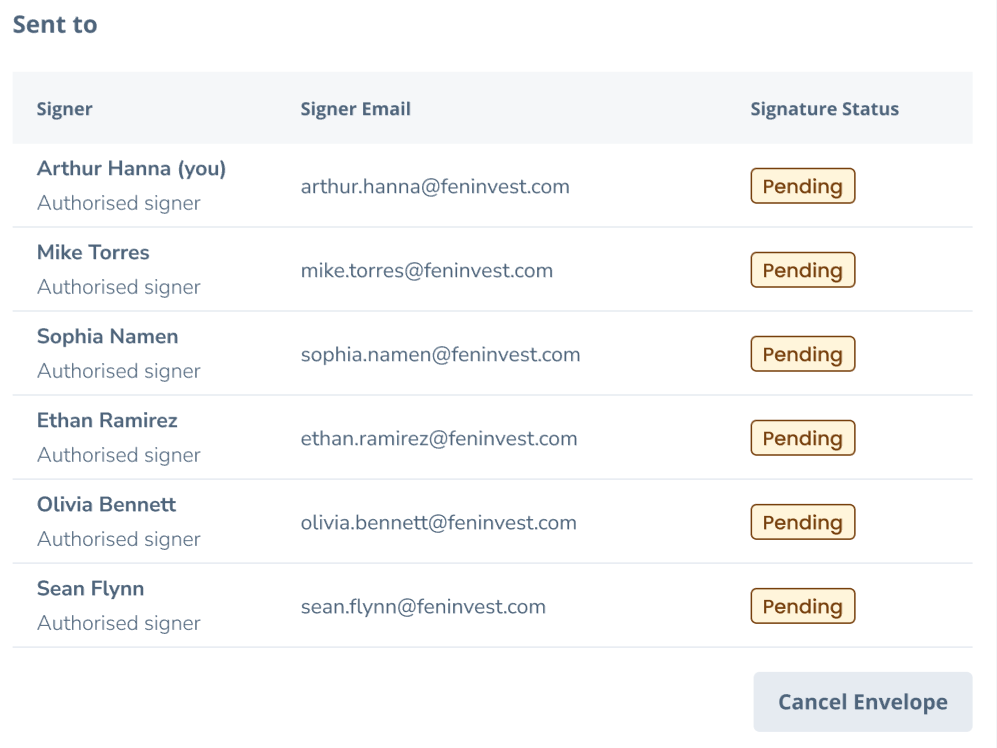
Once the document has been sent, a 'Signature Status' column will be displayed in the recipient. The status of each recipient will be Pending until they sign the document, at which point the status will update to Signed
Cancelling the Envelope
If the portal user needs to update the recipient list after an envelope has been sent, they can cancel the envelope, provided that not all recipients have completed signing.
Cancelling the envelope voids the document for all recipients. Once cancelled, the portal user must resend the envelope to all applicable recipients to restart the signing process.
Completing the eSignature task
Once all required recipients have signed the documentation, the eSignature task can be completed.
The eSignature task supports both manual completion and automatic completion. When automatic completion is enabled, the task is completed automatically once all recipients have signed all documents.
Automated Document Generation in the Portal
The Automated Document Generation task is supported in the portal. This is a system task and the portal user is not required to take any action in this task. When the task is running, the portal will display messaging to the user.
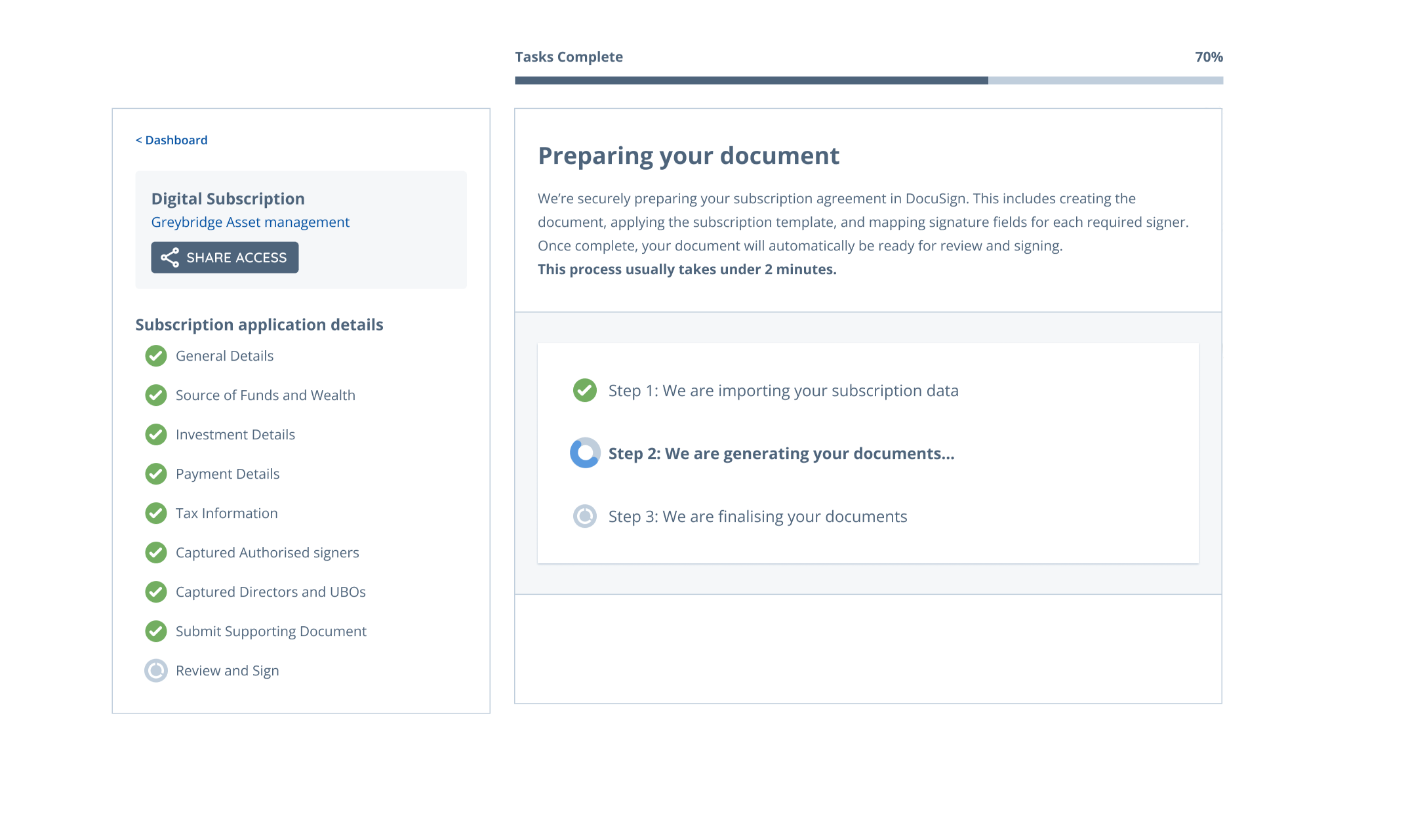
When the task runs, it will generate a document using data captured by the portal user.
Related party data captured by the portal user cannot be surfaced in generated documents.
eSignature in Fenergo
The functionality built for the portal eSignature task can also be used in Fenergo.
Filter Related Parties by Related Party Role type
The recipient list in the eSignature Documents task can be filtered by specific Related Party role types, for example Authorised Signers. When this has been configured, Fenergo users will only see related parties with the applicable role type in the recipient list when they are sending documents for signature.
Autocomplete
If autocompletion is enabled, the eSignature task in Fenergo will automatically complete once all documents have been signed by all recipients.
Auto-attach generated documents
Documents generated in the Automated Document Generation task are attached to the corresponding requirement upon opening the eSignature task, removing the need to manually download and upload the document.

Signature Type Configuration
If Signature Type Configuration has been enabled for the eSignature task, the signature type will be automatically determined based on entity data, eliminating the need for the user to manually select the signature type.
The user cannot change what signature type is assigned to a recipient. The same signature type will apply to all recipients in the eSignature task when Signature Type Configuration is enabled.
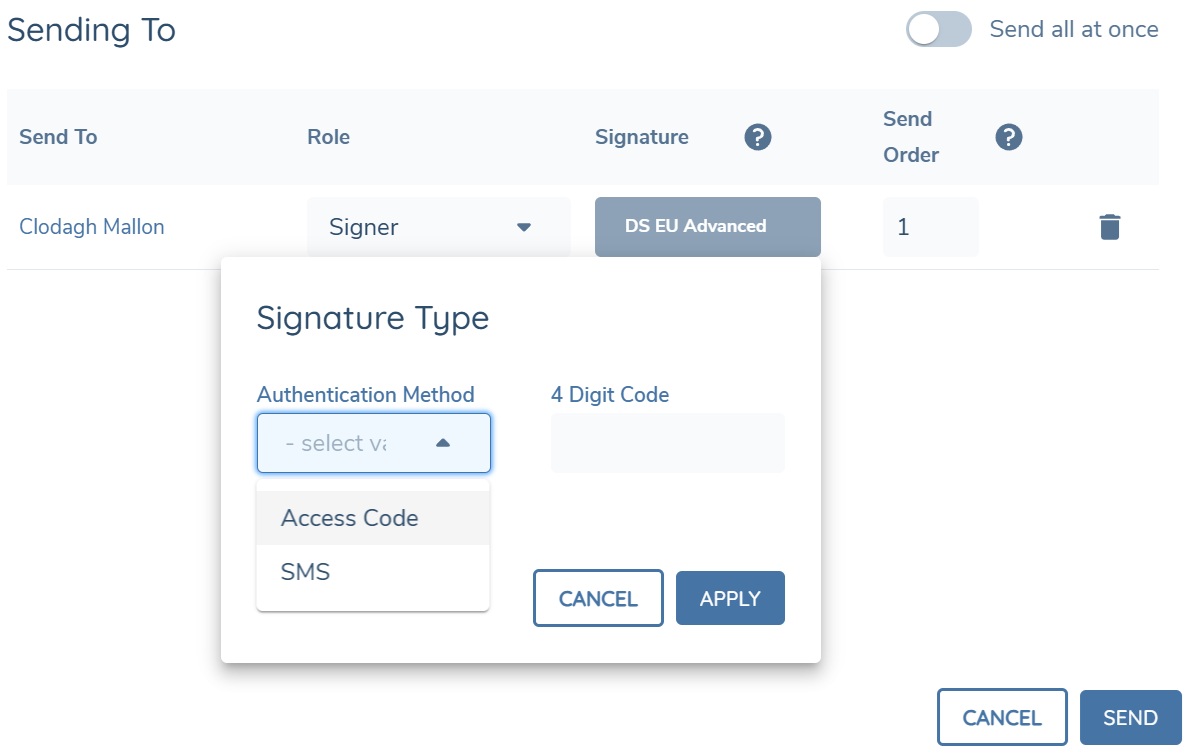
When a configurator has configured a rule for DS EU Advanced, and the condition for that rule has been met by the main entity, the recipients in the eSignature task will automatically be assigned DS EU Advanced. To select an authentication method for each recipient, click the signature chip next to each recipient and capture the authentication method.
Cancelling the Envelope in Fenergo
Once an envelope has been sent in the eSignature task, it is possible to cancel it before all recipients have signed by clicking the Cancel button in the requirement row. If all recipients have signed the document, but the Fenergo user still wishes to cancel the envelope and start the signing process again.
