Enhanced Search
The Entity Enhanced Search functionality consists of changes and enhancements to parts of the Entity search functionality within Fenergo SaaS. They include:
-
On the Entity Management\Search Entities Page
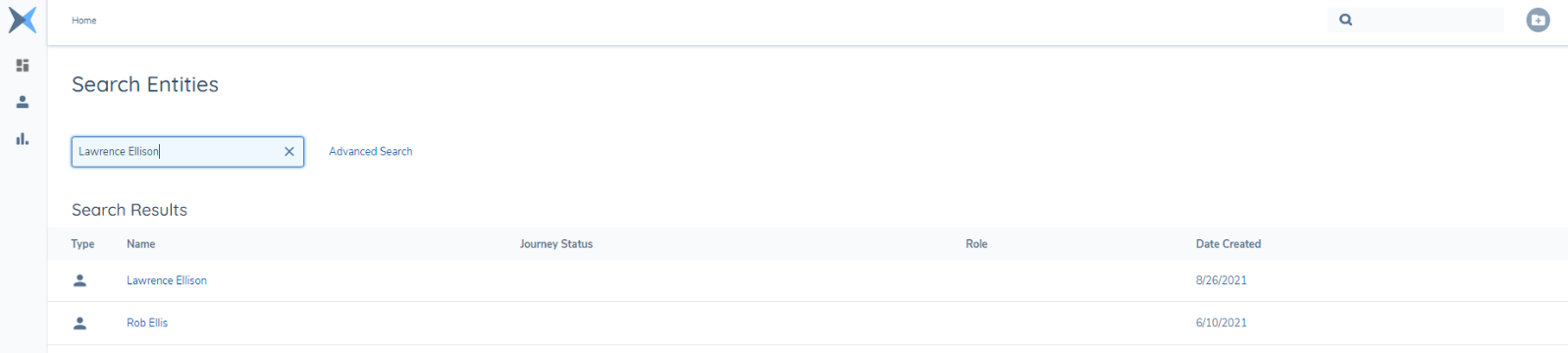
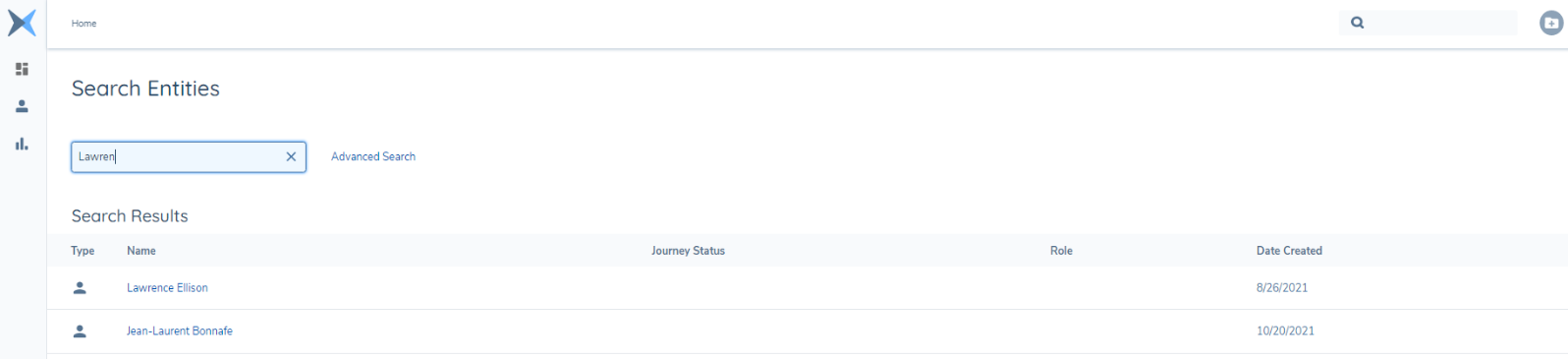
- Enhancements to the Single Search box capability: Improved matching allows user to search by First Name or Last Name, First Name and Last Name, LE Name & also supports partial matching of search criteria
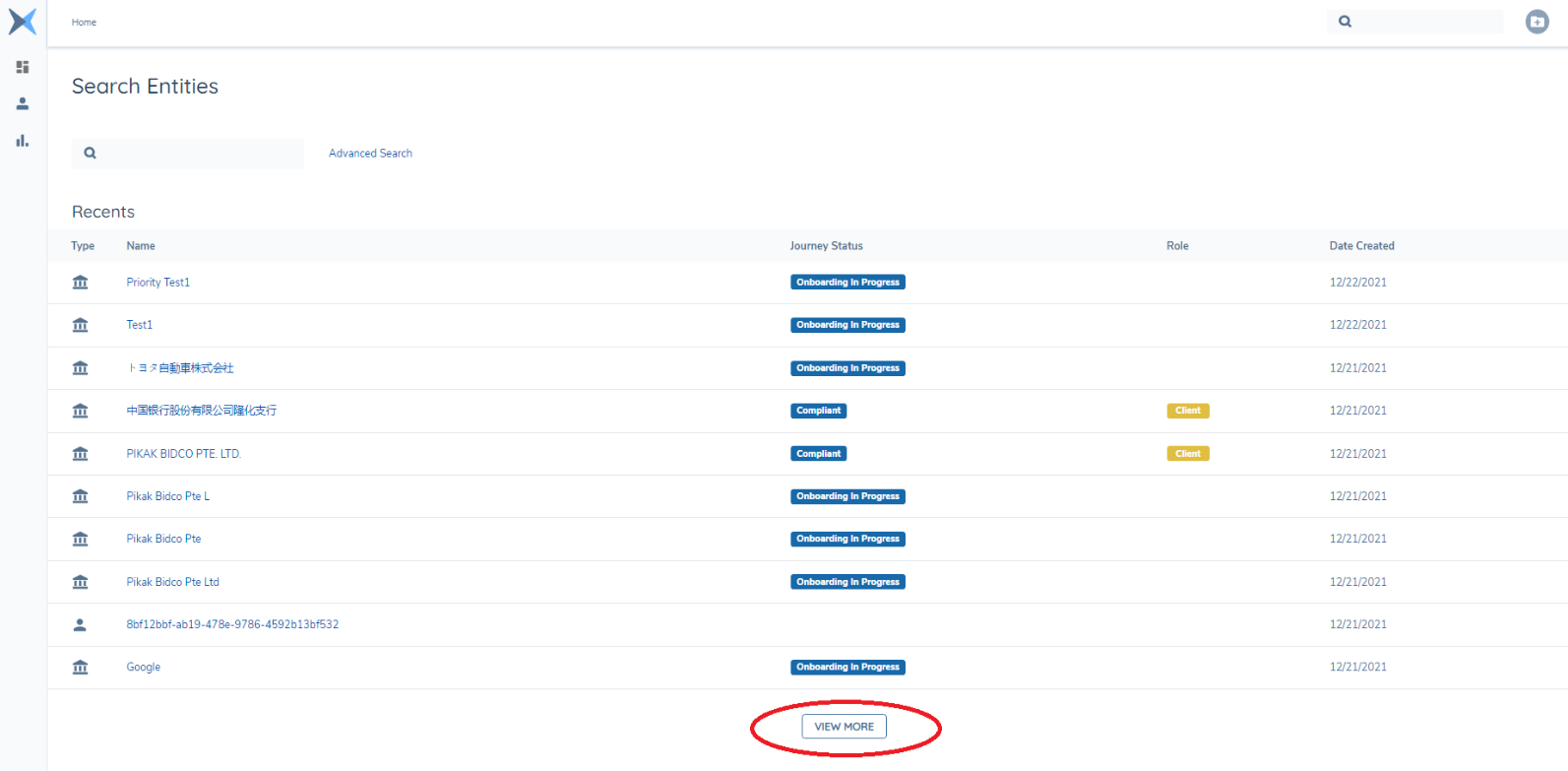
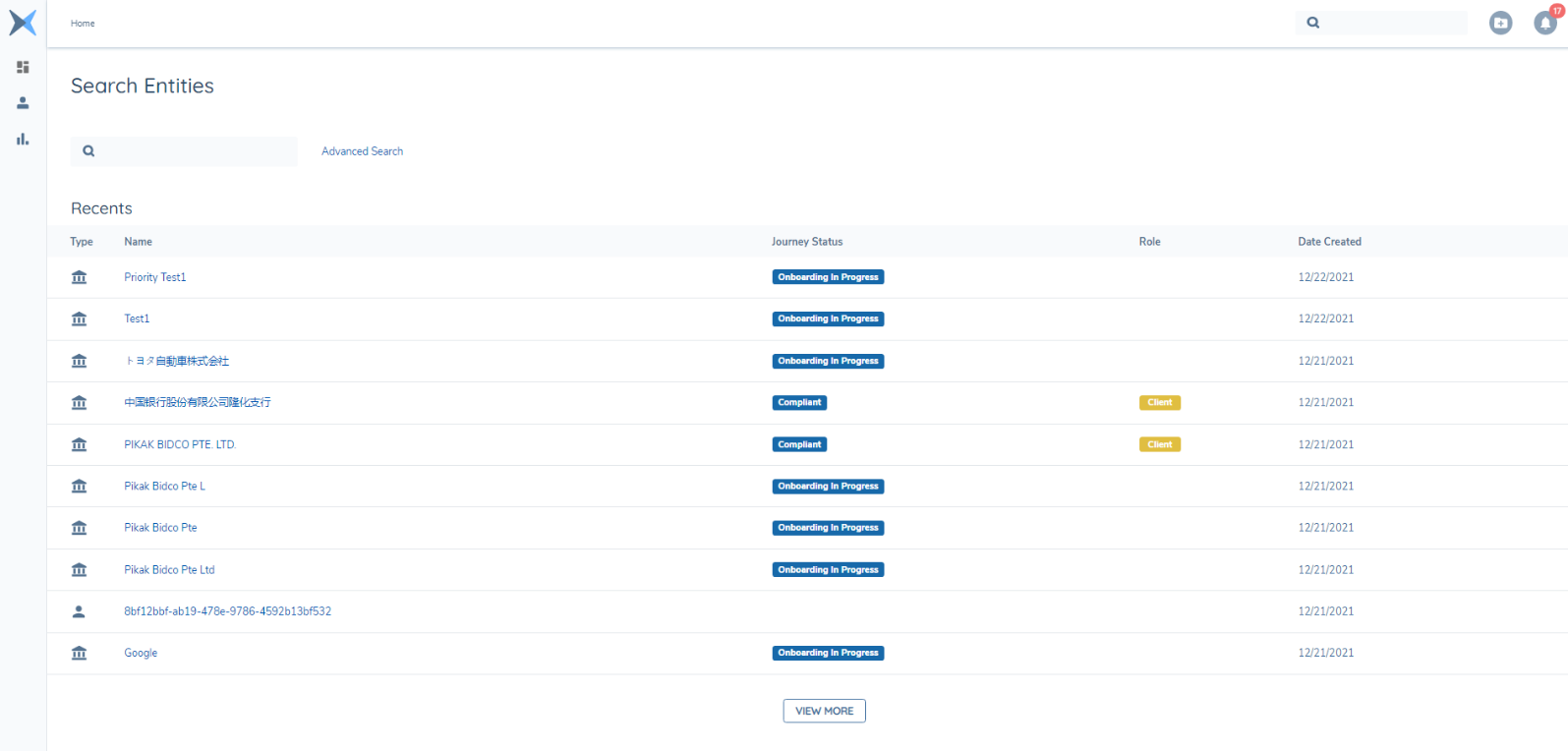
- Enhancements to the ‘Recents’ page: The addition of a ‘View More’ button allows the user see more recent Entities
-
The Creation of an ‘Advanced Search’ Page, which gives the user the opportunity to use indexed fields and provide more search criteria to improve search results.
-
Minor changes to the ‘New Request’ page: to enforce mandatory fields & only allow search to be available, if at least one field is populated.
-
A toggle button in the ‘Data Requirements’ section of ‘Policy Configuration’, will allow the user select that Data Requirement as an Indexed field and will make it available in the ‘Advanced Search’ screen as a search field. The user has the option to select up to ten fields for indexing, as well as the mandatory fields.
-
Export to CSV Feature: The User has the option to download the results of a search in CSV format
-
Support for DataGroups: DataGroups can be Indexed in Policy and are then searchable from the 'Adavanced Search' Page
Basic Search
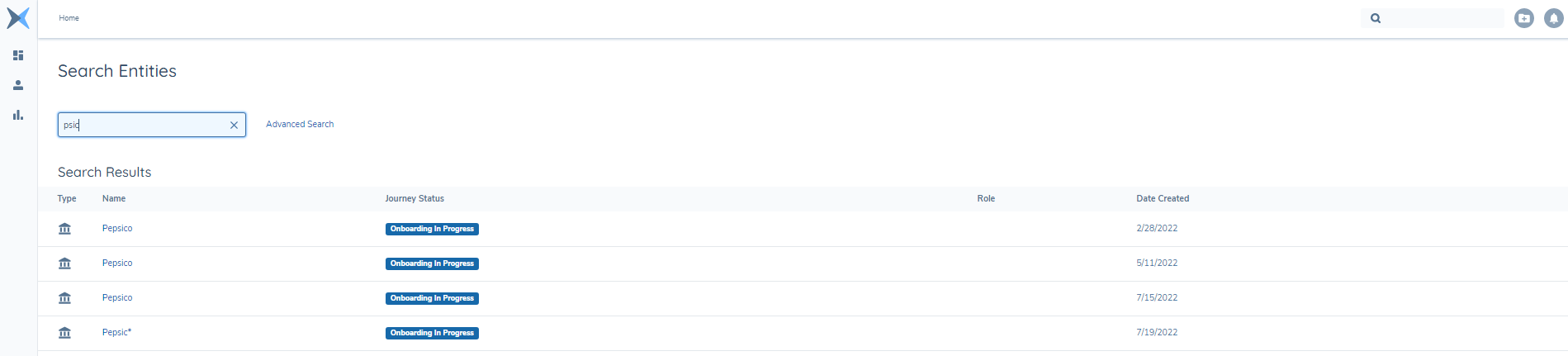
On the ‘Entities’ > ‘Search Entities’ Page, the user can search by First Name or Last Name, First Name and Last Name or LE Name or Group Name.
The system supports fuzzy matching and partial matching of search criteria is supported based on the Levenshtein distance algorithm. This means that when the search query string is at least 3 characters long, the Levenshtein distance is set to 1. (The system will attempt to return entity matches where 1 of the 3 characters is misspelled or missing). When the query string is at least 5 charcters long the Levenshtein distance is 2 and so on as the query string gets longer.
The search also supports the use wildcards implicitly. Invisible to the user, the system will automatically place wildcard functionality before and after the search query string, in order to increase the matching functionality.
Enhancements to the ‘Recents’ results page: The ‘View More’ button allows the user to see more recent Entities, ordered by most recently created first.
Advanced Search
Functionality
The ‘Advanced Search’ functionality is accessed in two ways. Firstly, by clicking on the ‘Entities’ Icon on the Left-Hand Navigation bar from the Fenergo SaaS Home Page and exposing the ‘Advanced Search’ Hyperlink.
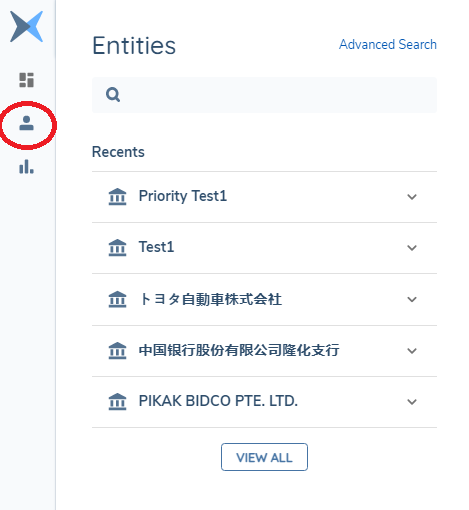
Secondly, when the ‘View All’ button is clicked, the user is navigated to the ‘Search Entities’ screen, and the ‘Advanced Search’ Hyperlink is exposed.
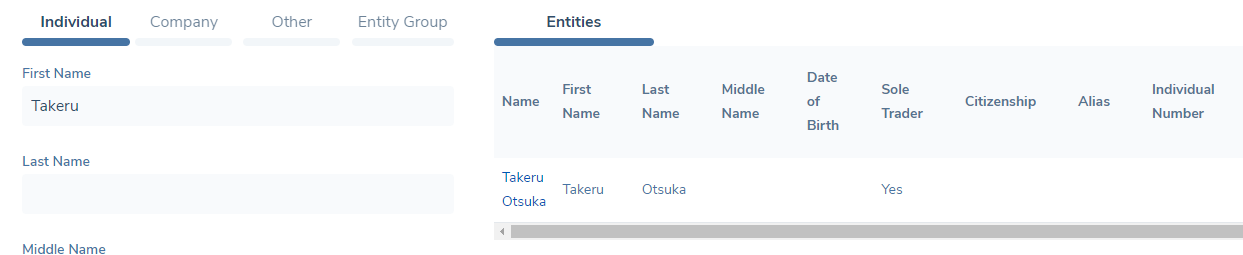
When the ‘Advanced Search’ hyperlink is clicked, the user is navigated to the ‘Advanced Search’ page. The left side of the screen shows the search fields. The right-hand side of the page shows the search results. The Search fields are organised by Category:
- Individual: Fields that have been configured in Policy of Type ‘Individual’
- Company: Fields that have been configured in Policy of Type ‘Company’
- Other: Fields that have been configured in Policy of Type ‘Other’
- Group: Fields that have been configured in Policy of Type ‘Group’
There are 4 mandatory indexed fields, which are spread across the four Categories, and they are available by default. A user with Policy configuration permissions has the option to configure a further 23 fields for indexing. The search results columns on the right-hand side of the screen, match the search fields and will display any returned data available for the search criteria entered.
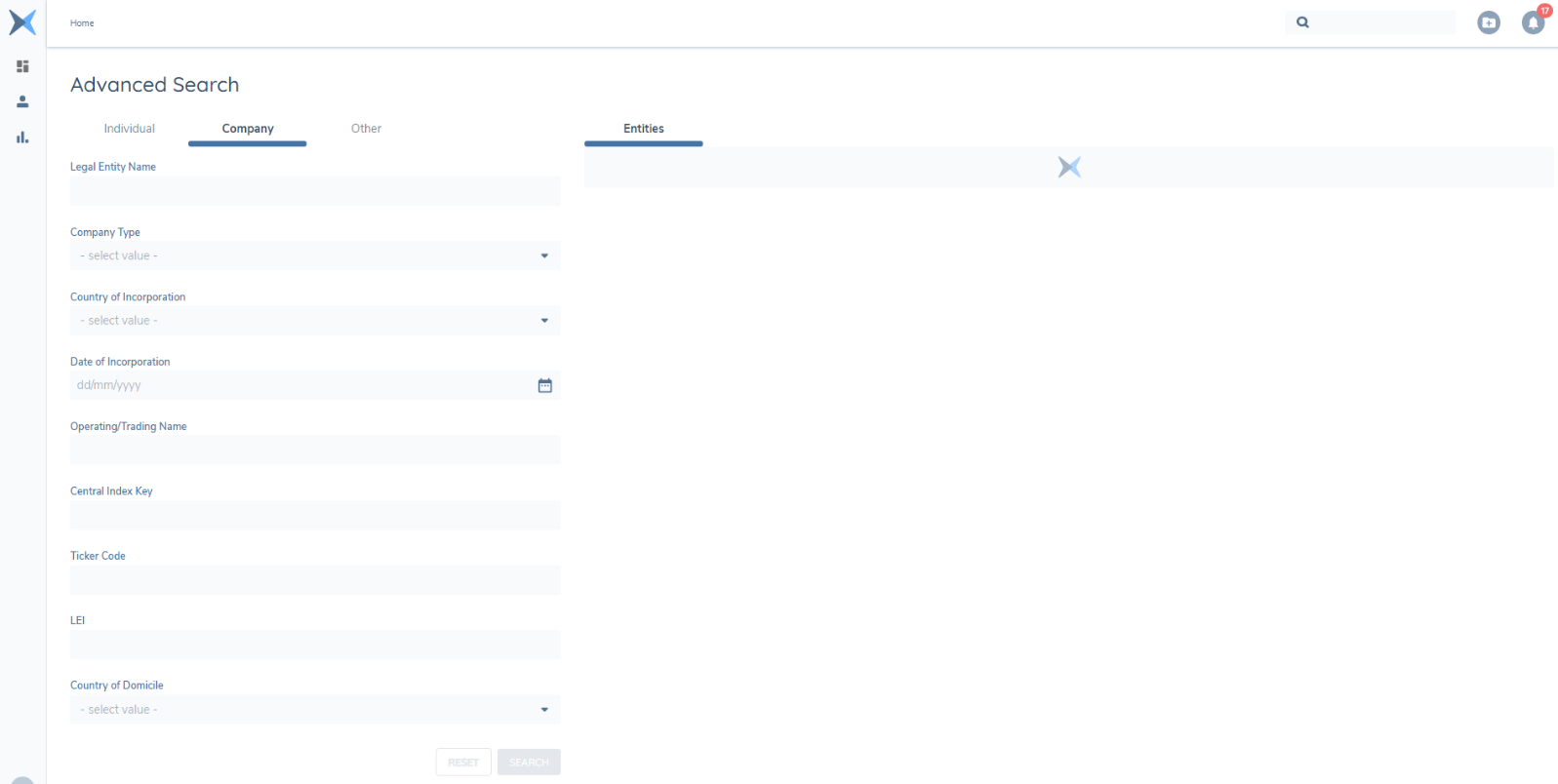
To perform an Advanced Search the user can select from the ‘Individual’, ‘Company’ or ‘Other’ tabs to reveal the search fields for each category. The fields will change dynamically based on category selection. The user needs to enter at least one piece of search criteria in any of the search fields. This will enable the ‘Search’ button and allow the search to be executed. The ‘Search’ button will not be available if no search criteria is entered. The user has the option to reset the search criteria by clicking the ‘Reset’ Button. This will clear any criteria from the fields, and will also clear the previous search results.
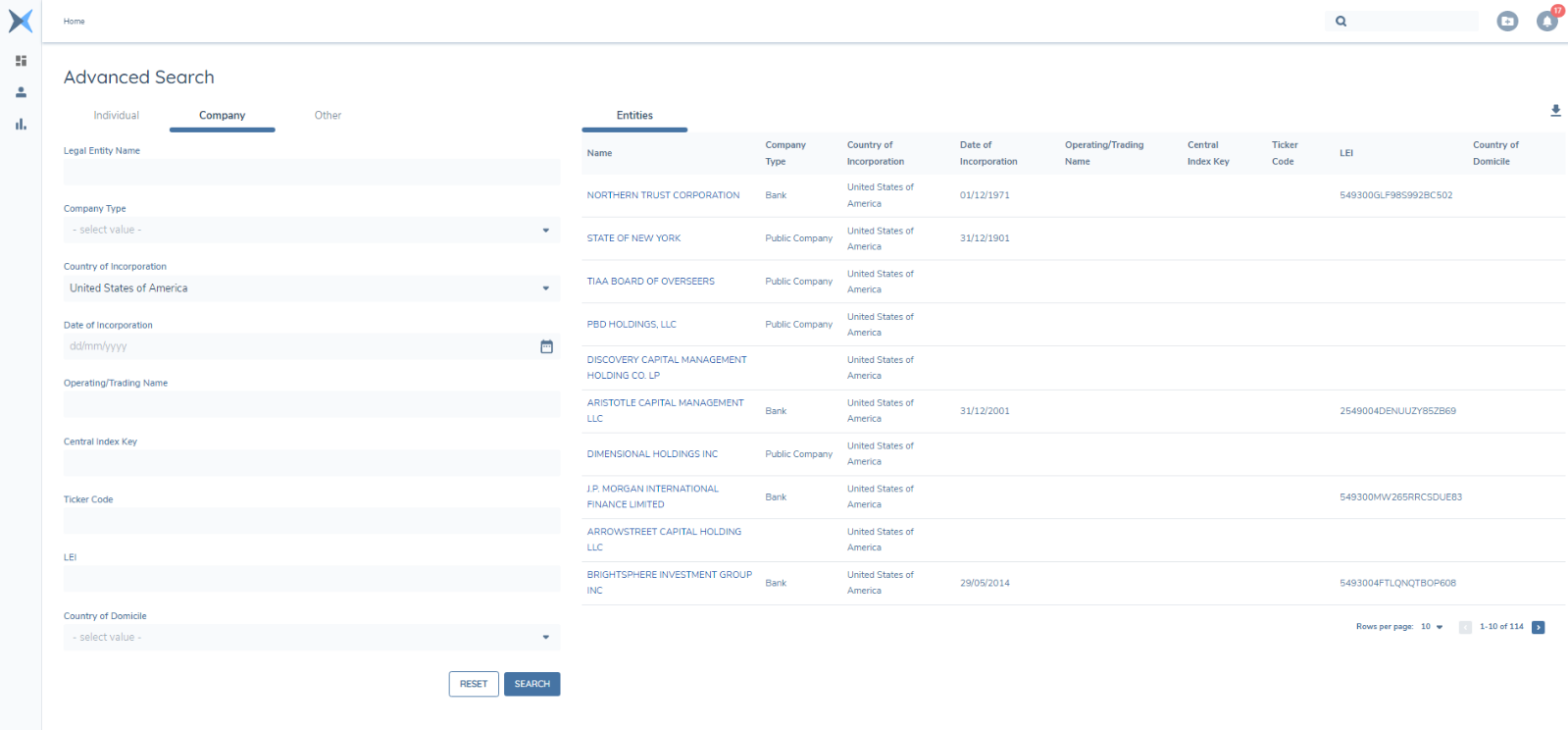
Figure 7: Performing an Advanced Search The configuration of the fields used in the search, is performed in the ‘Data Requirements’ section in ‘Policy Configuration’
Export to File
The user also has the option to export the results of an Advanced Search to a CSV file. After the user has completed an Advanced Search and the results are visible in the results grid, the download button appears on the top right side of the grid.

When the user clicks the download button, the file is downloaded in CSV format, to the users ‘Downloads’ folder. A link to the file, and an option to copy the link appears on the top of the results panel, in cases where the user has restrictions on automatic downloads.
Support for DataGroups
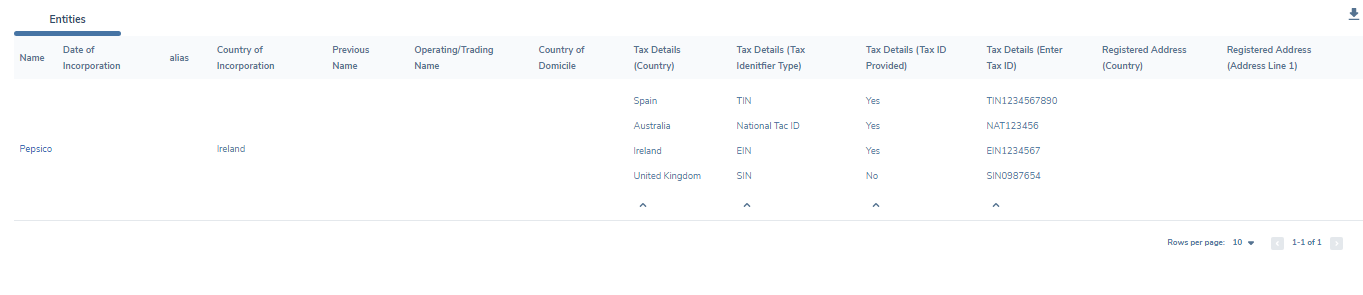
DataGroups can be indexed in the same way as standard Data Requirements, by toggling on the ‘Indexable’ field in Policy. The DataGroup and the fields within, will then become visible in the ‘Advanced Search’ Screen under the ‘Additional Filters’ Heading. When the datagroup fields are selected, those fields will then become searchable underneath. The Search button will only become active when a field has been populated with search criteria.

When search criteria has been entered in one or more of the datagroup fields and the 'Search' button is clicked, the results are shown in the Results grid. Any Entities that match the search criteria will be returned to the screen. If more than one datagroup field results are returned, the user has the option to expand or collapse the datagroup results grid.
Support for jurisdictions
The latest release supports Indexing and Searching by fields defined in jurisdictions different than Global. All jurisdictionas could have fields marked as Indexable. Indexing fields in jurisdictions different than Global is done in the same way as in the Global jurisdiction. The user has to create a new policy or a draft in the existing policy. A limit of non-mandatory indexable fields is applied on all jurisdictions and before saving the field it is being validated if there is no more than 23 indexable fields in all jurisdictions in total.
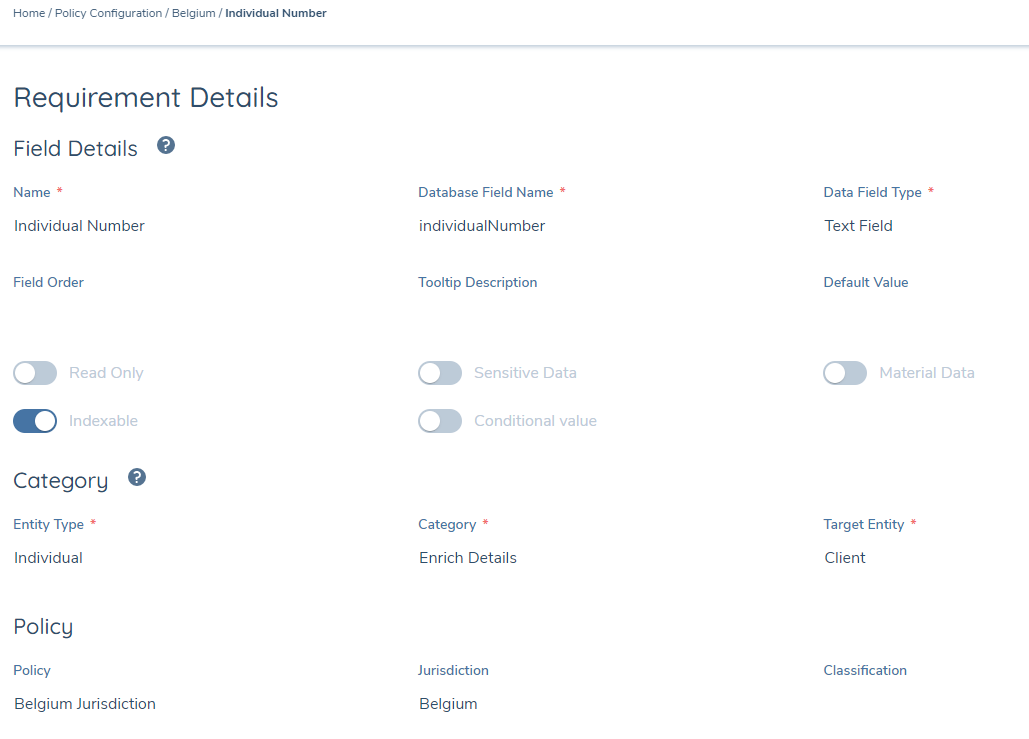
When jurisdiction is saved with indexable fields they are visible in the Advanced Search page in the query parameters and in the results table.
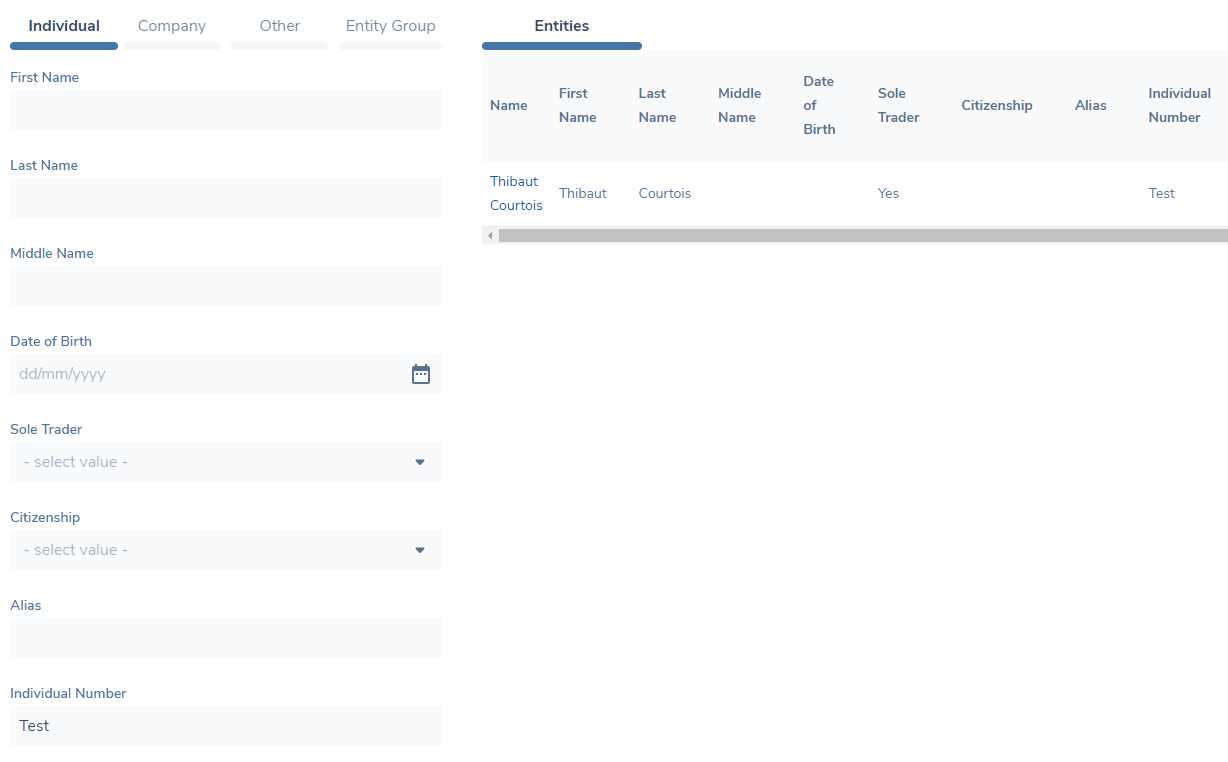
An entity that is in scope of the jurisdiction will have the indexed value saved and it is possible to search for that entity using this field. However if the entity is not in scope of the jurisdiction it will be not visible in the Advanced Search results.
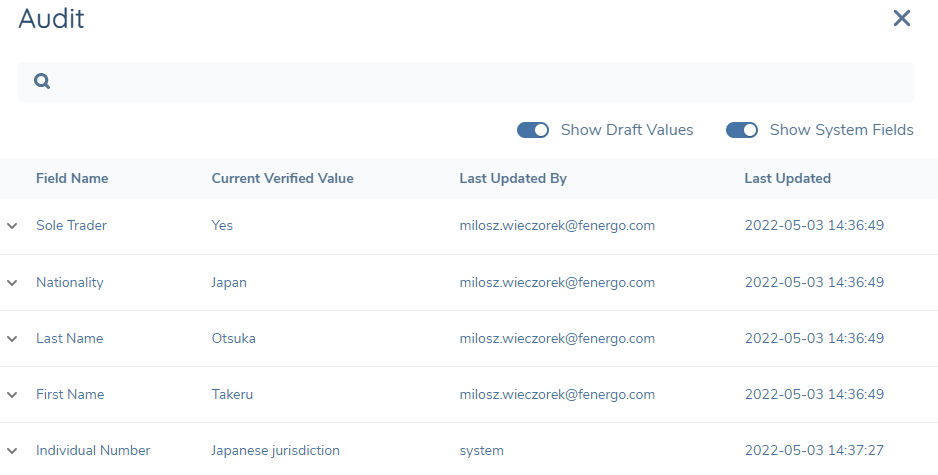
Even though the Japan jurisdiction has defined an Individual Number field the value is not displayed in the Advanced Search results because the field is not indexed in this jurisdiction.
Configuring Enhanced Search
In order for fields to be made indexable the field must have the ‘Indexable’ toggle switch toggled on in Policy Configuration. Currently there are 4 mandatory indexable fields that cannot be turned off:
- First Name (database field firstName)
- Last Name (database field lastName)
- Legal Entity Name (database field legalEntityName)
- Group Name (database field groupName)
The user has the option to add a further 23 non-mandatory indexable fields if they wish from any of the standard ‘Data Requirement’ fields. After the field is made indexable, and the new Policy Draft published, the Indexing Engine Service runs in the background and will index all fields that have ‘Indexable’ toggled on in Policy. The user will be notified that indexing has started and completed in the Notifications centre. These indexed fields will now be available to use in the search query on the ‘Advanced Search’ page Configure a field in Policy Configuration
- Open the Policy Configuration and create a new Policy Draft.
- Select the Data Requirement to index.
- Toggle the ‘Indexable’ toggle switch on, (button changes colour to indicate its active)
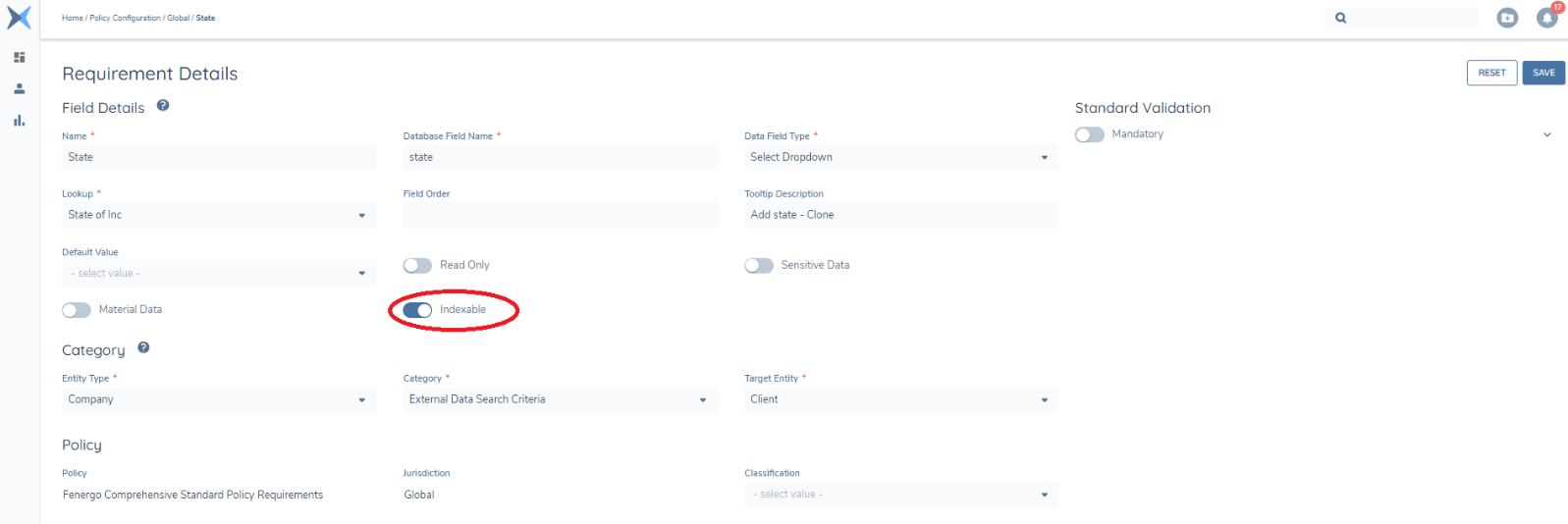
The User has the option to decide where they want the Indexed field to appear. In the Category section of the Requirement Details
- Entity Type: User Can select which category the indexed field will appear in e.g., ‘Individual’, ‘Company’ or ‘Other’
- Category: The user can select which task the indexed field will appear in e.g., ‘Basic Details’, ‘Related Party Basic Details’.
- Target Entity: The Target Entity, e.g., ‘Client’, ‘Related Party’ must also be selected in order for the fields to appear and be indexable.
If the user wants to create an indexed field of the same name in multiple tasks e.g. ‘Basic Details’ & ‘Related Party’, then a ‘Data Requirement’ for each must be created individually,
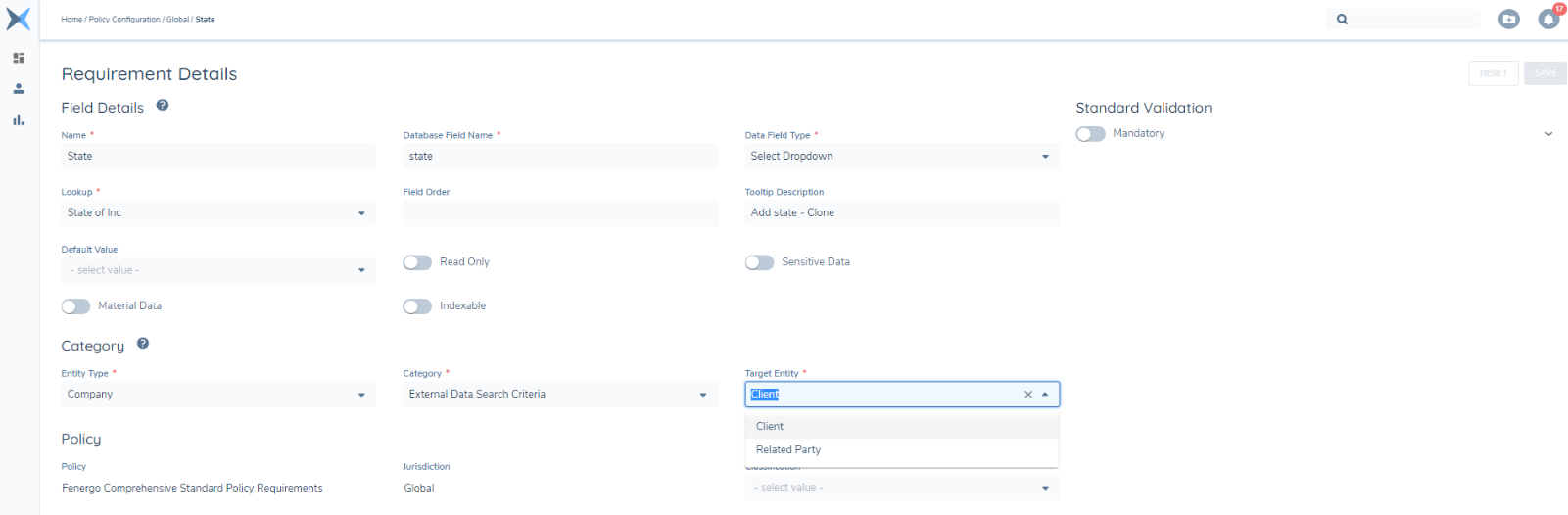
When the desired configuration is confirmed, the user can:
- Click the ‘Save’ button the save the changes.
- Publish the new Policy Configuration.
- The selected field is now indexable in ElasticSearch and the field will appear in the ‘Advanced Search’ Screen as a Searchable field.
- The fields will also appear as indexable in the configured Tasks, e.g., ‘Basic Details’, ‘Related Party’ etc