ETL Agency Migration
ETL Agency Migration is a distinct project type in ETL, created for a single purpose: to build the Agency Data Model in Fenergo. It migrates the four objects that make up an agency data model — Investment Manager, Underlying Principal, Managed Relationship and Managed Product — and constructs the relationships between them automatically. It is used alongside standard ETL, not instead of it.
Why Agency Migration is a Separate Project Type
Standard ETL migrates clients. It brings an existing client book into Fenergo: the entities themselves, their ownership and control hierarchy, their products, their documents etc.
ETL Agency Migration does something different. Its purpose is to build the Agency Data Model - it is not intended to duplicate the existing capabilities of standard ETL. Where an Investment Manager or an Underlying Principal is also a client in its own right, that entity's full 'client' record (associations, documents, products etc) is migrated using a standard ETL project. An ETL Agency Migration project is used to join those same entities to their Managed Products and Managed Relationships, and to build the agency structure around them.
The order in which you run the two project types does not matter. An Investment Manager or an Underlying Principal can be enriched either before or after the Agency Migration. What matters is that each project is used for its own purpose.
Separating the two also simplifies policy validation. ETL projects validate against a single policy, so policy configuration for Entity Type 'Company' and Target Entity 'Client' would apply to both Investment Manager and Underlying Principals. Likewise Managed Products may have different requirements to standard products. Running the two migrations separately avoids having to configure one policy that is strict enough for the client and permissive enough for everything else.
Permissions
ETL Agency Migration Administrator permission is required to access and use this feature - it is fully separate from the ETL feature.
The Agency Data Model
The Agency Data Model connects four objects:
- Investment Manager — the entity acting as agent for the Underlying Principal.
- Underlying Principal — the entity that owns the Managed Product, typically a fund.
- Managed Relationship — the record that represents the servicing relationship between a single Investment Manager and a single Underlying Principal.
- Managed Product — the product being managed under that relationship.
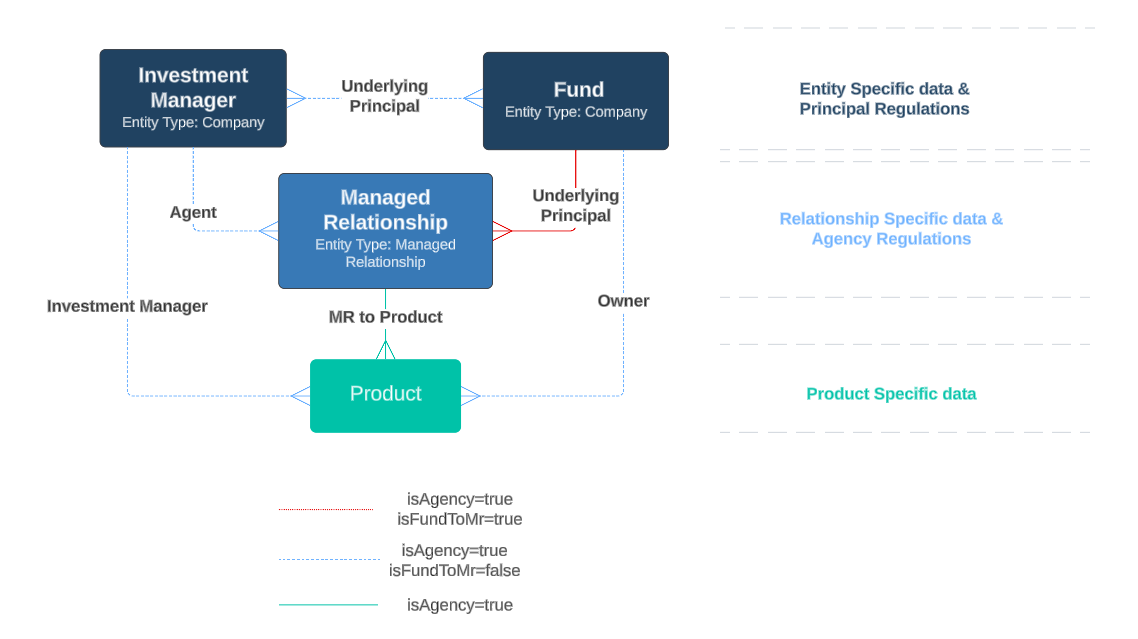
For every row supplied in the Agency Associations file, the system creates six associations:
- Underlying Principal to Investment Manager — relationship type Underlying Principal.
- Underlying Principal to Managed Relationship — relationship type Underlying Principal.
- Investment Manager to Managed Relationship — relationship type Agent.
- Investment Manager to Managed Product — relationship type Investment Manager.
- Underlying Principal to Managed Product — relationship type Owner.
- Managed Relationship to Managed Product — relationship type MR to Product.
You do not define these relationships yourself. You supply the identifiers that make up each agency combination, and the system constructs the six associations from them. All associations created this way are verified.
Agency Data Types
In a standard ETL project a single Company data type covers any legal entity. An Investment Manager and an Underlying Principal both use Entity Type 'Company', but in an ETL Agency Migration project, each participant in the Agency Data Model has its own data type:
| Data type | Purpose |
|---|---|
| Investment Manager | Creates or updates the Investment Manager entity as a verified record. |
| Underlying Principal | Creates or updates the Underlying Principal entity as a verified record. Its Load step also creates any Managed Relationships the system needs to derive. |
| Managed Relationship | Creates or updates Managed Relationship records supplied with full policy data. Where no name is supplied for a new record, one can be generated — see Autoname New MRs. |
| Managed Product | Creates or updates the Managed Product record. It does not carry the product's ownership relationship. |
| Agency Associations | Supplies the agency combinations from which the system constructs the Agency Data Model. Always present and cannot be deselected. IDs from every row of each data type must be referenced in the Agency Associations file. IDs from existing entities can also be used here without a corresponding row in a file for that data type. |
Giving each participant its own data type serves two purposes. Each entity has its role in the model already declared, which is what allows the system to construct the relationships rather than asking you to describe them and it allows users a cleaner view to understand each entity, resolving errors etc.
Managed Relationships and Optional Behaviour
Managed Relationship is the only entity in the Agency Data Model that the system will create for you. Every Agency Data Model requires a Managed Relationship for each Investment Manager and Underlying Principal pairing, but you do not always have to supply one.
The system can create the Managed Relationship automatically as a shell entity that exists only to complete the Agency Data Model. This happens only when both of the following are true:
- the Underlying Principal data type is selected, and
- the Managed Relationship data type is not selected.
Managed Relationships are created at the end of the Underlying Principal Load. For each unique Investment Manager and Underlying Principal pairing, the system checks whether a verified Managed Relationship already exists. Where one exists it is reused; where none exists, one is created.
Under these circumstances, mapping an identifier for the Managed Relationship within the Agency Associations step is optional. When the identifier is mapped, it must be populated on every row.
Because Managed Relationships are only created as part of the Underlying Principal Load, the Underlying Principal must be present in the Underlying Principal data type for its Managed Relationship to be created — even when the Underlying Principal already exists in Fenergo. Where an existing Underlying Principal is being linked to a new Investment Manager, include it in the Underlying Principal data type. If it is referenced only in Agency Associations, no Managed Relationship will be created for the new pairing, which can result in validation or load errors.
Autoname New MRs
Managed Relationships created automatically have no name of their own, and would otherwise display as "Managed Relationship" — which is ambiguous where an Underlying Principal has several. The Autoname New MRs project setting gives them a meaningful name instead.
The setting is found on the project's Project Details page, in the Autoname Managed Relationships card, and is enabled by default for new ETL Agency Migration projects. It can be changed until Load starts; once Load begins it becomes read-only.
When enabled, any new Managed Relationship created during Load without a legalEntityName is given a name in the format:
MR - [Investment Manager Legal Entity Name] - [Underlying Principal Legal Entity Name]
- This covers Managed Relationships created automatically during the Underlying Principal Load, and new records supplied through the Managed Relationship data type without a
legalEntityName. - A
legalEntityNamesupplied in the source data is always retained and never overwritten. - Existing Managed Relationships are not renamed.
- The full name is limited to 200 characters. Where it is longer, the Underlying Principal Legal Entity Name is cropped.
When disabled, new Managed Relationships without a legalEntityName are left unnamed and display as "Managed Relationship".
Prerequisites to an Agency Migration
Before creating an Agency Migration project, the following must be in place.
Policies. Agency data types validate against policy in the same way as standard ETL, but the policy scopes differ:
- Investment Manager and Underlying Principal validate against a policy covering the Company / Client scope. Because both are companies, a single requirement set can serve both, using conditional rules on an entityRole property to apply different requirements to each.
- Managed Relationship validates against requirements with Entity Type Managed Relationship and Target Entity Related Party. Company requirements do not apply to the Managed Relationship step.
- Managed Product validates against a product policy.
Identifier type. ETL supports one identifier type per project. You map either the Fenergo ID or the Alternate ID for a given entity type, not both. Creating new records requires an Alternate ID, since a Fenergo ID only exists for records already in Fenergo. To reference existing records by their Fenergo ID, use a separate project with the Fenergo ID columns mapped.
Existing records must be verified. Agency Validation only recognises verified records when resolving identifiers. Draft records are ignored, and an identifier that resolves only to a draft is treated as unresolved.
Alternate ID comparison is case-sensitive. An Alternate ID supplied in a different case from the one held in Fenergo will not match the existing record, and the row will be treated as a Create rather than an Update. Confirm the exact case of your Alternate IDs before loading.
Creating an Agency Migration Project
To migrate agency data, create a project from the ETL Agency Migration landing page and select the agency data types you intend to supply.
- Select ETL Agency Migration: From the left navigation menu, select the ETL Agency Migration option to open the Agency Migration landing page.
- Create a new project: Select the + icon and enter a name for the project.
- Select the data types: Choose the agency data types you are supplying — Investment Manager, Underlying Principal, Managed Relationship and Managed Product. Agency Associations is always included and cannot be deselected.
- Select the policies: Choose the migration policy and product policy the project will validate against.
- Configure each data type: Work through each selected data type in turn, uploading data sources, mapping fields and completing Preview and Validation.
- Run Agency Validation: Once every selected data type has validated successfully, run Agency Validation to check the integrity of the model as a whole.
- Load: Load the data types, then the Agency Data Model.
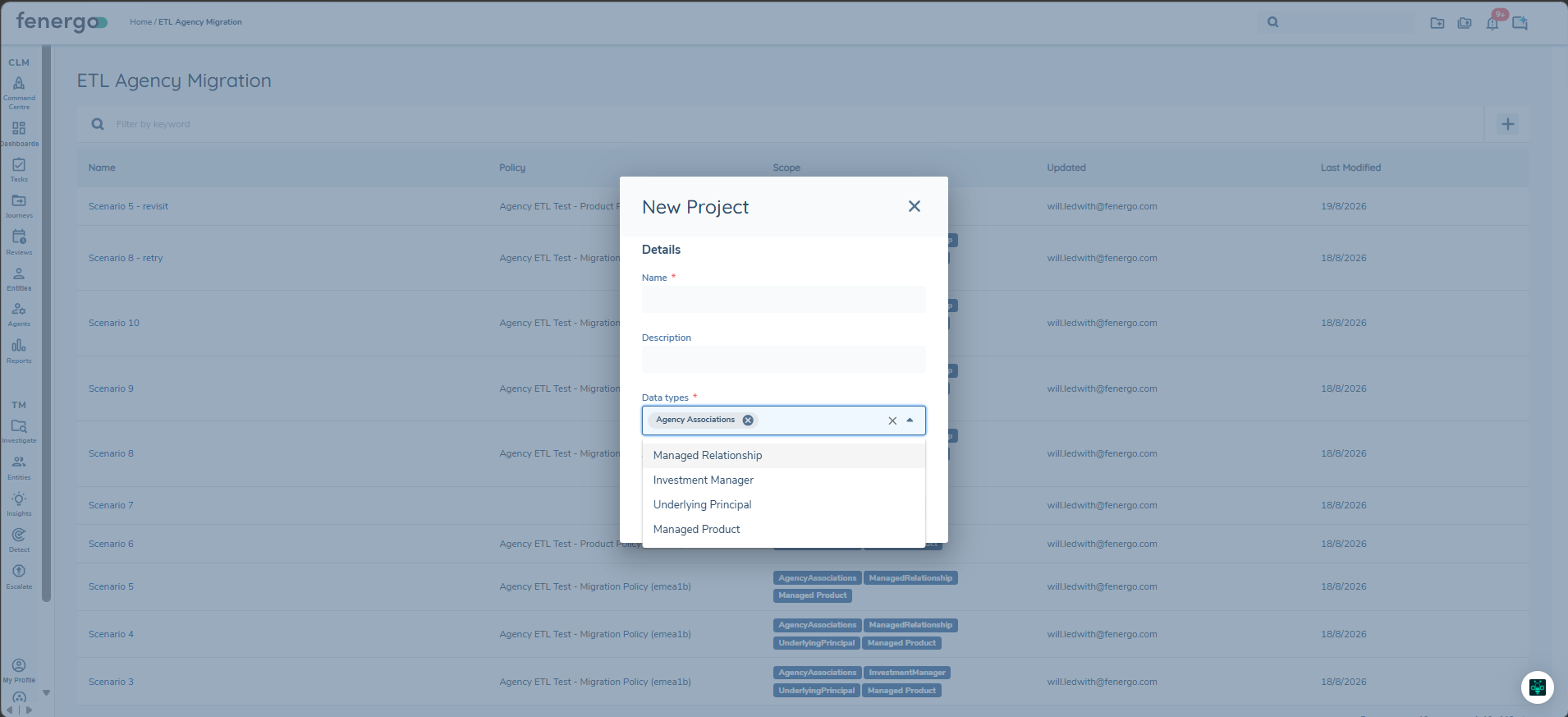
Uploading data sources, joining and filtering data, mapping system and policy fields, mapping lookups and handling data groups all behave exactly as they do in standard ETL. Those steps are described in the ETL UI guide and are not repeated here. The sections below cover only what is specific to agency data types.
Agency Data Type Steps
| Step | Description | Investment Manager | Underlying Principal | Managed Relationship | Managed Product | Agency Associations |
|---|---|---|---|---|---|---|
| Select Data Source | Choose the uploaded files for the data type, joining them where more than one is used. | Yes | Yes | Yes | Yes | Yes |
| Filter Data | Restrict the rows taken from the data source. | Yes | Yes | Yes | Yes | Yes |
| Map System Fields | Map the identifier and system-level columns. | Yes | Yes | Yes | Yes | Yes |
| Map Policy Fields | Map source columns to the requirements defined on the selected policy. | Yes | Yes | Yes | Yes | No |
| Map Lookups | Match source values to the corresponding Fenergo lookup values. | Yes | Yes | Yes | Yes | No |
| Data Groups | Map repeating groups of data, such as addresses. | Yes | Yes | Yes | Yes | No |
| Preview | Review the mapped data before validating. | Yes | Yes | Yes | Yes | Yes |
| Validation | Validate each row against the selected policy. | Yes | Yes | Yes | Yes | No |
| Launch Journeys | Optionally launch a journey for each migrated record once Load completes. See Journey Launch. | Yes | Yes | No | No | No |
Agency Associations maps identifiers only, so it has no policy fields, no lookups and no data groups, and no policy validation is performed against it. Its rows are instead checked at Preview and again at Agency Validation.
Once every selected data type has completed Validation, and Agency Associations has completed Preview, the project-level Agency Validation step becomes available.
System Fields
| Field | Description | Investment Manager | Underlying Principal | Managed Relationship | Managed Product |
|---|---|---|---|---|---|
| alternateId | The client's own identifier for the record. Required to create a new record, and used to match an existing one. | Yes | Yes | Yes | Yes |
| fenxId | The Fenergo identifier, used in place of the Alternate ID where you are referencing records that already exist. | Yes | Yes | Yes | Yes |
| BusinessAccessLayer | The business access layer to apply to the entity. | Yes | Yes | Yes | No |
| GeographicAccessLayer | The geographic access layer to apply to the entity. | Yes | Yes | Yes | No |
| isOffboarded | Whether the product is offboarded. | No | No | No | Yes |
Where static access layers are in use, supply the access layer datakey rather than its display name.
Policy Fields
The policy fields available for mapping are those defined on the Policy (and Product Policy) selected for the project, scoped to the data type being configured:
- Investment Manager and Underlying Principal map against requirements scoped to Entity Type Company and Target Entity Client. Because both use the same scope, conditional rules on a property such as entityRole are how you apply different requirements to each.
- Managed Relationship maps against requirements scoped to Entity Type Managed Relationship and Target Entity Related Party. Company requirements do not appear on this step.
- Managed Product maps against the product policy selected for the project.
As with standard ETL each lookup value is validated against its own lookup list, but does not validate parent and child lookup pairings from Linked Select Dropdown or Linked Multiple Select Dropdown fields. A product type that exists as a valid value but does not belong to the product family supplied on the same row will pass validation. The same mechanism is expected to apply to other paired lookups, such as legal entity category and legal entity type. Confirm valid combinations in your source data before loading.
Agency Associations
Agency Associations is the data type that drives the whole project, and it has no direct equivalent in standard ETL. It is always present and cannot be deselected.
Standard ETL Associations creates a single relationship between a named source and a named target, with a relationship type you choose and properties you supply. Agency Associations works as a structured input matrix: each row identifies one agency combination, and the system constructs the full set of relationships from it.
Each row of the Agency Associations file represents one Managed Product (which is also treated as the unique identifier for the row) within one agency relationship, and identifies:
- The Investment Manager
- The Underlying Principal
- The Managed Relationship — can be optional, see below
- The Managed Product
The same Investment Manager, Underlying Principal and Managed Relationship identifiers may appear on many rows. A Managed Product identifier may appear only once.
Map System Fields
Each of the four participants may be identified by either its Fenergo ID or its Alternate ID:
- investmentManagerId - the Fenergo identifier of the Investment Manager.
- investmentManagerAlternateId - the client's own identifier for the Investment Manager.
- underlyingPrincipalId - the Fenergo identifier of the Underlying Principal.
- underlyingPrincipalAlternateId - the client's own identifier for the Underlying Principal.
- managedRelationshipId - the Fenergo identifier of the Managed Relationship.
- managedRelationshipAlternateId - the client's own identifier for the Managed Relationship.
- managedProductId - the Fenergo identifier of the Managed Product.
- managedProductAlternateId - the client's own identifier for the Managed Product.
Map one identifier per participant, and use the same identifier type across the project as a whole so that references resolve consistently.
Preview
Preview displays the agency combinations queued for loading and applies the following checks:
- Every row must include an Investment Manager identifier, an Underlying Principal identifier and a Managed Product identifier. A row missing any of these fails Preview, and the message names the missing column.
- Managed Product identifiers must be unique across the file. A duplicate fails Preview, and the message names the duplicated identifier.
- Where the Managed Relationship identifier is mapped, every row must supply a value. Leave the field unmapped entirely where you intend the system to create Managed Relationships for you — see Managed Relationships and Optional Behaviour.
Agency Validation
Agency Validation is a step with no equivalent in standard ETL. Where Validation checks each data type against policy in isolation, Agency Validation checks the integrity of the Agency Data Model as a whole.
Agency Validation becomes available only once Validation has completed successfully for every selected data type and Preview has completed successfully for Agency Associations.
The step resolves every identifier supplied anywhere in the project to a verified record where one exists, aligns the Agency Associations file against the data type files, determines whether each record will be created or updated, and identifies which Managed Relationships must be created during Load.
Only verified records count as existing. Drafts are ignored.
The following checks are applied:
- Unresolved references — an identifier referenced in Agency Associations must either resolve to an existing verified record or appear in the corresponding data type file for this project. An identifier that does neither fails.
- Orphaned entities — an identifier supplied in a data type file must be referenced somewhere in Agency Associations. A record that is loaded but never used in the model fails, and the message names the identifier.
- Managed Relationship reuse — a Managed Relationship identifier may be used with only one Investment Manager and Underlying Principal pairing. Using the same identifier across different pairings fails.
- Managed Relationship alignment — where a supplied Managed Relationship identifier resolves to an existing verified record, that record must have exactly one Agent association matching the row's Investment Manager and exactly one Underlying Principal association matching the row's Underlying Principal. A mismatch fails.
- Managed Product ownership conflict — where a Managed Product already exists as verified, it must not already be linked to a different Investment Manager and Underlying Principal combination from the one being migrated.
Failures are reported in the Cross-Validation Report.
Load
Load runs in two stages, followed by post-load processing.
Data type loads. Each selected data type is loaded — Investment Manager, Underlying Principal, Managed Relationship and Managed Product. There is no required order between them. Records are created as verified. Where an identifier matched an existing verified record at Agency Validation, that record is updated in place rather than duplicated.
Managed Relationships that the system derives are created at the end of the Underlying Principal Load — see Managed Relationships and Optional Behaviour.
Agency Data Model Load. Once every selected data type has loaded, the Agency Data Model Load runs as the final stage. For each Agency Associations row it creates the six associations described in The Agency Data Model. Associations that already exist for the same combination are reused, not duplicated — re-running the same Agency Associations file against an already-built model adds nothing and creates no duplicates.
Where a row cannot be loaded, that row fails and the load moves on to the next row rather than stopping. Failed rows are captured in the reconciliation report and can be reviewed in the "Failed Entities" section of the Load screen.
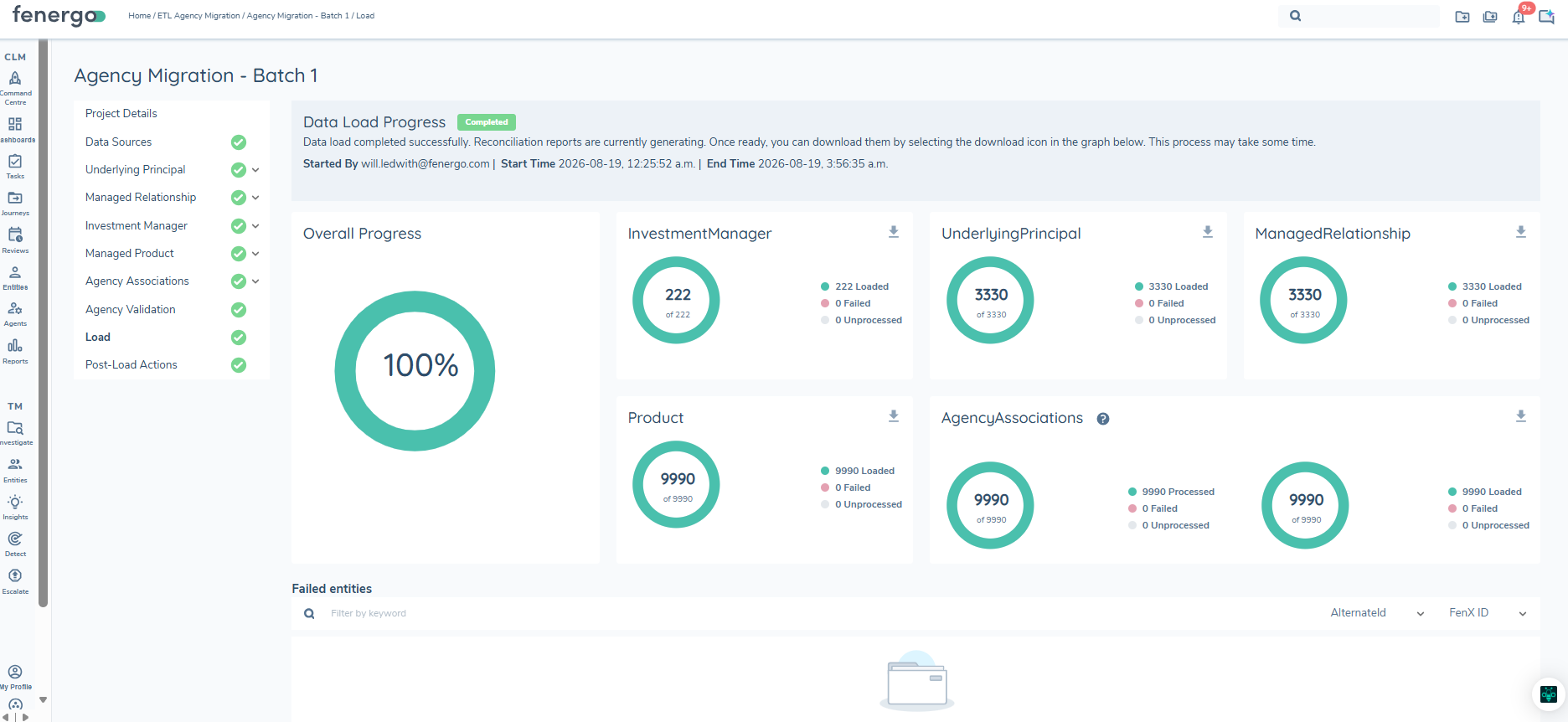
Post-Load Actions
Where the corresponding toggles are enabled on the project, the following run after all loads complete, exactly as they do in standard ETL:
- Calculate Dynamic Access Layers — applied to Investment Manager, Underlying Principal and Managed Relationship records.
- Calculate Dynamic Product Access Layers — applied to Managed Product records.
- Calculate Jurisdictions — applied to Investment Manager, Underlying Principal and Managed Relationship records.
- Launch Journeys — applied to Investment Manager and Underlying Principal records, where Journey Launch is enabled on the data type.
Journey Launch
Journey Launch automatically launches a Fenergo journey for migrated Investment Manager and Underlying Principal records once they have loaded, so that follow-up activity such as onboarding, Risk Assessment, Screening or Due Diligence can begin without launching each journey manually.
Journey Launch is configured separately on each data type, from the Launch Journeys tab. It is available for:
| Data type | Journey Launch |
|---|---|
| Investment Manager | Yes |
| Underlying Principal | Yes |
| Managed Relationship | No |
| Managed Product | No |
| Agency Associations | No |
Managed Relationships are excluded, whether supplied through the Managed Relationship data type or created automatically during the Underlying Principal Load.
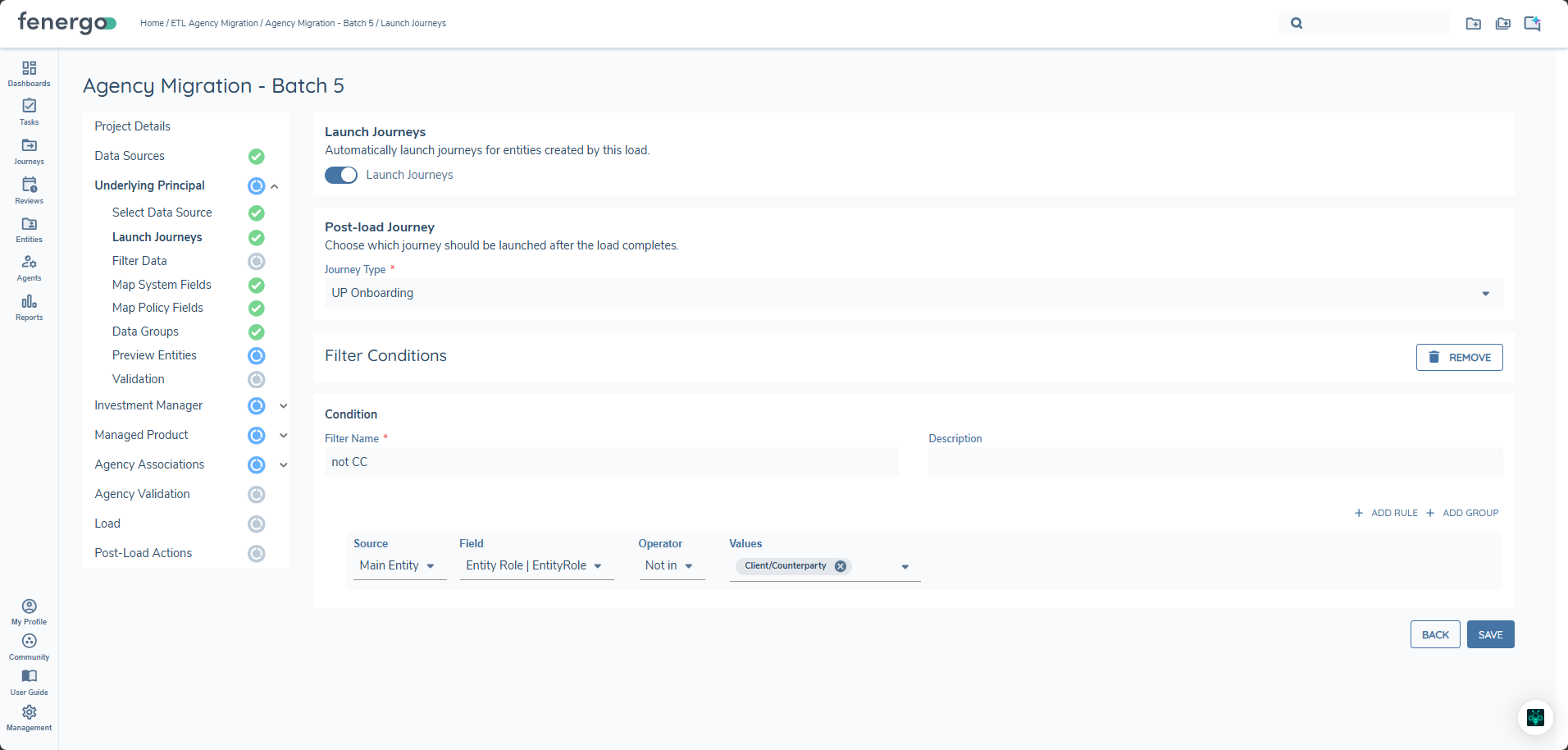
Configuration
- Enable Journey Launch — a toggle enables or disables Journey Launch for the data type. It can be changed until Load starts; once Load begins, the configuration becomes read-only.
- Select Journey Type — select the Journey Type to launch. Where more than one journey of the selected type is in scope for a record, the first valid journey is launched.
- Define Conditions (optional) — add filter conditions to control which records are in scope. Conditions follow standard ETL filtering logic. Where no conditions are set, every loaded record of that data type is evaluated.
Where Journey Launch is not enabled on a data type, no journeys are launched for that data type.
Record Evaluation
Once the data type has loaded, each record is evaluated in turn. A journey is launched only where the record:
- meets any conditions defined on the Launch Journeys tab
- satisfies the scoping conditions of at least one Journey Schema for the selected Journey Type
- is not blocked by a configured Journey Launch Control
Progress is shown on the Launch Journeys tab, with each record given one of the following statuses:
- Launched — the record met all conditions and the journey was launched.
- Failed — the record was in scope, but an error occurred when launching the journey.
- Skipped — the record was evaluated but did not meet the conditions, journey scoping or launch control criteria, so no journey was launched.
- Unprocessed — the record has not yet been evaluated.
A failed launch is reported as a load outcome, not as a validation or data-quality error.
Reports
Agency Migration uses the existing ETL report types and download mechanism. No new report types or column structures are introduced. Reports are generated in CSV format and are downloadable per data type, per process step, for every data type selected in the project.
Validation Report — generated per agency data type when Validation completes, with one row per error. Columns are FENXID, ALTERNATEID, ERROR DESCRIPTION, DATE CREATED and MIGRATION ID. Where there are no errors, the report confirms that no validation errors were found.
Cross-Validation Report — generated when Agency Validation completes, using the same columns. The ERROR DESCRIPTION column carries the agency-specific integrity errors: unresolved references, orphaned entities and incomplete association chains.
Reconciliation Report — generated per data type when Load completes. Columns are ALTERNATEID, FenXID, Status, Last Updated, MigrationID and Failure Reason. The Status column records whether each record was created or updated, and failures carry a reason. For Agency Associations, row-level success and failure are reported consistently with standard ETL Associations.
Journey Launch Report — generated for the Investment Manager and Underlying Principal data types where Journey Launch is enabled. It records every record evaluated, including those skipped or failed, using the same columns as standard ETL: FenXID, ALTID, InScopeForJourneyLaunch, JourneyID, MigrationID, DateJourneyCreated, JourneyType, LaunchStatus and Reason. The LaunchStatus column shows Success for records shown as Launched on screen.
Post Load Actions — progress and outcome for each enabled calculation are shown on the Post Load Actions tab of the project, as described in ETL Post Processing.
Notifications
Agency Migration fires the existing ETL notification types through the Fenergo Notification Centre, for every data type selected in the project. No new notification types or templates are introduced.
Notifications are opt-in per user. To receive them, subscribe to the ETL category under My Profile. Users who have not opted in receive no notifications.
The following notifications fire during an Agency Migration project:
- ETL_ENTITY_PREVIEW_COMPLETED - Preview has completed for a data type.
- ETL_VALIDATION_REPORT_COMPLETED - Validation has completed for a data type.
- ETL_CROSS_VALIDATION_REPORT_COMPLETED - Agency Validation has completed.
- ETL_PREPARE_ENTITY_RESOLUTION_COMPLETED - entity resolution has completed.
- ETL_ENTITY_LOAD_REPORT_COMPLETED - Load has completed for a data type.
- ETL_DYNAMIC_ACCESS_LAYERS_REPORT_COMPLETED - the Dynamic Access Layer Calculation has completed, where enabled.
- ETL_JURISDICTIONS_REPORT_COMPLETED - the Jurisdiction Calculation has completed, where enabled.
Each notification deep links to the relevant tab of the Agency Migration project step it relates to.
Notifications and reports cover only the data types selected in the project. Where the Managed Relationship data type is not selected and Managed Relationships are created automatically during the Underlying Principal Load, that processing is not captured by any notification or report, and the Managed Relationship data type does not appear at the Load stage. To have this processing reported, select the Managed Relationship data type and supply the records. A future enhancement will make automatic creation more transparent.