Covenants and Conditions
Covenants & Conditions is a feature that has been designed to capture the agreements which stipulate the loan policies between the borrower and the lender.
Financial Institutions include covenants and conditions in loan agreements to preserve their position and improve the likelihood a loan will be paid by the borrower in full accordance with the loan's terms and conditions.
Getting Started
-
Navigate into Reference Editor and configure a new list for your Covenants & Conditions. If you wish to sub-categorise your Covenants & Conditions across multiple groups (e.g. Conditions Precedent, Other Conditions, Financial Reports, Financial Covenants etc.), create a list for each group, with its corresponding list of Covenants & Conditions listed within it.
-
Navigate into Policy Configuration and configure a new Data Group for each group (e.g. Conditions Precedent). The name of the Data Group will become the name of the Add Button Label in task. As part of this data group, add a select dropdown field (must be single-select) which references the list created in reference editor. This field must also be added as the primary datakey, which will represent the list of Covenants & Conditions in task. Add in the respective fields for each Covenant & Condition Group based on the desired configuration (e.g. Type, Description, Start Date, End Date).
-
Navigate into Policy Configuration and create a new Data Requirement for each Data Group e.g. “Conditions Precedent” to link the newly created “Conditions Precedent” Data Group. The name of the Data Requirement will become the heading for the C&C Group in task. Save the Data Requirement against a policy category (e.g. “Covenants & Conditions Details”). Note: The category selected must the same category that is configured for the Covenants & Conditions Category, within the Manage Deals Task in Journey Builder.
-
Navigate to Journey Builder, and to the new journey add a task type of “Manage Deals” and add in the same requirement category from step 3 into the “Covenants & Conditions - Policy Category”. This will allow the configuration from policy to display on the Covenants & Conditions tab within the Manage Deals task.
-
Add “Verify Covenants & Conditions” after the Manage Deals task to verify the Covenants & Conditions Set(s) that have been completed. Note: Verify Covenants & Conditions requires the Deal to be verified to work, therefore it is recommended that at the end of the journey, Verify Deals is completed.
Covenants & Conditions Group Configuration
The Covenants & Conditions Items that appear on the Covenants & Conditions Tab is configured through Policy Configuration and the naming conventions of how this task is displayed is shown below:
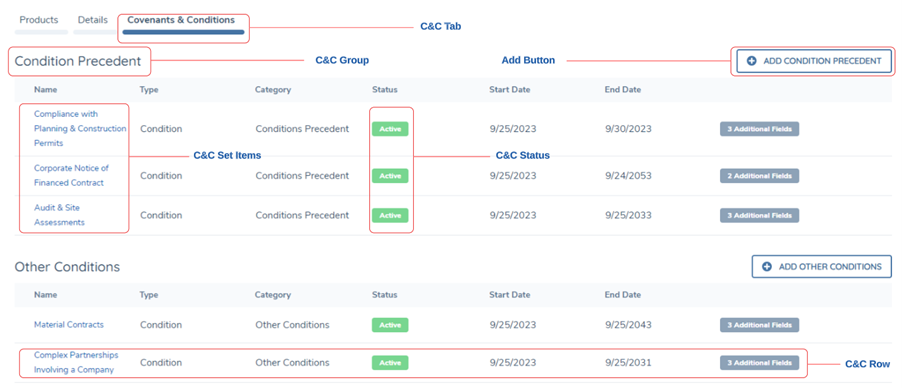
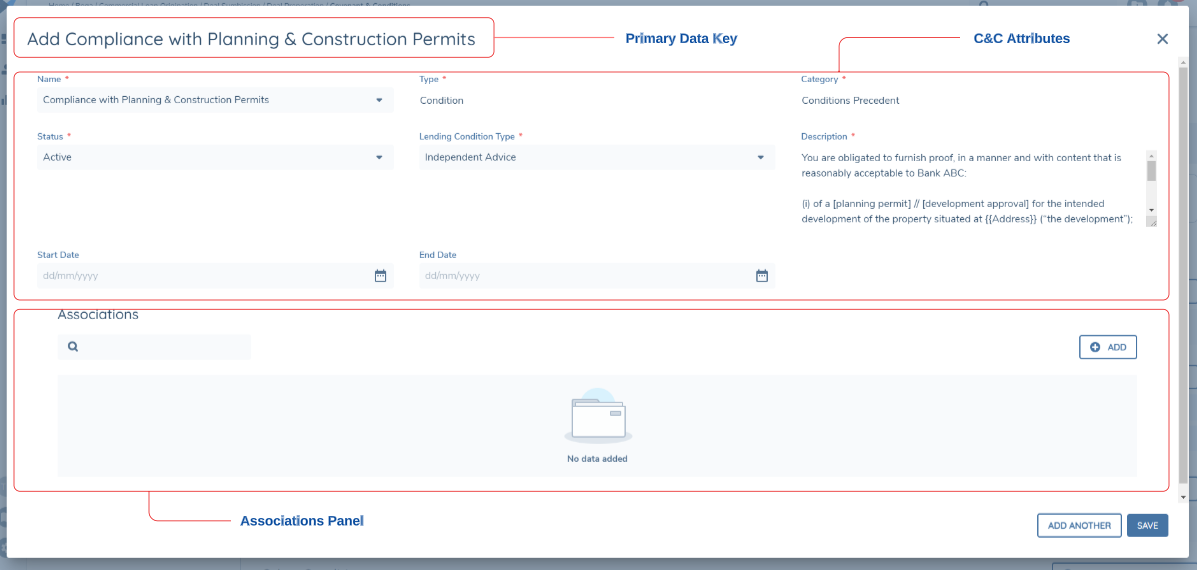
Within policy, multi-cardinal Data Groups are used to define the C&C Groups (e.g. Condition Precedent, Other Conditions etc). The field ordering of the policy fields within the Data Group will determine the ordering of the fields as the appear in the C&C Row, as well as within the modal itself.
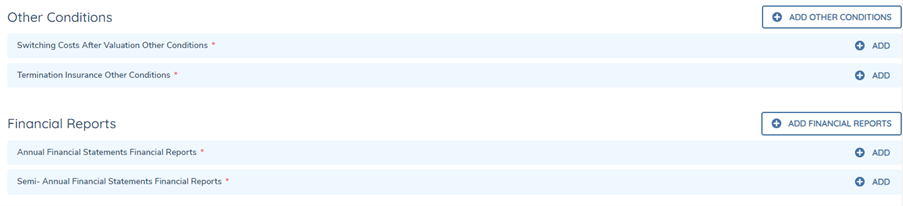
Minimum & Maximum Standard Validation Enforcement for Covenants & Conditions
Minimum and maximum enforcement of C&C Items follows the same configuration process as setting specific requirements for information to be captured within a Data Group. For an in-depth guide on how to configure these validations please refer to the Data Groups User Guide.
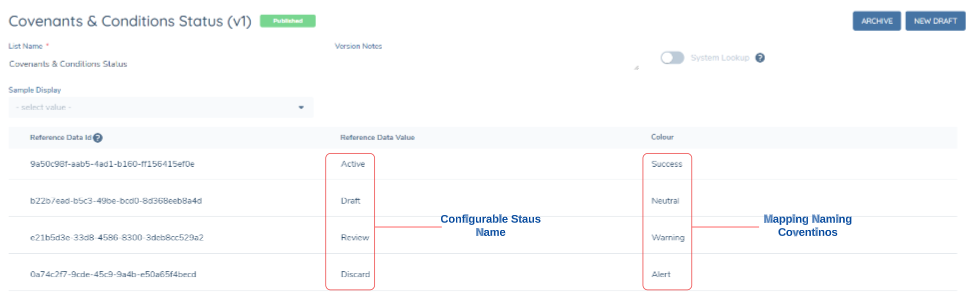
Covenants & Conditions Status Configuration
A status chip can be configured to appear for each C&C Row with a selection of colours. In the Reference Editor, a lookup list is required. On the first column “Reference Data”, the user can configure their status names. Then, the second column can be used to map the outcomes to the statuses of the chip.
Four statuses of the chip are supported in Covenants & Conditions, each of them is mapped to a specific colour:
-
“Success” maps to the colour Green
-
“Neutral” maps to the colour Blue
-
“Warning” maps to the colour Orange
-
“Alert” maps to the colour Red
By mapping the outcomes to the status, the user is also mapping the outcome to the colour implied. For example, if Fail is mapped to Alert, then it will be displayed in a red status chip in the C&C Row.
To show the status chip in the Covenants & Conditions tab, the user must configure a single select dropdown which references the lookup list with the mapped configuration. Additionally, the select dropdown field MUST have the datakey of “covenantConditionStatus”. This must be added into every C&C Group where the status chip is desired.

Verify Covenants & Conditions
This automated service task must be configured after the “Manage Deals Task”. This task will verify all completed Covenants & Conditions Sets. Once a Covenants & Conditions set is verified, the manage deals task cannot be reopened, and none of the C&C Items can be edited. The Verify Covenants & Conditions Task can be used multiple times in a journey.
Verifying a set of Covenants & Conditions also allows for the set to follow the Deal across journeys. It is important to note that for this to be possible the Deal must also be verified at some point in the journey.
For this reason it is recommended that for any journey with a verify Covenants & Conditions task, there should be a verify deals task as well.
Covenants & Conditions Associations
By default, every C&C Item (as well as the overall Covenants & Conditions Set) is linked to the Deal. Some C&C Items within the Set may also require an association to an entity or a product. To cater to this, manual associations can also be completed for individual C&C Items.
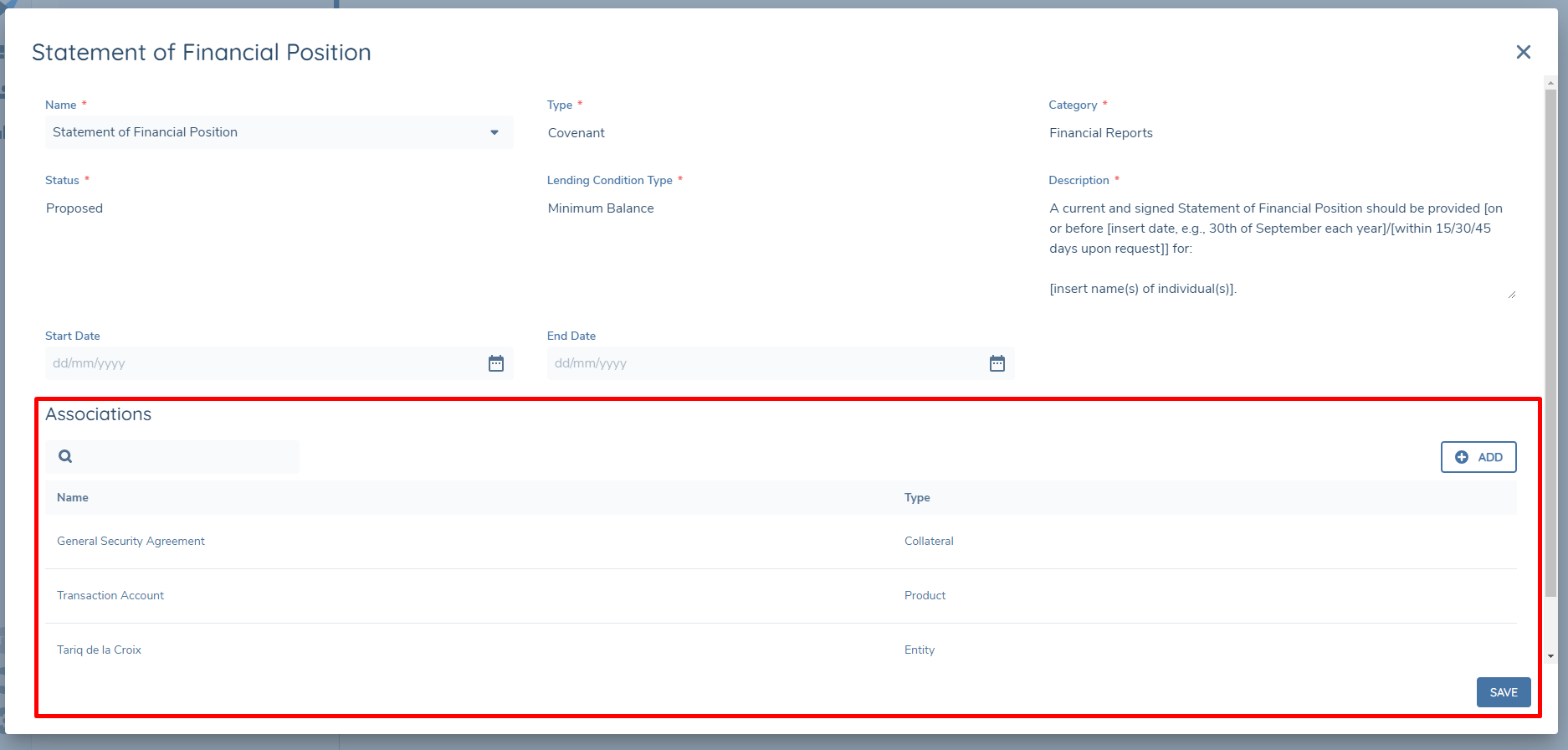
All manual associations are captured and managed via the Manage Deals task, on the Covenants & Conditions tab. Once you are in a C&C Item modal, and have selected the primary datakey, you will be able to manually add an association at the bottom of the modal.
Entity Association Search Details
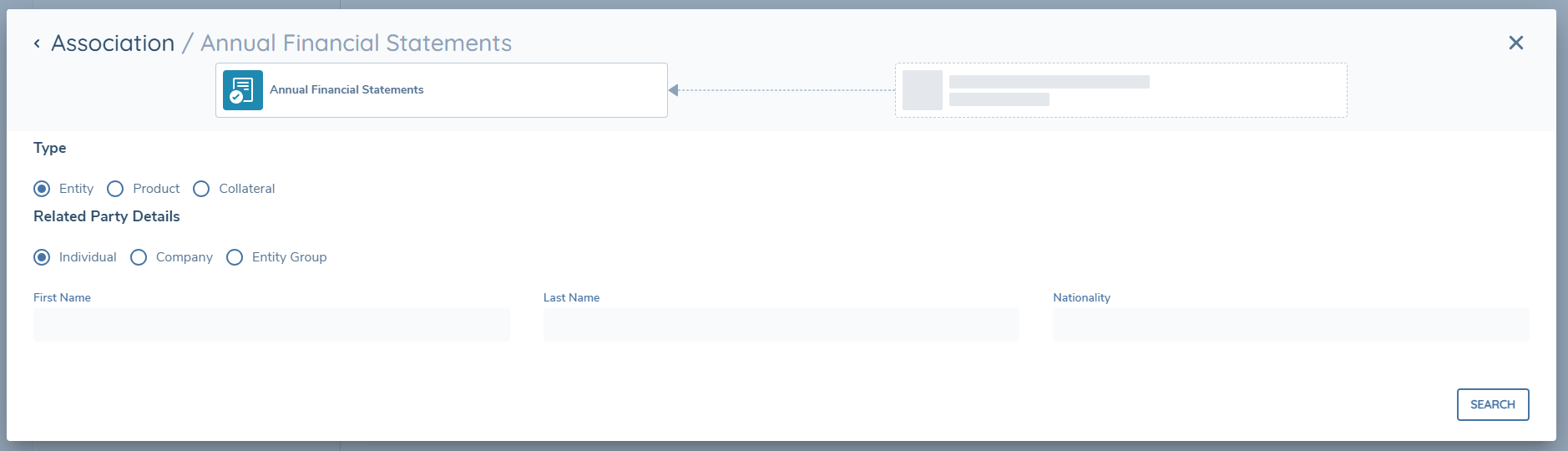
Related parties and their association to a C&C Item can be captured for existing entities. Before manually adding this association, a search must be completed to see which entities are in scope. The search fields must be configured with a category of ‘C&C Entity Search Fields’. Since the category name is fixed, the category itself does not need to be placed into the Covenants & Conditions multi-select dropdown on the Manage Deals task in Journey Builder. These fields must be completed as Data Requirements within Policy with a target entity of “Related Party”.
Examples of fields for an entity association search include First Name, Last Name, Legal Entity Name, Company Type etc. Individual, Company and Entity Group are supported entity types. Fields under this category can also have conditionality based on other fields in the category.
Product Association Search Details
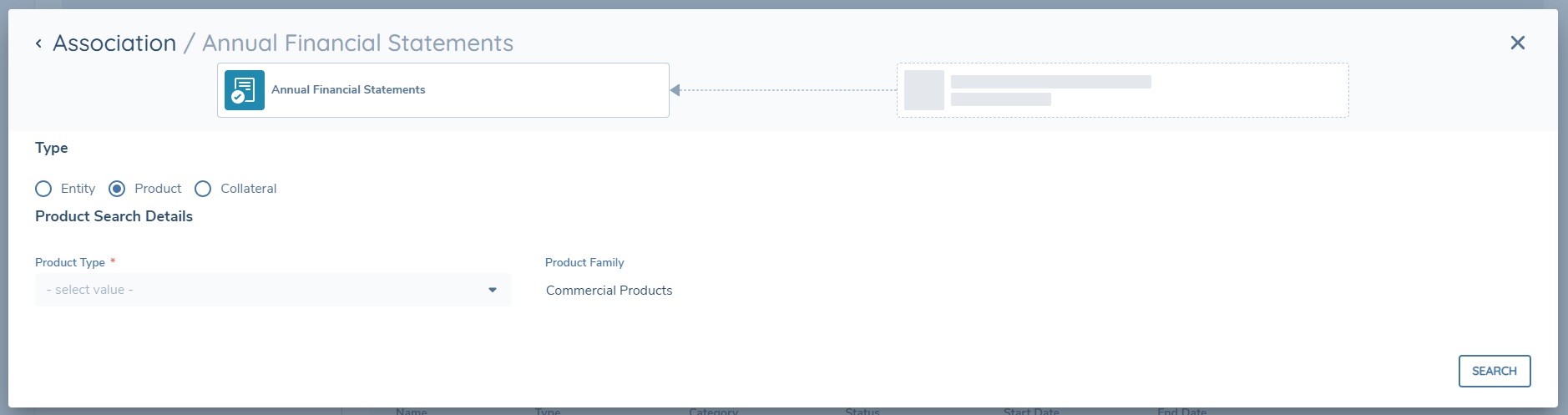
Products and their association to a C&C Item can be captured for draft and verified products. Before manually adding this association, a search must be completed to see which products are in scope. The search fields must be configured with a category of ‘C&C Product Search Fields’. Since the category name is fixed, the category itself does not need to be placed into the Covenants & Conditions multi-select dropdown on the Manage Deals task in Journey Builder. These fields must be configured in Product Policy with a target entity of “Product”.
Examples of fields for a product association search include Product Family, Product Type etc. Fields under this category can have conditionality based on other fields in the category.
Collateral Association Search Details
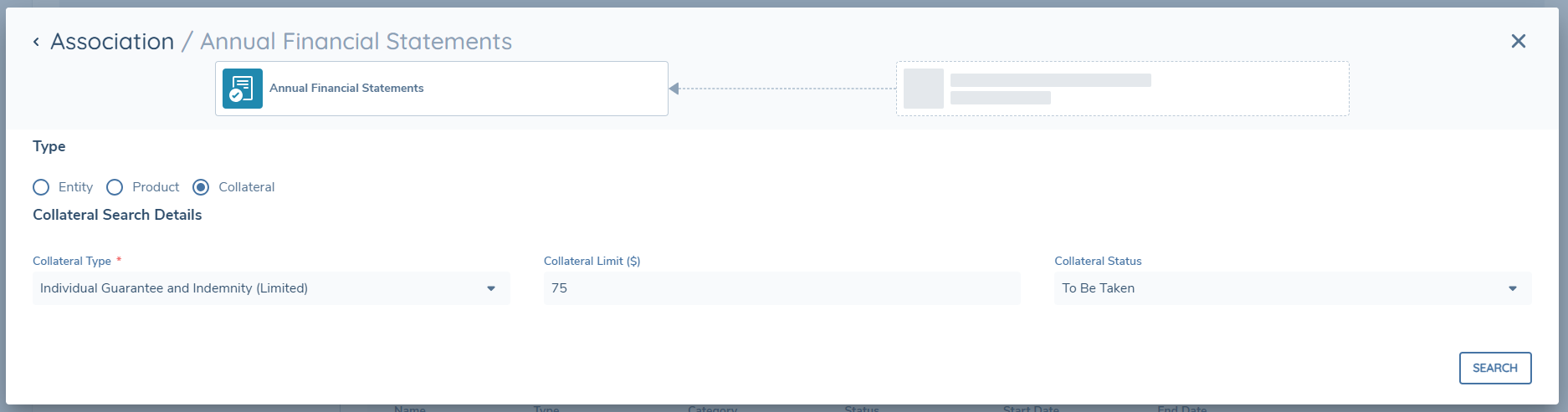
Collateral and their association to a C&C Item can be captured for draft and verified collateral. Before manually adding this association, a search must be completed to see which collateral are in scope. The search fields must be configured with a category of ‘C&C Collateral Search Fields’. Since the category name is fixed, the category itself does not need to be placed into the Covenants & Conditions multi-select dropdown on the Manage Deals task in Journey Builder. These fields must be configured as Data Requirements in Policy.
Examples of fields for a collateral association search include Collateral Type, Collateral Allocation etc. Fields under this category can have conditionality based on other fields in the category.
Linking an Entity and/or Product to a C&C Item
To link an entity, product, or collateral to a C&C Item, complete the following:
- Click into the C&C Item you wish to link and make sure a value from the primary datakey is selected.
- Press the “Add” button at the bottom of the modal under the associations heading.
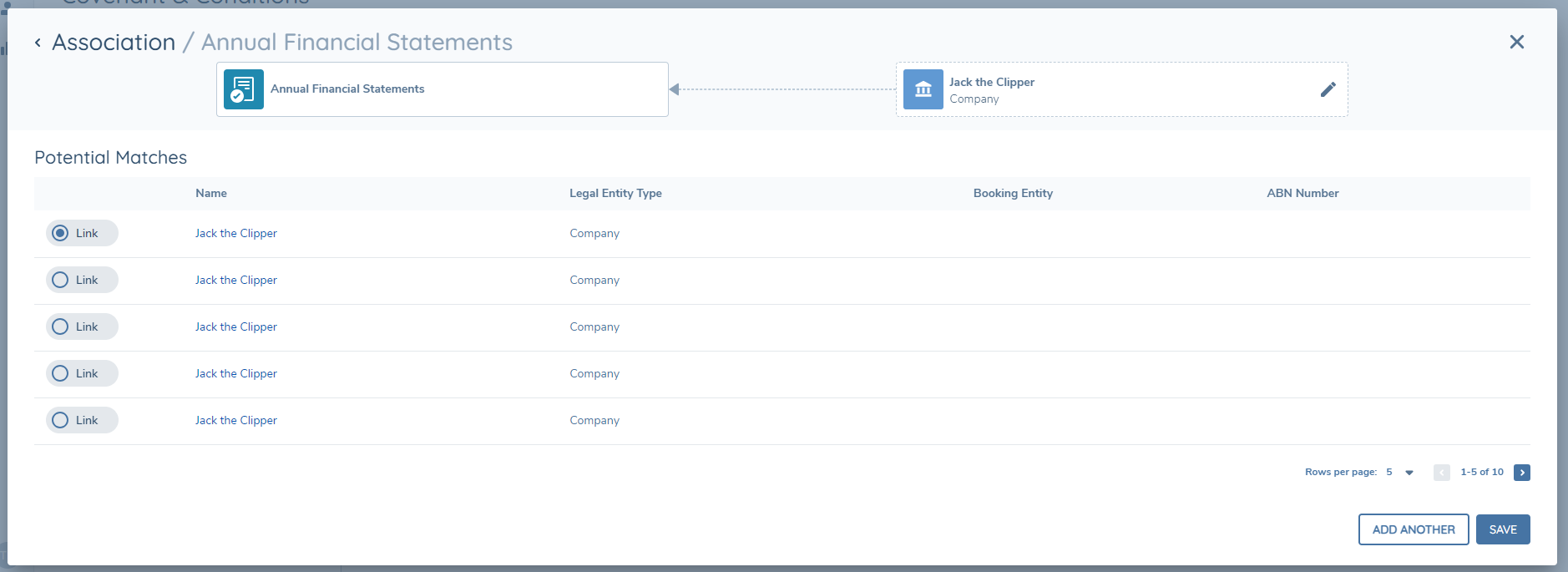
- Populate all mandatory fields and select SEARCH. The modal will then display the Potential Matches for your search.
- From the Potential Match view there is an option to link. Linking will create a relationship between the entity, product or collateral to the C&C Item.
- Once saving and returning to the C&C Item modal, the association can be seen.
- If the association is an entity or product, it will have a hyperlink. Entity hyperlinks will take you to the entity profile page. Product hyperlinks will launch a modal containing all product data in a read-only view.
Considerations
-
Within any Manage Deals task, the user must enter each deal to populate the Covenants & Conditions Set for it. Due to this, we recommend configuring a mandatory field within the Deals Details tab for every Manage Deals task in the journey.
-
The primary datakey for any C&C group should always be a single-select dropdown.
-
In the context of C&C, the “Current Entity” source refers to the Covenants & Conditions Details, rather than the legal entity that the C&C Set belongs to.
-
Trigger conditions for C&C groups are available with the “Current Entity” and “Related Products” Sources.
-
Trigger conditions for attributes within Data Groups for Covenants & Conditions are available with the “Current Data Group Item” Source.
-
The business category used for a single set of Covenants & Conditions should be consistent from task to task and also across journeys.
-
Parallelism is not supported for any manage deals tasks with Covenants & Conditions active.
-
Conditional read-only on C&C attributes is currently not supported.
-
Access Permissions for Product Policy, Products and Collateral are required to link Products or Collateral to C&C Items in the Manage Deals task.
-
Verification of the manual associations linked to C&C Items is completed by the Verify Covenants & Conditions task.
-
When pressing complete on the Manage Deals task, if there are no validations remaining on the Covenants & Conditions Tab, Covenants & Conditions will complete. This is regardless of any validations remaining on other tabs. Due to this when pressing complete after all validations are removed from the task, a snackbar notification will appear notifying the user that Covenants & Conditions cannot be completed as it has already been completed. This will not block the task from completing.
Troubleshooting
If the Covenants & Conditions Group on the task is not visible/working as expected.
-
Check that the data group task is a multi-cardinal data group.
-
Check that you have correctly configured the data requirement in policy.
-
Check the trigger conditions configured.
-
Check the business categorie(s) configured in the task and in the data requirements.
-
Check the Manage Deals task is in-progress.
-
Check that the primary datakey has been configured correctly in the data group as a single select drop-down.