Localisation on the Fenergo Platform
Localisation enables the tenant to be translated into different languages, so that users in non-English speaking countries can access their tenants in their preferred languages. This could even be leveraged to convert the existing English system language to client specific terms if required. The Localisation domain contains all available language packs for the tenants, as well as the configuration tool that is used to create and maintain the language packs.
Localisation is UI/presentation layer only, the APIs will be in English globally. The clients could enter values via the UI in French or another language if they wish, these will be stored in config in the language entered and returned in same from the API.
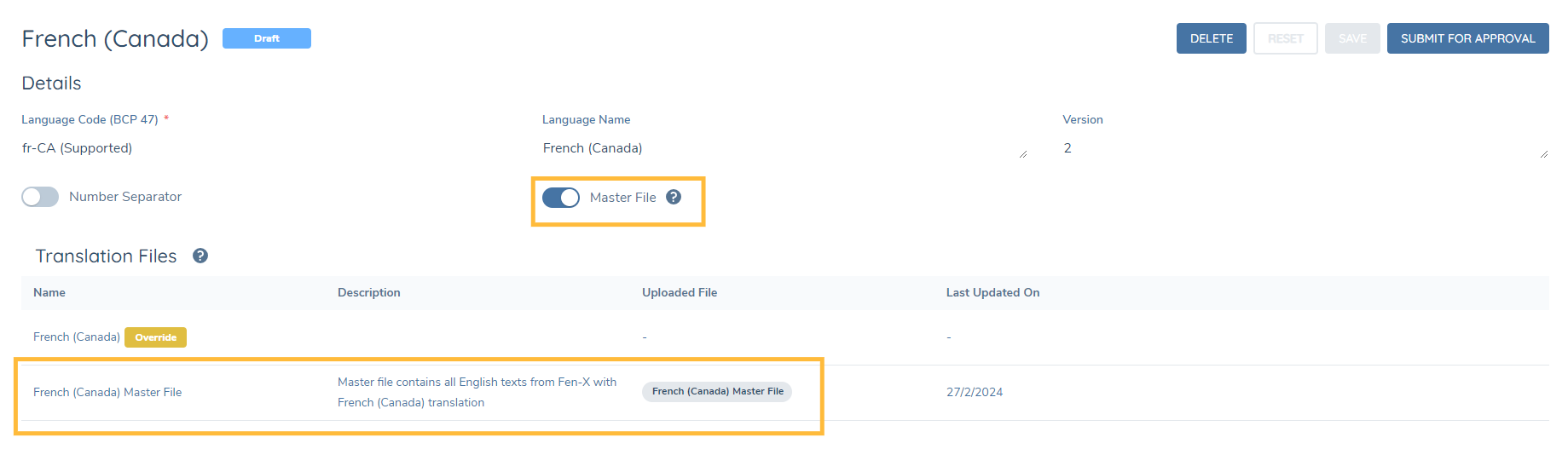
Supported Language Packs
There are currently two languages (Other than English) which, when created, will come with supported translations without the need for an override file.
- French (Canadian)
- Japanese
When creating a language pack from the Language Code (BCP 47) dropdown, you will see these three language codes say (Supported), signifying that translations are maintained within Fenergo SaaS.
To benefit from these supported language packs simply toggle the Master File switch to on, this will change the English Masterfile to the supported masterfile.
Tenant Default Language
Each tenant has one default language that is applied for users that do not select a user preference language. The default language can be changed by selecting the language name in the dropdown within the language configuration console. The "Default Language" dropdown shows the list of language packs with a published version.
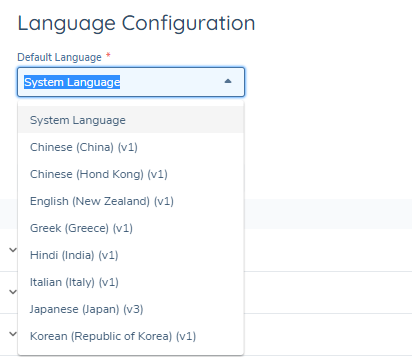
If the tenant default language is updated, the user’s language will follow the tenant’s default language. If the user does not wish to use the default language, they can select their own preferred language.
User Preference
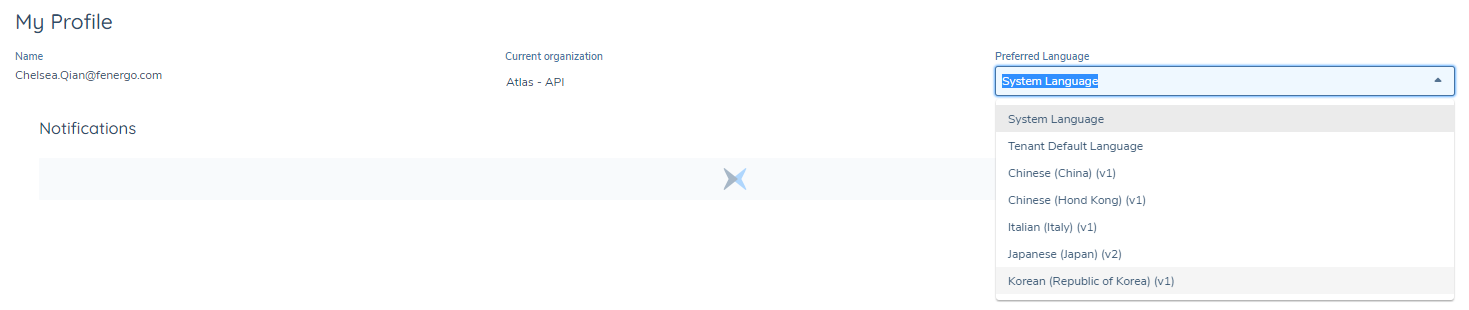
Users can select their preferred language from the languages with a published language pack on the tenant. There is a field called "Preferred Language" in the user profile page, which allows user to select their language preference from the dropdown list.
View Language Changes
Once a language is selected and saved as the default language/ user preferred language, user need to open the browser developer inspect tool to empty the cache and hard refresh to see the language change.
Number Separator
There is a dedicated number separator for each language pack. Users can update the number separator on the language pack configuration page.
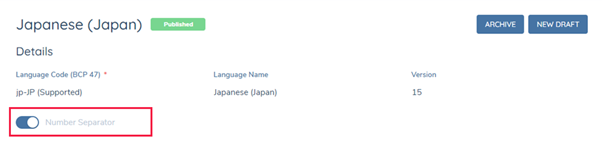
Users can only see the number separator in the journey if it’s turned on for the user preferred language or tenant default language.
The number separator is localised based on the language code. While it’s common to use a comma separate group of digits (3,521), some countries use a period (3.521) or a thin space instead (3 521). The number separator only applies where the field is configured as a number field type in Policy, it doesn’t apply to a text field with number inputs only. In addition, the number separator applies to both editable and read-only number fields.

The Fenergo SaaS system language English (Ireland) does not have the number separator by default. Users can switch on the number separator for this language by creating a language pack with code en-IE with the number separator enabled. After this the selected language on the user profile page should be the newly created English (Ireland) version. If no translation file is uploaded to the language pack, users will only see the system English in Fenergo SaaS.

Number separator implements additional validation to prevent cases where no number is entered into the number fields, for example, only “- “or “.”entered with no number following. The number validations from Policy Configuration are still applicable to the number fields with the number separator.
Right to Left Languages
The BCP 47 code supports two RTL languages, Arabic and Hebrew, whilst using RTL languages in Fenergo SaaS please keep the following considerations in mind.
-
Typing, tabbing or using the spacebar will proceed from right to left.
-
All RTL languages are bidirectional in Fenergo SaaS. Whilst the text will read from right to left, numerals will still read in a left to right format. (e.g. 500% rather than %005).
-
Elements that depict linear direction in Fenergo SaaS, such as a clockwise circular bar, will not be mirrored by localising with a RTL language.
-
Text alignment and menu bars will not be mirrored or proceed from left to right.
Considerations for Localisation
-
Localisation covers all static labels in Fenergo SaaS. This includes: headers, navigation, menus and buttons.
-
Configuration that is in scope for localisation includes: journey names, requirement labels, document requirements and dropdown list values. As a general rule, configurable values that end up being static fields to the end-user can be translated. The user can use the translation file to translate the configured text into their preferred language.
-
Configuration that is not in scope for localisation includes: datakeys and user entered values. Datakeys are unique values, so these cannot be translated into different values.
-
User entered values in the journey (other than drop-down lists) are not translated in order to preserve the user’s input.
-
Localisation is a UI/presentation layer only, the APIs will be in English globally. The clients could enter values via the UI in French or another language if they wish, these will be stored in config in the language entered and returned in same from the API.
-
We don’t support localisation for time zones. All timestamps are displayed in the UTC timezone.
Troubleshooting
If you find any texts that are not localised
Step 1: Check that the translation key value pair is added to the translation file
Step 2: Check that the key (English string) is exactly the same in the translation file – case sensitive, no additional whitespaces
Step 3: Check that the version of the language pack with the localisation file is published and has the correct key/value pair
Step 4: Empty the cache & hard reload the browser
Step 5: Check the dev tool for missing keys
Step 6: Check that the component is a localisable component – e.g. that it is not a user input or datakey
Dev Tool Word Detection
This is some additional information to help complete step 5 of the above troubleshooting process.
The dev tool will help confirm if the translation hook on a component is working correctly. In other words, translations set up within a language pack may be correct, but specific components in Fenergo SaaS may not be localising due to a technical error.
Step 1: Open the Chrome dev tool inspection (Right click and press inspect).
Step 2: Select “Console” on the top row after Elements.
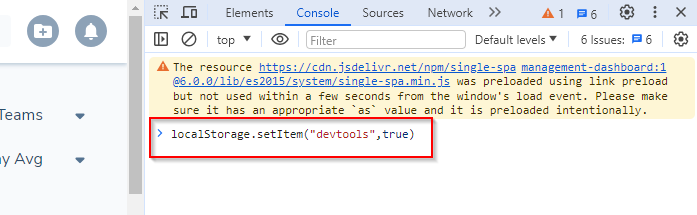
Step 3: Copy the following and paste it into the console - localStorage.setItem("devtools",true) and press enter (example below).
Step 4: Refresh the page
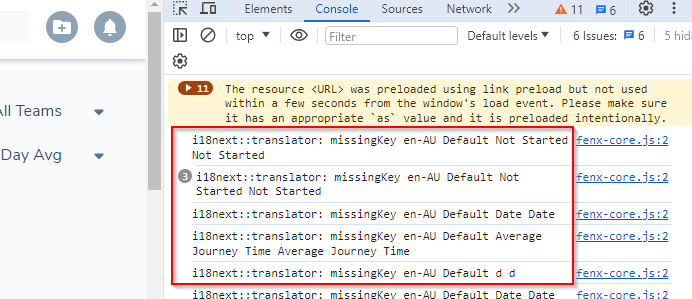
Step 5: View the “missingKey’s” that can be localised that are not in the translation file. (example of how the console should appear seen below).
Step 6: Type in the key that is not translating into the filter. If the string does not appear, the translation hook is not working correctly. This is a defect that should be raised through the appropriate channels. If the string does appear and is listed as a “missingKey” then retry steps 1 to 4 of the troubleshooting guide, as the component is recognised and is able to be translated.
Step 3 Example
Step 5 Example
Configuring the Localisation Feature
Language Configuration
To start creating and editing language packs, navigate to the tool using the Language Configuration button, which is enabled through the user permissions.
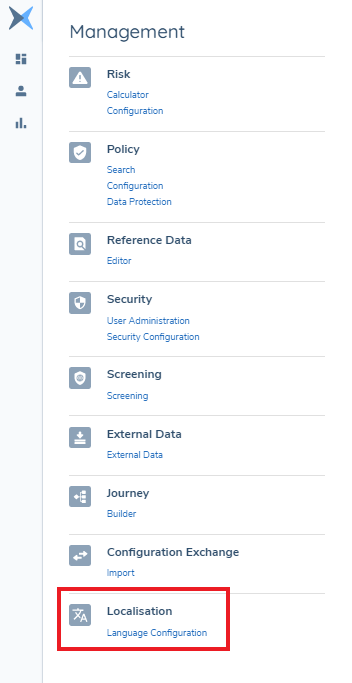
In the Language Configuration page, there is a grid displaying all available language packs for the tenant.
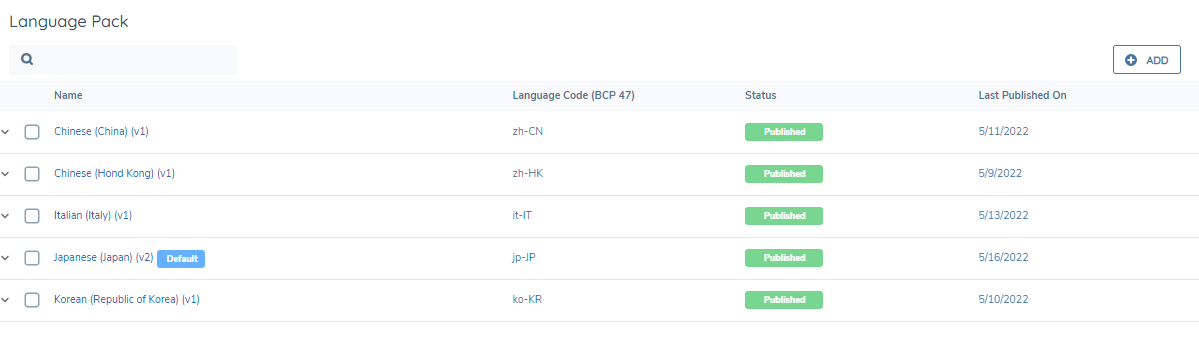
Language Pack
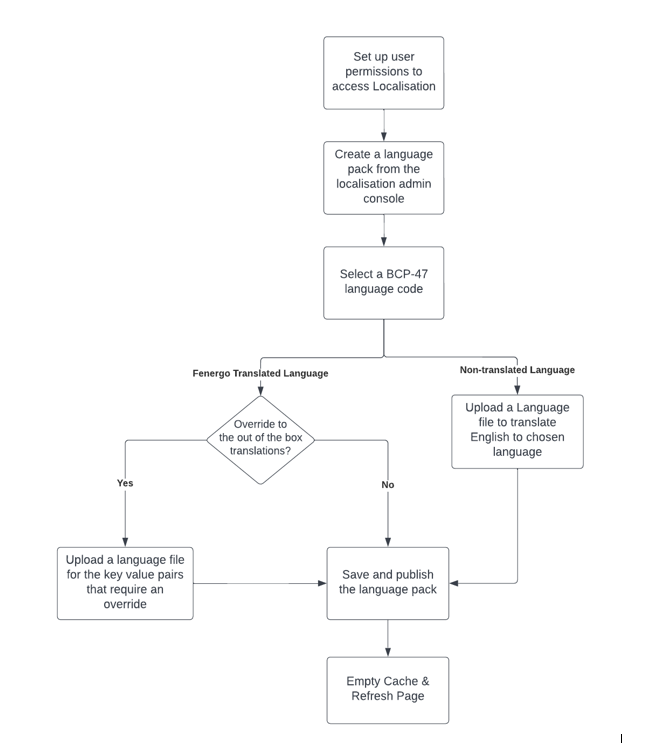
Language packs represent a single language configuration, which is tied to a language code that is in the international BCP 47 code format. The language pack is the configuration for that language and stores the language file that is used to translate the tenant. Once a language pack is active and published, it will appear in the tenant default language list and the user language preference list.
To create a new language pack, we start with clicking the "ADD" button on the Language Configuration Screen.
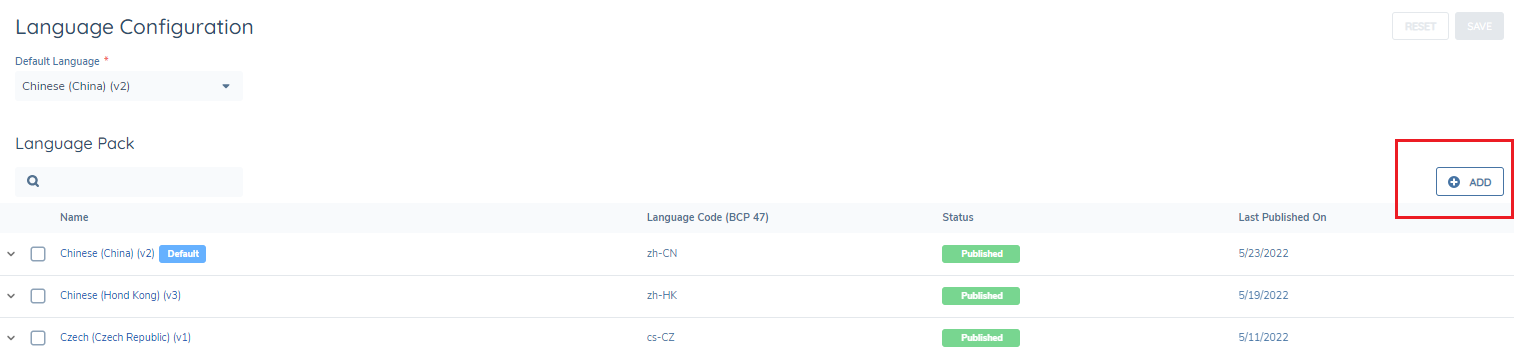
"Language Code" is mandatory to create a new language pack. User needs to select a BCP 47 code from the dropdown list.

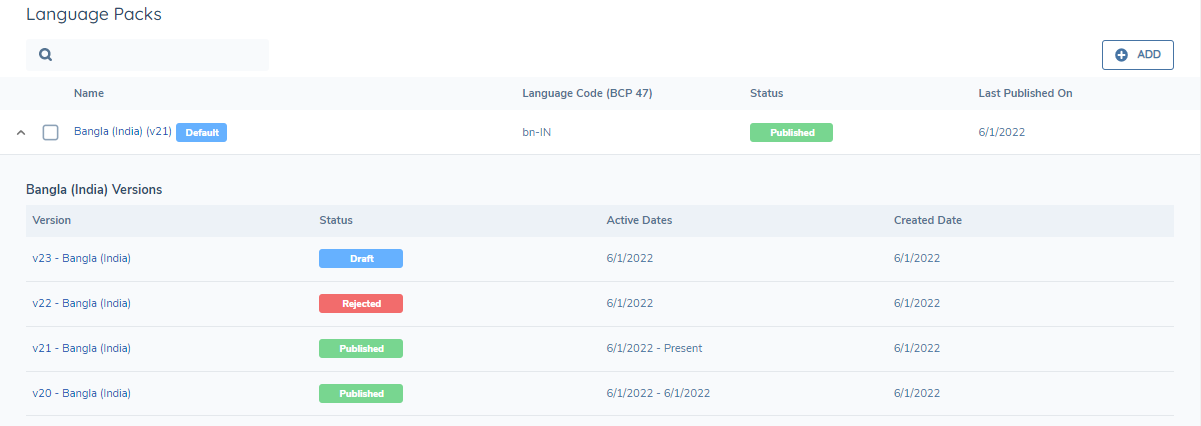
The BCP 47 language code is a unique identifier and there is validation to check there is only one language code created per tenant. When a new language pack is created or a user wishes to update an existing language pack, a draft version will first be created. Once all changes have been made, this version is then submitted for approval and must be approved before it becomes "Published". Only the latest published version of a language pack will be active. If a new version of a language pack is created, the user will see the translation files from the latest published version as a reference. When a new translation file is uploaded, it will override the existing file from the previous version.
All previously published, draft, and archived versions are accessed through the Language Configuration screen.
Translation file
To add a translation file for a language pack, a json file can be uploaded by using the “Drag or click to upload” icon. The supported file type is json and the size limit is 5 MB. The text in the json file is in a key/value pair format. The words to be translated can be found in the master file as the keys and are case-sensitive, the translation need to be provided as a value.
Where the key/value is provided in the .json file, the texts will be localised based on the translation uploaded. If a key is not provided, it will default back to the master file language.
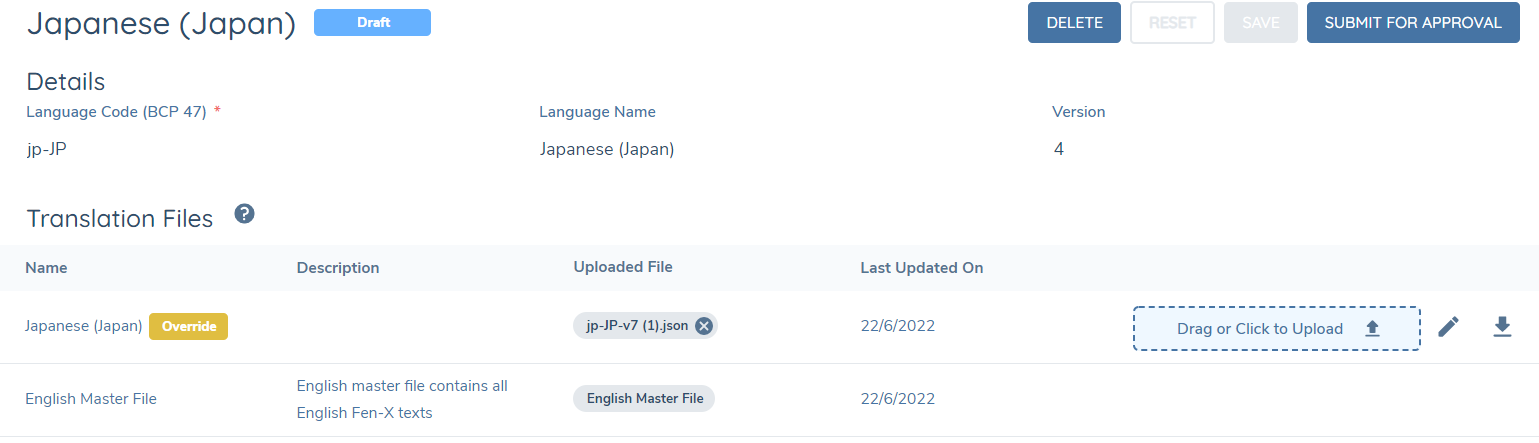
If a BCP 47 code has "supported" next to the language code in the dropdown list, that means Fenergo maintains the translation of this language and provides a master translation file. The Fenergo provided translations can be overridden and customised if required.
If there is no “supported” next to the language code in the dropdown list, that means Fenergo doesn’t provide translation for the language and the user needs to upload their own translation to localise the tenant. When a language pack is created, the user will see the system English master file provided in the translation file grid, which can be downloaded. Download actions could be different based on the browser settings. English master file will be updated regularly to include new words added to Fenergo SaaS tenants from the feature releases. The “Last updated on” column in the translation file table shows the last time when a new word is added to the master file. To localise new words, the user needs to create a new version of the language pack and upload a translation file with new keys and matching translation.
Example 1: Fenergo Supported Language Master File
If the translation file uploaded only contains a sub-set of the key value pairs, the key value pairs not provided will default back to the Fenergo Supported language (e.g. Japanese). In the below example, all three English phrases will be translated to Japanese, with the Japanese translation of Material Data being tenant specific as it has been overridden.
Fenergo Japanese Master File:
{
  "Material Data": "材質データ",
  "Data Field": "データフィールド",
  "Entity Data": "エンティティデータ"
}
Override json File:
{
  "Material Data": "重要な材料"
}
Final Tenant Localisation:
{
  "Material Data": "重要な材料",
  "Data Field": "データフィールド",
  "Entity Data": "エンティティデータ"
}
Example 2: Non-translated Language Master File
All of the key value pairs will need to be provided for a non-supported language, if a key value pair is missed from the tenant override translation file, it will default back to the system default (English). In the below example, only the label “Material Data” will be translated to Japanese, “Data Field” and “Entity Data” will continue being shown in English until they are added to the override json file in the language pack.
Override json File:
{
  "Material Data": "重要な材料"
}
Fenergo System Default English Master file:
{
  "Material Data" : "",
  "Data Field": "",
  "Entity Data": ""
}
Final Tenant Localisation:
{
  "Material Data": "重要な材料",
  "Data Field": "", // this will be shown in English as no value is provided in the override file
  "Entity Data": "" // this will be shown in English as no value is provided in the override file
}