Notifications On the Fenergo UI
The Notifications feature in Fenergo SaaS is designed to assist users in using the system by creating awareness when specific defined events have occurred.
The system supports two kinds of notifications:
- System Notifications
- Email Notifications
While System Notifications are enabled for all tenants by default, Email Notifications are enabled per a client's licensing agreement. The Notifications feature has been designed to offer clients with flexibility regarding how specific notifications should be received by users (either in the system, via email, both or neither).
Notification Settings
My Profile
The Notifications Settings widget is contained within the My Profile page:

- Notifications (where notifications can be viewed)
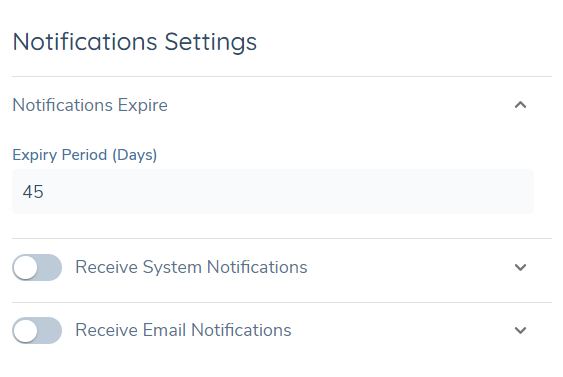
- Notifications Expire (expand to update the number of days for notifications to be retained)
- Receive System Notifications (toggle on to configure which System Notifications will be enabled for the user on the tenant)
- Receive Email Notifications (toggle on to configure which Email Notifications will be enabled for the user on the tenant)
Expiration
Notifications within Fenergo SaaS by default are set to expire after 45 days. The user can modify the number of days for the Expiry Period to any number between and including 1 and 90. The deletion of notifications helps to reduce the amount of noise in a user's notifications list (recent and relevant notifications only).
Deleting a notification is a permanent event – deleted notifications cannot be recovered.
Receive System Notifications
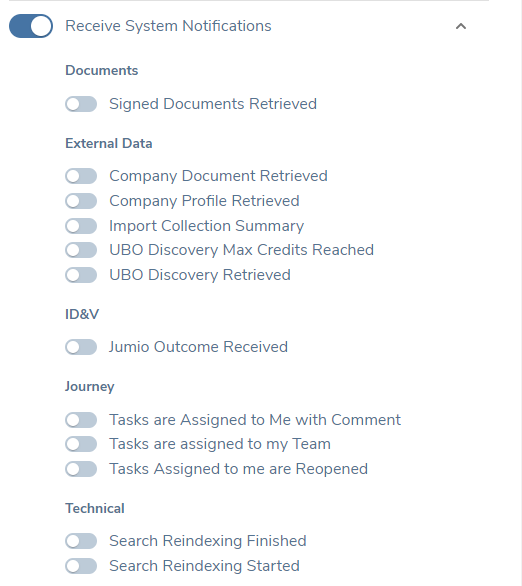
When toggled on, the user can specify which event notifications they want to receive in the UI notification centre.
Receive Email Notifications
Email Notifications describe notifications that will be sent to a user's email associated to their Fenergo SaaS account. When toggled on, the user can specify which event notifications they want to receive via an email notification.
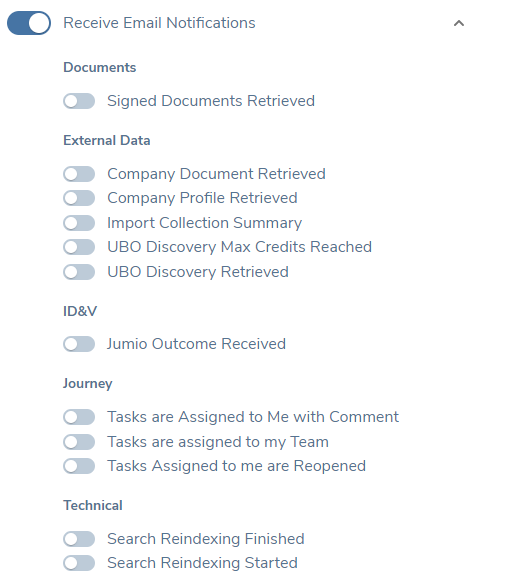
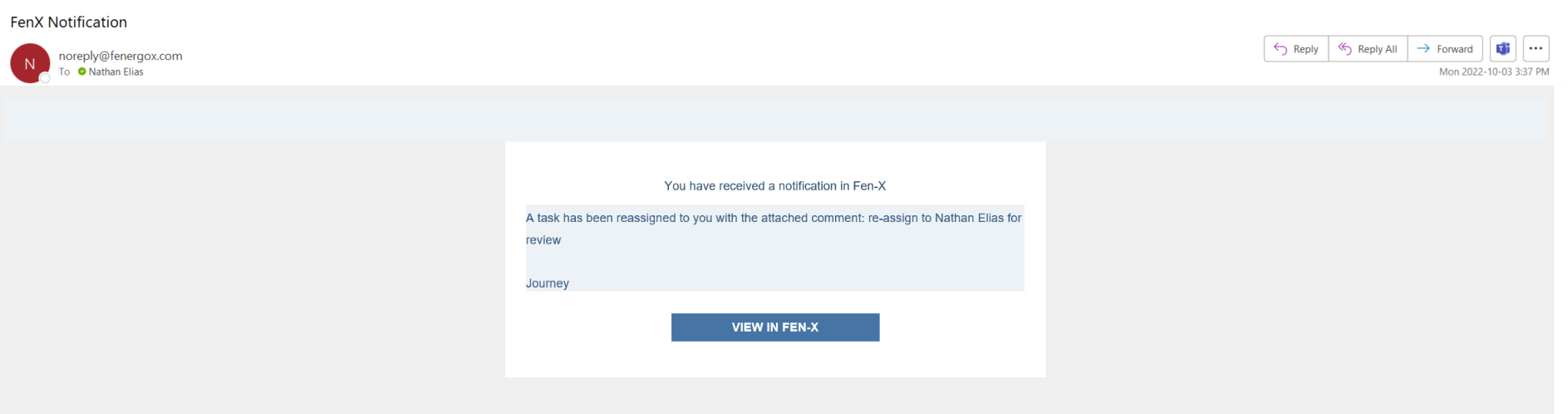
Fenergo SaaS Email notifications are sent via a pre-defined email account (noreply@fenergox.com) – this is not configurable:
Notification Centre
UI Notifications are visible in the UI through “the Bell” which launches the Notifications Pop-Over in the top right corner of the UI:
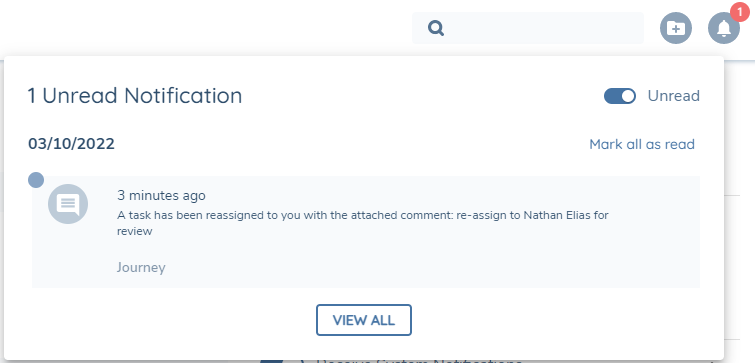
From the Notifications Pop-Over, the user can review the details of the system notification that was triggered:
Notification Events
Notifications are created in the system by pre-defined events. There are currently 12 defined Notification Events supported in Fenergo SaaS. Each of these notification events have pre-defiend notification responses.
| Category | Event | Domain | Notification Response |
|---|---|---|---|
| Signed Documents Retrieved | Signed Documents Retrieved | Documents | The following signed Documents have been retrieved from DocuSign for {{EntityName}}: {{DocumentRequirementName}} |
| External Data | Company Document Retrieved | External Data | Your downloaded Documents for Legal Entity: {{EntityName}} are now available to manage in External Data Results. Please Click on this Notification to check Status. |
| External Data | Company Profile Retrieved | External Data | The full Company Profile for {{EntityName}} has been retrieved successfully. Please navigate to the task to review duplicate alerts and complete the import. |
| External Data | Import Collection Summary | External Data | External Data Import Summary for {{EntityName}}. The External Data import was completed with the following steps: {{EntitiesCreated}}{{AssociationsCreated}}{{DocumentsCreated}}{{DataWriteStatus}}{{EntitiesFailed}} |
| External Data | UBO Discovery Max Credits Reached | External Data | TBC this is in-flight work |
| External Data | UBO Discovery Retrieved | External Data | UBO Discovery Search for {{EntityName}} is now complete. Please click on this notification to view results in the External Data Results Page. |
| Jumio Outcome Received | ID&V Jumio Outcome Received | {{Content}}. {{RootEntityName}} | {{JourneyType}} | |
| Journey | Tasks are Assigned to Me with Comment | Journey | A task has been reassigned to you with the attached comment: {{Comment}} |
| Journey | Tasks are Assigned to my Team | Journey | A new task has been assigned to your Team. {{Journey Name}} | {{Task Name}} |
| Journey | Tasks Assigned to me are Reopened | Journey | One of your tasks has been reopened, please see attached comment: {{Comment}} |
| Technical | Search Reindexing Finished | Technical | Fields {{ChangedFields}} have been reindexed successfully. Entity reindexing finished |
| Technical | Search Reindexing Started | Technical | Starting the reindexing of fields {{ChangedFields}}. Entity reindexing started |
Client name in Journey Notifications
To help the user prioritize tasks and understand which client it relates to, Journey notifications now support the client's Legal Entity Name in the notification. When enabled, the client name appears in both in-app and email notifications across all six Journey notification types.
| Notification | Trigger |
|---|---|
| Task Assigned to Me | A task is assigned/reassigned to you |
| Task Assigned to Me with Comment | A task is reassigned to you with a comment |
| Task Reopened | A task previously completed by you is reopened |
| Task Assigned to Team | A new task is assigned to your team |
| Journey Owner Assigned | You are assigned as Journey Owner for a journey |
| Journey Completed | A journey for which you are the Journey Owner is completed |
If the Legal Entity Name is not available at trigger time, the notification renders without it and is still sent, following current behaviour.
This functionality is off by default. To enable it for your tenant, raise a service request with Fenergo.
Configuring the Notifications Feature
Team Task Assignment Notification Configuration
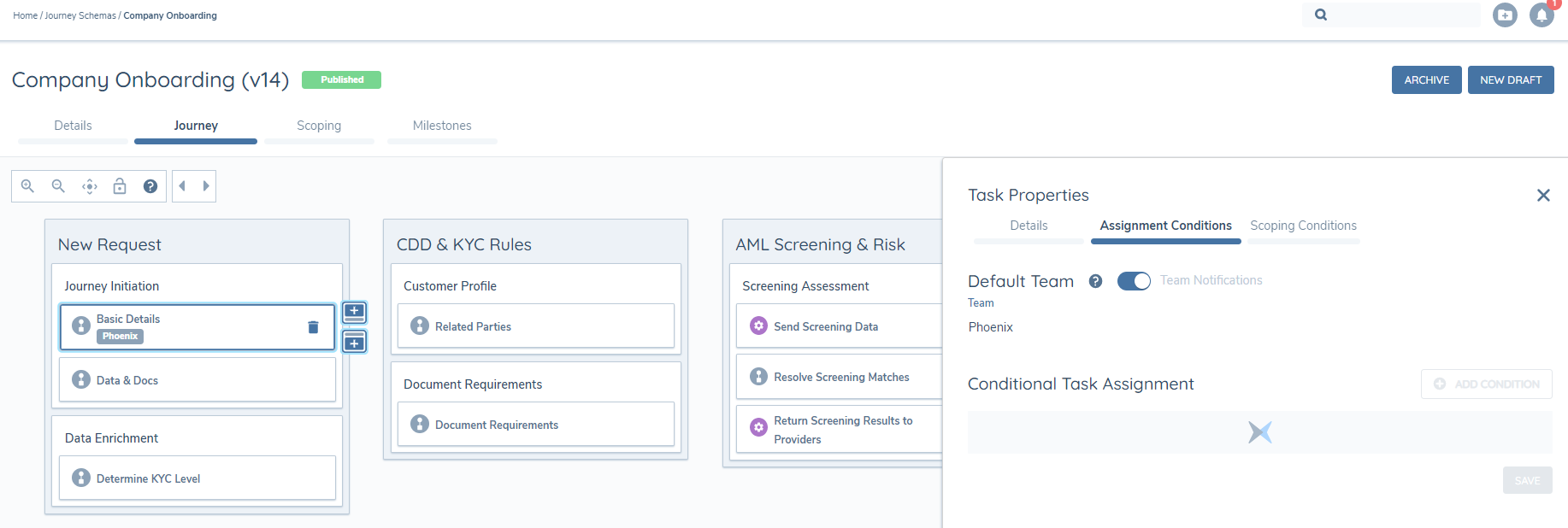
Within Journey configuration, a configuration user can toggle a switch on a task in the assignment section to indicate that a team notification should be generated.
When the task is triggered and the “Team Notification” is toggled on, all users within that team will receive a notification.