Deals
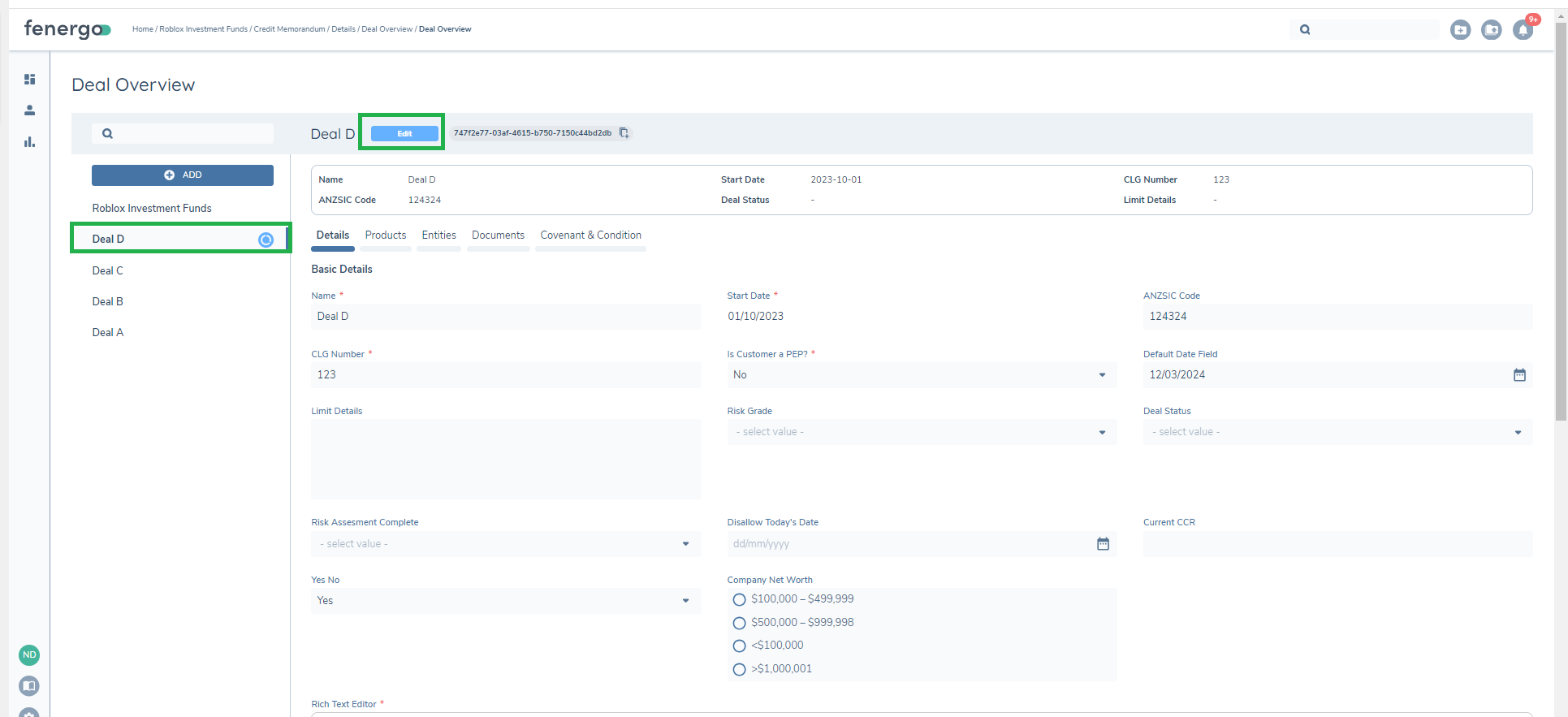
In Fenergo SaaS a deal is created to contain a structure of products and any related entities or supporting data. A deal can be captured and updated within the context of a journey via the Manage Deal task and is captured directly against the entity in which the journey is completed.
The Manage Deal task will be displayed in a journey dependent on the configuration of the specific journey.
Note: Deal functionality must be specifically enabled on a Fenergo SaaS tenant by a Fenergo SaaS Administrator. If you are interested in the functionality offered and don’t currently have deals enabled, please speak to your Customer Success Manager for more information.
Deal Capture
In a journey, on selecting the Manage Deals task, if no deals are captured against an entity, the default landing page is displayed.
The user can complete this task without adding a deal by clicking on the COMPLETE button.
To add a deal select ADD A DEAL. This will create a verified and draft record of the deal. The draft record will be updated in the context of the journey, in which the deal has been created and the data captured will then be written to the verified record, following the deal verification task.
On selecting ADD A DEAL the New Deal page will be displayed.
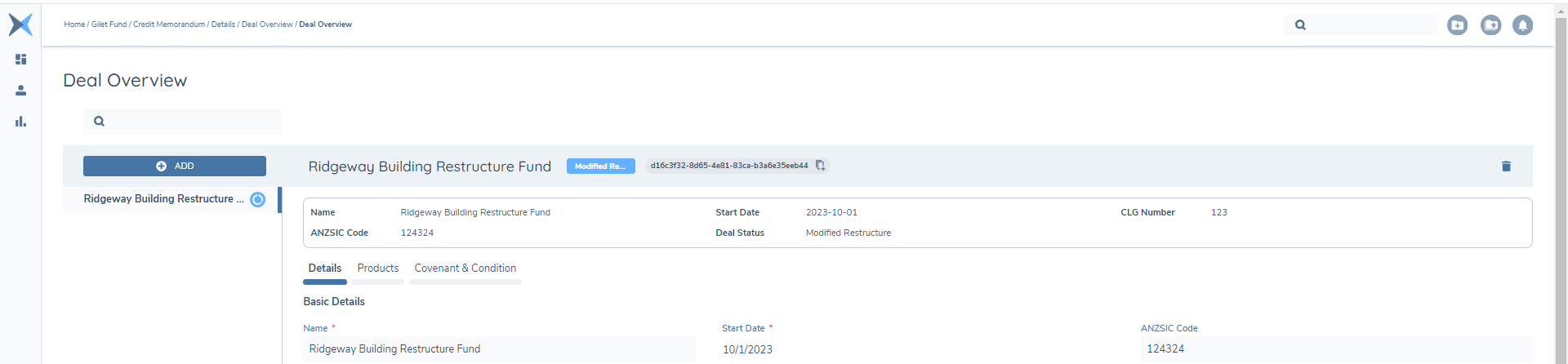
A summary view will be displayed under the heading banner. The fields displayed are dependent on the configuration of the deal requirement set and the field values will be updated as the deal is saved.
The tabs displayed (Details, Products etc.) will be dependent on the task configuration. If only a single tab is configured the tab heading will not be displayed.
Adding Multiple Deals
Multiple deals may be added from the manage deals task. Having captured the first deal against an entity select ADD from the header bar to add additional deals. As with Selecting ADD A DEAL from the landing page this will create both a verified and draft version of a deal.
As deals are added, the left-hand column will list the deals captured against the entity. On selecting SAVE or COMPLETE any deals where information has been captured or edited will be updated.
Deal Deletion
A deal may be deleted in the context of the journey. To delete a deal click on the delete icon in the top right of the banner on the manage deal task. Once a Deal is verified it cannot be deleted.
Details Tab (Data Requirements)
The Details tab, in the Manage Deals task, allows for the capture of data requirements including data groups against the deal. The data requirements displayed are dependent on the configuration of the categories and requirement set at the task level and the configuration of the deal requirement set itself.
For further details on Deal Requirement Set configuration please refer to the Deal Configuration Guide.
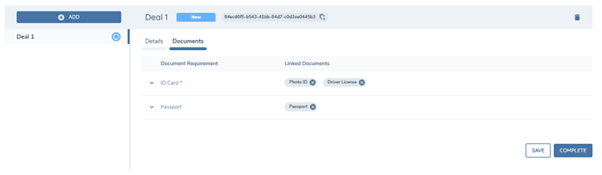
Documents Tab (Document Requirements)
The Details tab, in the Manage Deals task, allows for the capture of document requirements against the deal. The document requirements displayed are dependent on the configuration of the categories and requirement set at the task level and the configuration of the deal requirement set itself.
For further details on Deal Requirement Set configuration please refer to the Deal Configuration Guide.
Products Tab (Product Requirements)
The Products tab, in the Manage Deals task, allows for the linking of products to the deal. Any verified products for the entity or draft products in journey can be linked to the deal.
Link Product to a Deal
On selecting the 'Products' tab within the Deals task, if no products are linked to the deal the default landing page is displayed.
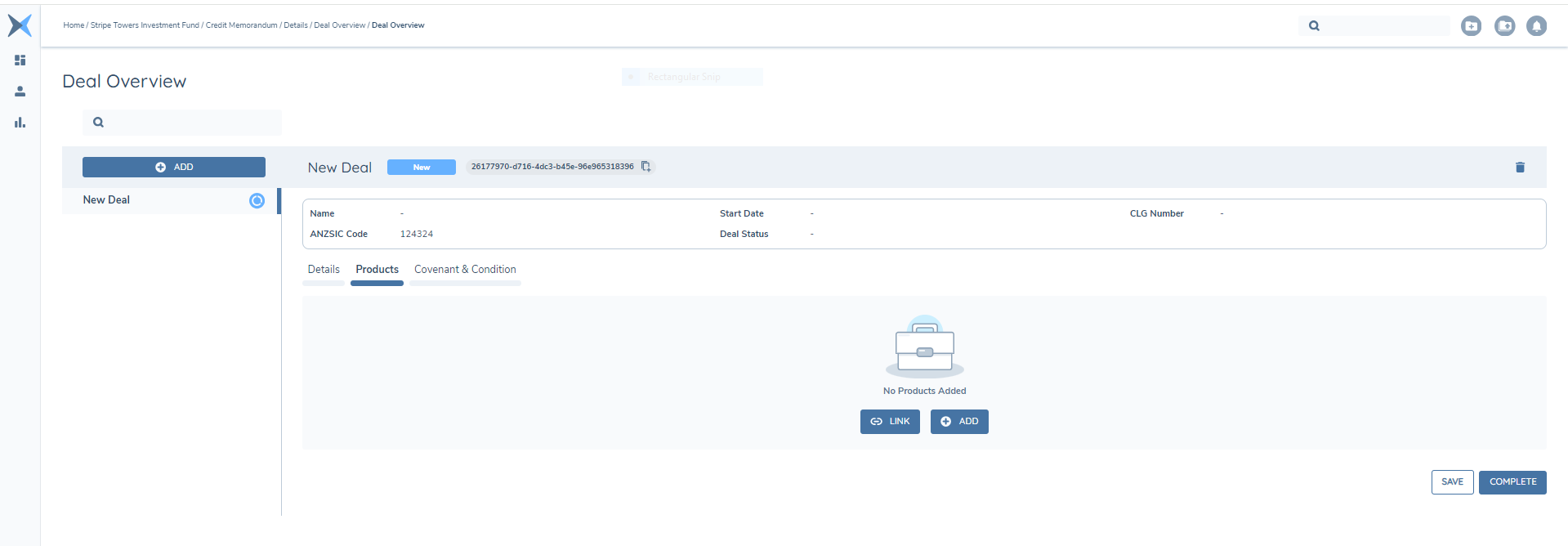
To link a product to the deal select the LINK button. Selecting LINK opens a new 'Product Link' modal. The columns and information displayed within this modal depend on the configuration of the Global product requirement set.
For more details on Requirement Sets, users can refer to the 'Product Requirement Sets' section within the 'Product Enablement Configuration Guide.'
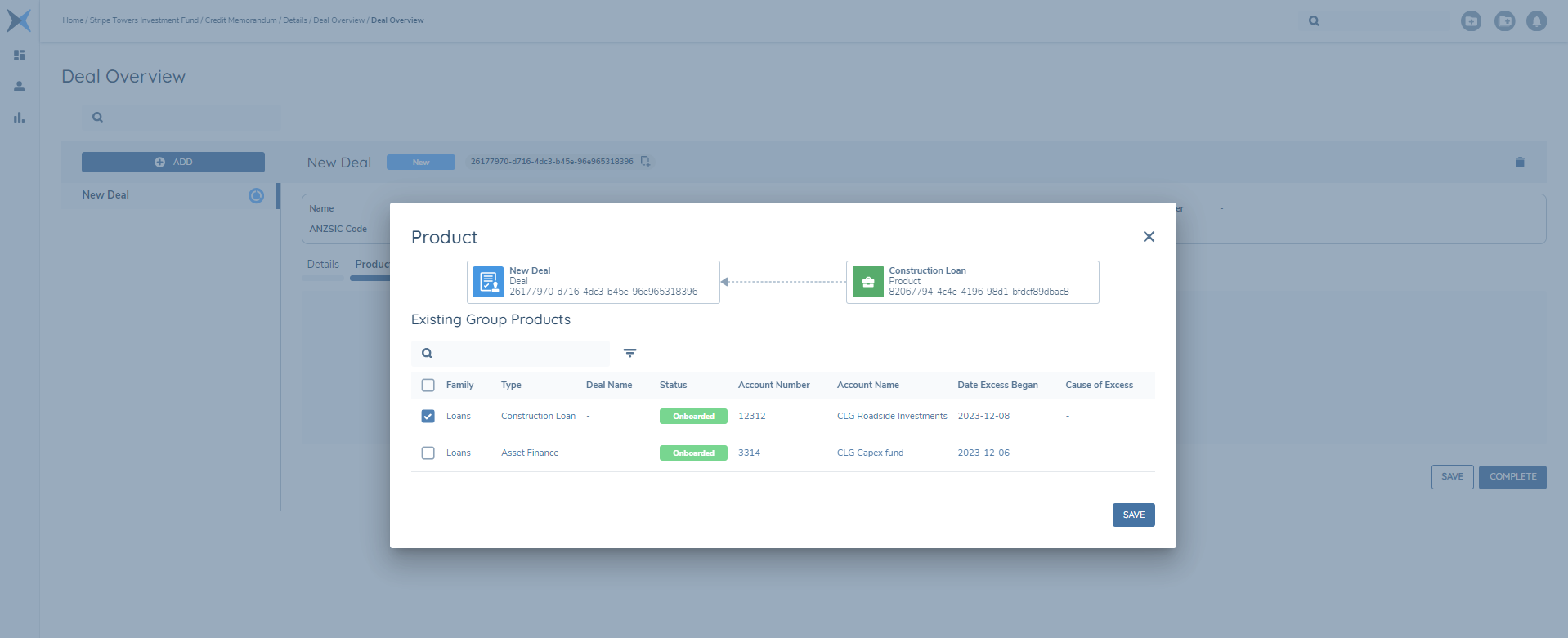
On the 'Product Link' modal , all verified products linked to the entity, as well as any draft products added during the journey, are presented to the user. The user can choose the products they want to link to the deal.
After selecting the products to be linked to the deal and selecting the SAVE button. A draft record of the association between the deal and the selected product(s) is created, in addition a draft of the product is created.
For verified products, on linking the products status will transition from 'Verified' to 'In Review'and the chip colour will transition from green to blue, this is so the product can be edited in the context of the deal.
It is important to the note the LINK and UNLINK are merged into one action. If the product is already linked to a deal the link action will remove the current link to the Deal and add the new one. Currently there is no button for 'Unlink'.
Once the 'LINK' action is complete, the user is automatically directed back to the 'Product Summary View' for that particular deal. In this view, the user can see a grid displaying the selected products now associated with the deal. It also includes a summary column displaying all product types underneath a summary column of Product Family. For numeric columns these totals can be aggregrated. Please refer to the Deals Configuration Guide for information on how this can be configured.
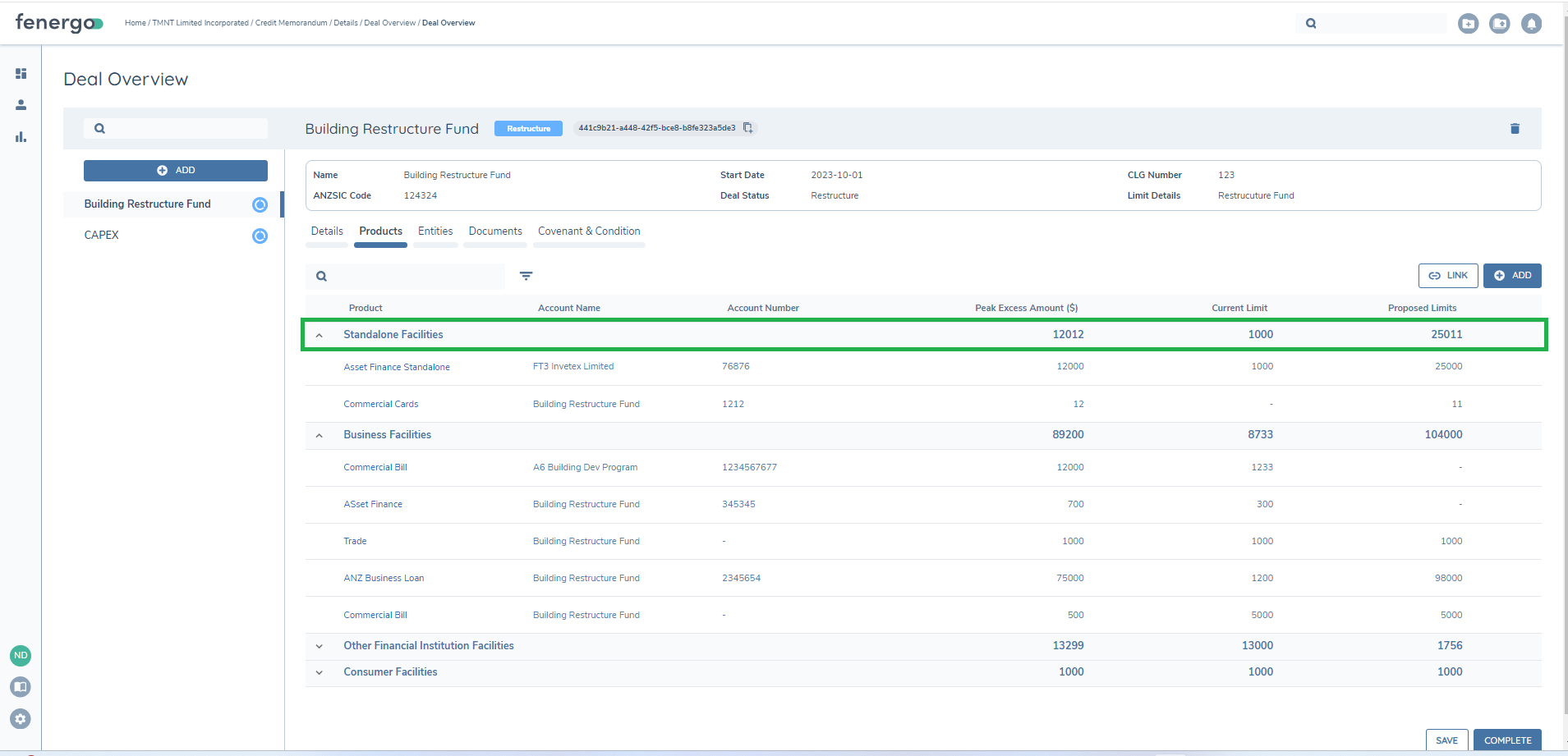
Linking products to a Deal is an optional step. The user can complete the task without linking any products by clicking on the COMPLETE button. However, if COMPLETE is selected and mandatory information is missing from any of the Deals or Products then a validation message is returned.
Add Product to a Deal
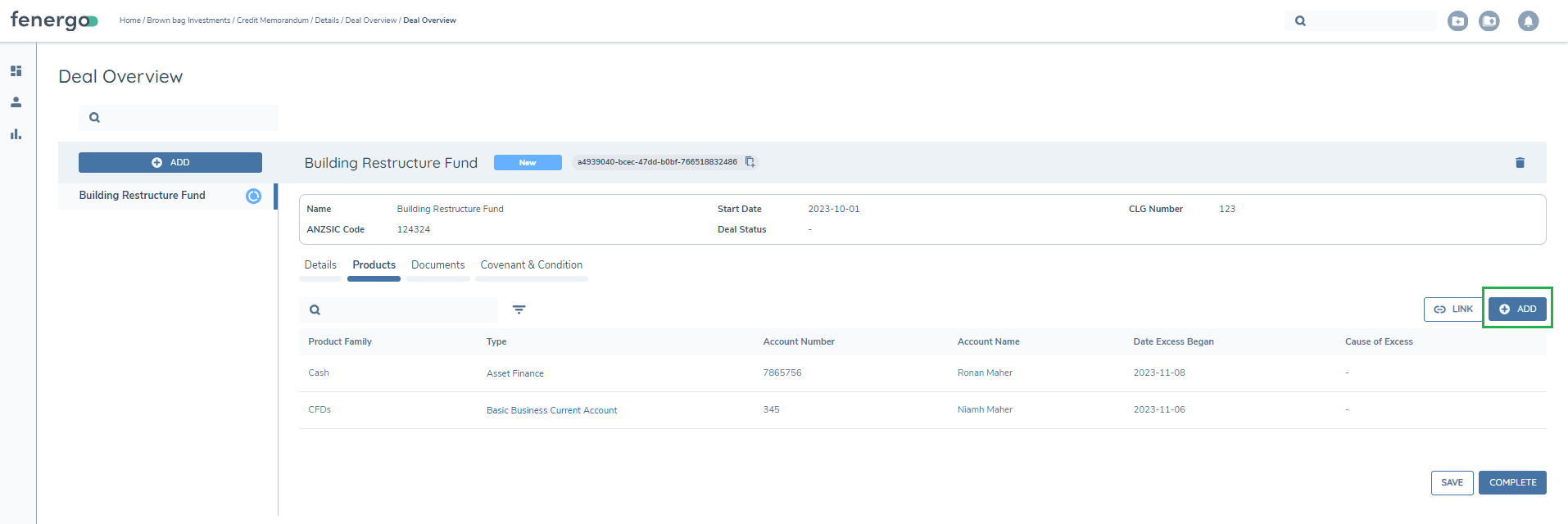
In addition to linking existing producs to the deal the user can also ADD new products. On selecting the 'Products' tab within the Deals task, the user can ADD a new product. The ADD action is available based on the configuration of the product actions available in the Manage Deals Task.
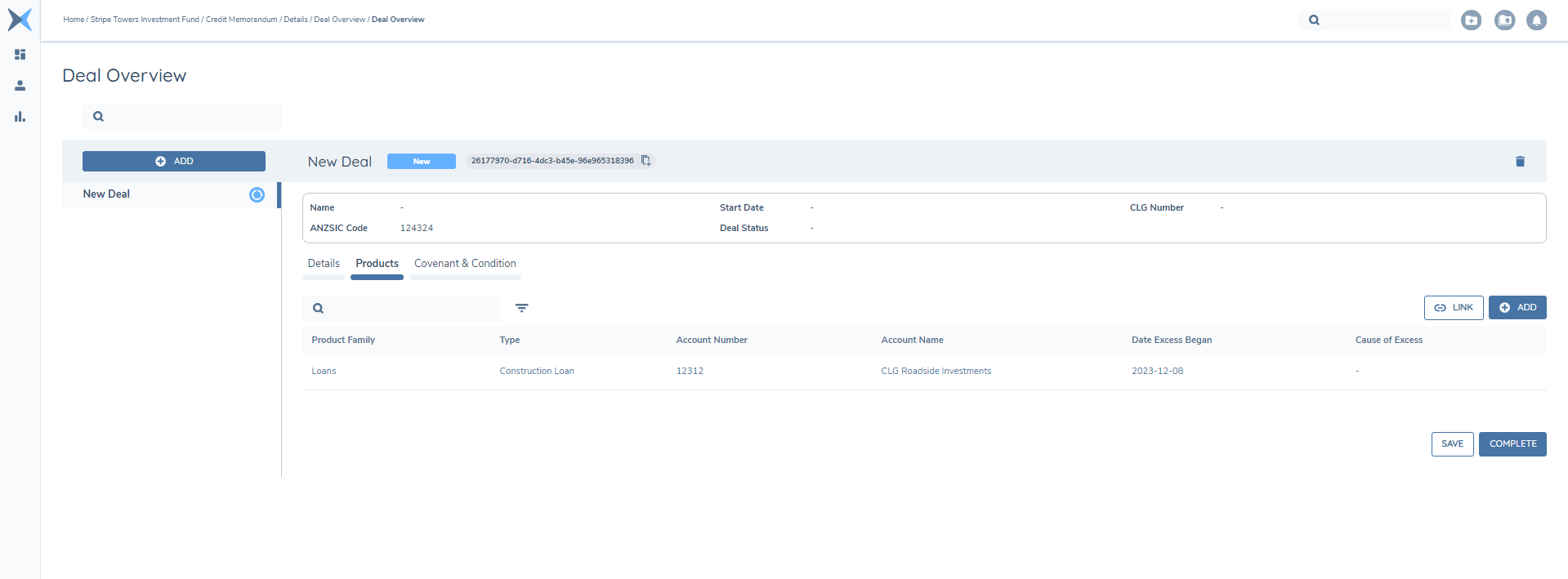
Once ADD is selected, this will create a verified and draft record of the product and create a link between the Deal and the product. The draft record will be updated in the context of the journey in which the draft record has been created and will then be written to the verified following the product verification task at the end of the journey.
Data Requirements
The data requirements that display in the Product Modal are configurable and are defined in the Product Requirement Sets. When ADD is selected, the fields that are displayed in the ADD product modal are dependent on the configuration of the product requirement sets in addition to the categories defined on the deals task to display. For additional information on Requirement Sets please refer to the Product Requirement Sets section within the Product Enablement Configuration Guide.
Within the Product Modal the user can capture the data related to the product as needed. On Product Type selection, any additional requirement sets that are in scope will be triggered and their data requirements displayed. The field types and data groups that are supported within the modal are an exact match of those in the standard Fenergo SaaS data task. Furthermore, fields can be displayed based on conditions in addition to read-only fields and data validations.
On selecting SAVE on the modal the product information that has been captured or edited will be updated.
Adding Multiple Products
Multiple Products may be added from within the context of a Manage Deals Task. To add an additional product select ADD from the product summary view or ADD ANOTHER from within the modal.
As with Selecting Add from the product summary ADD ANOTHER will, save the current product updates and create a both a verified and draft version of a new product, the fields that are displayed are dependent on the configuration of the product requirement set under the unique identifier of Global.
As products are added, the 'Product Summary View' on the 'Product Details' tab will update with the products that were added. On selecting SAVE on the deals task any products where information has been captured or edited will be updated.
Product Deletion
A product may be deleted once it has not been verified. After product verification a product cannot be deleted. The Delete action is available based on the Manage Deals Task configuration.
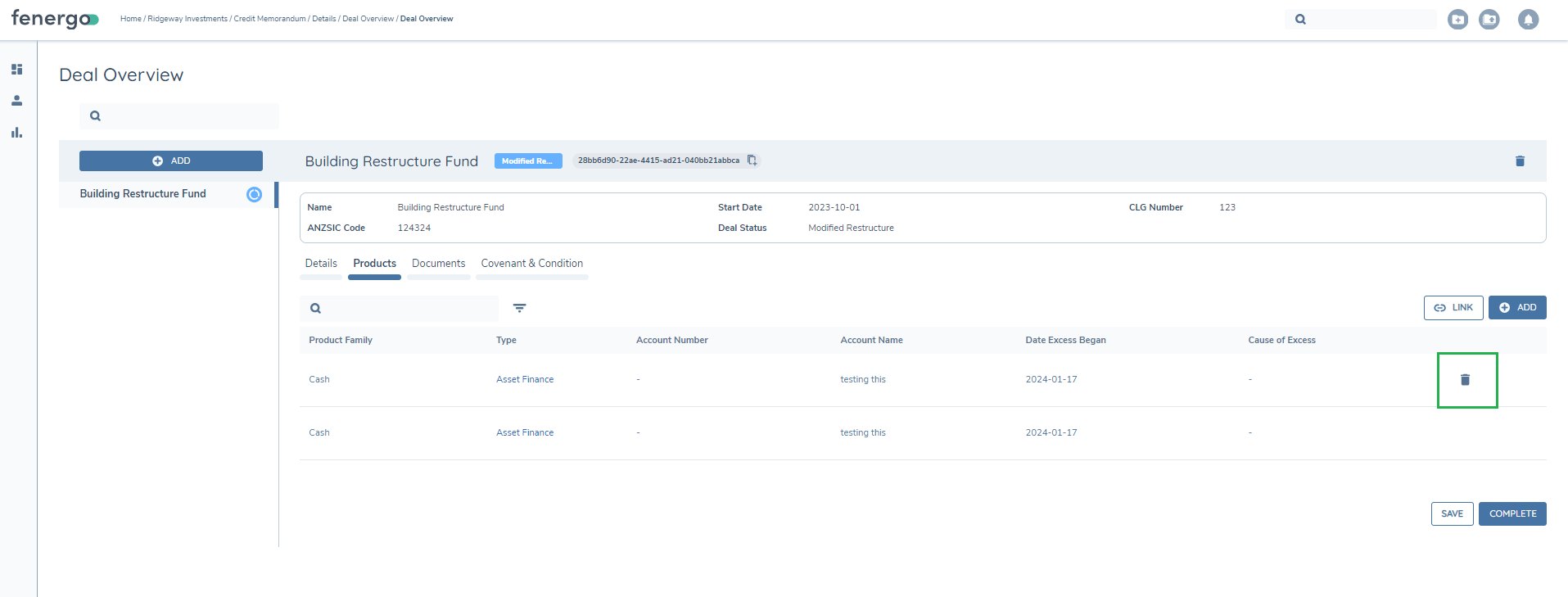
To DELETE a product select the delete icon from the Product Summary View. This will delete the product draft and the association to the deal.
Adding Related Parties to a Product
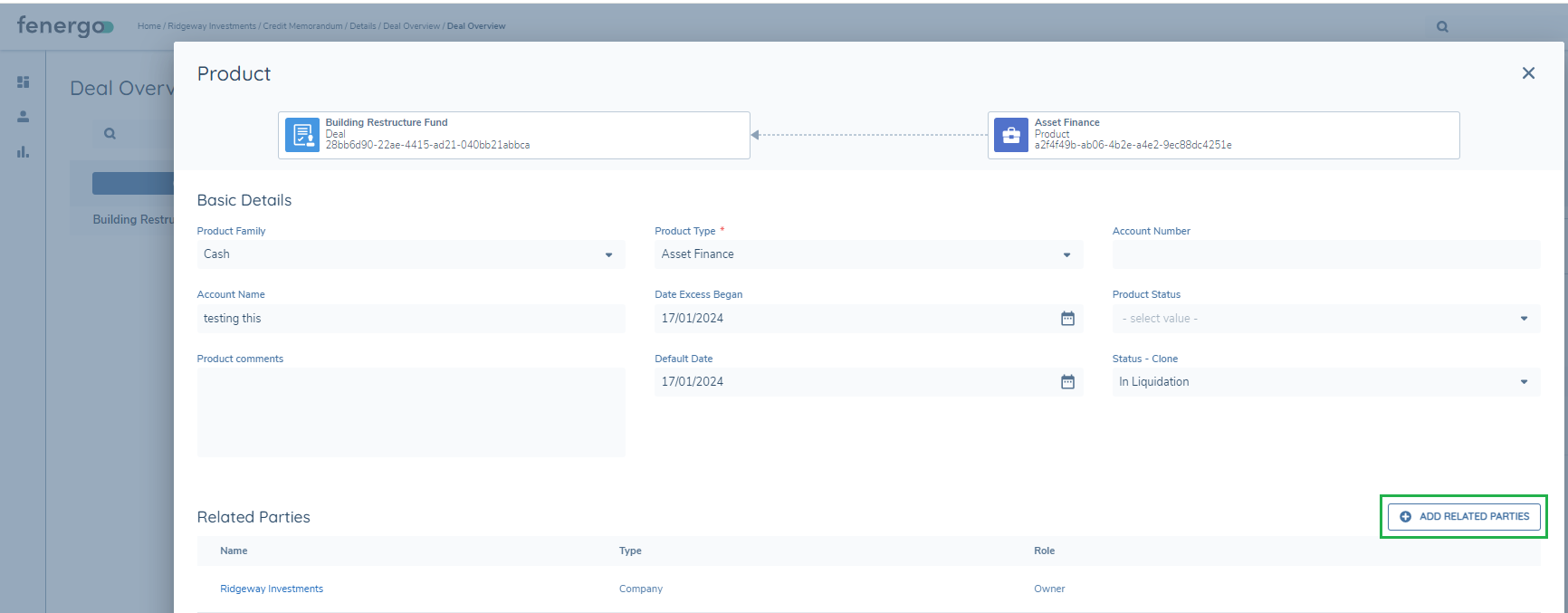
Relationships between a product and entities is captured and managed, via the ADD PRODUCT modal. This allows for the clear understanding of the different actors and their role to the product. Related parties to a product are captured via the Related Parties grid which always displays once the ADD PRODUCT functionality is enabled on the deals task.
In adding a product to a deal, via the manage deal task, the entity is automatically added as an owner, and this will automatically be displayed in the related party grid. Additional roles and details may also be captured against this relationship.
Additional related parties and their relationship to a product can also be captured for both new and existing entities. Before creating a relationship, a search must be completed to see if an entity already exists. Please refer to the Product Enablement User Guide for further information on adding and maintaining Product Related Parties.
Product to Product Linking
Efficiently managing related products is crucial for understanding the relationships between a client, the deals for that client and the relevant products. By establishing and verifying these connections, you achieve a single source of truth for product data and relationships, ensuring accurate and reliable information.
From the deals task it is now possible to relate a product as child of another product. To do this follow the steps below.
- In the deal task from the Product Summary view select the parent product by click on the product type. This will open the product modal.
- In the product modal select the ADD RELATED PRODUCTS button. This will open the Related Products modal.
- Select the applicable product to be linked and select SAVE.
Having linked a product, it will be displayed in the Related Products table and will be captured with a relationship type of Child.
Child products will not appear in the product summary view. In addition, child products will also not be displayed when linking a product to a deal. If you select the parent to be linked to a deal the child remains linked to the parent. Only products for which the client record is an owner will be available to link as child products.
If the client has only a single product when the ADD RELATED PRODUCTS button is selected an information message will be displayed: Entity has no products available to be linked with a relationship of 'owner'.
The add related products grid will only be displayed if ‘Display Related Products’ is enabled at the task level.
Product Verification
On adding a product, a verified and draft record are created. The draft record will be updated in the context of the journey in which the draft record has been created and will then be written to the verified following the product verification task. If a product is added in the context of a deal task, following verification, via the product verification task, it will then get a status of Onboarded and will then be available in any subsequent journeys for that entity. It is important to note that the relationship between the Product and the Deal is verified in the Deal Verification task.
Product Maintenance
Following product verification, whether the product was created in the context of a deal or in the Manage Product task, a product may be edited/updated under a different journey. Within the Manage Products task all captured and verified products (onboarded) are listed with a green tick and have a status of Onboarded but will be displayed as read-only. Once a Verified Product is linked to a Deal (as mentioned above) , a draft of the product and its association to the deal is created. To edit a product in the context of the Deal task, select the Product Type hyperlink from the Product Summary View on the 'Product Details' tab. This will open the Product Modal in edit a mode displaying the product draft created in journey. Once the Deal is in Edit mode the product will always be editable and selecting the hyperlink will open the draft of the product.
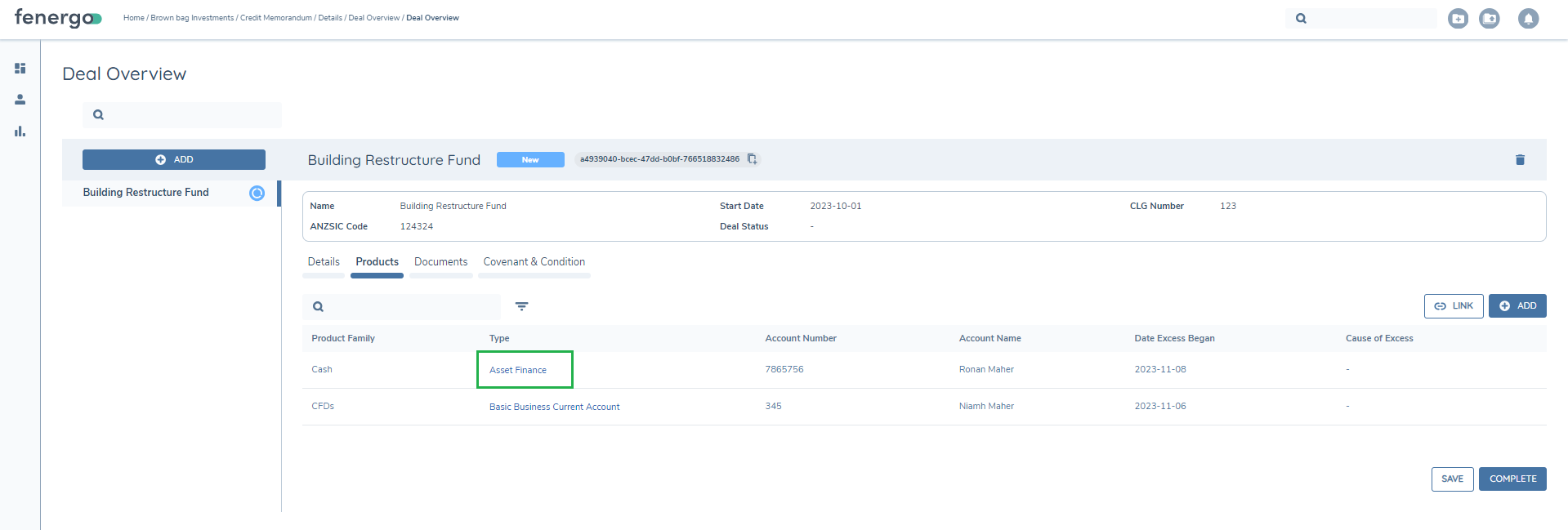
Note: Products added and verified in the context of a deal can be edited in subsequent journeys
Entities Tab
The Entities tab, in the Manage Deals task, displays all Related Parties associated with products linked to the Deal. Once a Related Party is added to a product, which is linked to the Deal, the Related Party will display on the entities tab.
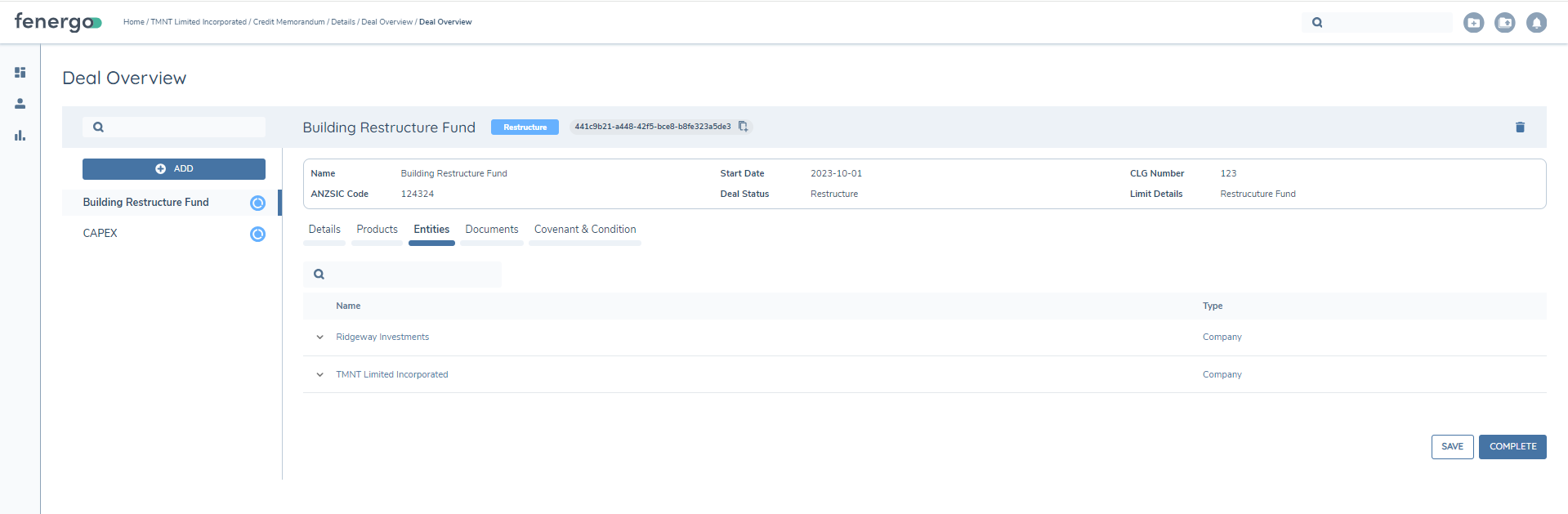
Within the Enities tab, by extending a down arrow on each Related Party all products associated with that specific party can be viewed. The tab is read only.
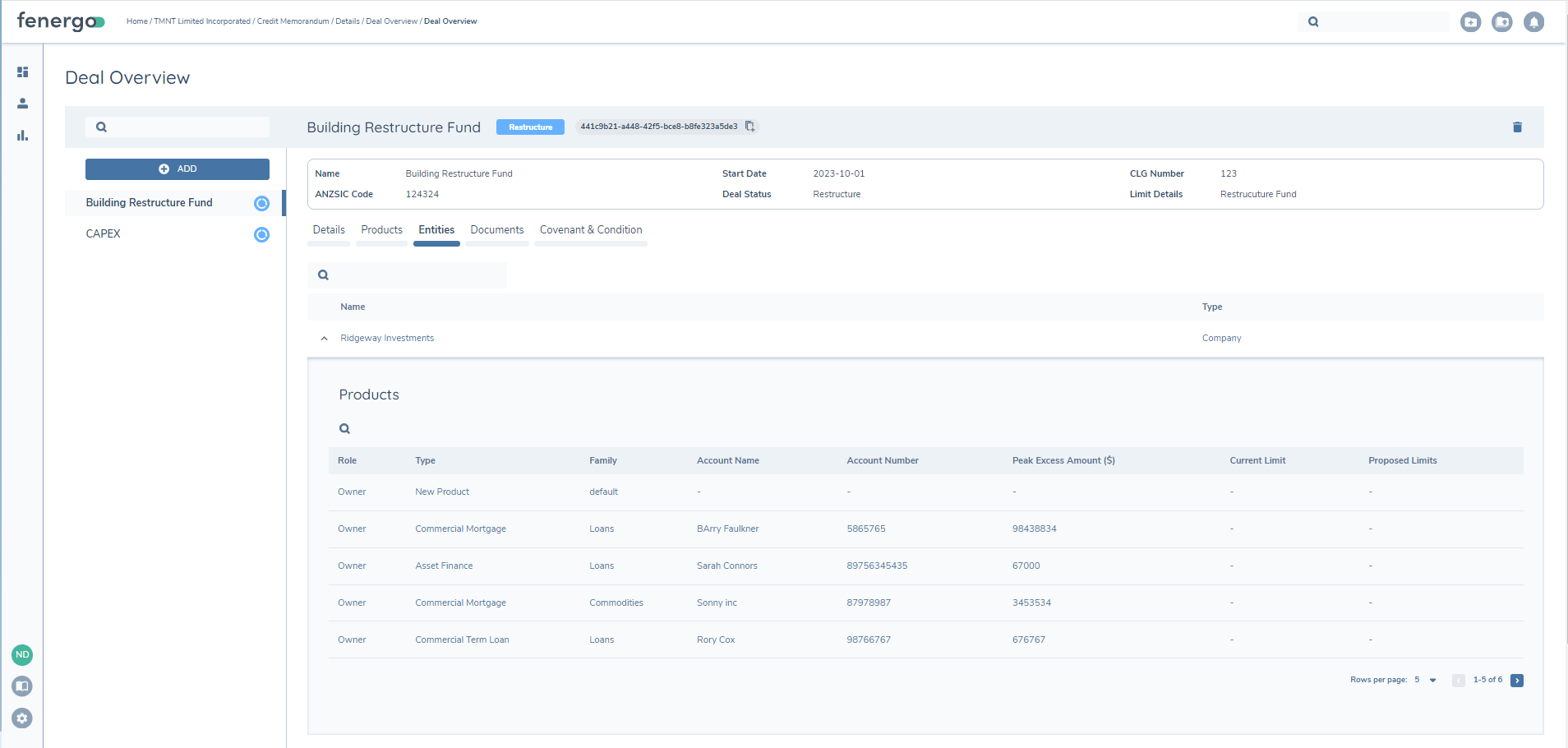
For further details on Entity tab configuration please refer to the Deal Configuration Guide.
Main Entity View
The deal task can be configured with a view only display of the Main Entity. As it is a view only the policy data cannot be edited. The main entity can be selected from the left panel. This view includes the 'Details' tab which will display all policy categories configured on the deals task.
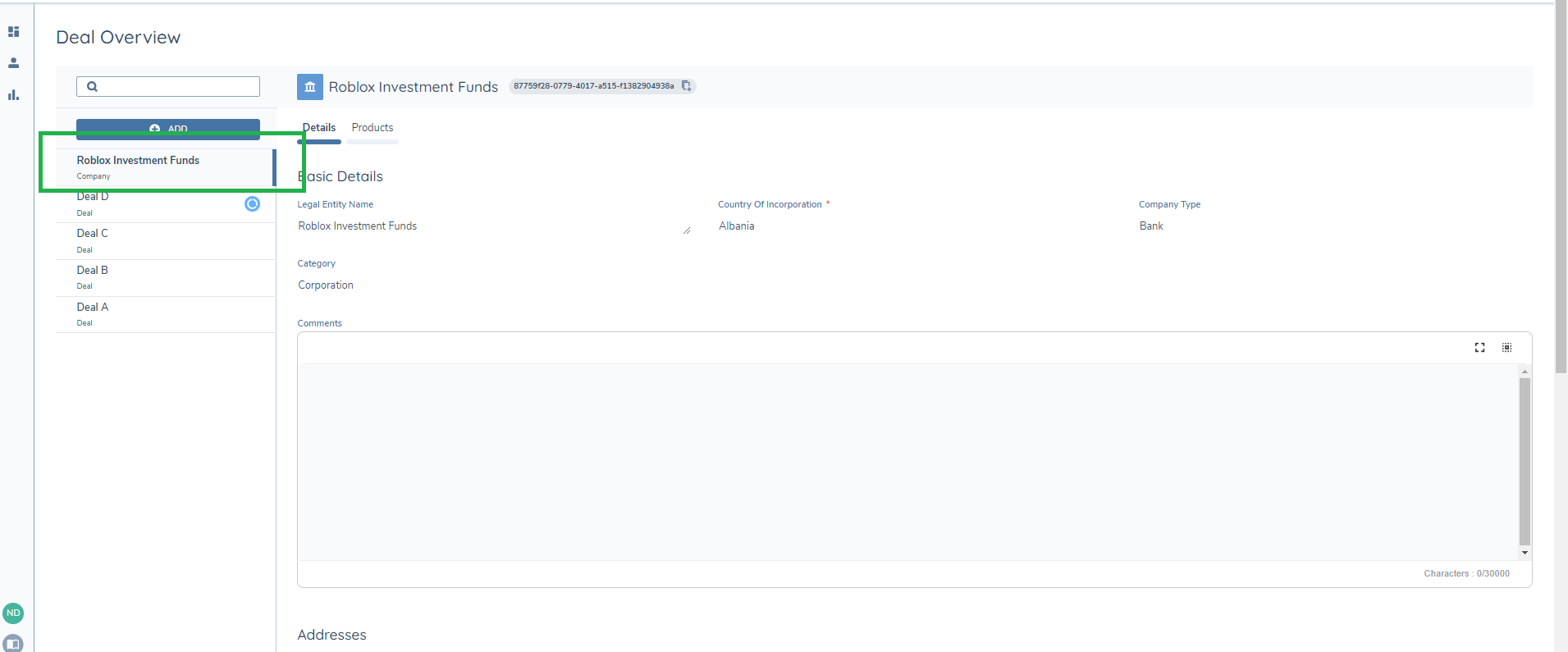
It will also display a products tab that includes all products linked to the Main Entity.
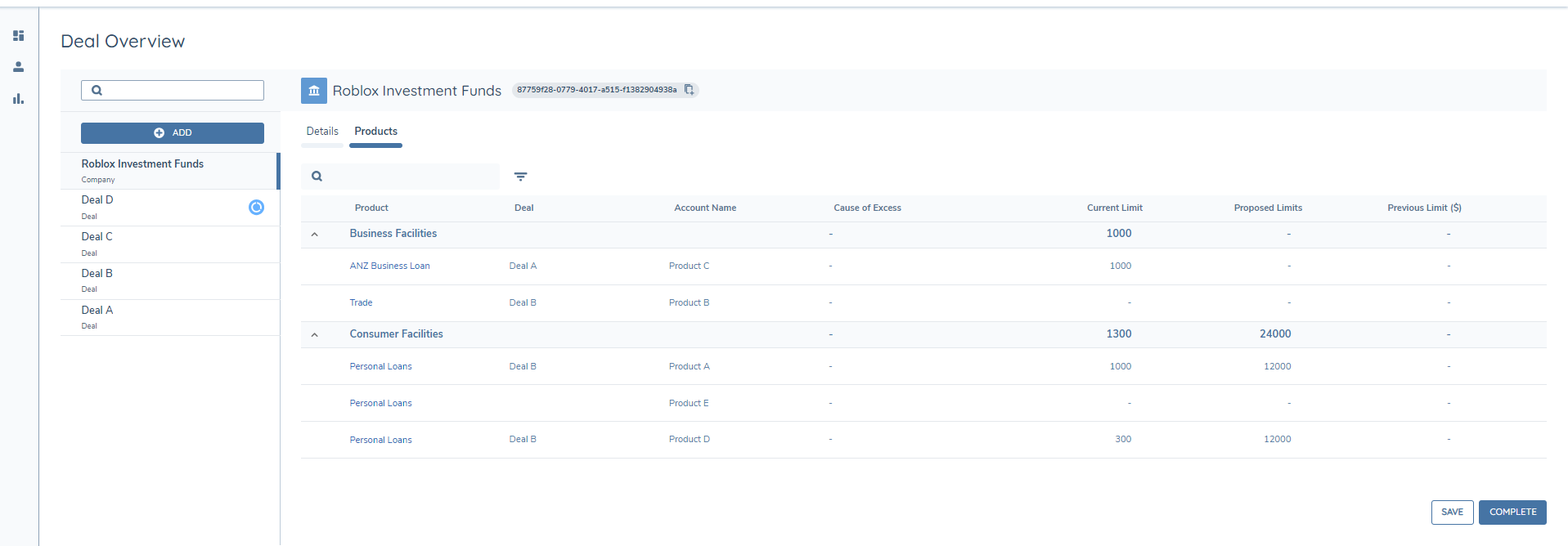
Note While the main entity view is read only trigger rules, conditional values and calculated values are applied. This is inline with current behaviour in policy. In order for these values to be saved and persisted they must be saved on sepearte entity data task after their application.
Deal Status
Two deal status options are available. The first option is a hardcoded system defined status 'Deal Lifecycle Status'. These will apply by default.
Deal Lifecycle Status
The status of a deal is dependent on its lifecycle in relation to a journey;
- New – Deal has been added in a journey and is not yet verified.
- Verified – Deal has been verified.
- Edit – Deal was previously verified and then selected for edit as part of a journey. Following the completion of the journey, the deal will return to a status of verified.
The second option allows for configuration, using a specific data key and a reference data list to define the status.
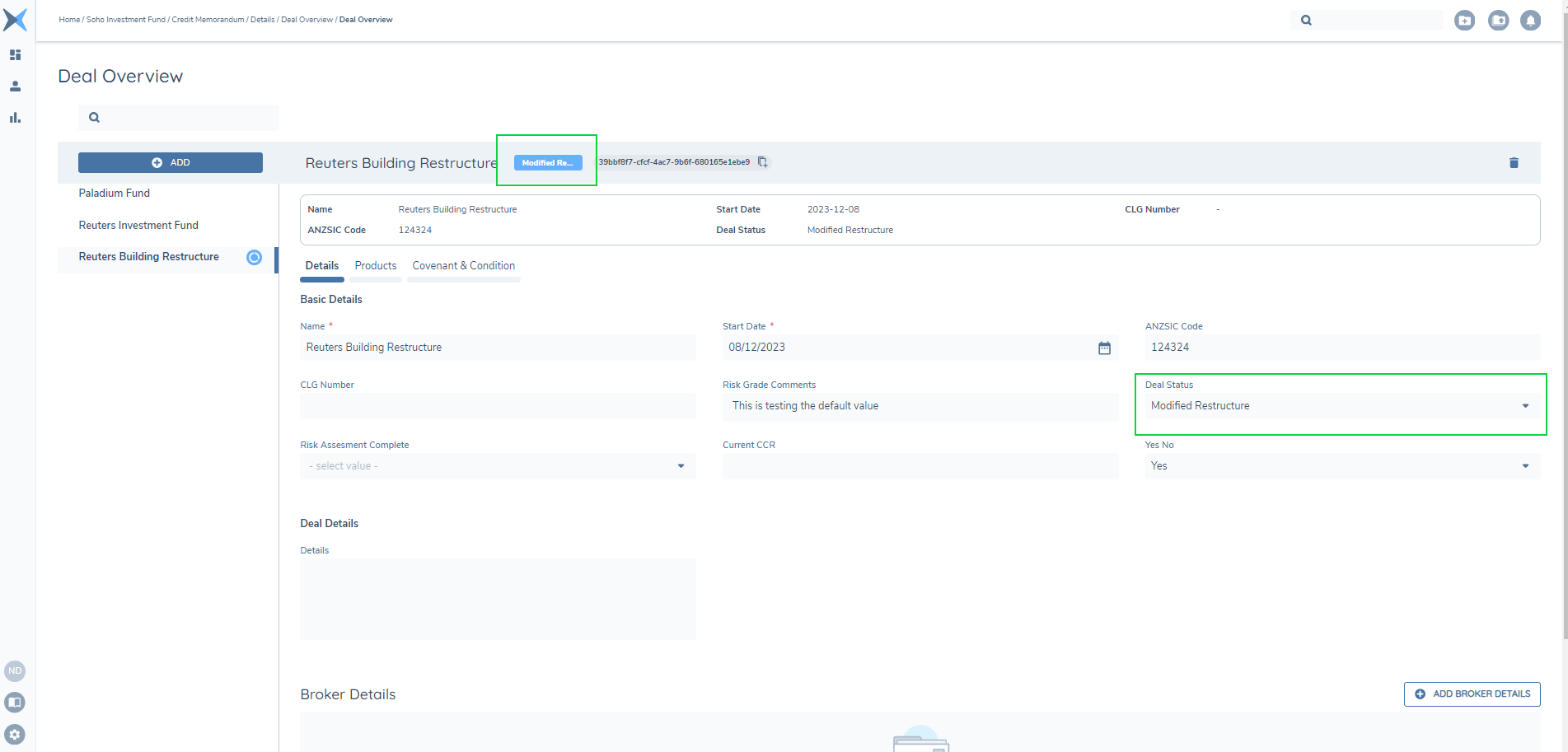
To allow the application of a custom Deal status, a specific data key can be defined within the Deal Requirement Set. This data key is used in conjunction with a defined reference data list where applicable status can be configured and applied. The data requirement can be configured within a category for a Manage Deal task and users can select from the drop-down and once SAVE is selected the applicable status is set. This status behaves like other data requirements within the system.
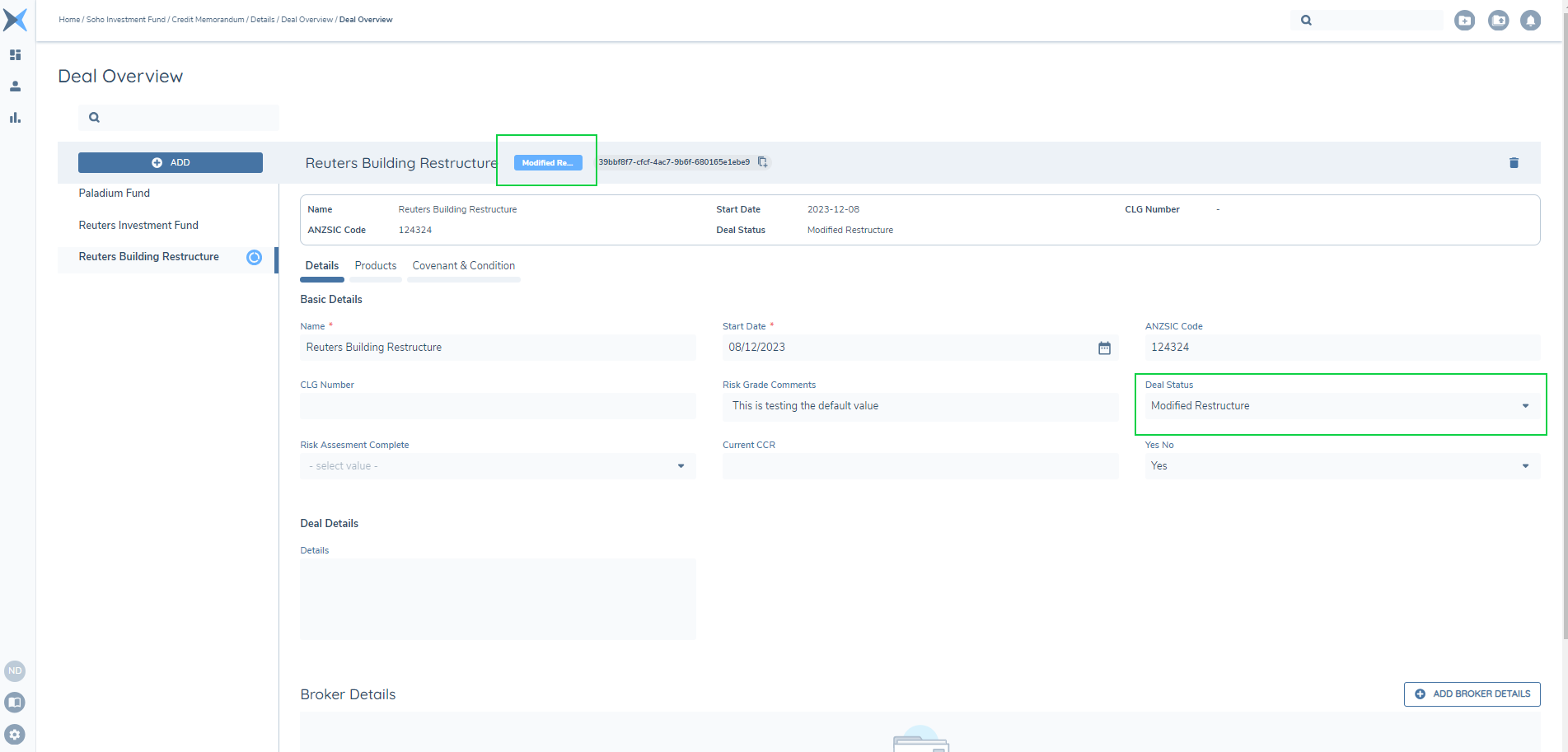
Once configured, this status will appear on the chip within the Manage Deal task.
Please see the Deals Configuration Guide for more information.
Deal Verification
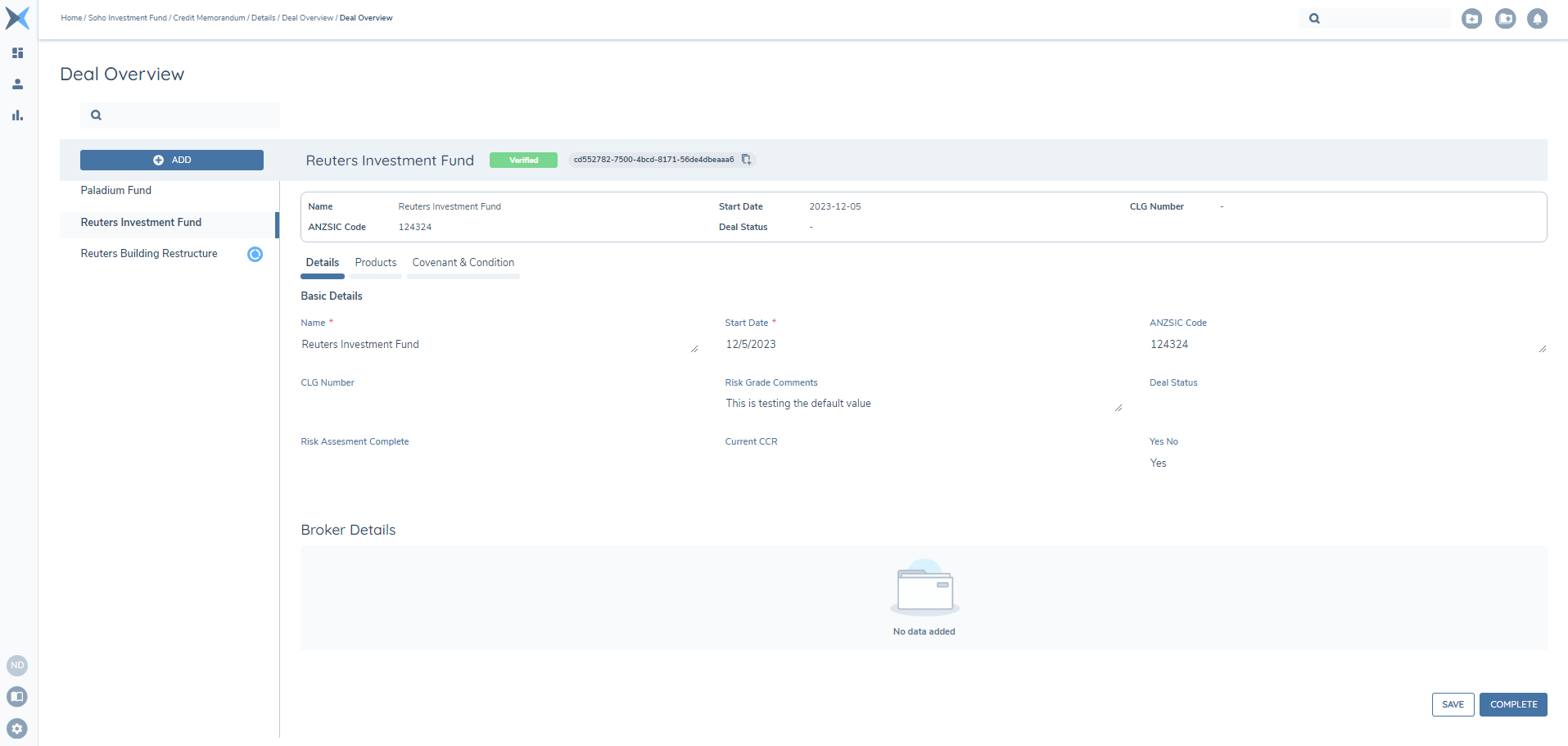
On adding a Deal, a draft and verified record is created. The draft record will be updated in the context of the journey in which the draft record has been created and will then be written to the verified following the Deal verification task. If a deal is added as part of a journey, following verification, via the deal verification task, it will then get a status of Verified and will then be available in any subsequent journeys for that entity.
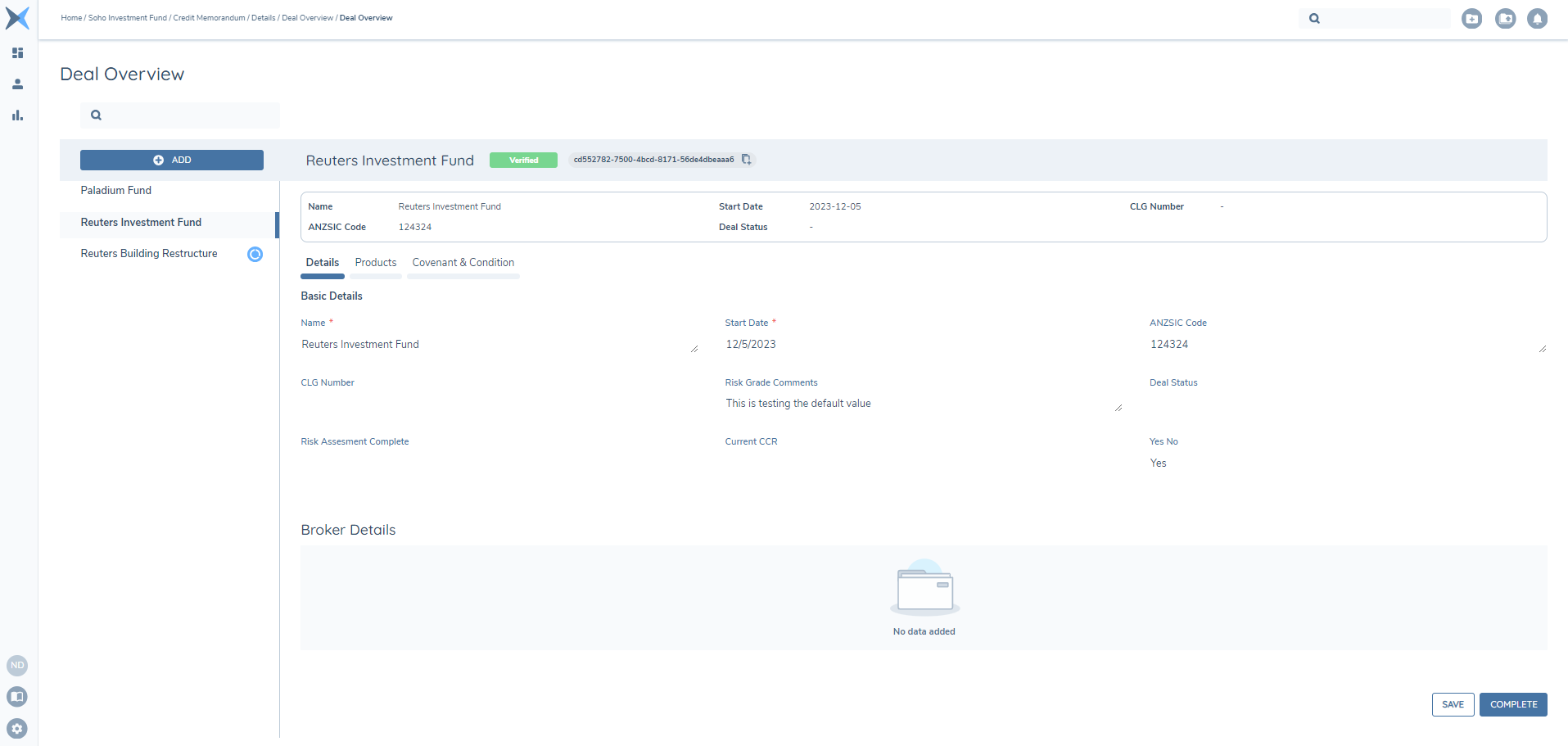
Once a Deal is verified it can no longer be deleted, it may be edited/updated under a different journey. Within the Manage Deals task all captured and verified deals are listed and have a status of verified but will be displayed as read-only.
Deal Edit
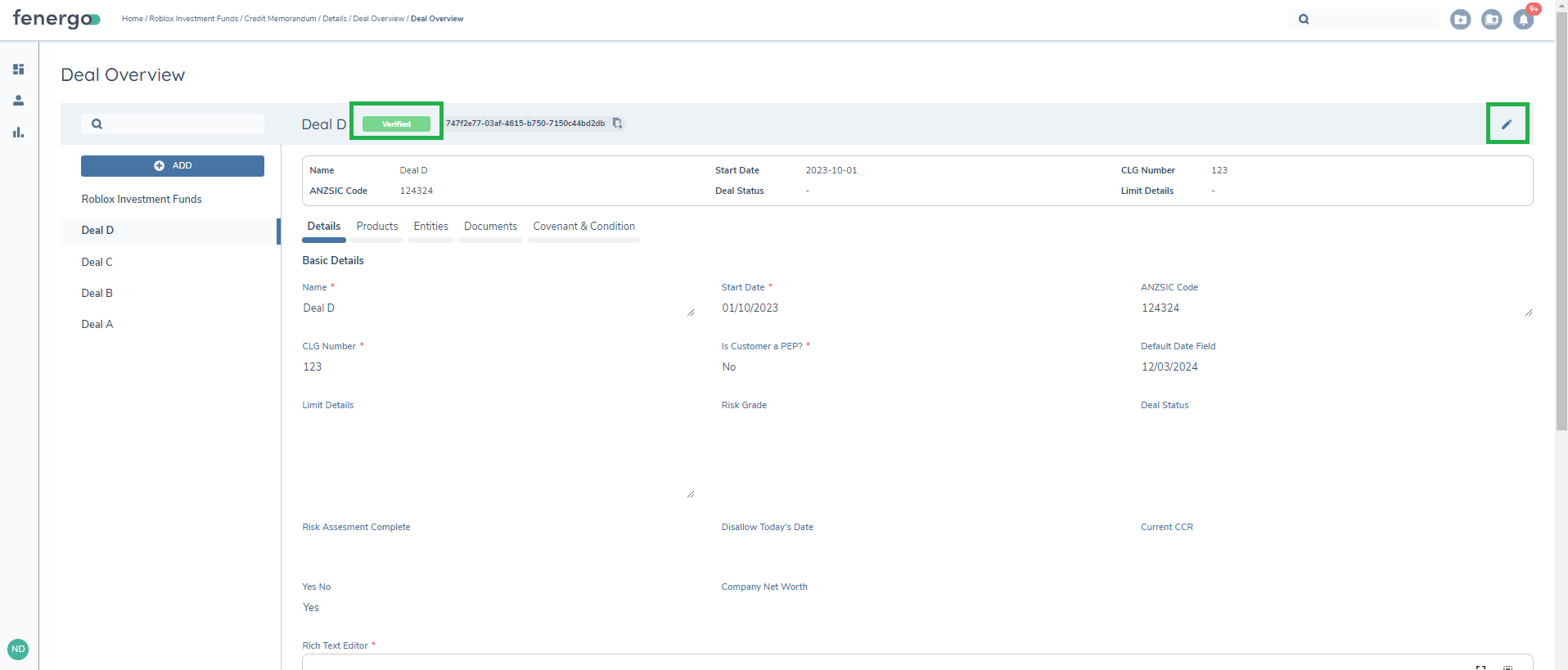
By selecting the Pencil (Edit) button a draft version of the deal will be created under the context of the journey, setting the deal status to Edit. In addition a draft will be created of each of the below:
- The Deal;
- All Products;
- All Convenants and Conditions ;
- Association between the Deal and Product ;
- Association between the Deal and the Convenant and Condition ;
The deal and all associated entities can then be edited in the context of the journey.
Configuring the Deals Feature
Deals allow for the capture and management of a structure that represents an agreement between an entity that is providing a product and an entity that is consuming a product.
Deals can be captured and updated within the context of a journey via the Manage Deals task. There are configuration steps that must be fulfilled when implementing deals.
Note: Deal functionality must be specifically enabled on a Fenergo SaaS tenant by a Fenergo SaaS Administrator. If you are interested in Deals and don’t currently have it enabled, please speak to your Customer Success Manager for more information.
Deal Requirement Sets
Deal Requirement Sets allow for the definition of data requirements that are captured against a deal. The creation and approval flow (update, approval, archive, deletion etc.) follow the same implementation as in Policy.
Therefore, unless stated otherwise, the same functionality and steps detailed in the System Configuration - Policy User Guide are applied.
Adding a Requirement Set
To add a Requirement Set complete the following;
- In the configuration panel, under the heading of Product, select Deal Requirements. This will open the Deal Requirements page where all requirement sets are listed.
- Select ADD.
- On the Deal Requirement Sets page enter a Name and capture version notes as needed.
- Select Save.
On save, the Requirement Set will be created.
Adding Data Requirements
A requirement set contains the data requirements to be captured. The data requirements are presented to the user in the Manage Deals task dependent on both the requirement and task configuration.
How requirements are added, and the functionality provided, as listed below, follow the same implementation as available in Policy, unless otherwise specified.
Therefore, for further details, refer to the Policy Configuration and Data Group User Guide for more details.
- Supported Field Types including data groups
- Implementation of Data Keys
- Standard Validation
- Field Ordering
- Default Values
- Conditional Values
- Conditional triggering of fields
- Read only datagroups
Note:
- Data groups to be captured on the deal task do not support read only or mandatory dynamic conditions.
- Date range validation is supported, however, validation on a range relative to today or another date is not supported
Deals Scoping Conditions
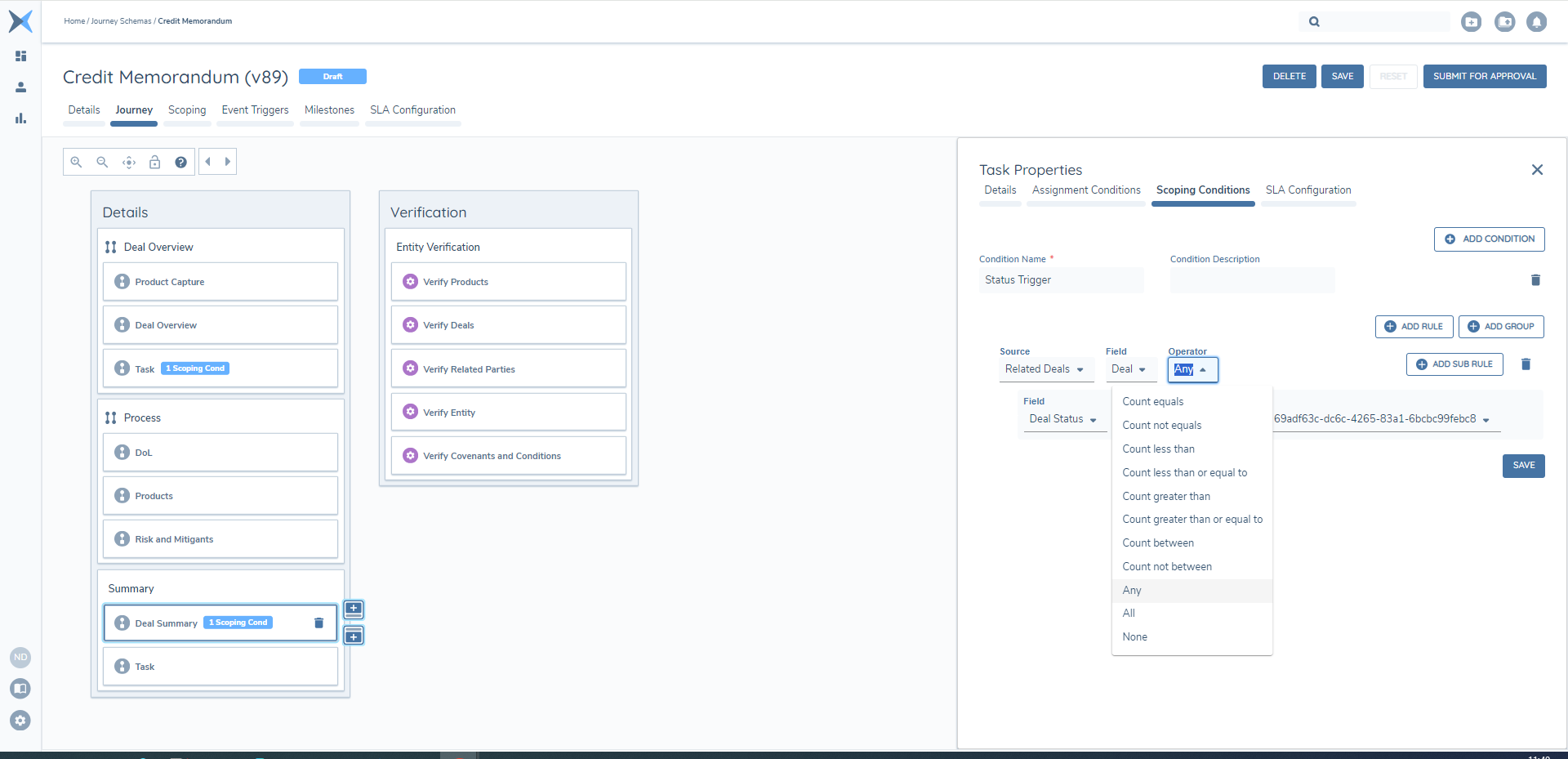
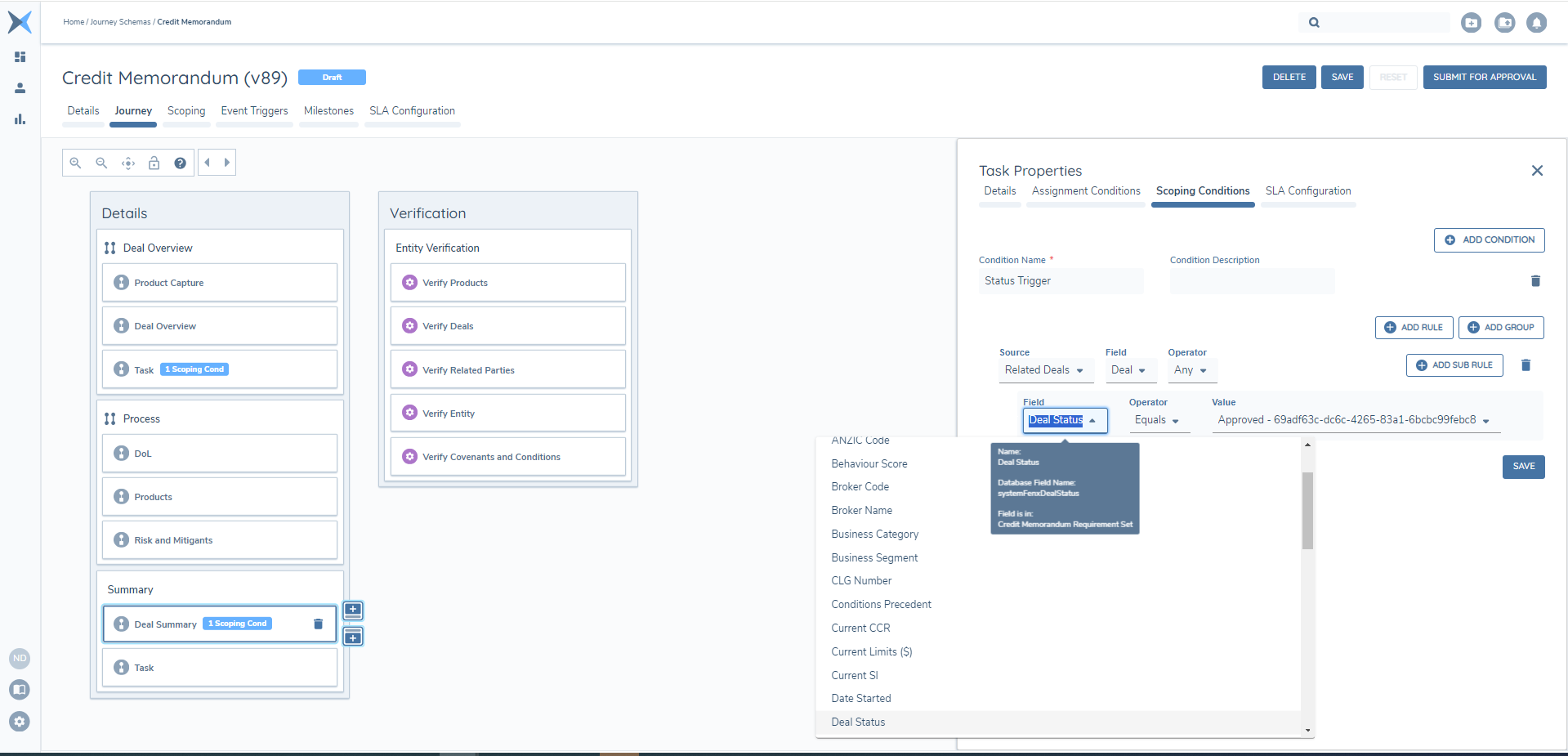
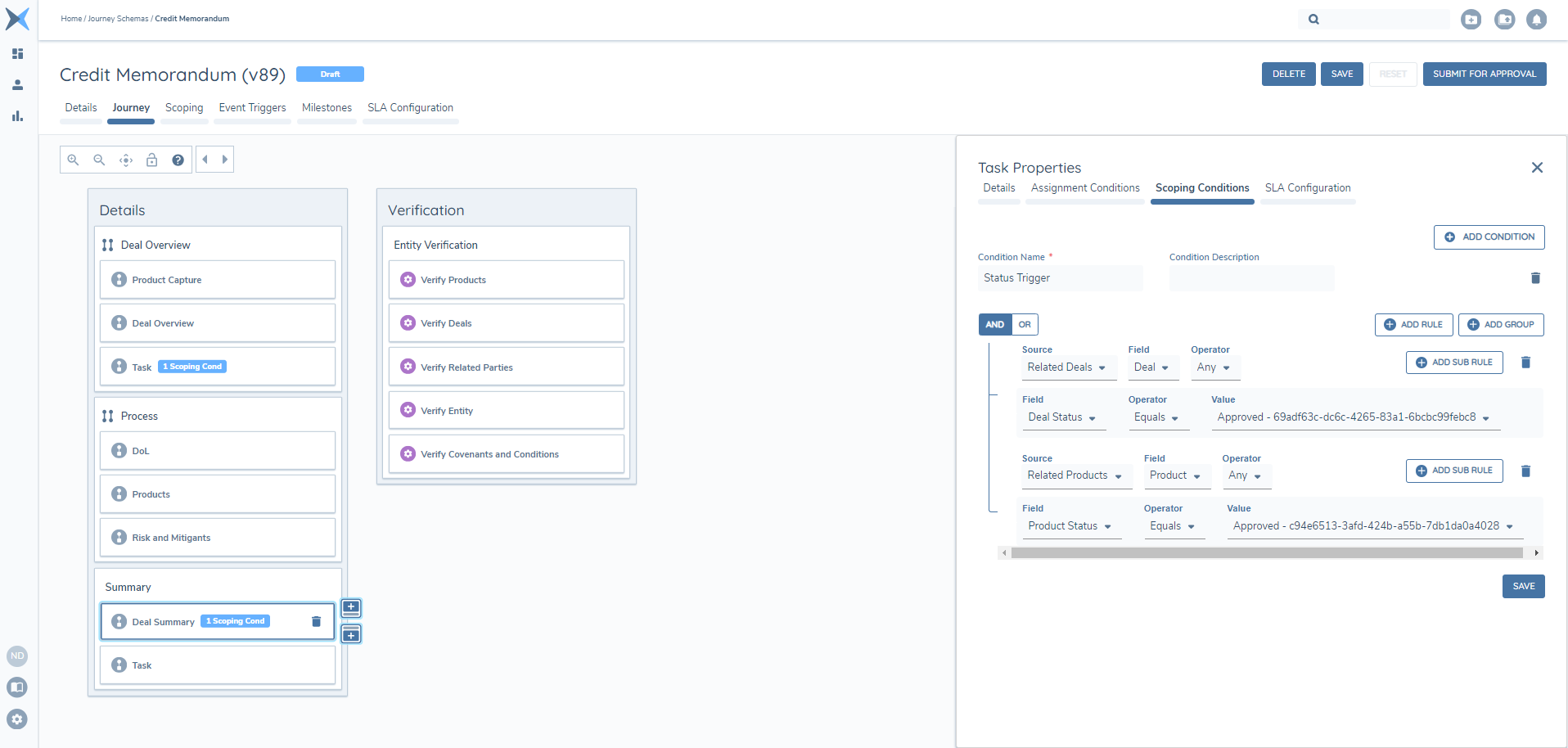
With the ability to capture Deal information through the ‘Manage Deals’ task, it is possible to utilise this data within Scoping conditions via a ‘Source’ value for the related Deal(s). This allows for configuration of rules using, Product, Deal and Entity data.
Journey Scoping Conditions
Journey Builder has been extended to include Deal Reference Data. Scoping Conditions for a Stage, Process and Task, including Task Assignment, can be triggered using Deal data alongside Entity and Product data.
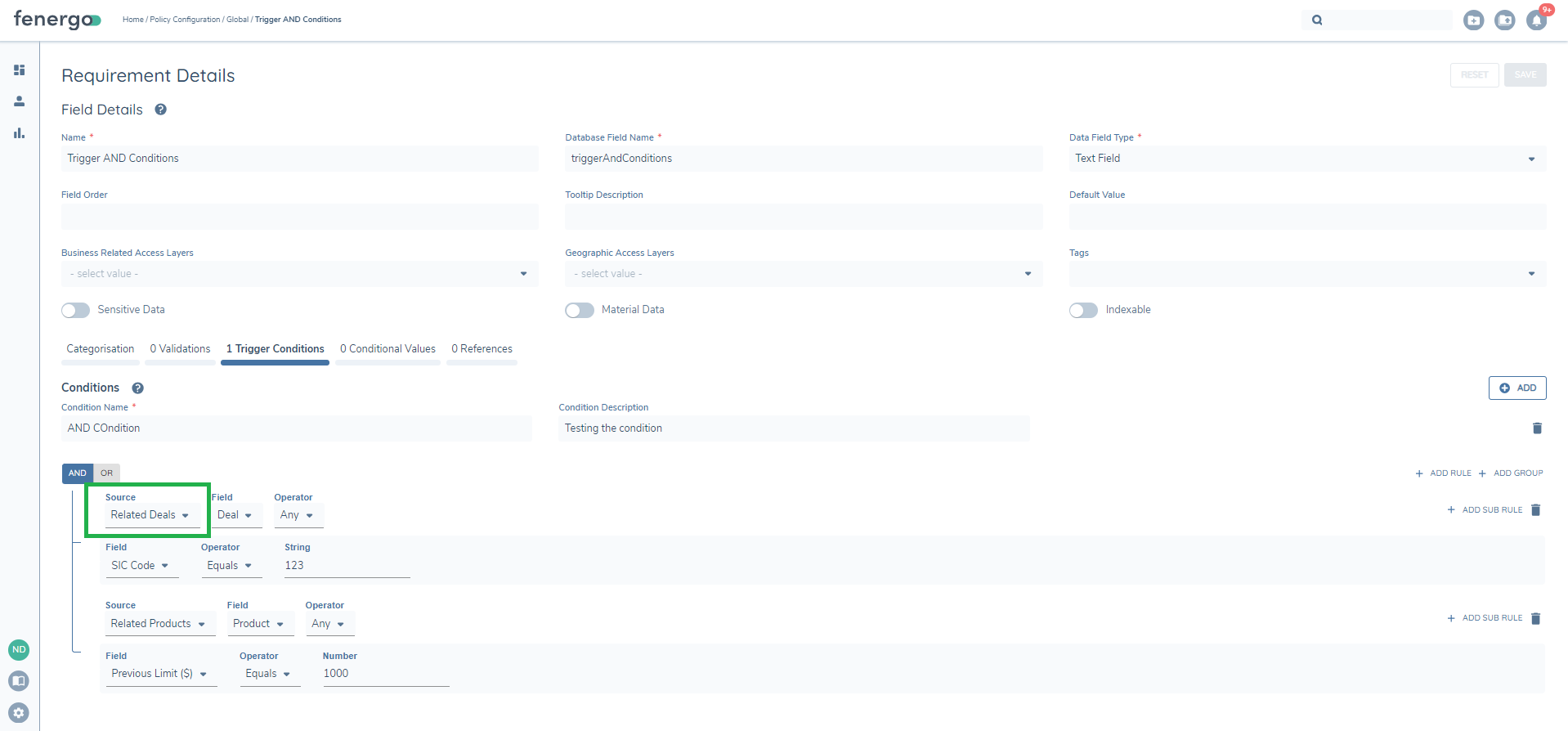
A ‘Source’ value of ‘Related Deal’ is available for Journey, Stage, Process, Task and Task Assignment Scoping Conditions within the Journey Builder. Similar to Data Groups, additional Operators are available to control validation.
When the ‘Related Deal’ value is selected from Source, and 'Deal' from the associated Field drop-down, the Operator option will be available for selection. The additional Field option in the condition will present the user with fields configured in the latest published versions of all Deal Requirement Sets. This configuration enhances the power of Journey Builder when conditionally triggering Journeys, Stages, Processes and Tasks.
Trigger Conditions and Conditional Values
Within Deals, the following Deal Requirement Set configuration options can have rules constructed:
- Deal Data Requirement Trigger Conditions
- Deal Data Requirement Conditional Values
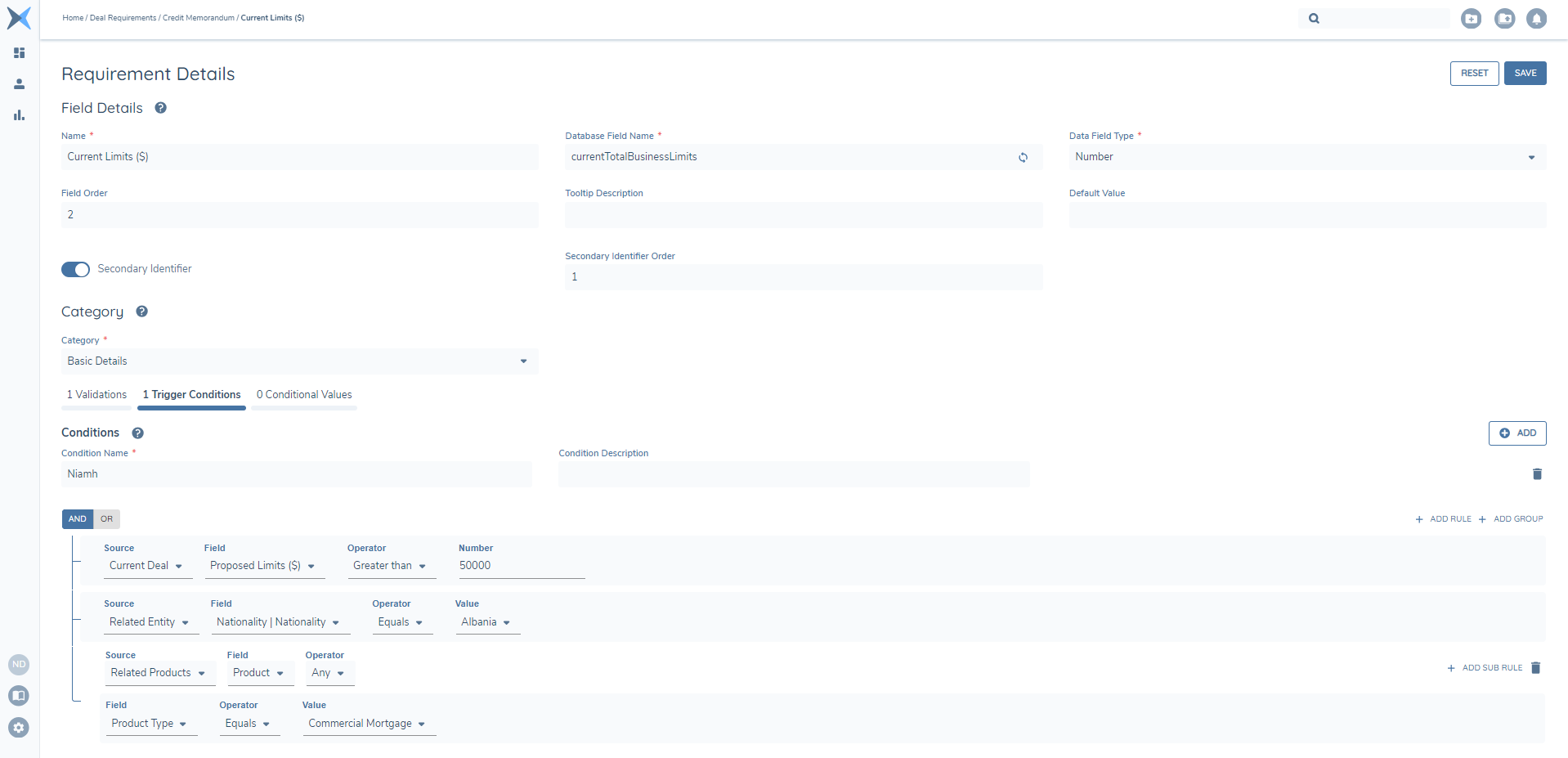
Three ‘Source’ values are available within Deal so conditions for the above options can be triggered using Deal, Product and Entity data.
- ‘Current Deal’ - provides fields implemented in the Current Deal Requirement Sets for selection in the Field drop-down to configure the rule. This list contains the values from the latest published version of the set.
- ‘Related Entity’ - provides fields implemented in all published Policies for selection in the Field drop-down to configure the rule. This list is grouped by Policy and contains values from the latest published version of the policy.
- 'Related Product' - provides fields implemented in all published product requirement sets in the Field drop-down to configure the rule. This list is grouped by Product Requirement set and contains values from the latest published version of the set
Policy Scoping Conditions
Enhancements within Policy has introduced Deal data to rule construction within the below configuration options:
- Policy Data Requirement Trigger Conditions
- Policy Data Requirement Conditional Values
It is also possible to drive entity Data Group capture in Policy using deal reference data. Rule construction in the below configuration options can utilise Deal data:
- Policy Data Group Trigger Conditions
- Policy Data Group Conditional Values
Similar to Journey, a ‘Source’ value of ‘Related Deal’ is available within Policy and Policy Data Groups to allow deal data to be used to conditionally trigger rules for any of the above items. When ‘Related Deals’ is selected, along with 'Deal' from Field, the additional Field drop-down will present the user with fields configured in the latest published versions of all Deal Requirement Sets.
Summary View Configuration (Secondary Identifiers)
Data requirements, in a deal requirement set, may be configured as Secondary Identifiers. In doing so it will display the field in the summary view, of a deal, in the deal task.
When 'Secondary Identifier' is enabled an additional field of 'Secondary Identifier Order' will be displayed. This allows for definition of the order in which the fields will be displayed in the summary view.
Deal Requirement Category
Similar to Policy, the Deal Requirement Category is a key reference that links the tasks in Journey to the requirements. It defines which section in the task a field will appear, e.g., Basic Details or Financial Information. When configuring a data requirement the list of requirement category values is populated by the ‘Deal Requirement Category’ lookup.
Deal Status Data Requirement
If the hardcoded Deal lifecycle status values aren't applicable to the client, it is possible to define custom Deal Status' via the Deal Requirement Set. A Data Requirement Field must be configured using the allocated data key 'systemFenxDealStatus'.
This should be of type 'Select Dropdown' in order to configure the Reference Data List lookup that contains the required status'. The Field Name can be configured as required, however the data key must remain as 'systemFenxDealStatus'.
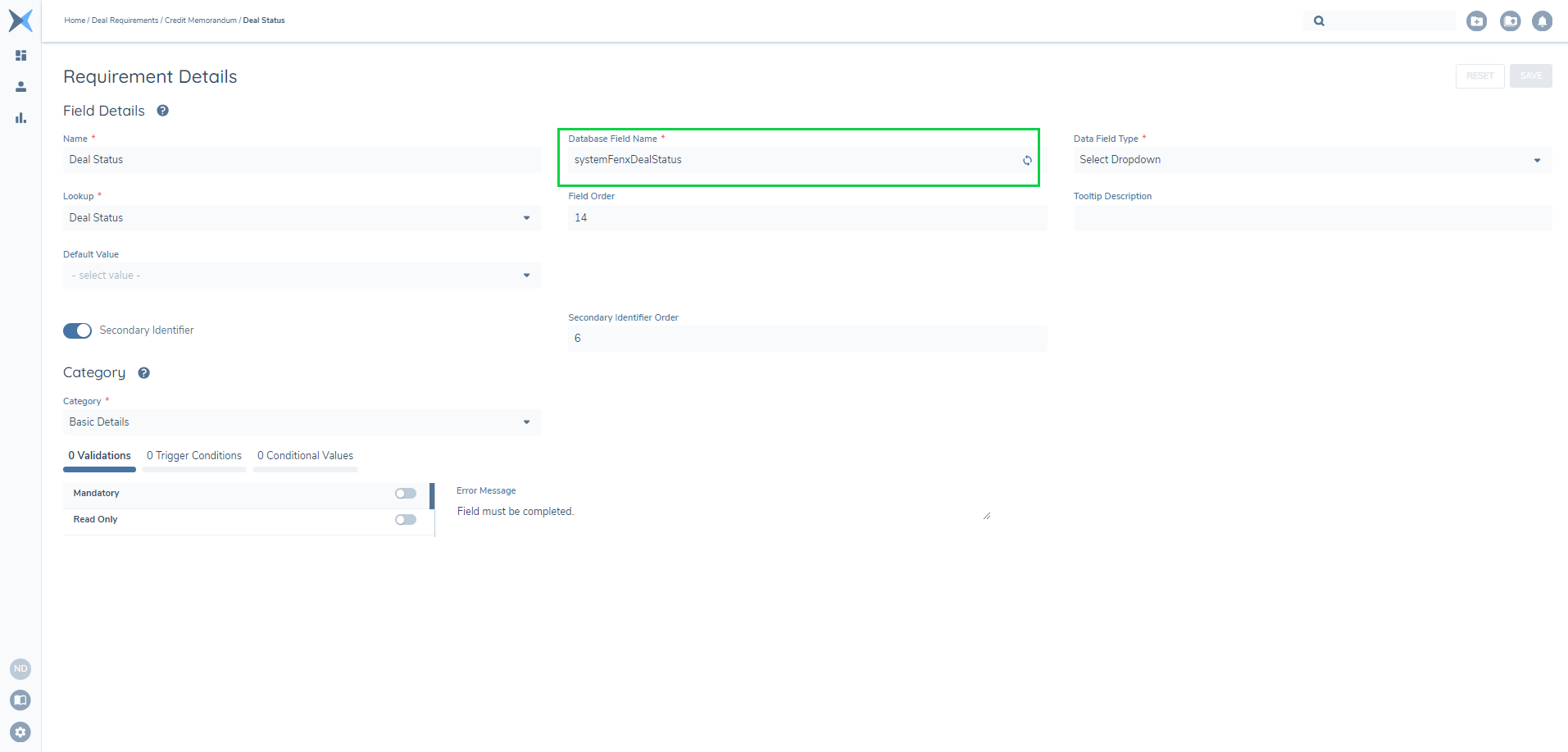
This field is the same as other data requirements and can have validations put in place such as making the field mandatory and setting a default value. Once the published version of the Deal Requirement Set has this data key configured, this status will take precedence over the hard-coded status and the values will display on the Chip within the Manage Deals task.
Once configured, users can interact with this field and choose a value from the dropdown menu within the 'Manage Deals' task. When they select the SAVE action, it will update the status indicator, giving users the flexibility to define the status of Deals. With the introduction of the Deal verification feature, the assigned status at the time of verification will be retained, and the indicator will turn green.
This status field can be utilised in the same way as any other field in the Deal Requirement set and can be used to drive conditional values and used in trigger conditions.
Deal Task Configuration
In Journey Builder tasks have been added that relate to the functionality provided in capturing a deal. The Manage Deals task allows for the fulfilment of deals related to an entity. It serves as the data capture task for deal requirements.
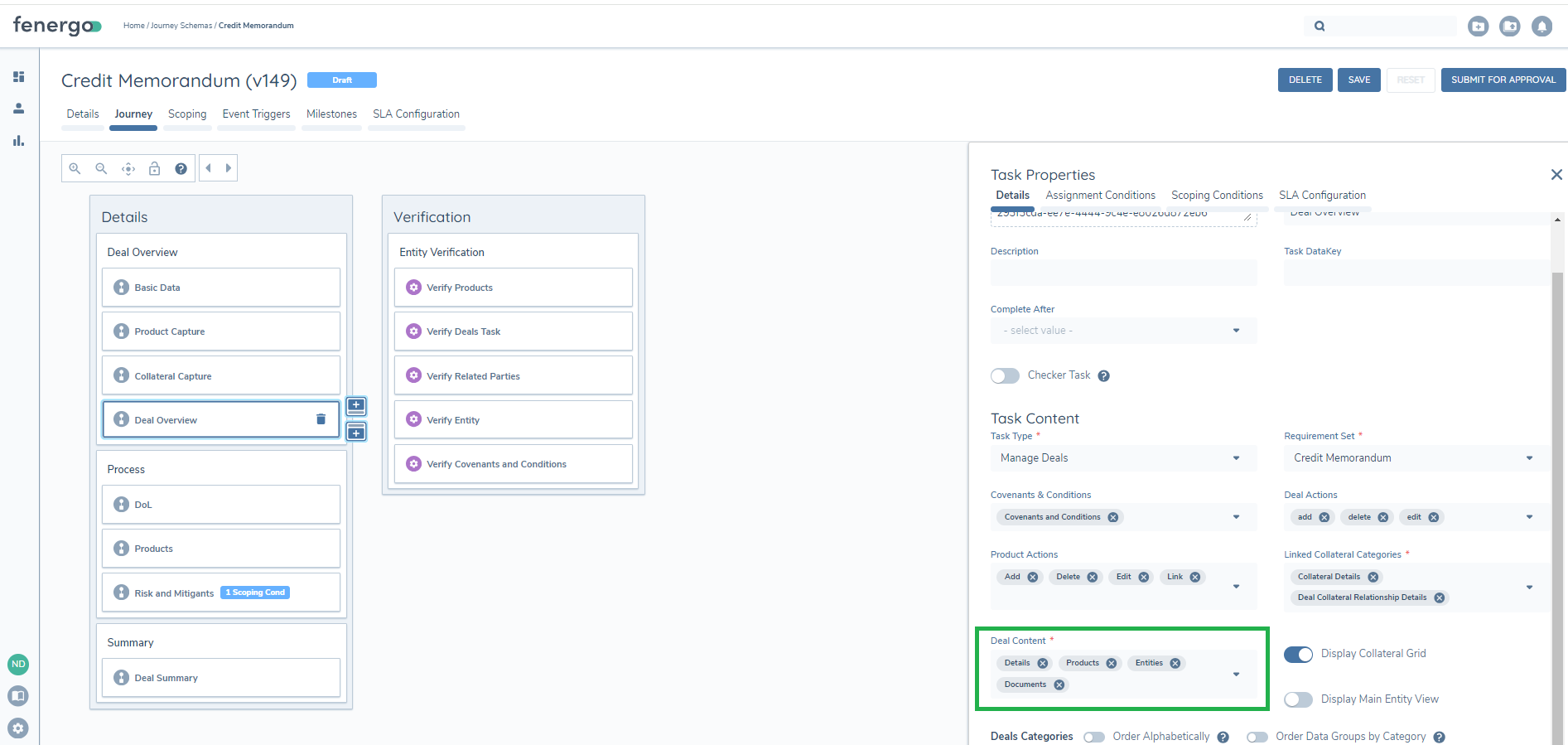
In configuring the Manage Deals task the applicable tabs to be displayed to the user must be enabled.
- Details: Displays the categories and fields to be captured dependent on configuration.
- Documents: Display the documents that must be captured dependent on configuration.
- Products: Displays the view of those products linked to a deal.
- Entities: Displays all Related Parties associated with products linked to the Deal.
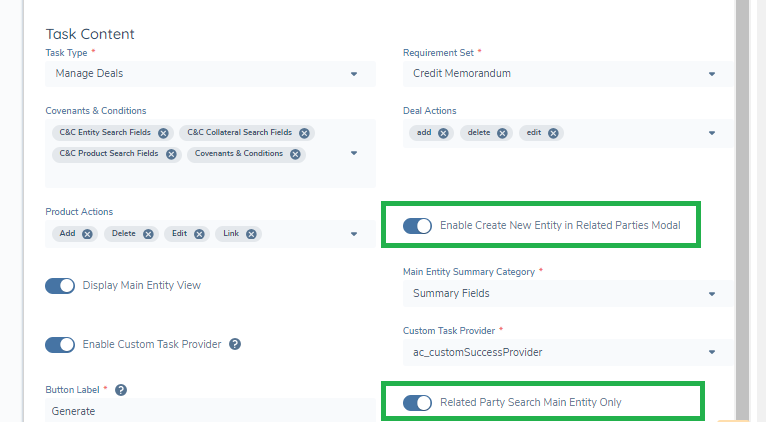
There is an option to restrict the search of related parties to only those that are part of the main entity or Entity Group. This restriction can be configured based on organisational requirements if stricter controls are required. In addition the ability to create new entities can be disabled. When this feature is turned off, users can only search for and link existing entities to the product.
Manage Deals Task Tab Configuration
Details Tab
In configuring the Manage Deals task the specific requirement set that is to be used as the template for the data capture must be selected. This is set by selecting the Requirement Set value under task properties.
The Deal Categories that are to be displayed and captured, at the task level, must then also be selected. This allows for the different data requirements to be surfaced and captured at different points in the Journey. Categories may be added and ordered as in the standard data task, this includes the capability to order datagroups by category. If a category is selected that is not available in the Requirement Set selected it will not be displayed.
Documents Tab
The document requirements are configured in the Deal Requirements. These requirements are presented to the user on the 'Documents' tab in the Manage Deal task. There is the flexibility to define when the 'Documents' tab should trigger or not within this task. This is controlled by the selecting “Documents” option from the Deal Content field within the task configuration. The Document tab can only be supported when “Details” is selected in the Deal Content field.
Products Tab
The 'Product Summary' view and the 'Product Link' modal are both configured in the Global Product Requirement Set . In the 'Product Summary' view, the first two columns remain fixed, while any additional columns are determined based on the Secondary Identifiers defined and the order in which they are specified. Up to five additional columns can be configured. A summary column at the Product Family level displays all Product Types associated with that specific family beneath it.
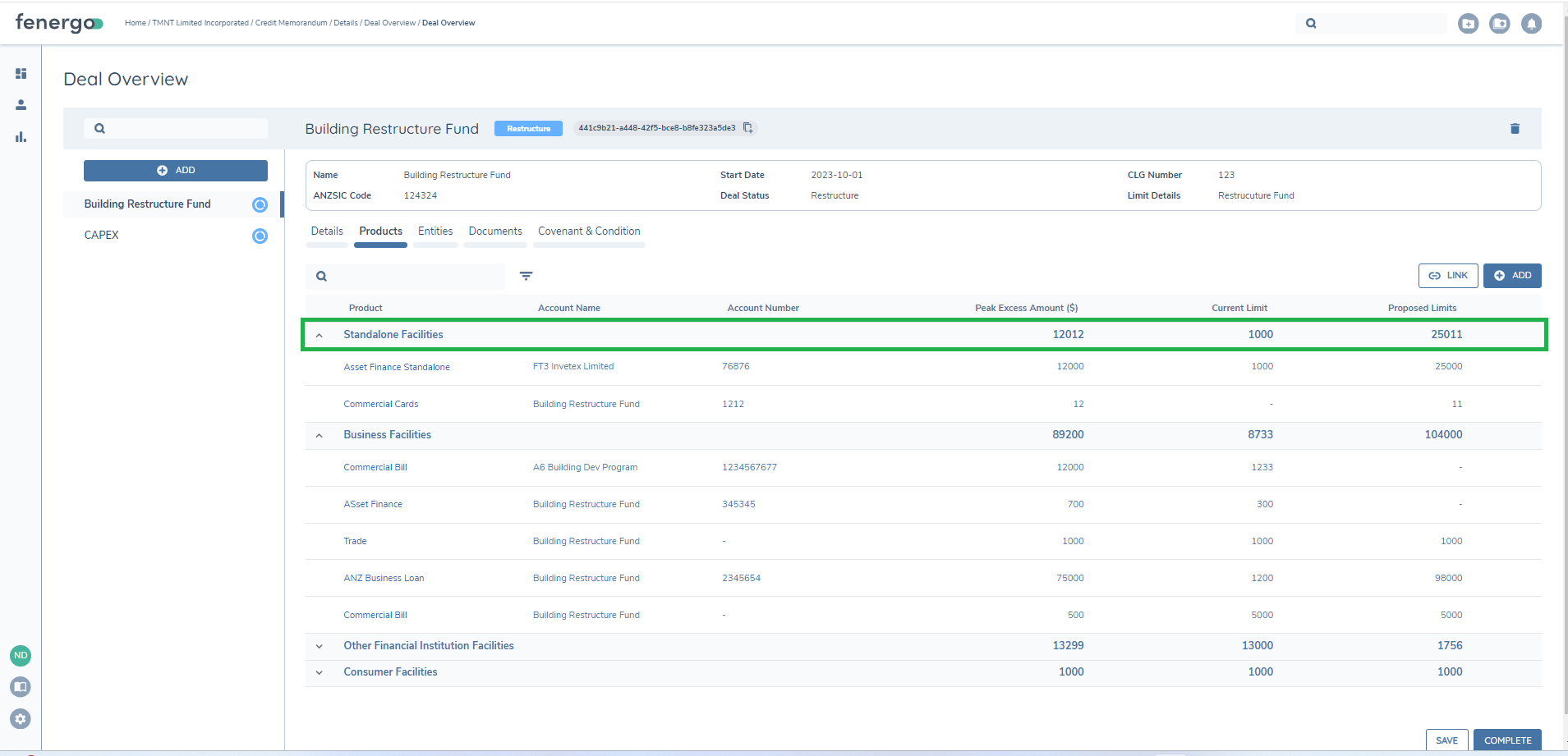
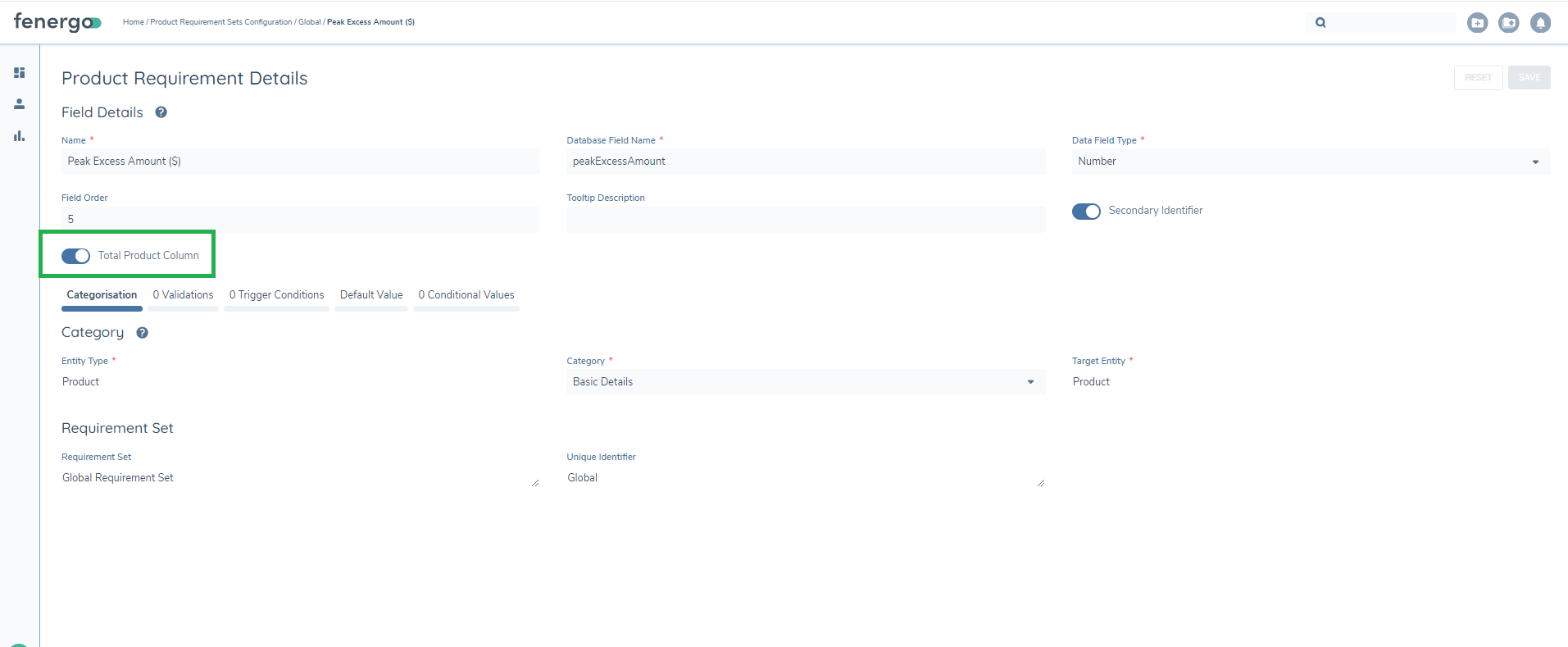
For secondary identifiers that are numeric, these totals can be aggregated in a summary row at Product Family level. There is an additional switch on the data requirement, 'Total Product Column', that displays if the data requirement is defined in Product Global policy, is numeric and is a Secondary Identifier. This toggle must be enabled to aggregate the totals in the summary row.
In the 'Product Link' modal, the first four columns are fixed, with the rest being determined by the secondary identifiers configured in the Global Product Policy
Product to Product Linking Configuration
From in the deals task, it is now possible to link a product to another product as a child. To enable this, in the deals task, enable ADD RELATED PRODUCTS in the journey scheme for the applicable task.
The below rules are applied when linking products to products from the context of the deal
- Having linked a product to another product, it will be displayed in the Related Products table and will be captured with a relationship type of Child.
- Child products will not appear in the product summary view and will not be displayed when linking products to a deal.
- Only products for which the client record is an owner will be available to link.
Product Requirement Set and Categories
In configuring the Manage Deals task the product categories that are to be used as the template for the data capture on the ADD PRODUCT modal must be selected. The Product Requirement Category is a key reference that links the tasks in Journey to the requirements. The ordering of Product Categories in the ADD PRODUCT modal within the Manage Deals task aligns to the functionality in Product, where the order defaults to 'Order Alphabetically' via the toggle, but once untoggled the order can be set to the required order, allowing greater flexibility for data capture.
Categories available for selection are all those that are available in the standard Product Requirement Sets. Once the product tab is selected from the 'Deal Content' the 'Product Categories' are available for selection.
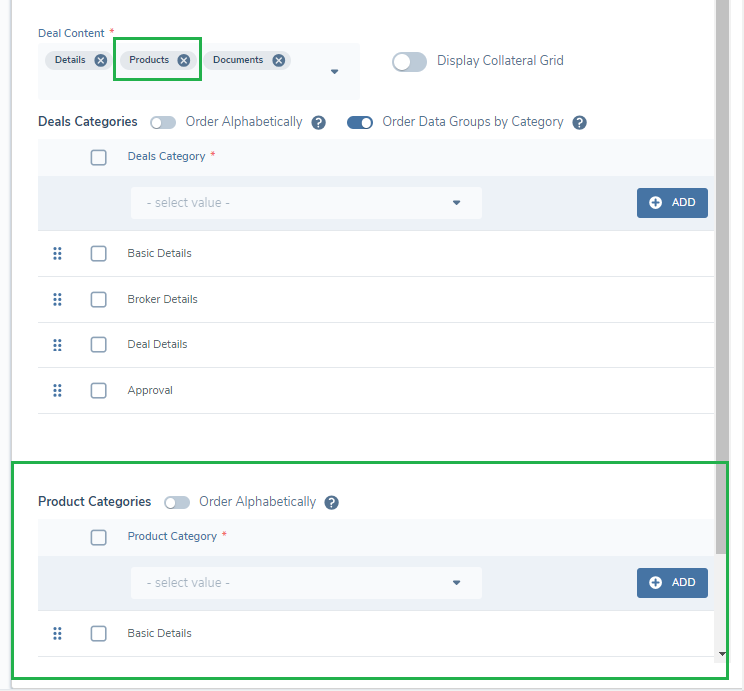
This allows for the different data requirements to be surfaced and captured at different points in the Journey. Categories may be added and ordered as in the standard data task. If a category is selected that is not available in the Product Requirement Set selected it will not be displayed.
Product Related Parties
Relationships between a product and entities is captured and managed, via the ADD PRODUCT modal in the context of a deals task. This allows for the clear understanding of the different actors and their role to the product. Related parties to a product are captured via the Related Parties grid. The related party grid will always display within the ADD PRODUCT modal.
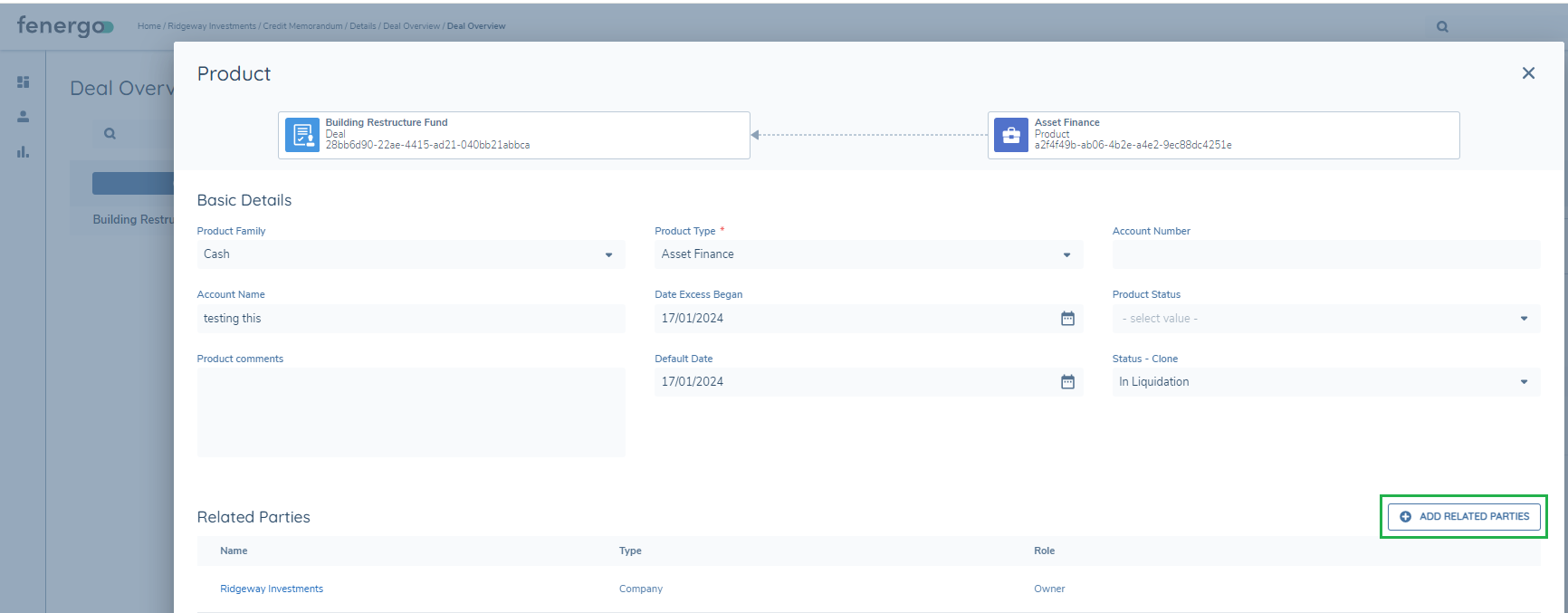
Policy fields must be configured with a Target Entity of “Related Party”, further details on this are available from the Product Enablement Configuration guide in the Product Related Parties section.
There is an option to restrict the search of related parties to only those that are part of the main entity or Entity Group (the search only applies to verified related parties). This restriction can be configured based on organisational requirements if stricter controls are required. In addition the ability to create new entities can be disabled. When this feature is turned off, users can only search for and link existing entities to the product.
Product Fields Data Provider Configuration
The Product policy supports the configuration of a data provider which allows users configure a custom task provider from the product modal on the deals task and the products task.
When using the "borrowerNameConstruct" datakey, a "Calculate" option will appear next to the field when it is enabled on either the Product Task or the Product modal in the deals task.
This option triggers predefined logic in the custom task provider to automatically populate the field. The populated field will be displayed as read-only and cannot be edited manually, any changes to the underlying data used to generate the field, the user must click the calculate option again.
Entities tab
The Entities Tab Displays all Related Parties associated with products linked to the Deal. Refer to the Product Related Parties configuration section on how to configure related parties on a product.
Enable Main Entity View
The ability to view the main entity can be configured on the deals task. This feature can be toggled on or off using the "DISPLAY MAIN ENTITY VIEW" toggle.
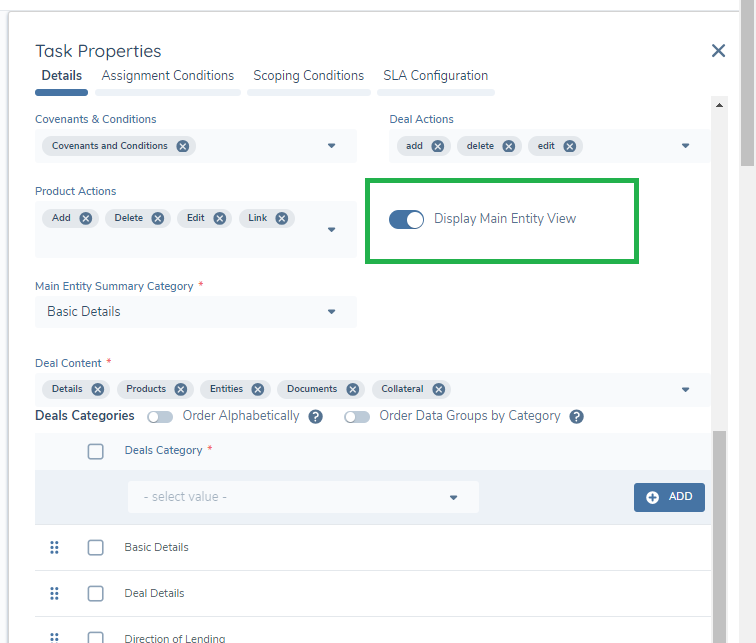
In configuring the Manage Deals task the policy categories that are to be used for display in this view must be selected. The Policy Requirement Category is a key reference that links the tasks in Journey to the requirements.
The ordering of Policy Categories in the main entity view within the Manage Deals task aligns to the functionality in Policy, where the order defaults to 'Order Alphabetically' via the toggle, but once untoggled the order can be set to the required order, allowing greater flexibility for viewing the data.
Categories available for selection are all those that are available in the standard Policy requirement sets.
Once the toggle is enabled, policy categories can be selected.
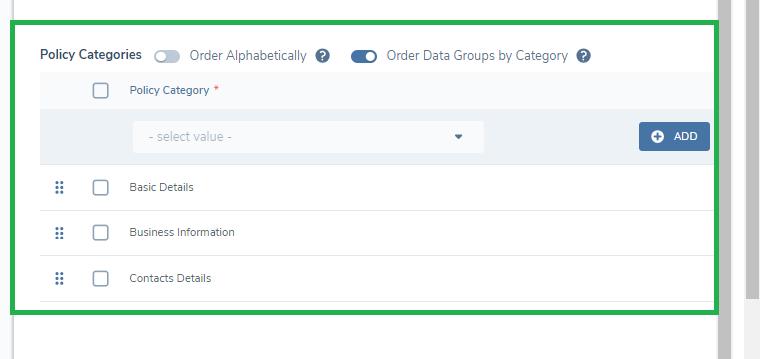
Enable Deal Actions
The Manage Deals task has several actions that can be performed while the task is active, including Add, Edit, and Delete a Deal. Additionally, there are product/collateral related actions available within the context of a deal, such as Add, Link, Edit, and Delete.
To increase flexibility, it is possible to specify when these actions are accessible within the task. This allows for the configuration of permitted actions based on the journey, or in cases where multiple tasks are established within a single journey, actions can be customised for the respective stage.
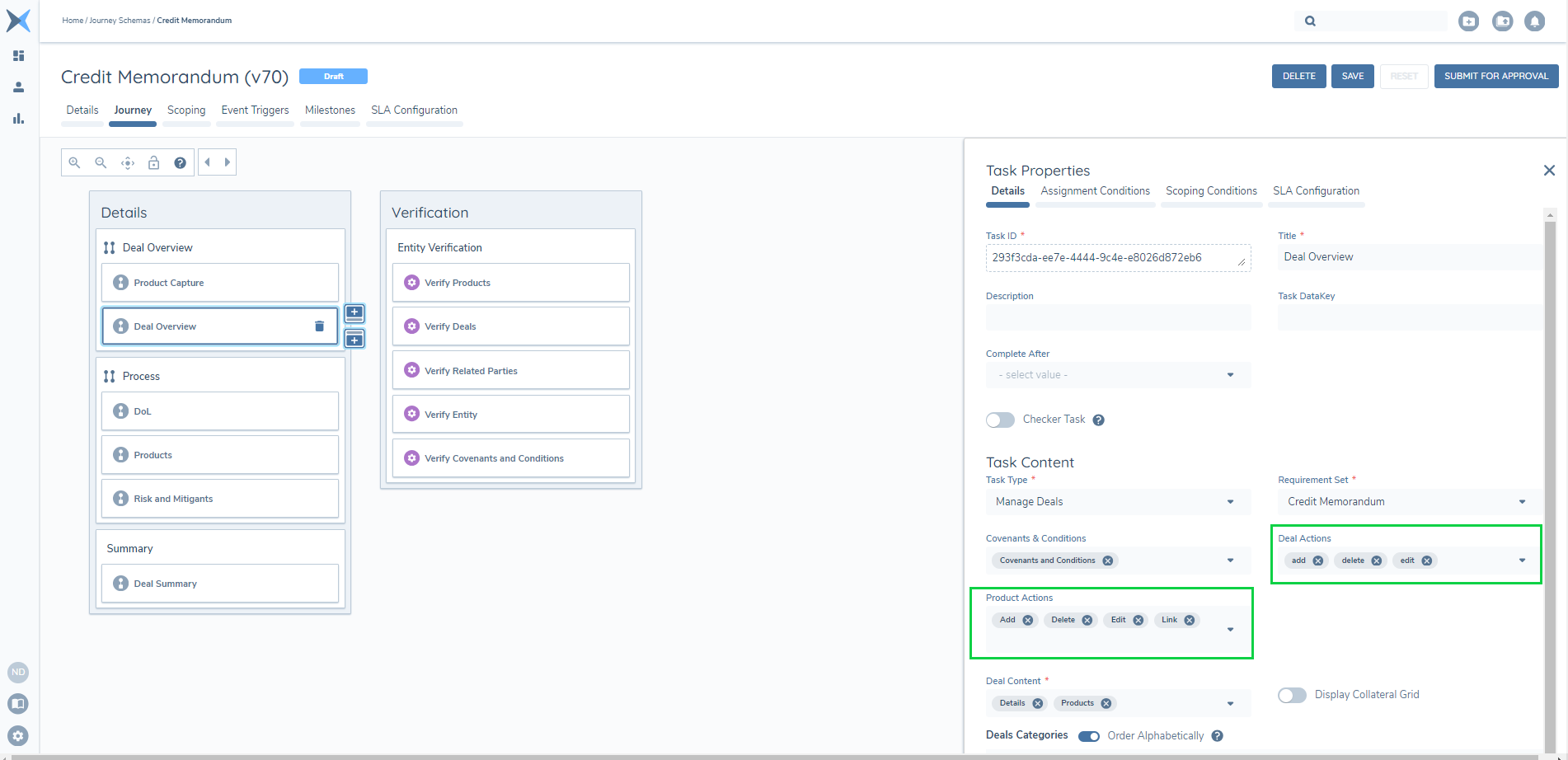
By default, all actions are accessible. However, within the Deals task configuration in the journey builder, it is possible to add or remove actions. If a specific action is not enabled, it will be hidden on the user interface (UI).
Enable Custom Task Provider
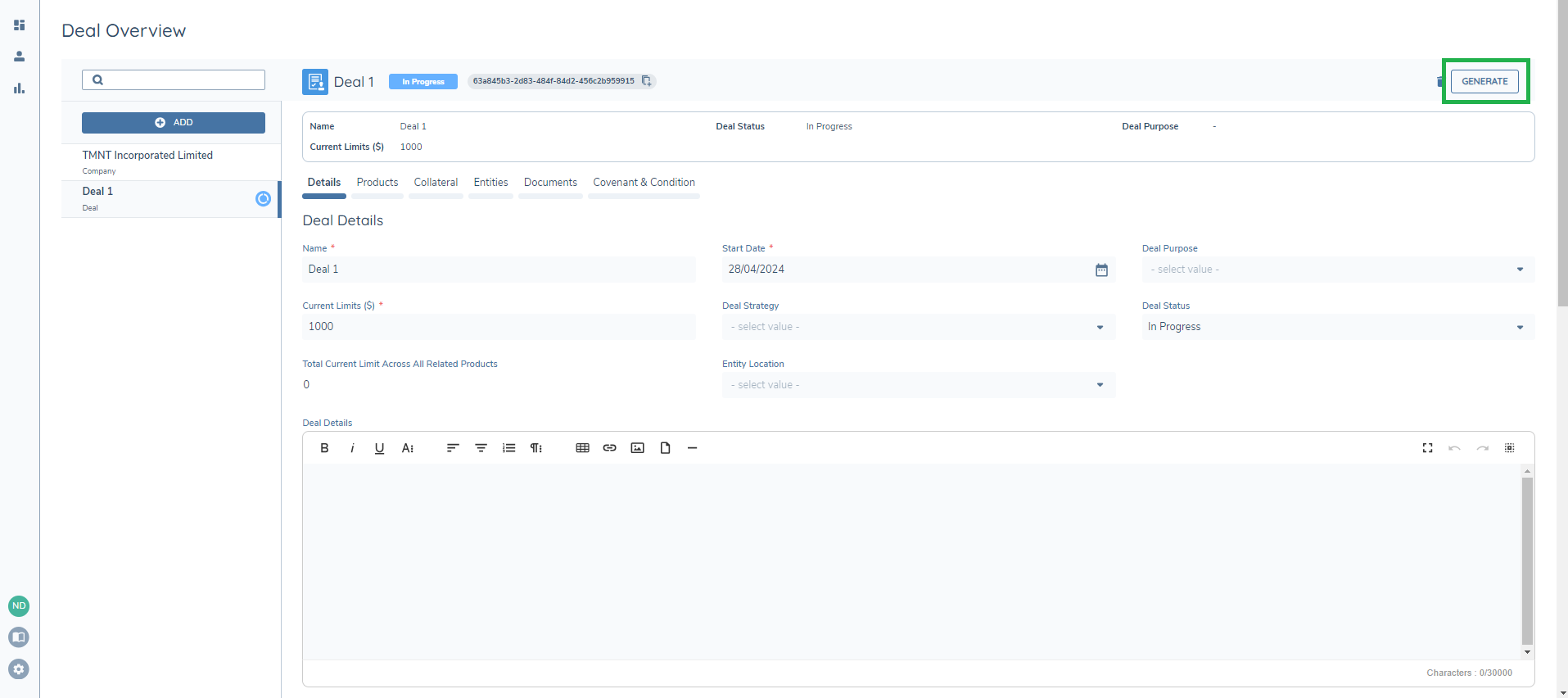
The Manage Deals task includes the option to enable the custom task provider through it's respective switch and additionally has the configurability to label the button (that appears in the task) that triggers a call to the custom provider.
The custom task providers are configured in “API Providers” which can be accessed from the system left hand navigation under the Policy Domain. This will allow clients to call their own integrations from the deals task.
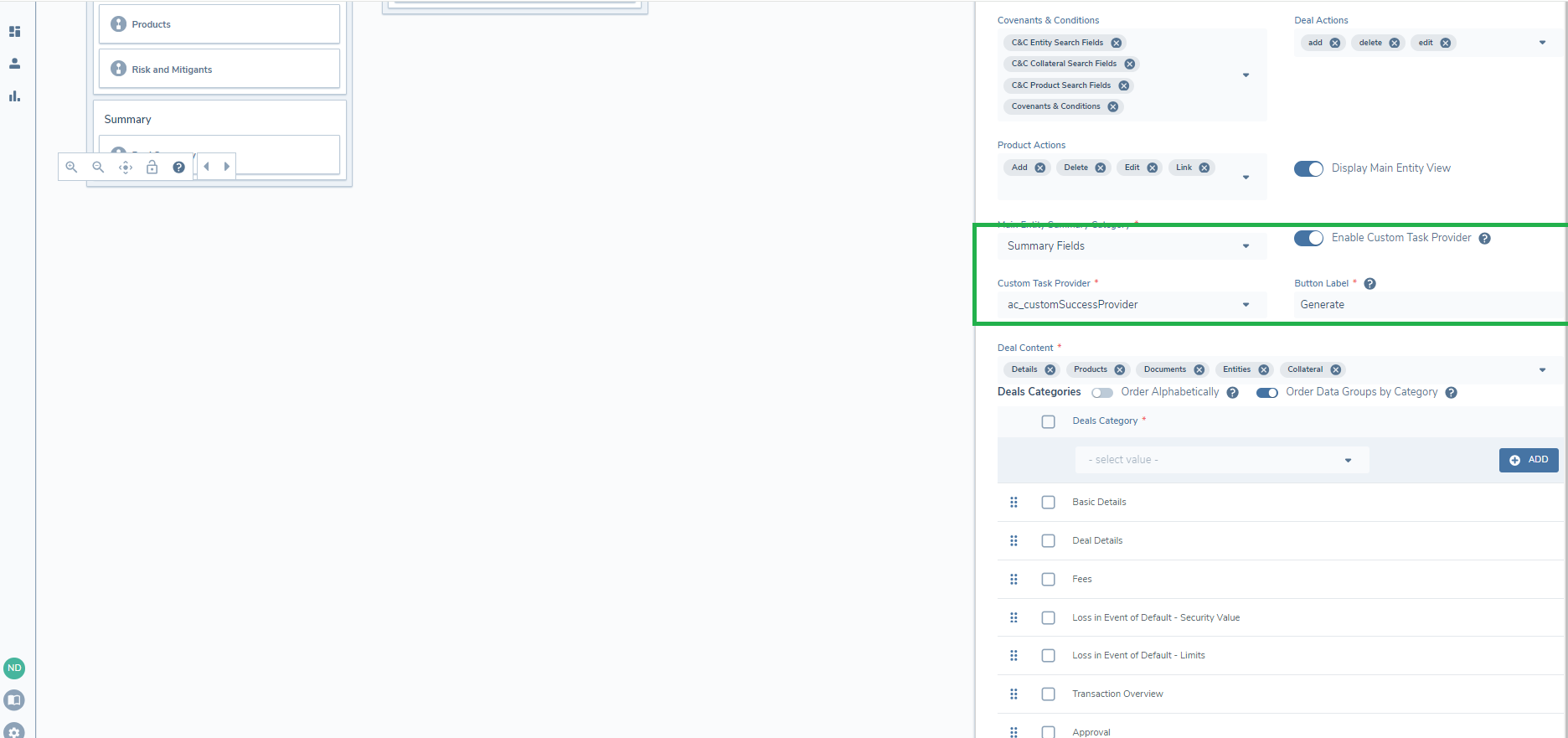
Once enabled the button will display on the deals task in the top right hand position for each deal.
Deal Verification Task
This automated service task must be configured after the 'Manage Deals Task'. This task will verify the Deal and its association to the product and the main entity. A separate verification task is required for any products added in the context of a Deal and for Covenants and Conditions (including any manual associations added to the Covenant and Condition).
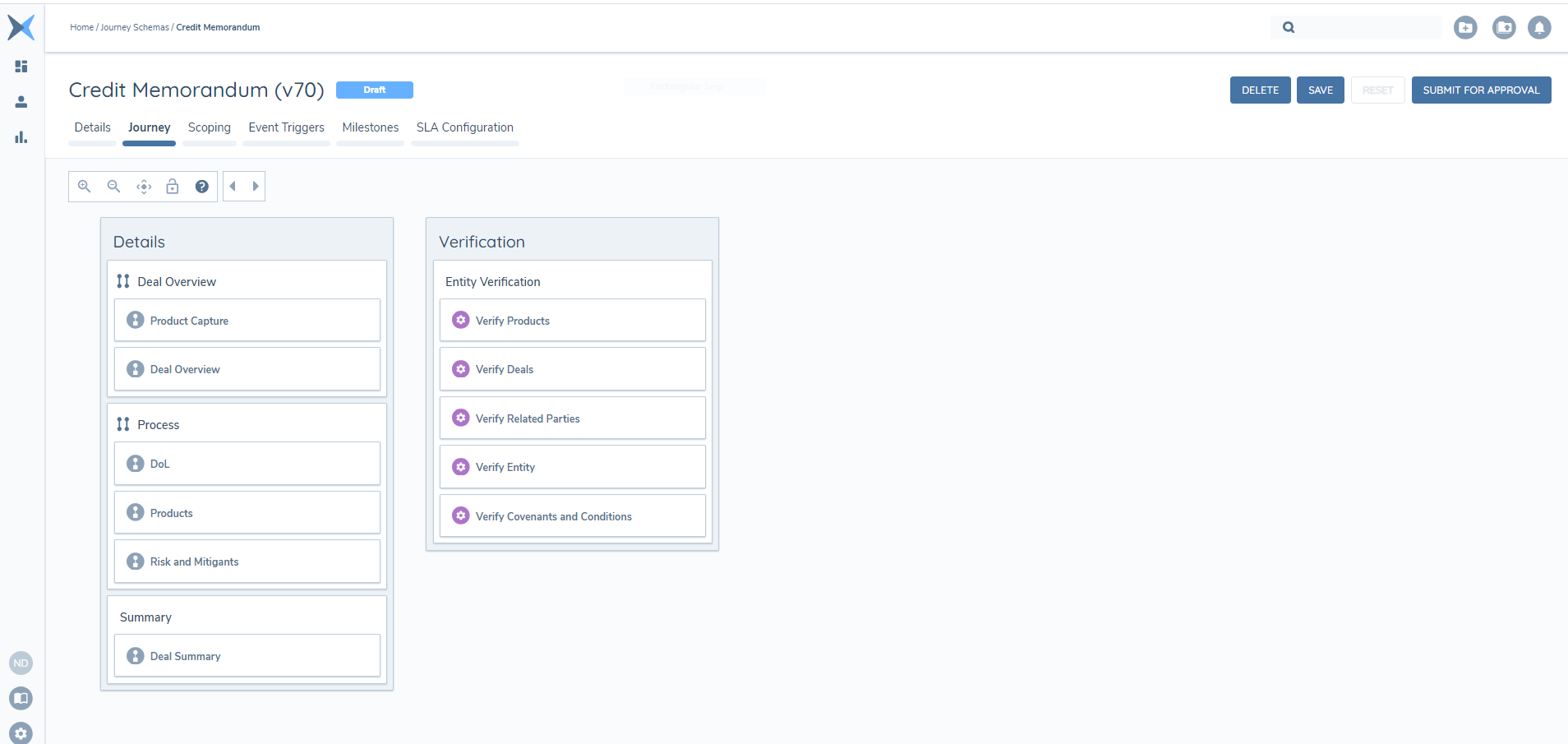
Once a Deal is verified the Deal Status is set to verified and the Deal may be viewed as read only under any subsequent journeys for the main entity. The Deal cannot be deleted. The Deal can be edited in subsequent journeys.
Performance Guidelines and Limitations
There is a restriction on the number of Deals that can be linked to an Entity, as well as the total number of Entities that can be linked to a Deal Task. A maximum of 20 Deals can be associated with an Entity, and up to 500 Entities can be linked across all Deals within a Deal Task.
Security – Deal Permissions
Configuration
| Permission Name | Description | Notes |
|---|---|---|
| Deal Configuration Access | Ability to access the Deal Configuration. | Required by System Configuration users in lower-level environments to access the configuration. Generally, only provided to Application Support Teams in a Production environment. |
| Deal Configuration Edit | Ability to interact with the configuration feature including creating new Requirement Sets, editing drafts and submitting drafts for approval | Required by System Configuration users in lower-level environments to create and modify Requirement Sets. This permission is not typically granted to users in a Production environment. |
| Deal Configuration Approve | Ability to approve a Deal Requirement Set version that is submitted for publication. | Required by System Configuration users in lower-level environments to approve a Requirement Set version. This permission is not typically granted to users in a Production environment. |
| Deal Configuration Archive | Ability to archive a Requirement Set version. | Required by System Configuration users in lower-level environments to archive a Requirement Set version. This permission is not typically granted to users in a Production environment. |
| Deal Configuration Delete | Ability to delete a Deal Requirement Set version or full record. | Required by System Configuration users in lower-level environments to delete a Deal Requirement Set version or full record. This permission is not typically granted to users in a Production environment. |
Operational - Deal Data / Capture
| Permission Name | Description | Notes |
|---|---|---|
| Deal Access & Search | Ability to search and access deal records | Required for all operational users who are involved with CLM (Client Lifecycle Management) activities within the system. |
| Deal Edit | Ability to create and edit deal draft records | Required for operational users who will be editing a deal in a journey. |
| Deal Approve | Ability to approve or reject deal drafts and to create new verified entities. | Required for operational users who are involved in approving or rejecting deal records at the end of a journey. |
| Deal Requirement Scope | Ability to view and interact with the requirements in scope. | Required for operational users who are interacting with deals in a journey and will not have configuration permissions. |
| Deal Delete | Ability to delete a deal. | Required for operational users who will be capturing deals in a journey and may need to delete a deal if captured in error. |
Operational - Product Data / Capture
The below permissions are an established set that can be utilised to define the accessible product functionalities for users within the context of a Deals task.
| Permission Name | Description in Context of a Deals Task | Notes |
|---|---|---|
| Product Access & Search | Capability to view products on the Product Summary View within the Products tab of the Deals task and Product Summary view at the main entity | Required for all operational users who are involved with deal activities within the system. |
| Product Edit | Ability to create, edit product draft records and link products to the deal | Required for operational users who will be managing products in a deal in a journey. |
| Product Delete | Ability to delete | Required for operational users who will be managing products in a deal journey. |