ETL Post Processing
Overview
We are introducing the ability to perform actions after entities are loaded through ETL. After the load phase completes, a number of post-processing actions are available, including the recalculation of Dynamic Access Layers (Entity and Product) and Jurisdiction assignments for entities that were created or updated during the migration. This ensures that migrated data aligns with standard Fenergo platform rules for access control, policy scoping, and jurisdiction configuration. These actions run after the ETL load phase and can be enabled per migration project.
ETL Post Processing Capabilities
When using ETL Post Processing, users can apply automated recalculation logic to entities migrated via ETL to ensure consistency with entities processed through standard platform journeys.
Supported capabilities include:
- Recalculation of Dynamic Access Layers (Entity and Product)
- Recalculation of Jurisdiction assignments
- Automatic triggering of Journeys following ETL load
Prerequisites to Using ETL Post Processing
Before using Dynamic Access Layer recalculation for Entities, the following tenant-level setting must be enabled under 'Dynamic Assignment Configuration':
- Enable Entity/Journey Dynamic Access Layers Assignment
If this setting is not enabled, the Calculate Dynamic Access Layers toggle will not display within the ETL project.
Given Product Access Layers can only be set via Dynamic Assignment Configuration, the Calculate Dynamic Product Access Layers toggle is always available (without dependency on the tenant-level setting). If this toggle is disabled in the ETL project, if Product Dynamic Assignement rules are not met by the product or rules not configured, then defaults will be applied (Enterprise and Global).
Configuring Post Load Actions
Post Processing actions are configured during ETL project creation or edit using Post Load Actions.
To configure Post Load Actions:
- Create or open an ETL project.
- Navigate to Project Details.
- Enable one or more of the following options:
- Calculate Dynamic Access Layers
- Calculate Dynamic Product Access Layers
- Calculate Jurisdictions
- Save the project configuration.
- Run the ETL migration.
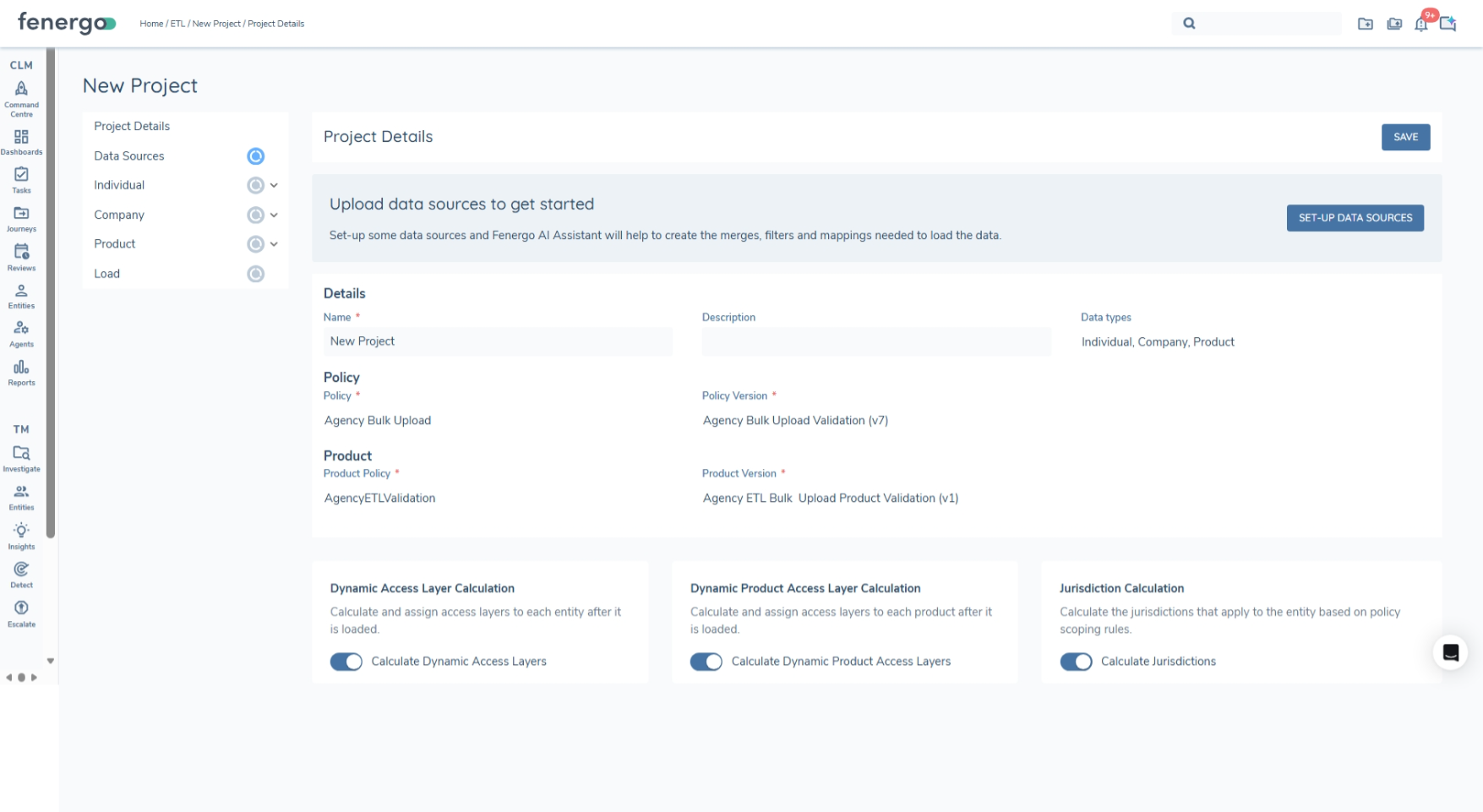
Post Load Actions apply only to entities created or updated within the ETL project.
Post Load Actions Execution
Post Load Actions execute automatically after the ETL Load phase completes.
Execution flow:
- ETL Load completes successfully.
- Enabled Post Load Actions are triggered.
- All eligible entities created or updated by the project are collected.
- Recalculation logic is applied.
- Results are persisted on the entity record.
Post Load Actions run asynchronously and do not block ETL project completion.
Monitoring Post Load Actions
Users can monitor Post Processing progress from the Post Load Actions tab within the ETL project.
The Post Load Actions tab displays:
- Post Processing Action name
- Execution status (Calculated, Failed and Unprocessed)
- Start and completion timestamps
If an action fails, the ETL load is not rolled back. Failed entities can be reviewed and addressed separately.
Entities with an In-Progress journey will fail Entity Dynamic Access Layer recalculation.
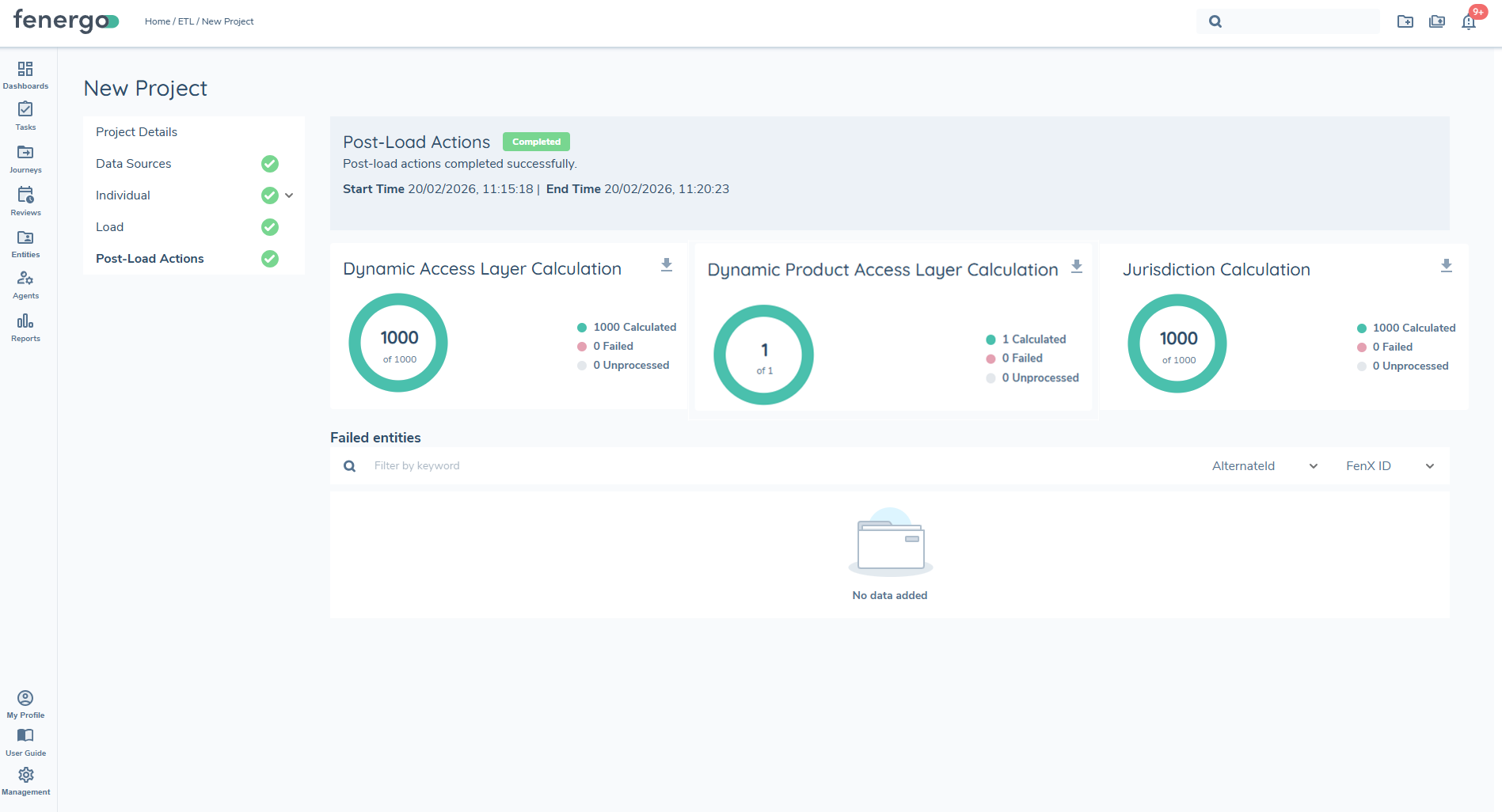
Calculate Dynamic Access Layers
Dynamic Access Layers (DAL) provide rule-based access control to calculate access layers and for ETL purposes, these can be assigned to Entities or Products during migrations. Calculation is driven by entity attributes, metadata, and related product information. When enabled, this Post Processing action recalculates DAL assignments for supported entities migrated via ETL.
This ensures migrated entities follow the same access governance rules as entities processed through standard platform workflows.
Capabilities (DAL)
- Evaluates and applies Dynamic Access Layer rules
- Ensures consistent access control for migrated entities
- Supports recalculation at entity level only
- Applies only when Dynamic Access Layers are enabled for the tenant
Supported Entity Types (DAL)
| Entity Type | Supported | Notes |
|---|---|---|
| Individual | Yes | Included for Create and Update operations |
| Company | Yes | Included for Create and Update operations |
| Other | Yes | Included for Create and Update operations |
| Products | Yes | Included for Create and Update operations |
| Managed Relationship | Yes | Included for Create and Update operations. See ETL Agency Migration |
| Investment Account | No | Not currently supported |
| Bank Account | No | Not currently supported |
Evaluation
Please refer to the Dynamic Access Layer User Guide: Access Management User Guide
Processing Behaviour (DAL)
- All supported entities in the ETL project are included automatically.
- Recalculation fails for entities with an In-Progress journey.
Calculate Jurisdictions
Jurisdiction assignment determines which jurisdiction-specific policies apply to an entity. This Post Processing action recalculates jurisdiction applicability for entities created or updated during ETL.
This ensures downstream journeys apply the correct jurisdiction configuration and policy version.
Capabilities (Jurisdictions)
- Re-evaluates jurisdiction applicability post migration
- Adds newly applicable jurisdictions
- Preserves existing jurisdictions
- Updates the policy version for the entity
Supported Entity Types (Jurisdictions)
All entity types created or updated during ETL are included in jurisdiction evaluation.
Entity-to-entity associations do not currently affect jurisdiction outcomes.
Inputs to Jurisdiction Determination
Please refer to the Policy and Jurisdiction User Guide: Policy and Jurisdiction User Guide
Processing Behaviour (Jurisdictions)
- All migrated entity IDs of type Individual, Company, Other and Managed Relationship are included in recalculation.
- Jurisdictions are added but not removed.
- Jurisdiction values shown on the entity profile reflect the most recent verification snapshot.
Journey Launch
The Journey Launch feature enables ETL to automatically trigger journeys for migrated entities after data loading is complete. This ensures that entities can resume in-progress activities such as Risk Assessment, Screening, and Due Diligence within Fenergo.
Journey Launch is configured at the entity type level and currently only available for Individual and Company.
Configuration
Journey Launch is configured separately for each entity type.
- Enable Journey Launch A toggle is provided to enable or disable Journey Launch. The toggle can be changed until the ETL load starts. Once the load begins, the configuration becomes read-only.
- Select Journey Type: Users must select a Journey Type. If multiple journeys are in scope the selected Journey Type, the first valid journey is triggered.
- Define Conditions (Optional):Configure optional filter conditions to control which entities are in scope. These conditions follow standard ETL filtering logic, with Main Entity as the available data source.
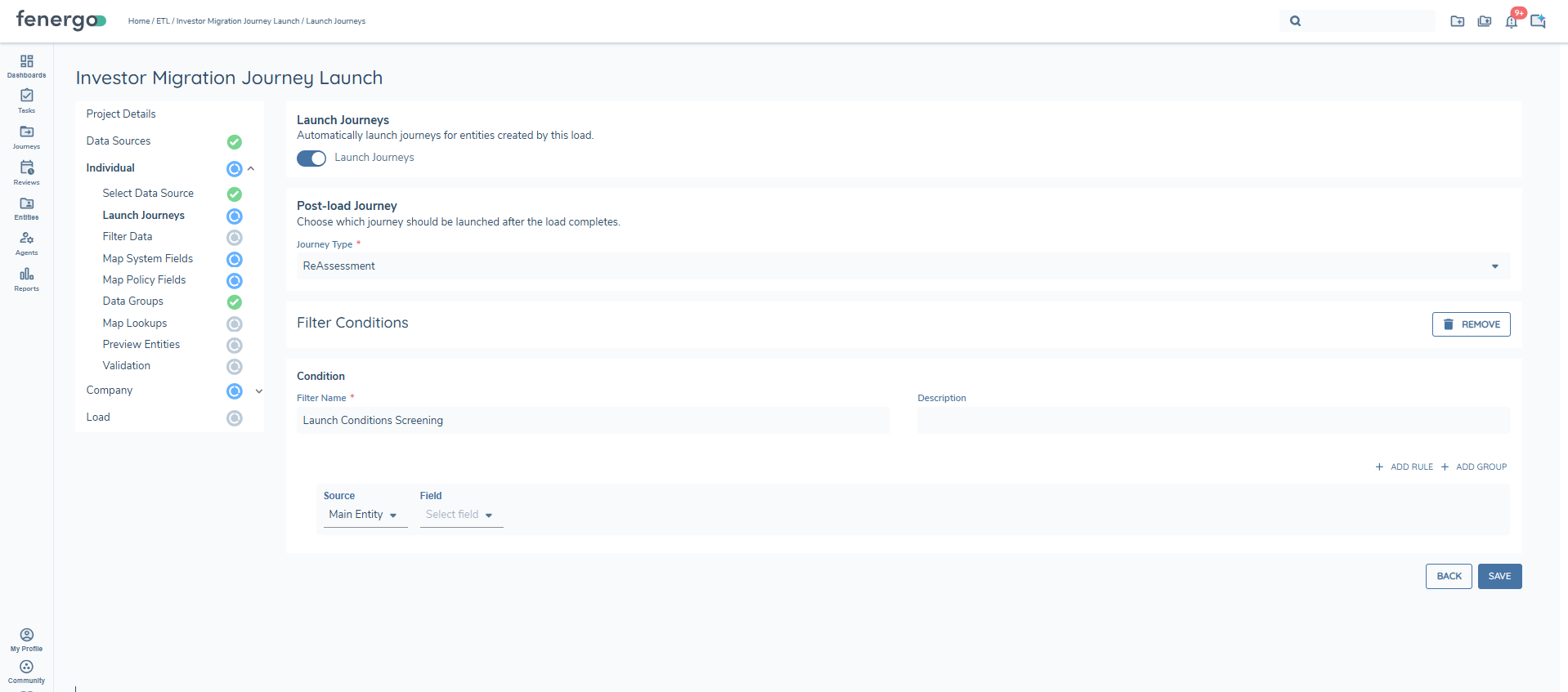
Entity Evaluation
Once the load is complete the system will begin the evaluation to determine if any of the entities meet the criterion for journey launch. For each entity, the system:
- Evaluate ETL Conditions (if defined):The system assesses any conditions configured within the ETL process to determine eligibility.
- Apply Journey Schema Scoping:The system identifies all Journey Schemas associated with the relevant Journey Type and evaluates their scoping conditions to determine which are applicable to the entity. These scoping conditions ensure that only the most appropriate Journey(s) are selected based on the entity’s characteristics and context. For example, multiple Client Onboarding Journeys may exist, but only those whose scoping conditions are satisfied (e.g., specific to Private Companies) will be considered. ¹
- Enforce Journey Launch Controls: Before a Journey is initiated, the system checks whether any configured Journey Launch Control conditions prevent the launch. A Journey can only proceed if the Launch Control condition is not met, and at least one Journey Schema has satisfied its scoping conditions.
Determines if the entity is in scope for journey launch. Only entities that meet all criteria will have a journey triggered.
Progress Indicator
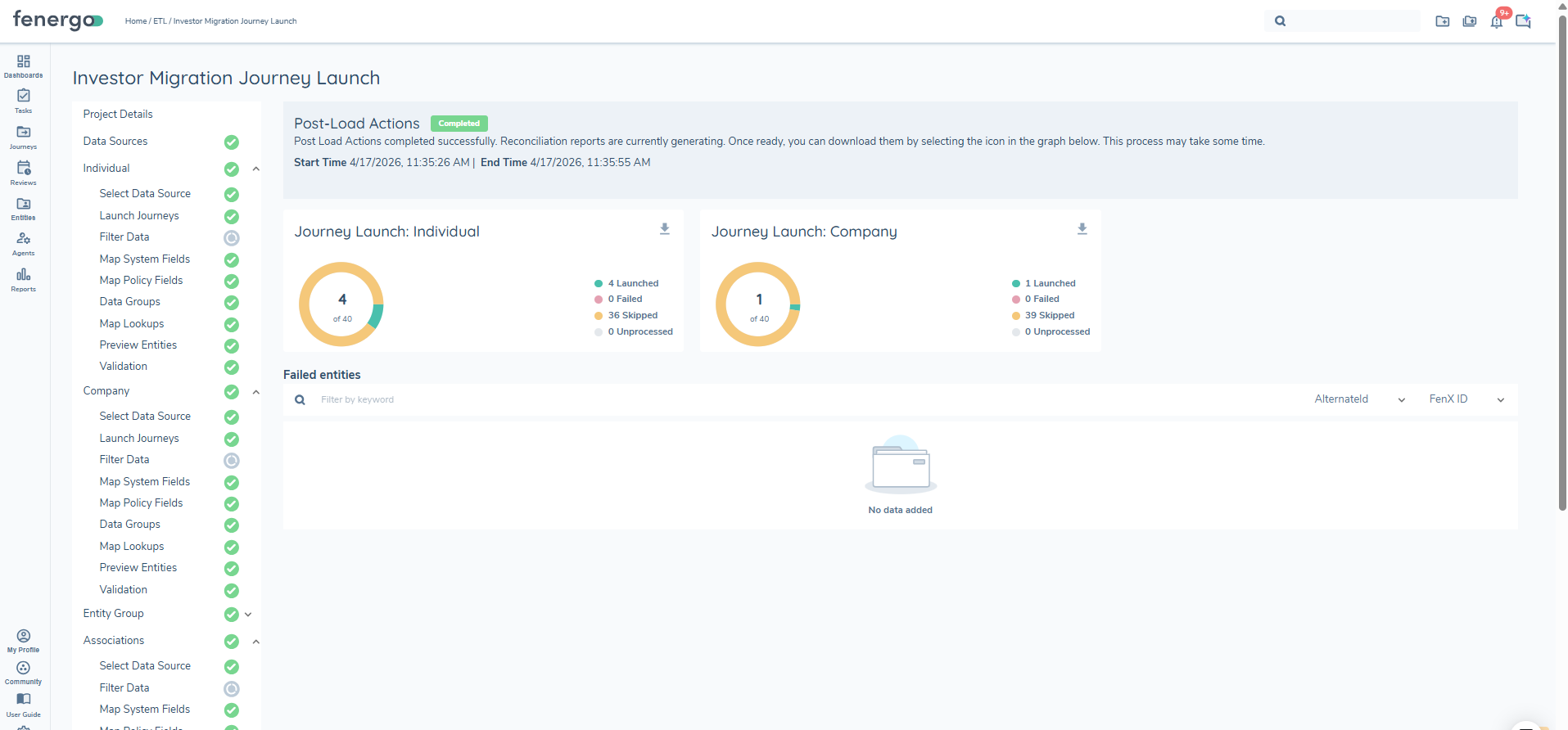
The following statuses are available:
- Launched: The entity met all ETL, scoping, and journey launch conditions, and the journey was successfully triggered.
- Failed: The entity was in scope for journey launch, but an error occurred when attempting to trigger the journey.
- Skipped:The entity was evaluated but did not meet the required ETL conditions, journey scoping or journey launch criteria, so no journey was triggered.
- Unprocessed: The entity has not been evalauted for journey launch
Reports
A Journey Launch report is generated for each entity type that has Journey Launch enabled:
Individual_Journey_Launch_Report_<MigrationID>.csvCompany_Journey_Launch_Report_<MigrationID>.csv
The report provides a complete record of every entity evaluated for journey launch during the load, including those that were skipped or failed, and can be used to reconcile outcomes or investigate issues.
Each row represents a single entity and contains the following fields:
| Field | Description |
|---|---|
| FenXID | The Fenergo entity identifier (GUID) of the migrated entity. |
| ALTID | The alternate/source system identifier supplied in the ETL load. |
| InScopeForJourneyLaunch | Yes if the entity satisfied the ETL conditions, journey scoping and launch control checks; No if it was filtered out before a journey was attempted. |
| JourneyID | The identifier of the journey created for the entity. Populated only where a journey was successfully triggered. |
| MigrationID | The identifier of the ETL migration run that produced this report. Used to correlate the report with the source load. |
| DateJourneyCreated | The UTC timestamp at which the journey was created. Populated only where a journey was successfully triggered. |
| JourneyType | The configured Journey Type evaluated for the entity (e.g., Client Onboarding). |
| LaunchStatus | The outcome for the entity. See the Progress Indicator section for the full list of statuses (Launched(in UI) / Success (in report), Failed, Skipped, Unprocessed). |
| Reason | Explanation where a journey was not triggered — for example, "No journey found to run for type Client Onboarding for entity <FenXID>" when no Journey Schema's scoping conditions were satisfied. Blank for successful launches. |